

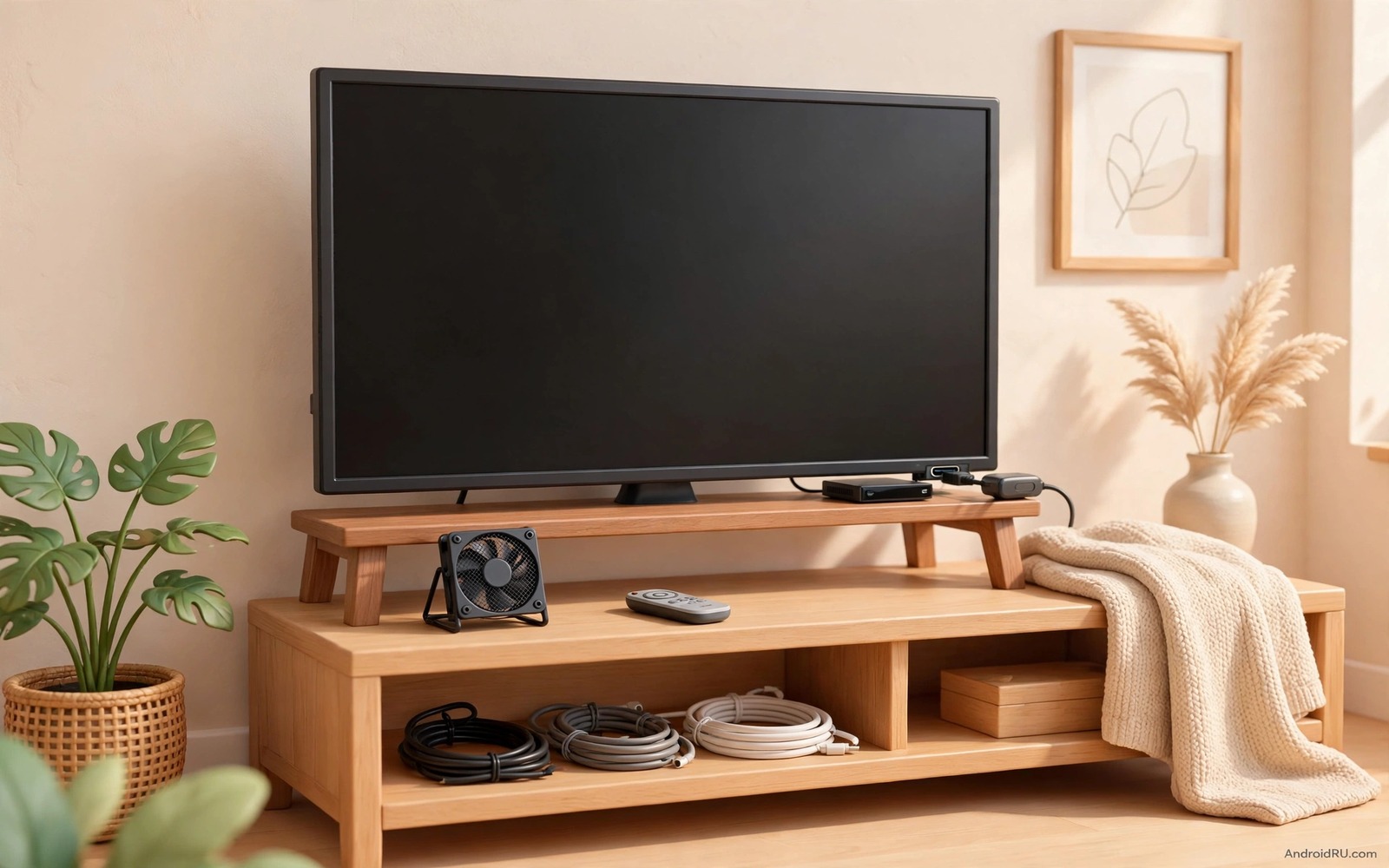
A small TV dongle can feel slow for reasons that have little to do with your internet plan. Heat builds up behind a television and storage fills up fast and a weak power supply can starve the chip during busy scenes. Each of those limits shows up as stutter and long loading screens and apps that close without warning. The good news is that a few well chosen accessories can remove those limits without buying a new television or a new streaming box.
This guide looks at five upgrades that work together as a system. A cooling stand keeps the chip at a steady temperature during long films. A powered hub gives you room for storage and wired network and a keyboard remote at the same time. A better power adapter stops brownouts that cause random restarts. A wired network adapter removes wireless interference from a crowded home. A simple storage stick gives apps room to breathe when internal memory runs low.
Start with the problem you notice most and add only one upgrade at a time. That method lets you see which change made the difference on your own setup. If menus feel sluggish after an hour of viewing then heat is the first suspect to test. If films buffer while other devices work fine then the network path needs attention first. Readers who want a wider view of TV setup can also explore hidden Android TV settings worth enabling before they buy anything new.
Test accessories in the order that matches your biggest frustration rather than the order a store lists them. A viewer who hates buffering should test network first while a viewer who hates crashes should test power and storage first. That personal order keeps spending low and it gives a clear result after each change. Write down the symptom before each upgrade so you can compare fairly after it.
Cool The Dongle Before You Blame The App
A dongle tucked behind a television sits in warm air with almost no airflow around it. The chip slows itself down when it gets hot and that slowdown looks exactly like a weak app or a slow connection. A small stand or a clip-on fan moves that warm air away and lets the chip hold its normal speed for a whole film. Choose a quiet fan that draws power from the television USB port so it runs only while you watch. Keep the dongle away from the back panel of the television and leave a small gap for air to pass on both sides.
Test the effect with a simple before and after check on the same film at the same time of day. Watch the first ten minutes without cooling and note any stutter or dropped frames. Then add the fan and repeat the same scene and compare the result in plain terms. If the picture stays smooth for longer then heat was part of the problem. If nothing changes then move on to storage and power because those limits can look very similar on screen.
Add A Powered Hub For Storage And Network
A single USB port on a dongle cannot serve a keyboard and a storage stick and a network adapter at the same time. A powered hub solves that limit by giving each device its own stable power and data path. Connect the hub to the dongle and then plug storage into one port and a wired network adapter into another port. Keep the hub power adapter plugged into a wall socket rather than a television port so the hub never competes with the dongle for power.
# Dongle health checklist to run after each upgrade
check_temperature = warm_not_hot
check_free_space = above_20_percent
check_power = stable_adapter
check_network = wired_when_possible
result = all_checks_pass
The snippet above is an original example written for this guide. It shows generic settings that you can adapt to your own device. It does not copy code from any outside source.
Storage choice matters as much as hub choice for daily use. A fast USB stick with generous free space lets apps cache artwork and downloads without filling internal memory. Leave at least a fifth of the stick empty so writes stay fast and the stick lasts longer. Format the stick with the dongle first so the system recognises it cleanly. If an app still crashes after this step then check the power adapter next because an underpowered supply can undo every other upgrade.
Fix Power And Wired Network Together
Many dongles ship with a compact charger that barely meets the rated power of the device. A stronger adapter from a trusted maker gives the chip a stable voltage when the processor and the wireless radio work hard at once. Use the cable that came with the stronger adapter when you can because a thin cable can drop voltage over its length. Avoid plugging the dongle into a television USB port for power because that port may limit current and cause restarts during peak scenes.
A wired network adapter removes the most common source of evening buffering in flats and busy homes. Wireless signals compete with neighbours and microwaves and baby monitors and every phone in the house. A cable gives the dongle a private path to the router that does not change when someone else starts a video call. Readers who stream over wireless can compare this approach with wired streaming fixes for slow buffering and decide which path fits their room layout best. Run the cable along a wall and keep it away from power cables to avoid noise on the line.
Choose A Remote That Makes Typing Easy
Typing a password with a directional pad turns a two minute job into a ten minute chore. A compact wireless keyboard remote with a touchpad lets you search and sign in and browse settings without frustration. Pick a model with backlit keys if you watch in a dark room and check that it pairs through a small USB receiver or Bluetooth without extra software. Keep the receiver on the powered hub so it stays connected when you move the dongle.
A good remote also changes how you use voice search and shortcuts in daily viewing. Program one button for the home screen and one button for your most used streaming app if the remote allows it. That small setup saves dozens of clicks each week and it reduces wear on the original remote. Test the keyboard in a search box before you settle on it because key size and layout matter more than extra buttons. A remote that feels natural in your hand will get used every day while a clever remote with cramped keys will sit in a drawer.
Maintain The Setup Across App Updates
App updates can change how a dongle uses storage and memory and a setup that worked last month may need a small adjustment. Check free space after a major update because new app versions often grow larger. Clear cache for apps that suddenly crash after an update before you blame hardware. That cache clear often restores the smooth behaviour you had before the update.
Keep a short log of your accessories and their settings in a note on your phone. Record the hub model and the adapter wattage and the storage size you chose. That log helps you replace a failed part with an equivalent part instead of guessing. It also helps a family member fix a loose cable without disturbing the whole setup. A five minute log saves an hour of troubleshooting later.
Revisit cooling every few months because dust can block a small fan or a vent. Wipe the fan blades gently and check that the dongle still sits in open air. Move the dongle if a new device crowds it on the shelf. A setup that breathes in January should still breathe in July after a hot summer. Regular small checks keep performance steady across seasons.
Plan Upgrades Without Wasting Money
A sideloaded app can add value to a dongle but it also adds load that accessories must support. Readers curious about that path can learn about sideloading apps onto a smart TV before they install anything outside the store. Check memory use after a sideload because a heavy app can undo a storage upgrade. Remove sideloaded apps that you do not use weekly.
Set a budget ceiling before you shop for accessories so a small project does not grow into a large purchase. A cooling stand and a powered hub and a network adapter cover most dongle problems. Extra accessories should solve a specific symptom you have already observed. If you cannot name the symptom then wait before buying. That discipline keeps the setup lean and effective.
Compare accessory prices across two sellers and check return terms before ordering. A part that does not fit your dongle should be easy to return. Keep packaging until you have tested the part for a full week. A week of normal viewing reveals faults that a quick unboxing test misses. Patient testing protects both money and performance.
Common Mistakes
The most common error is buying every accessory at once and then guessing which one helped. Add one upgrade and test it for a day before you add the next one. Another error is hiding the dongle inside a closed cabinet with no airflow after adding a fan. The fan needs a path for warm air to leave the space or it simply moves hot air in a circle. A third error is using a cheap unpowered hub that drops devices when several accessories draw power at once. Spend a little more on a powered hub and the whole setup becomes stable. A final error is filling new storage to the brim on day one because a full stick slows down just like full internal memory. A reader who adds storage through a hub should also read about expanding storage on an Android TV box before filling the new drive.
People also forget to check the cable after they change the power adapter. A worn cable can undo a good adapter and cause the same restarts you tried to fix. Replace frayed cables at once and keep spare cables short and thick enough for the job. Do not stack the dongle on top of a hot router or a game console because heat from below will raise its temperature all day. Give each device its own shelf and a little breathing room. That simple layout habit protects performance more than any single accessory on its own.
Owners also forget to update the dongle system software after adding hardware. A system update can improve USB and network handling for new accessories. Check for updates after each hardware change and test again. That habit ensures software and hardware improve together rather than working against each other.
Frequently Asked Questions
Do TV dongles really overheat behind a television?
Yes they can get hot because the space behind a television traps warm air and the chip has no fan of its own. The chip then slows down to protect itself and menus and video start to stutter. A small stand or fan and a gap for airflow usually keeps the temperature steady. If the dongle still feels very hot after cooling then check the power adapter and the ventilation around the television.
Is a powered hub better than a plain hub for a dongle?
A powered hub is better when you connect more than one accessory at a time. It gives each device stable power from a wall socket instead of sharing the small power budget of the dongle port. That stability stops random disconnects of storage and network adapters. A plain hub can work for a single low power device but it struggles once you add several accessories.
Will a wired adapter help if my internet plan is slow?
A wired adapter helps with stability rather than with the raw speed of your plan. It removes wireless interference and gives you the full speed your plan already provides. If your plan itself is too slow for high definition video then no adapter can create extra speed. In that case lower the stream quality or upgrade the plan and keep the wired link for steady playback.
Conclusion
Buy a cooling stand and a powered hub first and fit them tonight. Move the dongle into open air and plug the hub into a wall socket and test one film end to end. If playback stays smooth then add a wired network adapter next and keep the rest of your budget for storage. That order fixes the most common limits first and it leaves you with a dongle that feels new without replacing it.
After the first week check every accessory again with the same film you used for the first test. A cooling stand that shifted or a hub cable that loosened can undo an early gain without warning. Tighten connections and clear dust and confirm that storage still has free space. If the film still plays smoothly then the setup is stable for daily use. Keep the log you started and note the date of this check so the next check happens on time.

