

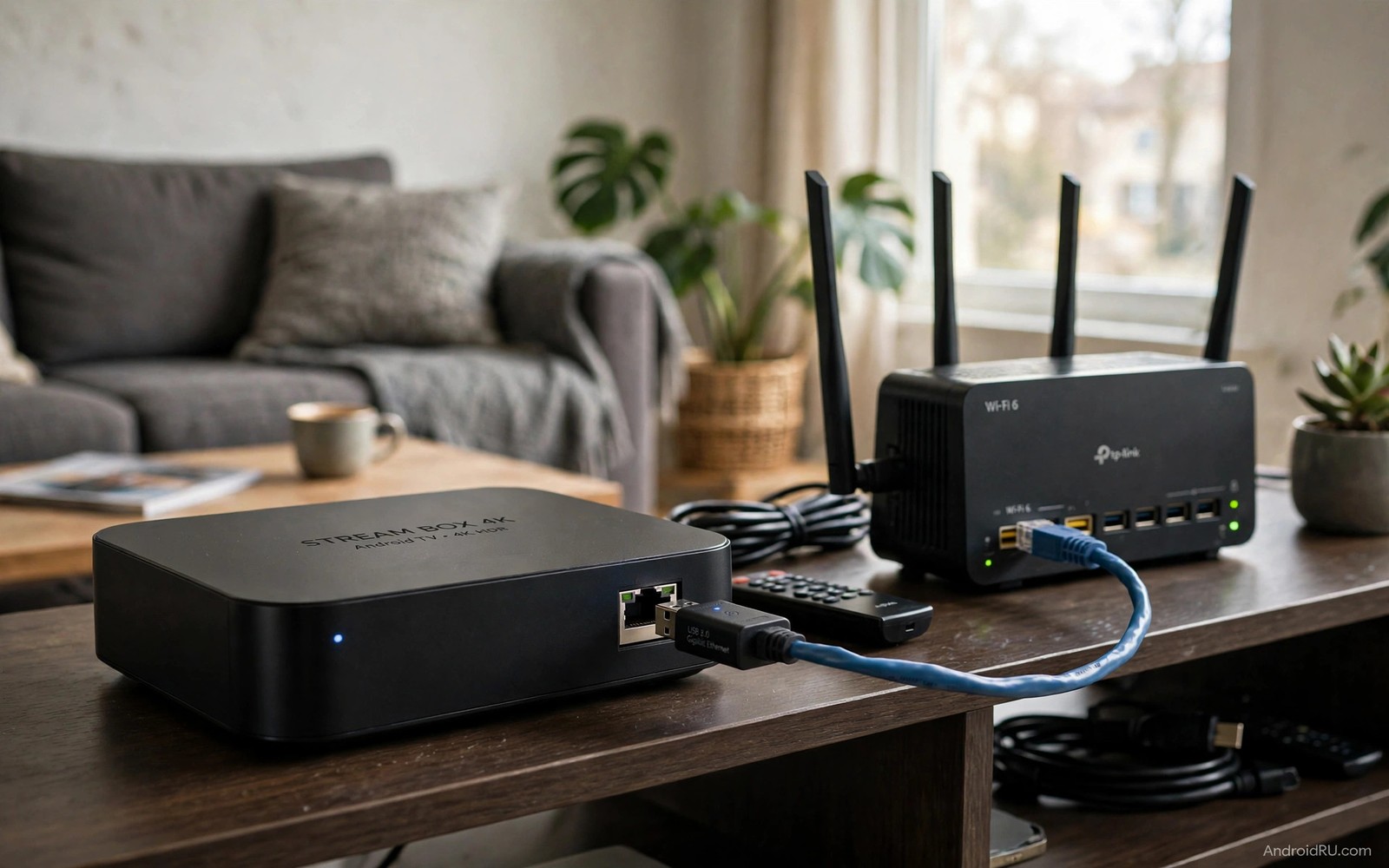
Buffering in the middle of a film feels worse than a slow start because it breaks the story at the worst moment. Wireless streaming often causes that break even when a speed test on a phone looks fine. A phone test measures a short burst at one moment while a film needs a steady stream for two hours. Neighbour networks and other devices in the home can steal wireless airtime in bursts that a short test never sees. A wired link removes that competition and gives the television a steady path.
A USB ethernet adapter is a small bridge between a television box and a router cable. It plugs into a USB port on the box and gives it a wired network port that many boxes lack. The box then treats the cable as its main connection and stops fighting for wireless airtime. Installation takes minutes and needs no change to the router beyond a free port. The adapter costs far less than a new box or a mesh system for most homes.
This guide shows how to choose an adapter that your box actually supports and how to test the result honestly. You will learn which USB speed matters and why a gigabit adapter on a slow port still helps. You will also learn how to rule out a bad cable or a faulty port before you blame the adapter. A related look at TV performance can be found in accessories that boost TV dongle performance for readers who want to improve more than the network alone.
A wired adapter also helps households where several people stream at different times of day. A teenager gaming upstairs and a parent watching downstairs share the same wireless airtime. A cable frees one stream from that competition entirely. The remaining wireless devices then share airtime with less pressure. One cable can improve the whole house even though it connects only one box.
Why Wireless Buffering Happens At Night
Evening is the hardest time for wireless video because every home nearby streams at once. Wireless channels fill up and routers queue packets and the television waits for missing pieces of video. The player then pauses to refill its buffer and the viewer sees a spinning circle. A wired link avoids that queue because the cable carries only your traffic to the router. Other homes cannot steal capacity from a cable in your wall.
Distance and walls also hurt wireless video in ways that a phone speed test hides. A phone held near the router gets a strong signal while a television behind a cabinet gets a weaker one. Metal shelves and aquariums and thick walls can all weaken the signal further. A cable ignores those obstacles and delivers the same speed at the television as at the router. That consistency is what makes films play without pauses.
Choose An Adapter Your Box Supports
Check the USB version on your television box before you order anything. A USB 2 port limits a gigabit adapter to a lower ceiling but that ceiling still beats most wireless links in a busy home. A USB 3 port lets a gigabit adapter reach its full speed for high bitrate local video. Look for an adapter chipset that Android TV recognises without extra drivers. A well reviewed adapter with a short cable tail is easier to place than a rigid block that stresses the port.
# Wired streaming test routine
connection = ethernet
test_duration_minutes = 20
test_app_1 = streaming_app
test_app_2 = second_app
pass_rule = zero_pauses_in_test
The snippet above is an original example written for this guide. It shows generic settings that you can adapt to your own device. It does not copy code from any outside source.
Avoid adapters that promise extreme speeds without naming a real chipset or a real USB standard. A vague claim often hides a slow chip that drops under sustained load. Buy from a seller with a clear return policy so you can test the adapter on your own box. Keep the box software updated before testing because a system update can add support for a new adapter. If the box does not see the adapter at all then try another USB port before you return it.
Set Up The Wired Link Step By Step
Plug the adapter into the box first and then connect a network cable from the adapter to a free port on the router. Open network settings on the box and confirm that it shows a wired connection with an address. Run a speed test inside a streaming app rather than a browser when you can because that test reflects real video traffic. Play a demanding film for at least twenty minutes and watch for pauses during busy scenes with fast motion.
Route the cable neatly along skirting boards and avoid running it parallel to mains power cables for long stretches. A cable that crosses a doorway needs a cover so nobody trips on it or pulls the adapter out of the box. Label the cable at the router end if you have several cables so future changes stay simple. If the box still shows a wireless connection after you plug in the cable then turn wireless off once to force the wired path and then check again.
Test Speed And Fix Remaining Pauses
A good wired result shows stable speed across several tests rather than one high peak. Test at the same time you normally watch because evening congestion on your internet plan still matters. If speed stays stable but films still pause then check the streaming app cache and the storage on the box. A full box can pause video even on a perfect network because it has no room to buffer. Clear cache for the app and free space before you blame the adapter.
If pauses happen only on one app then the problem likely sits with that app or its servers. Test a second app with similar quality video and compare the result on the same evening. If both apps pause then check the router and the cable by swapping the cable for a known good one. For a broader network view readers can explore casting to a TV without a router connection to understand when a direct link beats a shared network. Keep notes on each test so you do not repeat a step that already failed.
Choose Cable Quality And Length Wisely
Cable quality matters for a wired television link because a long cheap cable can limit speed and cause errors. Choose a cable rated for gigabit speed even if your internet plan is slower. That rating gives headroom for local media and for future plan upgrades. Keep the cable run as short as practical while still reaching the router neatly. A shorter quality cable beats a long bargain cable in every test.
Avoid running a network cable through a door frame where it gets pinched every time the door closes. A pinched cable develops faults that appear as random pauses months later. Use a flat cable under a door only when the door does not press on it. Otherwise route the cable around the frame with clips. A protected cable lasts for years without attention.
Label both ends of the cable when you have more than one run in the home. A label such as TV Box makes future router changes simple. Without labels a simple router swap becomes a guessing game with several cables. A minute of labelling during install saves confusion during every later change. Keep a spare cable of the same length for quick fault testing.
Combine Wired TV With A Stronger Home Network
A wired television still benefits from a healthy router because the router serves every device in the home. Restart the router monthly to clear stale connections that slow the whole network. Update router firmware when the maker releases a stable version. Those two habits keep the wired link fast even as other devices join the network. A neglected router can bottleneck even a perfect cable.
Older televisions can gain new life from a wired box rather than a full replacement and reviving old screens with Android TV boxes explains that upgrade path well. A wired box on an old screen often streams better than a newer television on weak wireless. Check the box USB speed before you buy an adapter for that setup. A matched adapter and box pair gives the best result.
Test the whole home network after wiring the television by streaming on the box while another device streams elsewhere. Both streams should play without pauses if the internet plan supports them. If the second stream pauses then the plan or the router may be the limit. That test separates a television fault from a home network limit. Knowing the true limit prevents buying the wrong upgrade next.
Common Mistakes
The most common mistake is plugging the adapter into an unpowered hub that cannot sustain a network chip under load. Plug the adapter directly into the box or into a powered hub with a strong supply. Another mistake is testing with a short speed burst and declaring victory before a full film plays. A twenty minute film test reveals drops that a ten second test hides. A third mistake is using a damaged cable from a drawer without checking it because a kinked cable can cause random pauses for months. A faster network still feels slow when menus lag so speeding up a laggy Android TV interface is worth checking next.
People also forget to turn off a VPN on the box during testing because a VPN can slow even a wired link. Test without the VPN first and then re-enable it if you need it. Do not run the network cable across a hot radiator or under a heavy rug where heat and pressure damage it. Keep the run visible and accessible so a future fault is easy to find. A tidy cable lasts longer and it makes troubleshooting far simpler.
Owners also forget to check the router port itself when a wired link fails. A faulty router port can mimic a bad adapter or a bad cable. Try a different router port before returning any part. That simple swap takes a minute and it often reveals the real fault. Keep a note of which port works so future changes start from a known good state.
Frequently Asked Questions
Will a USB ethernet adapter work on any Android TV box?
It works on most boxes that support USB network adapters in their Android build. Some very old boxes lack the driver for newer chipsets and may not recognise the adapter. Check reviews from owners of your exact box model before you buy. If the box does not recognise the adapter then try a different USB port and a system update before returning it.
Is gigabit speed necessary for streaming?
Gigabit speed is not necessary for most streaming because even high definition streams need far less than that ceiling. The value of a gigabit adapter is headroom and stability under load rather than raw speed. A slower adapter can still stream well if the connection stays steady. Choose gigabit when the price is close because it also helps local media playback from a home server.
Can I use the adapter and wireless at the same time?
The box will normally prefer the wired link once it is active and stable. Keeping wireless on as a backup rarely helps because the box may switch between links during a film. Turn wireless off after the wired link works to keep playback on one steady path. Re-enable wireless only if you move the box to a room without a cable.
Conclusion
Order a supported USB ethernet adapter today and run a cable to your router this weekend. Plug it directly into the box and play a full film without touching wireless settings first. If the film plays without a single pause then leave wireless off and enjoy the steadier link. That one cable often ends months of evening buffering.
After a week on wired streaming compare evening playback with the wireless evenings you remember. Note any remaining pauses and the app where they happened. A pause in one app points to that app while a pause everywhere points to the plan or the router. That distinction tells you whether to change an app setting or to call your provider. A week of notes gives you evidence instead of a vague complaint.

