

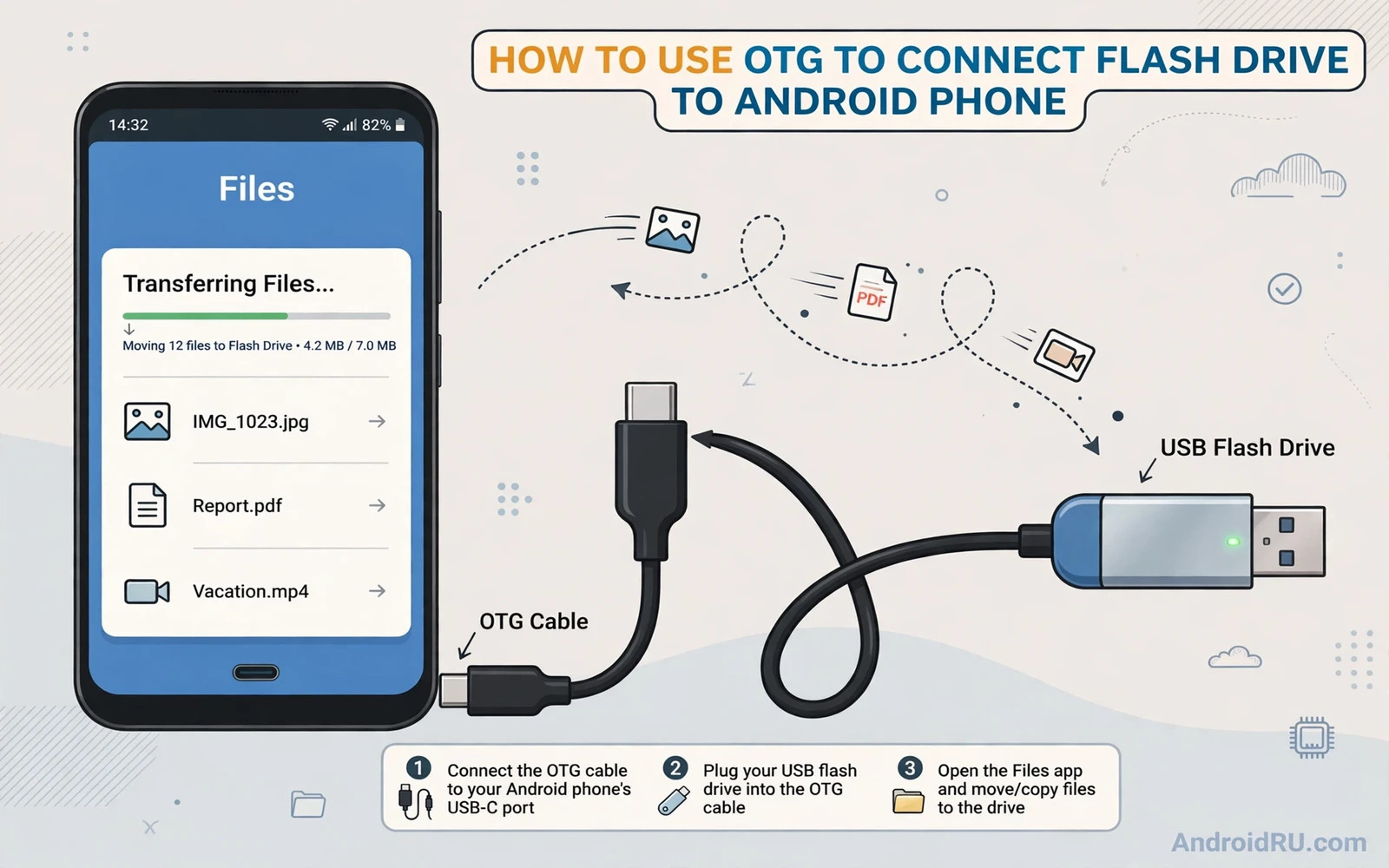
What OTG Does For Your Phone
OTG stands for On-The-Go. It lets a phone act as a USB host. A host can read a flash drive and a mouse and a keyboard and other USB devices. Without OTG a phone acts only as a USB device that a computer reads. With OTG the roles reverse and the phone reads the drive. That reversal turns a phone into a portable file station. You can copy photos to a drive and play media from a drive and move files without a computer.
Most modern Android phones support OTG but support varies. Some phones need an OTG setting turned on. Others enable it automatically. The cable matters too. A proper OTG adapter signals host mode to the phone. A plain charging adapter may not signal host mode at all. This guide covers the cable and the setting and the file steps in order so you can tell quickly which part fails.
Pick The Right Adapter
Check the phone port type first. A USB-C phone needs a USB-C OTG adapter. An older micro-USB phone needs a micro-USB OTG adapter. The adapter should have a full-size USB-A port on the other end for the flash drive. Buy an adapter labelled OTG rather than a generic adapter. Generic adapters often lack the host wiring. A labelled OTG adapter costs little and removes a major variable.
Test the adapter with a simple low power device first such as a wired mouse. A mouse that moves the cursor proves host mode works. Then test the flash drive. If the mouse works but the drive does not then the drive format or power draw is suspect. If neither works then the adapter or the phone setting is suspect. This staged test separates adapter faults from drive faults cleanly.
Connect The Drive Step By Step
Plug the OTG adapter into the phone firmly. Plug the flash drive into the adapter. Wait a few seconds for a notification. Android usually shows a notification that a USB device is connected. Tap the notification to open the file manager or to choose what to do with the drive. If no notification appears then open the file manager and look for a USB storage entry. The drive should appear as removable storage alongside internal storage.
If the phone shows a charging prompt instead of a storage prompt then the adapter may not be an OTG adapter or the phone may need its OTG setting on. Check Settings for an OTG entry under Additional settings or System or Connected devices. Turn OTG on if you find it. Some phones turn OTG off automatically after a period of inactivity. Re-enable it for each session if your phone behaves that way.
Read Copy And Manage Files
Open the file manager and tap the USB drive entry. Browse folders as you would internal storage. Copy files by selecting them and choosing copy and then navigating to the destination and choosing paste. Move large files in smaller batches if the phone feels slow. A single huge transfer can stall if the drive draws too much power. Smaller batches recover more gracefully from an interruption.
Play media directly from the drive when the file manager supports it. Video and music apps can open files on removable storage. For editing work copy the file to internal storage first. Editing directly on a slow drive can lag and can corrupt a file if the drive disconnects mid-save. Internal storage is the safe workspace. The drive is the transport and the backup.
Understand Drive Formats
Android reads FAT32 drives widely. exFAT support varies by phone and by Android version. NTFS support is limited on many phones. If a drive does not appear then format may be the cause. Check the format on a computer first. A drive formatted as NTFS may need reformatting to exFAT or FAT32 for phone use. Back up the drive contents before any format because formatting erases everything.
FAT32 has a file size limit that blocks single files larger than four gigabytes. exFAT removes that limit and suits large video files. Choose exFAT when the phone supports it and when files are large. Choose FAT32 for maximum compatibility with older devices. A drive used across phones and cameras and computers benefits from exFAT in most modern cases. Format choice is a trade-off between compatibility and file size.
Fix A Drive That Does Not Appear
Try a second flash drive with the same adapter. If the second drive appears then the first drive is faulty or formatted in an unsupported way. Try the first drive on a computer to confirm it works at all. Try a different adapter with the same drive. If a second adapter works then the first adapter was faulty. Swap one variable at a time. Swapping two variables at once hides the true cause.
Check power draw. A large external hard drive may need more power than the phone can supply. A flash drive needs little power and usually works. A spinning hard drive often fails without external power. Use a powered hub for hard drives. A powered hub supplies its own power and lets the phone read the drive without draining itself. For hub options the guide to USB-C hubs for expanding tablet connectivity explains hub choices that also suit phones.
Eject Safely And Protect Data
Always eject the drive before unplugging it. Open the notification or the file manager and tap Eject or Unmount. Wait for confirmation that it is safe to remove. Pulling a drive mid-write can corrupt files and can damage the file system. A corrupted drive may then fail on every device until it is repaired or reformatted. Safe ejection takes seconds and prevents hours of recovery.
Keep a backup of irreplaceable files. A flash drive is transport not archive. Copy important files to a second location after transfer. A drive lost or damaged in a bag takes its only copy with it. Treat OTG transfers as moves between safe locations rather than as storage itself. That habit protects photos and documents that matter.
Expand What OTG Can Do
OTG opens more than file transfer. A wired mouse gives precise control for editing. A wired keyboard gives fast typing for documents. A game controller gives better play for supported games. A USB microphone can improve recording quality. Each device follows the same pattern. Connect through OTG and confirm the phone recognises it and test briefly. The phone becomes a flexible workstation with a pocket full of adapters.
For file movement without cables the guide to transferring files between Android and PC covers wireless options that complement OTG. Cables suit large transfers and offline work. Wireless suits quick sharing at home. Together they cover every transfer situation. OTG remains the simplest offline path when no network exists.
OTG And Power Delivery
OTG and charging compete for the same port on many phones. A simple OTG adapter cannot charge the phone while it reads a drive. A powered OTG hub can do both. It supplies power to the phone and to the drive while data flows. A powered hub suits long transfers that would otherwise drain the battery. It also suits large drives that need more power than the phone supplies.
Check hub compatibility before buying. A hub that works for laptops may not negotiate host mode correctly with a phone. Look for hubs that mention phone OTG support. Test the hub with a small drive first. A hub that passes a small drive test will usually handle larger drives too. Power plus data together make OTG practical for serious file work.
OTG For Photography Workflows
Photographers use OTG to review photos on a larger phone screen in the field. A card reader connected through OTG lets the phone read camera memory cards directly. Copy selected photos to the phone for quick sharing and keep the originals on the card. A phone review in the field catches focus errors while reshooting is still possible. That workflow saves a ruined shoot.
Copy rather than move for field work. A move deletes the original from the card after copying. A copy keeps the original safe until you confirm the phone copy opens correctly. Verify a few copied photos at full size before formatting any card. A verified copy plus an intact original is the safe pattern for irreplaceable images.
OTG Security Notes
A flash drive from an unknown source can carry malware. Do not plug a found drive into your phone without thought. Android sandboxing limits what a drive can do on its own but a drive can still carry malicious files that trick you into opening them. Scan unfamiliar drives on a computer with security software before phone use when possible. Caution with unknown drives protects the phone and the data on it.
Eject safely every time as the main guide stresses. Safe ejection protects the file system and the files in transit. For the toggle side on custom interfaces the guide to enabling OTG on Chinese smartphone UIs covers the setting hunt on MIUI and ColorOS and similar interfaces. Toggle plus adapter plus safe ejection together make OTG dependable.
A Practical Checklist For OTG Transfers
Run every OTG transfer with a checklist that protects files. Confirm the adapter is labelled OTG and test it with a mouse before trusting it with a drive. Enable the OTG setting where the phone requires it. Connect the drive and wait for the notification before opening the file manager. Copy in batches for large transfers and verify a sample of copied files before deleting originals. Eject safely through the notification or the file manager and wait for confirmation before unplugging. A checklist transfer may take a minute longer and it prevents the corruption and loss that a rushed transfer risks.
Choose formats deliberately for each drive purpose. Use FAT32 for maximum compatibility with older devices and small files. Use exFAT for large video files and modern devices. Check format on a computer before blaming the phone for a missing drive. Back up a drive before reformatting it because formatting erases everything. A format decision made once per drive prevents repeated detection mysteries. Label drives by purpose and format so the right drive is picked without guessing.
Build an OTG kit that stays ready. Keep a USB-C OTG adapter and a flash drive and a card reader together in a small pouch. A kit that lives in your bag is ready for field work and travel. A kit scattered across drawers is never ready when needed. Test the kit monthly with a small copy so a dead adapter is discovered at home rather than in the field. A ready kit turns OTG from a rare trick into a daily tool for files and photos and backups.

