

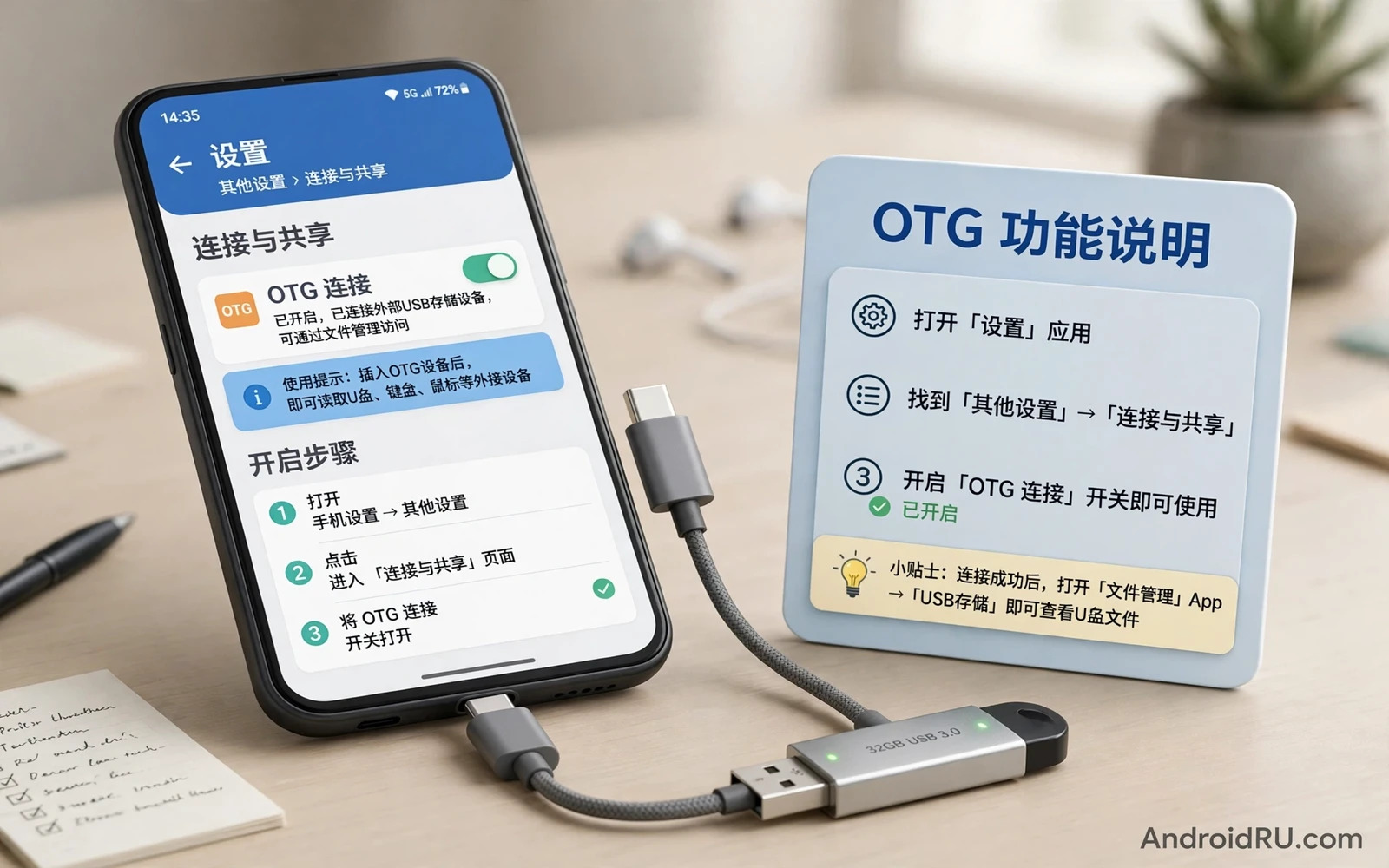
Why Chinese UIs Handle OTG Differently
Phones from Chinese makers run Android with a custom interface on top. MIUI and HyperOS and ColorOS and similar interfaces move settings into different menus. OTG is a common victim of that reshuffling. The feature exists but the toggle hides under Additional settings or System settings or a connection menu that stock Android does not have. Users searching the stock Android path can miss it entirely and conclude the phone lacks OTG.
Another difference is automatic timeout. Some Chinese interfaces turn OTG off automatically after a period without a connected device. That timeout saves power but it confuses users who enabled OTG yesterday and find it off today. The behaviour is by design on those interfaces. Knowing about the timeout prevents repeated confusion. Enable OTG fresh for each session when the phone behaves that way.
Find The OTG Toggle On MIUI And HyperOS
On Xiaomi phones open Settings and then Additional settings. Look for an OTG entry in that list. Tap it and turn the toggle on. Connect the OTG adapter and the flash drive after enabling it. If the entry is missing then use the Settings search bar and type OTG. The search result jumps straight to the toggle even when the menu path is unfamiliar. Search is the fastest tool on a reshuffled interface.
On HyperOS the path is similar because HyperOS builds on the same settings structure. Open Settings and search for OTG if the Additional settings list does not show it. After enabling OTG a notification may confirm that USB host mode is active. Keep the drive connected while you work because removing it may start the timeout clock. Re-enable OTG if a later session fails to detect the drive.
Find The OTG Toggle On ColorOS And Realme UI
On Oppo and Realme phones open Settings and then System settings or Additional settings. Look for OTG connection or USB OTG in that area. Turn the toggle on and connect the device. Some ColorOS versions place the toggle under Connection and sharing instead. Search for OTG in Settings if the manual path fails. The search bar is reliable across ColorOS versions because it indexes setting names directly.
Some ColorOS phones show an OTG prompt when you first connect an adapter rather than a permanent toggle. Accept the prompt to enable host mode for that session. The prompt may reappear on later connections. Accepting it each time is normal on those versions. Do not treat a repeated prompt as a fault. It is the interface asking for host mode confirmation per session.
Check Other Chinese Interfaces
Vivo phones running OriginOS or Funtouch OS place OTG under Settings and then More settings or OTG. Search for OTG first because the menu name varies by version. Huawei phones running EMUI or HarmonyOS place USB settings under System and updates or Developer options in some versions. Search remains the best first step on any unfamiliar interface. A search result beats guessing through nested menus.
OnePlus phones running OxygenOS or ColorOS based builds usually enable OTG automatically without a toggle. If a OnePlus phone fails to detect a drive then the fault is more likely the adapter or the drive format than a missing toggle. Test a known good OTG adapter before hunting for a setting that may not exist. Interface differences mean the absence of a toggle is not always a problem.
Test The Connection After Enabling
After enabling OTG connect the adapter and the flash drive and wait for a notification. Tap the notification to open the file manager. If no notification appears then open the file manager and look for USB storage. A drive that appears in the file manager proves host mode works. A drive that never appears needs adapter and format checks next. Do not assume the toggle failed until the adapter and drive are proven good.
Test with a simple device such as a wired mouse if the drive fails. A mouse cursor that moves proves host mode. A mouse that fails alongside the drive points to the toggle or the adapter. For the full drive workflow the guide to using an OTG cable to connect flash drives covers formats and file steps that apply once host mode is on. Enabling the toggle is step one. Reading the drive is step two.
Fix OTG That Turns Off By Itself
If OTG turns off after ten minutes without a device then that is the automatic timeout on many Chinese interfaces. The fix is habit not settings. Enable OTG just before you connect the drive rather than hours earlier. Keep the drive connected during the whole transfer. Re-enable OTG if you pause and the phone times out. A short workflow avoids the timeout window entirely.
If OTG turns off while a drive is connected then check battery optimisation for system settings. Aggressive battery management can kill host mode to save power. Keep the phone charging during long transfers. A charging phone is less likely to cut host mode for power saving. Also keep the screen awake during transfers so the phone does not sleep mid-copy. A sleeping phone can drop the drive connection.
Handle Format And Power Issues
A drive that is detected but shows as empty or unsupported usually has a format problem. Android on Chinese interfaces reads FAT32 widely and exFAT on most modern models. NTFS support remains limited. Check the format on a computer and reformat to exFAT or FAT32 after backing up the drive. A format change fixes many detection mysteries that look like toggle failures.
Power draw matters too. A flash drive works with phone power alone. A spinning hard drive usually needs a powered hub. A powered hub also helps when the phone port supplies limited current. For hub choices the guide to USB-C hubs for expanding tablet connectivity explains hubs that work with phones as well as tablets. A hub plus the OTG toggle together handle larger drives reliably.
Keep OTG Ready On A Chinese UI
Learn the search shortcut for OTG on your interface. Searching beats memorising a menu path that changes with each update. Enable OTG just before use and keep the drive connected during work. Eject safely before unplugging. Those three habits make OTG painless even with a timeout toggle.
Chinese interfaces offer powerful hardware at good prices and their settings quirks are a fair trade once understood. OTG is present on most models. It simply hides in a different menu and times out by design. Search for it and enable it fresh and test with a simple device. With that routine your phone reads flash drives as easily as any stock Android device.
OTG On Other Chinese Brands
Honor phones running MagicOS place OTG settings under system settings with a search shortcut as well. Search for OTG before hunting menus. Honor interfaces often enable OTG automatically for a session after you connect a device and accept a prompt. That prompt pattern matches ColorOS behaviour. Accepting the prompt each session is normal rather than a fault.
Infinix and Tecno phones running XOS and HiOS also vary by version. Some versions show an OTG toggle under Additional settings. Others enable host mode automatically. The universal rule holds across all of them. Search first and test with a simple device second. Search plus a mouse test resolves the toggle question on any interface without memorising version-specific menus.
OTG And File Manager Choice
The stock file manager on Chinese interfaces handles USB drives well in most cases. It shows the drive as removable storage and supports copy and move. A third party file manager can add features such as dual panes and network sharing. Choose a file manager with a small permission footprint. A file manager does not need contacts or call access to copy files. Read permissions before installing.
Test the file manager with a small copy before a large transfer. A small copy proves the drive path works. A large transfer after a proven small copy is far safer. Verify copied files open correctly before deleting originals. Verification is a habit that prevents transfer loss on any interface and any drive.
OTG For Work On The Go
OTG turns a phone into a field workstation for documents and photos. A flash drive with presentation files plus a phone plus a portable display can run a meeting without a laptop. Copy files to the phone first for smooth playback. Playback from the phone avoids drive speed limits during a presentation. A smooth playback beats a direct drive playback that stutters at a key moment.
Keep a small OTG kit in your bag. One USB-C OTG adapter and one flash drive and one card reader cover most field needs. A kit that lives in the bag is ready when opportunity strikes. A kit left at home helps no one. For the core drive workflow the guide to using an OTG cable to connect flash drives and the guide to USB-C hubs for expanding tablet connectivity complete the OTG toolkit. Toggle plus adapter plus hub plus workflow make OTG a daily tool rather than a rare trick.
A Practical Checklist For OTG On Chinese UIs
Enable OTG on a Chinese interface with a checklist that beats menu hunting. Search settings for OTG first instead of guessing menu paths. Follow the search result to the toggle and turn it on. Connect the adapter and the drive and wait for the notification. Test with a mouse if the drive fails because a mouse proves host mode independently. Check drive format on a computer if host mode works but the drive stays hidden. Eject safely before unplugging. A search-first checklist works across MIUI and HyperOS and ColorOS and other interfaces without memorising version-specific menus.
Handle the automatic timeout with a workflow checklist. Enable OTG just before connecting rather than hours earlier. Keep the drive connected during the whole transfer. Keep the phone charging and the screen awake during long transfers. Re-enable OTG promptly if a pause triggers the timeout. A workflow built around the timeout avoids surprise disconnections mid-copy. Timeout awareness turns a confusing behaviour into a predictable routine that any user can follow.
Keep an OTG kit ready for Chinese interface phones just as for any phone. A labelled OTG adapter and a flash drive and a card reader in a small pouch cover field needs. Test the kit monthly with a small copy. Note the search path that worked on your interface version for future reference. A kit plus a noted path plus a timeout-aware workflow makes OTG on a Chinese interface as dependable as on stock Android. Interface differences become a minor detour rather than a barrier to using USB storage.

