

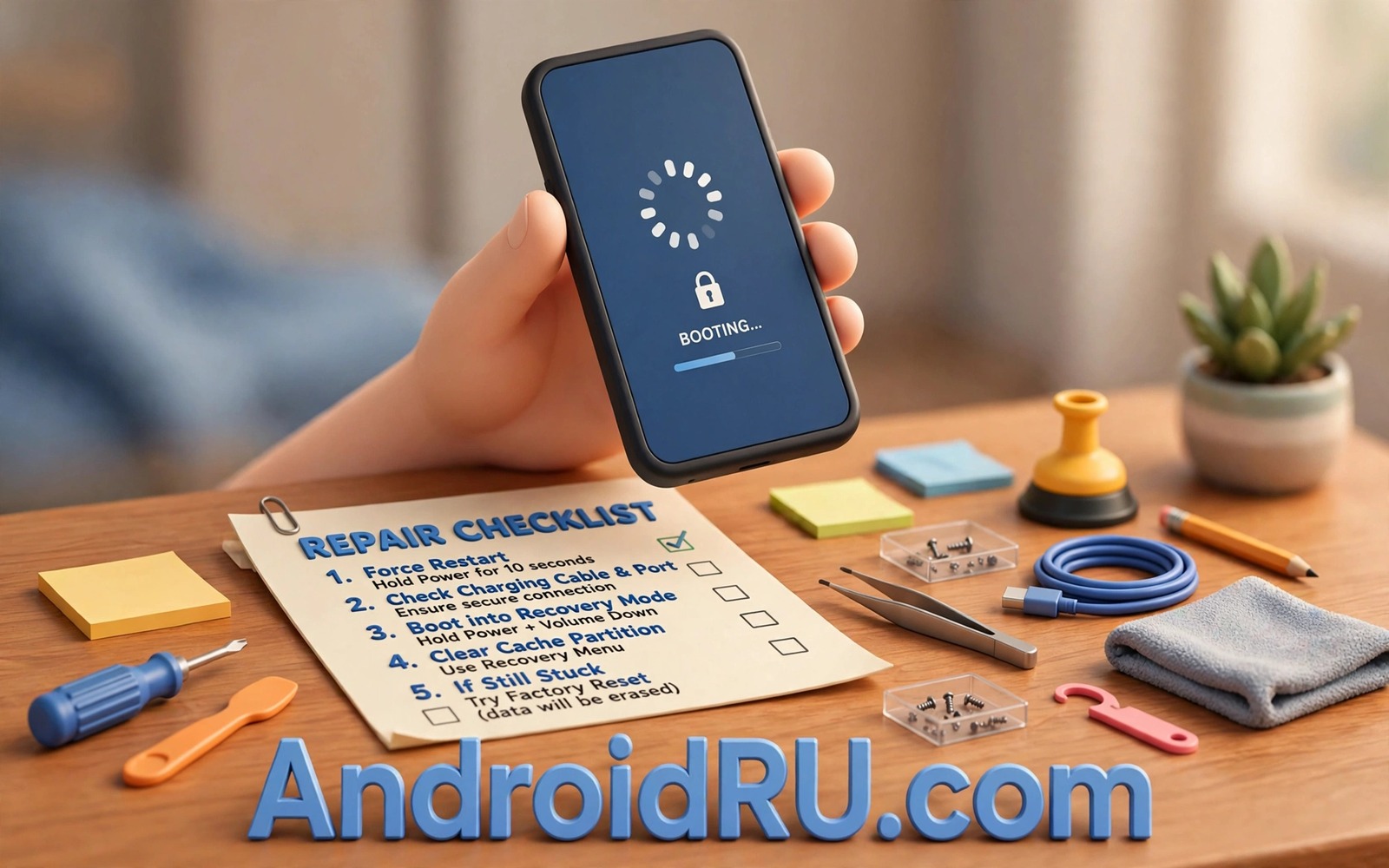
A phone that stops on the logo screen feels like a dead phone. The screen lights up and the brand mark stays there and nothing else happens. Your first instinct may be to press every button at once. That instinct makes things worse because rushed taps can trigger the wrong mode or interrupt a slow start.
Most logo freezes have a plain cause. A recent update may have stalled halfway through its install. A full storage drive may leave no room for the system to finish loading. A faulty app that starts at boot may crash the startup chain again and again. None of these causes means your photos are gone. They mean the phone needs a calm and ordered rescue.
This guide walks you through that rescue in order of risk. You start with harmless checks that cost nothing. You move to recovery mode only when the gentle steps fail. You keep your data safe at each stage by avoiding any wipe until you have tried every safer option first.
First calm checks before you touch recovery
Begin by charging the phone for at least thirty minutes with a known good cable and charger. A weak battery can stall the boot process at the logo even when the screen looks bright. Watch for a charging icon or a small vibration after a few minutes. If nothing appears then try a different cable and a wall socket rather than a laptop port.
Next force a clean restart with the correct button hold for your model. Most Android phones restart when you hold the power button for twenty to thirty seconds. Some models need power plus volume down held together for the same length of time. Release the buttons when the screen goes dark and wait a full minute before you judge the result.
Remove the case and check for heat or swelling while the phone charges. A hot phone may be stuck because its processor is throttling hard. Let it cool on a hard surface away from bedding and sunlight. A swollen battery is a stop sign and you should not charge that phone again until a repair shop has seen it.
Read what the logo freeze is telling you
A logo that appears and then vanishes in a loop points to a different fault than a logo that never moves at all. A boot loop often follows a failed update or a bad system tweak. A frozen logo often follows storage trouble or a hardware fault. Note which pattern you see because it guides the next step and it helps a technician if you later need one.
Think back to the last change before the freeze began. Did you install a system update or a new app or a theme or a mod. Did the phone run out of storage or shut down during a download. That recent change is the most likely trigger and undoing it is often the fix. A phone that froze right after an update needs a cache clear more than it needs a new battery.
If the phone shows a warning about low storage then storage is almost certainly part of the problem. Android needs free space to write temporary files during startup. When the drive is full the system cannot finish its own launch sequence. Clearing space from recovery can break this deadlock without touching your personal files.
Use recovery mode without wiping anything
Recovery mode is a small repair menu that lives outside the main system. You reach it by holding power plus volume up on most phones once the device is off. Some brands use power plus volume down or a different combo so check your model guide if the first combo fails. Release the buttons when the brand logo appears a second time.
Move through the menu with the volume keys and select with the power button. Choose the option to wipe the cache partition first. This step removes temporary system files only and it leaves photos and messages and apps untouched. It is the safest recovery action and it fixes many update related freezes on its own.
After the cache wipe choose the reboot option and wait patiently. The first boot after a cache clear can take several minutes because the system rebuilds its temporary files. Do not pull the battery or force another restart during this wait. If the phone reaches the lock screen then you have solved the problem with zero data loss.
Try safe mode when an app blocks startup
Safe mode loads only the system apps and it skips third party apps that launch at boot. If the phone boots in safe mode then a downloaded app is the culprit. This test is valuable because it turns a mystery freeze into a clear suspect list. You can then remove the suspect app through normal menus.
To enter safe mode from recovery or from a powered off phone use the safe mode key combo for your brand. On many phones you hold volume down while the phone starts after the logo appears. A small safe mode label in the corner confirms success. Test the phone for a few minutes in this mode before you change anything.
When safe mode works you should uninstall the most recent apps one at a time. Start with apps installed just before the freeze and with apps that ask for deep system access. Restart normally after each removal so you learn exactly which app caused the trouble. That slow method beats bulk deletion because it protects apps you actually need.
Check storage and updates once the phone boots
A phone that boots after a cache wipe still needs aftercare or the freeze may return. Open storage settings and free space until at least ten percent of the drive is empty. Delete large video files and old downloads first because they free the most room with the least effort. Move photos to a backup before you delete them from the phone itself.
Next check for a pending system update and install it only on stable Wi-Fi with the battery above half charge. A half installed update is a common cause of boot trouble so give the next update clean conditions. The same care applies to large app updates that run right after a system boot. Let the phone settle for an hour before you install anything heavy.
Watch the phone across the next three days for early warning signs. Slow app launches and random restarts and heat during idle time all suggest the root cause is still present. Keep notes on when each symptom appears because a pattern helps you act before the next freeze. Early action is far cheaper than another recovery session.
A safe command check for advanced users
If you have a computer and a USB cable then a simple device check can confirm whether the phone still talks to a computer. This step is optional and it suits users who already use developer tools. It does not change the phone and it gives you a clear yes or no answer about the connection.
adb devices
adb reboot recovery
The command sample above was written for this guide and it follows standard Android Debug Bridge practice. The first line lists attached devices and the second line asks a responsive device to enter recovery mode. Use these commands only when the phone is detected and never force a flash command on a phone that is already unstable.
If the computer sees no device then the fault may be deeper than software. Try a different cable and a different USB port and a different computer before you conclude that the hardware has failed. A cheap cable is a frequent cause of a silent connection and it costs little to rule out.
Decide when a reset is truly the last resort
A factory reset should stay at the end of your rescue order for a clear reason. It deletes personal data that a cache wipe leaves untouched. It also takes hours to restore apps and logins after the phone works again. Reserve it for the moment when cache and safe mode and storage freeing have all failed together.
Before any reset try to copy photos through a computer connection when the phone reaches recovery or a brief boot window. A short window is enough to copy the most precious folders first. Prioritise photos and documents over app data because app data often restores from the cloud later. A partial backup beats a perfect plan that never runs.
When a reset becomes unavoidable write down your accounts and passwords first on a second device. A reset phone asks for the original Google account during setup. That check protects stolen phones yet it can lock out a legitimate owner who forgot the account. Knowing the account before the reset prevents a second crisis after the first one ends.
Common mistakes
The biggest mistake is wiping the phone at the first sign of trouble. A factory reset deletes your data and it may not fix a hardware fault at all. Reserve the reset for the moment when cache wipes and safe mode and storage checks have all failed. Even then back up what you can through recovery tools or a computer connection first.
Another mistake is interrupting a slow first boot after a repair step. The system needs time to rebuild caches and to verify files after a crash. Pulling power during that window can corrupt the very files you are trying to repair. Set the phone down and wait ten full minutes before you declare a step a failure.
People also repeat the same failed button combo for an hour without checking their model. Button combos differ by brand and by model year. A quick check of the correct combo saves time and it prevents accidental entry into a download mode that you did not intend to use. Work from your model guide rather than from habit.
Finally do not install a random fix app from a pop-up while the phone is unstable. A phone in trouble is an easy target for scareware that promises a one tap repair. Real recovery uses built-in menus and trusted tools only. If a fix demands payment before it shows any result then close it at once.
Frequently asked questions
Will a cache wipe delete my photos
No. A cache wipe removes temporary system files only. Your photos and messages and contacts and installed apps stay in place. This safety is why a cache wipe belongs before any reset in your rescue order.
How long should a first boot after repair take
Allow up to ten minutes for the first boot after a cache wipe or a system repair. The phone rebuilds temporary data during this time and the logo may stay on screen longer than usual. Judge the result only after that window has passed.
When should I visit a repair shop
Visit a shop when the phone shows swelling or heat damage or water damage. Go also when recovery mode will not open or when the computer cannot detect the phone at all. Those signs point to hardware trouble that software menus cannot fix safely at home.
Conclusion
A logo freeze is frightening but it is rarely the end of the phone. Calm checks and a cache wipe and safe mode solve a large share of cases without data loss. The order matters because each gentle step protects you from the harm of a rushed wipe. Patience during slow boots matters just as much as the buttons you press.
Your concrete next step is to charge the phone for thirty minutes and then try the cache wipe in recovery mode today. Write down the boot pattern you see and the last change before the freeze. If the phone boots then free storage space at once so the fault cannot return tonight. Readers who want a wider safety routine can explore a guide to habits that damage a phone over time and a guide to what to do when a phone overheats while idle plus a guide to system alerts that deserve immediate attention for a stronger daily routine.

