

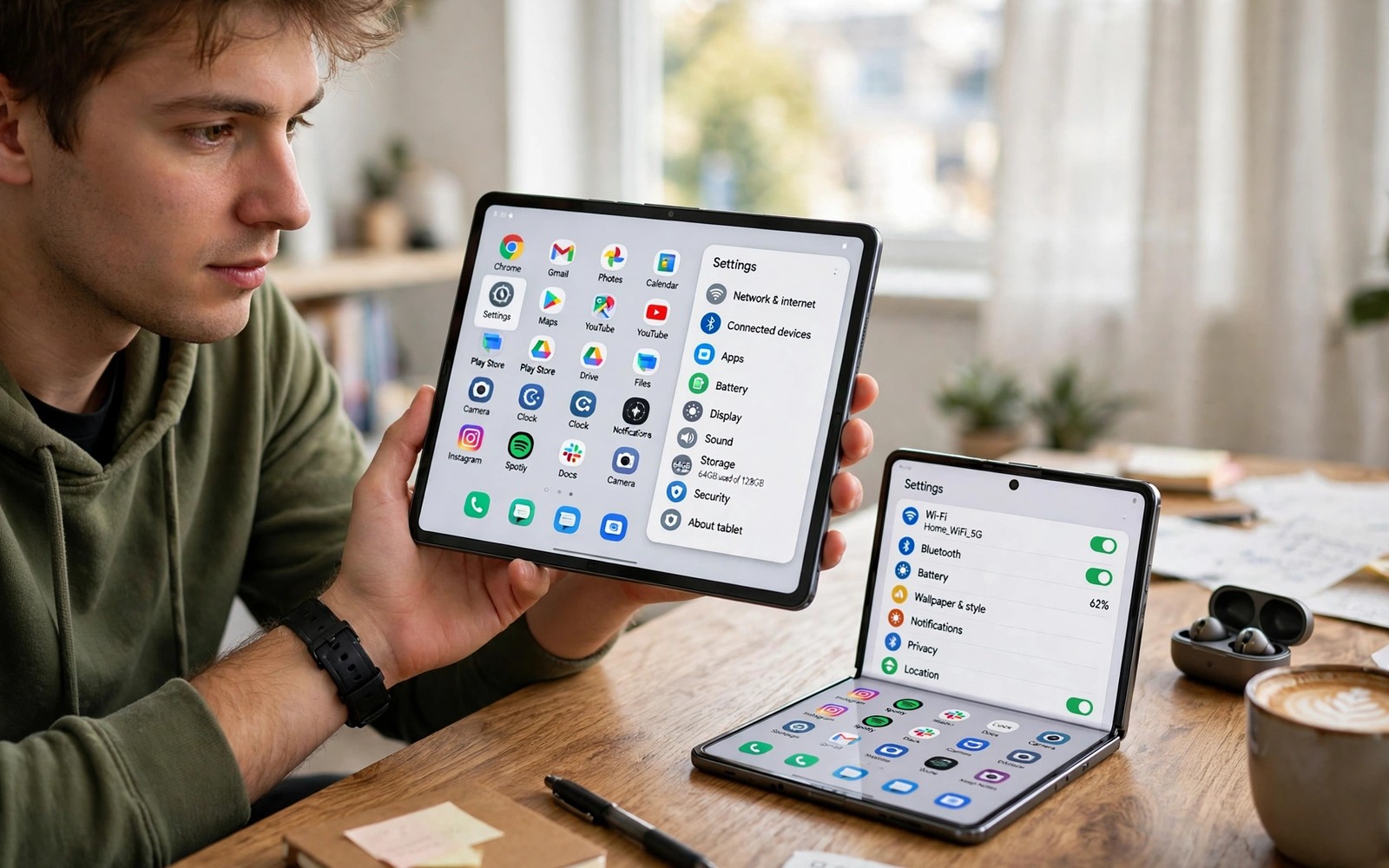
Tablets and foldables change how sideloaded apps behave because a larger screen exposes layout flaws that a phone hides. An app may stretch badly or refuse to rotate or open in a narrow phone sized window. Managing these apps well means checking layout and permissions and updates as one routine. The advice on backing up app settings before downgrading APKs pairs well with this guide because a backup protects your setup before you test a new version.
Sideloaded apps do not update through one central store so you own the update routine. That freedom is useful but it demands a simple system. Keep a list of each sideloaded app and its version and its source. A short list prevents duplicate installs and it makes troubleshooting far faster when an app breaks after an update.
Use the larger screen on purpose
Start by testing each sideloaded app in both folded and unfolded states when you use a foldable. Note which apps handle the switch smoothly and which restart or lose your place. For apps that restart, save your work before you fold or unfold the device. A small habit like this prevents lost drafts and lost game progress.
On a tablet, test landscape and portrait separately because some apps only feel right in one orientation. Lock orientation for apps that break in the other mode when your device allows it. Use split screen for apps that pair well such as a reader and a notes app. A larger screen rewards deliberate pairing rather than random multitasking.
Keep permissions and storage tidy
Review permissions for sideloaded apps once a month because a larger device often holds more personal files. Remove access to files or contacts when the app does not need it for its core job. Check storage use as well because tablet apps may cache large media files. Clearing a bloated cache can restore speed without deleting your data.
Store APK files in one folder with clear names that include the app name and version. A tidy folder stops you from installing an old file by mistake. The guide to file repositories every power user keeps bookmarked can help you find trusted sources for future updates. A clean folder plus a version list is the backbone of safe sideloading.
Handle updates without breaking your setup
Update one app at a time and test it before you move to the next update. Open the app and check layout and login and core features after each update. If an update breaks layout on a foldable then roll back to the previous version while you look for a fix. Updating in batches hides the culprit when something breaks.
Turn off auto install habits that push updates without your review. A manual update routine takes a few minutes but it gives you control over timing. Update before a quiet evening rather than before an important meeting. Timing matters when a new version may need a quick fix.
A tablet and foldable check routine
Use this short routine after each install or update so layout problems surface early. It takes only a few minutes and it covers the cases that matter most on larger screens.
Check 1: open app folded, then unfold, note restart or layout break
Check 2: rotate to landscape, then back to portrait
Check 3: open in split screen with a notes app
Check 4: confirm login still works after update
Result: keep version, or roll back and note the issue
The code above is an original example written for this guide. It shows one practical way to apply the idea in this article. You can adapt the wording and the values to fit your own phone and your own routine.
Organise home screens for large displays
A large display invites clutter because every app icon feels small and every widget fits easily. Resist the urge to fill every row with apps you rarely open. Place daily tools on the first screen and move occasional tools into a folder on the second screen. A clean first screen speeds up the moment you pick up the tablet. It also makes a foldable easier to use when folded because the folded view shows fewer items.
Widgets deserve the same discipline as icons on a large screen. One calendar widget and one notes widget often beat a wall of widgets that compete for attention. Test widgets in both folded and unfolded states because a widget that looks tidy on a tablet may stretch badly on a folded phone. Remove any widget that shows stale data or that you never tap. A widget should earn its space through daily use.
Folders help most when their names describe a task rather than a vague category. A folder named travel holds maps and tickets and hotel apps in one place. A folder named work holds mail and notes and documents together. Task folders match how you actually reach for apps during the day. The broader advice in the master playbook for safe sideloading and distribution also covers safe handling of apps from outside major stores. Organisation and safety together make a large device pleasant to use.
Protect work when an app misbehaves on a fold
Fold transitions can close an app or reset a form at the worst moment. Save drafts often when you work in an app that has not proven itself on a foldable. Use apps with autosave for long writing tasks and export important drafts before you fold the device during a call. These habits feel cautious but they prevent the loss of a long message or a half finished form.
When an app crashes on folding, note the exact steps that caused the crash before you try a fix. Record whether the app was in split screen and whether media was playing and whether you were typing. Clear notes help you reproduce the problem and they help a developer fix it. Vague reports such as it crashed rarely lead to a fix.
Keep a fallback app for critical tasks on a foldable device. If your main notes app fails after an update then a simple backup editor keeps you working while you troubleshoot. A fallback does not need every feature. It only needs to open fast and save reliably. Redundancy for one critical task is worth the extra icon.
Separate work and personal sideloaded apps
Tablets often serve both work and personal roles, which makes separation more important than on a phone. Use separate folders or separate user profiles when your device supports them. A work folder keeps documents and mail together, while a personal folder holds games and media apps. Separation reduces the chance of sharing a personal file in a work context by mistake.
Profiles help most when an app needs different accounts for work and home use. A second profile can hold a separate login without forcing you to sign out and back in repeatedly. Check whether your tablet supports multiple users or a secure folder feature before relying on this setup. Not every device offers the same profile tools, so confirm support early.
Notifications also benefit from separation on a large device that stays on a desk all day. Mute personal app notifications during work hours and mute work notifications in the evening when possible. A tablet that buzzes constantly will distract you more than a phone that stays in a pocket. Quiet hours protect focus without requiring you to uninstall useful apps.
Backups should respect the same separation, because work data may need stricter handling than personal media. Store work backups in a location that meets your workplace rules and keep personal backups separate. Mixing the two can create confusion during a restore, especially when a device is shared with family. Clear boundaries make both work and personal use safer.
Use automation to keep sideloaded apps tidy
Manual routines work well for a handful of apps, but automation helps when the list grows beyond twenty. Use a simple spreadsheet or a notes file to track versions and update dates automatically where possible. A shared note that you update after each change beats a memory that fades within a week. Automation here means a reliable habit, not a complex script that needs maintenance.
Set a monthly reminder to review sideloaded apps, permissions and storage together. A single monthly session catches outdated versions and bloated caches and broad permissions in one pass. Doing these checks together saves time compared with scattered checks throughout the month. A calendar reminder turns good intentions into a real routine.
Automation should never install updates silently on a tablet that others also use. A silent update may change a layout that a family member relies on, or it may log out an account unexpectedly. Keep updates manual on shared devices so changes happen at a known time. Control matters more than speed when several people share one large screen.
Common mistakes
The most common mistake is installing a phone only app on a tablet and expecting a perfect layout. Some apps will never fill a large screen well. Another mistake is updating every sideloaded app at once. Batch updates make it hard to find the version that broke a feature.
- Do not keep APK files with vague names that hide the version number.
- Do not grant file access to every sideloaded app by default.
- Do not ignore rotation problems because they often signal deeper layout issues.
- Do not skip a backup before testing a major version on a foldable.
A final mistake is treating a foldable like a phone during testing. The fold transition is a real event for apps and it deserves its own test. Apps that survive folding and rotation are the ones worth keeping.
Frequently asked questions
Why do some sideloaded apps look small on a tablet?
Some apps were designed only for phone screens and they open in a narrow window on larger displays. You can still use them but layout will feel cramped. Look for a tablet aware version when one exists.
Should I update sideloaded apps manually?
Yes in most cases because manual updates let you test layout and login after each change. A manual routine also stops a bad update from breaking several apps at once. Keep a version list to track each change.
How often should I review sideloaded app permissions?
Review them once a month and after each major update. Permissions can change with new versions and a monthly check catches broad access early. Remove any permission that the core feature does not need.
Conclusion
Managing sideloaded apps on tablets and foldables comes down to testing layout deliberately and updating one app at a time. A version list and a tidy APK folder turn a messy habit into a reliable routine.
Your concrete next step is to list your sideloaded apps tonight and test each one folded and unfolded. Note any app that restarts or breaks and roll it back before your next update cycle.

