

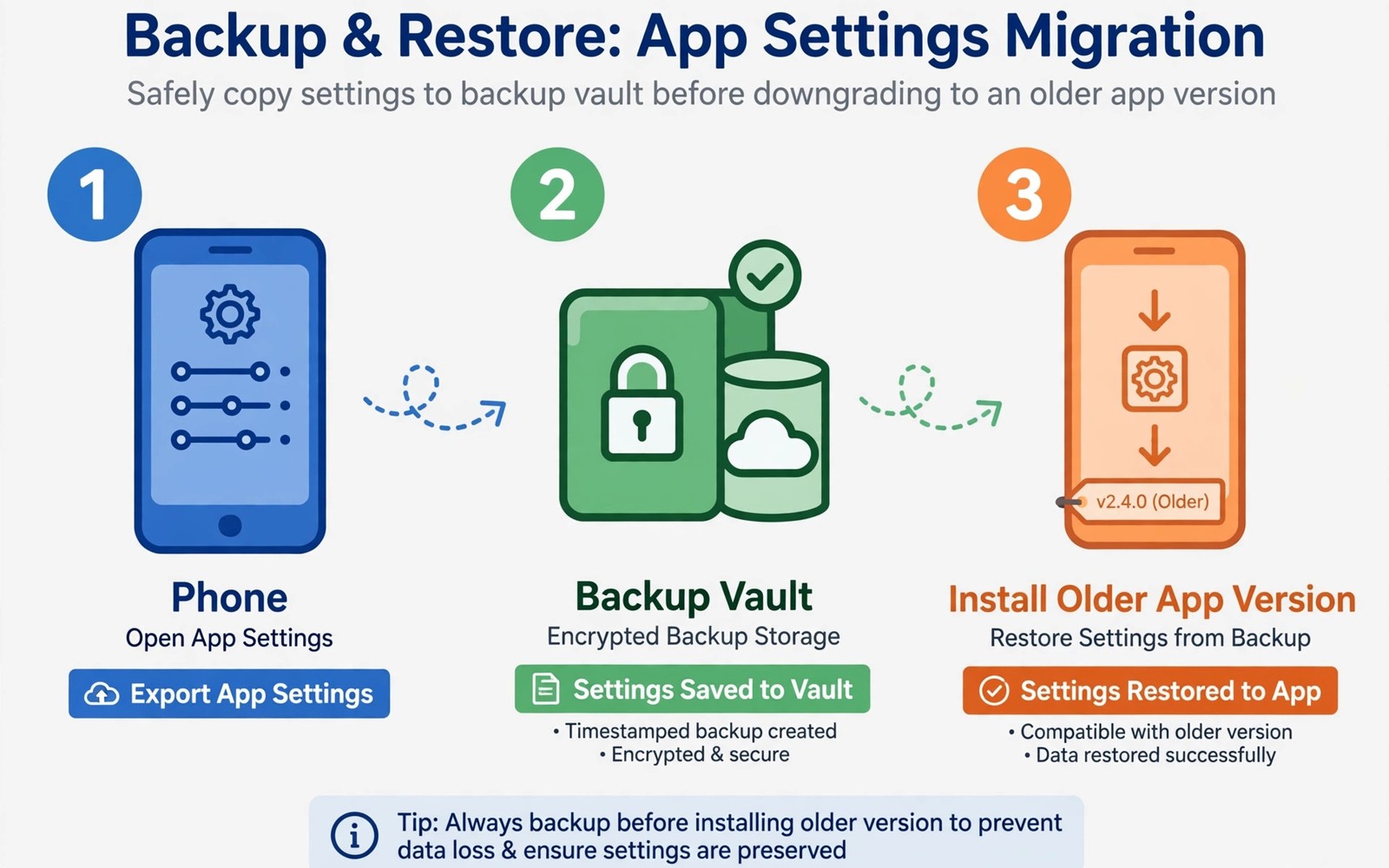
Downgrading an app can fix a broken update, but it can also erase settings that took months to refine. A downgrade often requires uninstalling the newer version first, and uninstalling can clear app data. Backing up settings before you start turns a risky rollback into a controlled experiment. The tablet guide on managing sideloaded apps on tablets and foldables is relevant here because layout settings on large screens are easy to lose.
Backup means more than copying files. It means capturing preferences and accounts and custom layouts in a form you can restore. Some apps offer built in export while others store settings in system folders or in cloud accounts. Knowing which method your app uses before you downgrade saves panic later. A five minute check now prevents hours of rebuilding later.
Find where your app stores settings
Open the app settings and look for export, backup or sync options before you touch the installed version. Many apps offer export to a file or sync to an account that survives reinstall. Use the built in option first because it usually restores cleanly. Note where the export file lands so you can find it after reinstall.
For apps without export, check whether settings live in a cloud account that will restore after login. Sign in and confirm that sync completed recently. A stale sync may restore old settings and overwrite recent changes. Force a sync manually when the app allows it, then wait for confirmation before proceeding.
Make a backup you can actually restore
Create the backup and then test it on a small scale before you downgrade. Export a file and open it to confirm it contains your settings rather than an empty template. Copy the export to a second location such as a computer or a cloud folder you control. Two copies protect against a failed restore and a lost file.
Record app version numbers and login details separately in a secure note. A downgrade may ask you to sign in again, and a forgotten password can block restoration. The repository advice in file repositories every power user keeps bookmarked helps you find the older version you need. Version notes plus a tested backup make rollback predictable.
Downgrade step by step without panic
Uninstall the newer version only after your backup is tested and copied to a second location. Install the older version and open it once without signing in, to confirm it launches cleanly. Then sign in or import settings and check core preferences one by one. A staged restore catches problems early, while a rushed restore hides them.
If settings fail to restore, stop and compare the backup file with the new install before trying again. Repeated reinstalls without diagnosis can overwrite the backup or create conflicting data. A calm check of file location and format usually reveals the issue. Patience during restore protects the data you worked to save.
Verify the downgrade before you settle in
Test the feature that motivated the downgrade first, because that feature is the reason for the whole exercise. If the old version fixes the problem, then verify that your settings survived. Check themes and notifications and account connections in turn. A downgrade that fixes one bug but loses your setup is only a partial success.
Keep the older installer file and the backup together in one folder with clear names. Future updates may reintroduce the bug, and a tidy folder lets you repeat the rollback quickly. Label the folder with app name and version so you do not confuse it with newer files later.
A pre downgrade backup checklist
Run this checklist in order before any downgrade. Skipping a step may seem fast, but each step protects a different kind of data.
Step 1: export settings from app, or force cloud sync
Step 2: open export file, confirm it is not empty
Step 3: copy export to second location
Step 4: note old version, new version, login method
Step 5: uninstall new version, install old version
Step 6: import settings, verify themes and notifications
The code above is an original example written for this guide. It shows one practical way to apply the idea in this article. You can adapt the wording and the values to fit your own phone and your own routine.
Handle app data that export misses
Some app data never appears in an export file, even when export looks complete. Widgets and home screen shortcuts and notification rules often live outside the main settings export. Take screenshots of your home screen layout and notification settings before a downgrade, so you can rebuild those pieces manually. Screenshots are a crude backup, but they capture details that exports miss.
Account linked data also needs separate attention, because a downgrade may break the link between app and account. Note which accounts connect to the app and whether sync was enabled for each one. After restore, check each account connection individually rather than assuming all of them returned. A single missed connection can silently stop sync for weeks.
Test restore on a second device when possible
A second device gives you a safe place to test a restore without risking your main setup. Install the older version on the spare device and import the backup there first. If the restore works on the spare device, it will likely work on your main phone. If it fails, you still have the original setup intact while you diagnose the problem.
When no spare device exists, test restore in stages on your main phone instead. Restore settings first and check core features before restoring media or large data sets. Staged restore limits damage if one stage fails, because earlier stages remain intact. Patience during restore is a form of data protection.
Keep backups after a successful upgrade
Do not delete a pre downgrade backup immediately after a successful restore, because a later update may reintroduce the same bug. Keep the backup for at least one full update cycle, so you can roll back again without repeating the export work. A backup that survives the cycle is insurance, not clutter.
Store backups with clear labels that include app name and version and date. A folder full of files named backup will confuse you within a month. Clear labels turn a backup folder into a usable archive. The broader safety notes in the master playbook for safe sideloading and distribution reinforce why tidy files and consistent versions matter during any reinstall. Labelled backups plus a calm restore routine make downgrades routine rather than stressful.
Automate backup reminders
Backups fail most often because people forget to make them, not because the technology is difficult. Set a monthly reminder to export settings for apps that lack automatic sync. A reminder that fires on a quiet evening is more likely to be followed than a vague intention to back up someday. Small automation of reminders beats ambitious backup plans that never happen.
Pair the reminder with a simple routine, such as exporting settings and copying the file to a second location in one sitting. A routine that takes ten minutes will survive, while a routine that takes an hour will be skipped. Keep the routine short and repeatable, and it will become a habit rather than a chore.
Restore after a factory reset
A factory reset is the hardest restore scenario, because every app starts from zero at once. Your backup folder becomes the key to rebuilding your setup, so keep it outside the phone itself. A backup stored only on the phone disappears during a reset, which defeats its purpose. External storage or a computer copy is essential for reset recovery.
Rebuild in priority order after a reset, starting with communication and work apps before games and media tools. Priority order restores daily life first and leaves entertainment for later. Check each restored app briefly before moving to the next one, so problems surface while the backup is still fresh in your mind.
After a full rebuild, keep the backup folder for another month in case a restored setting proves wrong later. A setting that looks right on day one may reveal a flaw after a week of use. A retained backup lets you compare and correct without starting over. Retention is cheap insurance after a major rebuild.
Common mistakes
The most common mistake is downgrading before checking for an export option. Users often discover the export menu only after data is gone. Another mistake is keeping the only backup inside the app data folder that uninstall deletes. A backup inside the doomed folder is not a backup at all.
- Do not store your only backup in app storage that uninstall will clear.
- Do not skip testing the export file before you uninstall.
- Do not downgrade several apps at once when only one app caused trouble.
- Do not forget login details that a fresh install will require.
A final mistake is assuming that a cloud sync is current without checking its timestamp. A stale sync restores old settings and may overwrite recent work. Confirm sync time before you proceed.
Frequently asked questions
Will downgrading always delete my settings?
Not always, but uninstalling a newer version often clears app data. Treat data loss as likely and back up first. A tested backup removes the gamble from the process.
What if my app has no export option?
Use cloud sync when available and confirm it completed recently. Take screenshots of key settings as a manual fallback. Screenshots will not restore automatically, but they guide manual rebuilding accurately.
Can I upgrade again after a downgrade?
Yes, usually by installing the newer version again and restoring settings from your backup. Keep the backup until the newer version proves stable. A backup that survives the whole cycle protects both directions.
Note settings that change with each update
Some settings reset after every app update, even when a downgrade is not involved. Notification preferences and theme choices are common victims of silent resets. Keep a short note of settings that tend to reset for your most used apps, so you can restore them quickly after any update. A reset note turns an annoying surprise into a two minute fix.
Conclusion
A safe downgrade starts with a tested backup stored outside app data and ends with a staged restore that you verify step by step. That discipline turns rollback from a gamble into a routine fix.
Your concrete next step is to open one app you may downgrade and locate its export or sync option today. Test the export now, before any update forces a rushed rollback.

