

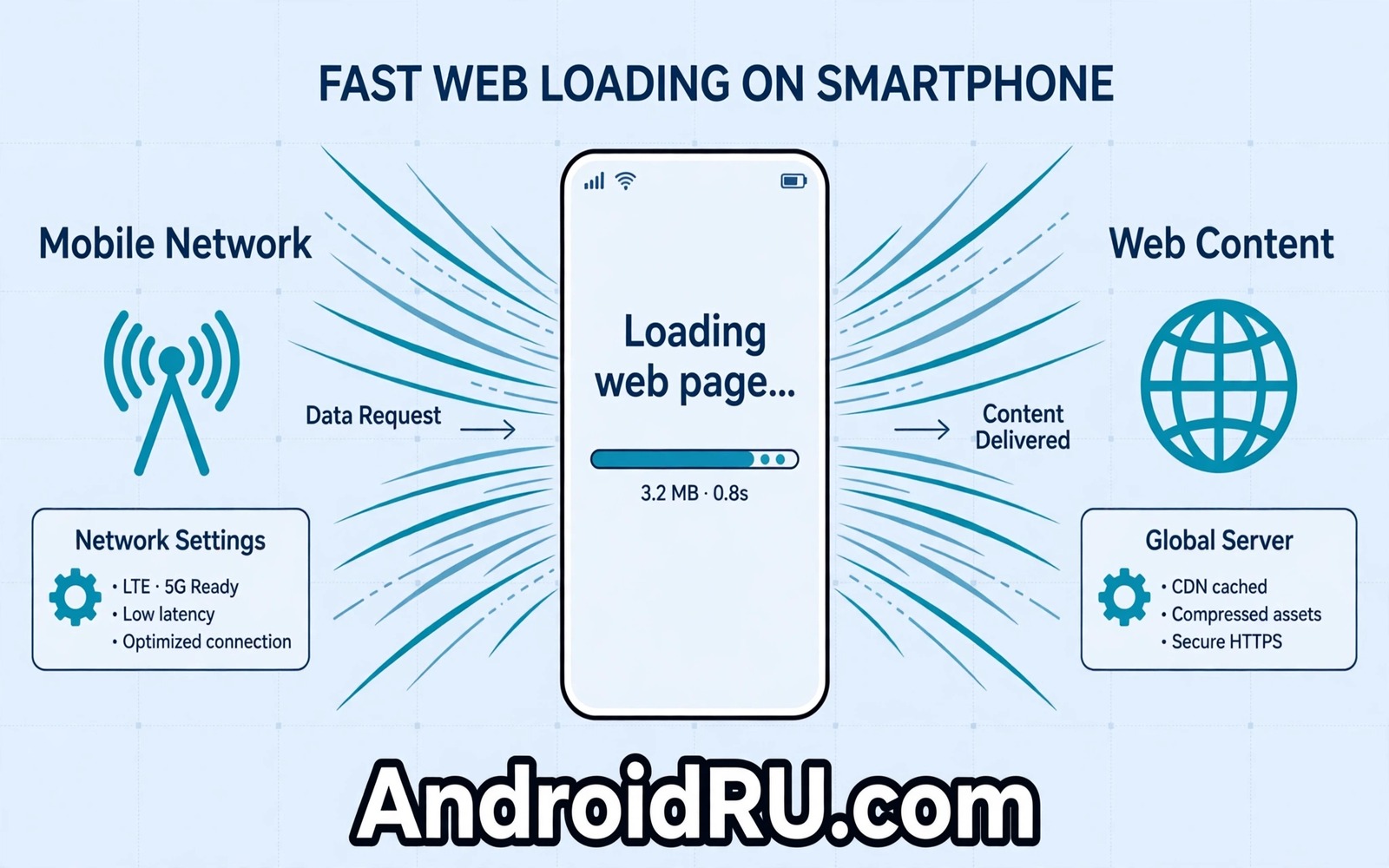
Web pages that load slowly on mobile data frustrate people even when signal bars look strong. A page may crawl while a speed test shows a decent number. That mismatch often points to the data route rather than to raw signal. The APN setting controls that route. APN stands for Access Point Name and it tells your phone how to reach your carrier data network.
A wrong APN can route traffic through a slow or congested gateway. An old APN from a previous carrier can linger after a SIM change. A missing APN field can force the phone to guess a route. All three cases can slow web loads without breaking the connection entirely. A correct APN restores the intended route and it often restores speed at once.
This guide explains what an APN does in plain terms. It shows how to find the current APN and how to compare it with carrier values. It shows how to reset APN settings safely. It also shows what never to change without a backup. A careless APN edit can break data completely. A careful edit with a note of the original values is safe.
Understand what an APN controls
An APN is a set of fields that tells the phone which gateway to use for mobile data. The name field identifies the gateway. Other fields control authentication and protocol and bearer type. A carrier publishes the correct values for its network. A phone with those values connects through the intended gateway. A phone with wrong values may connect through a fallback gateway that is slower.
Different carriers use different APN values even on the same phone model. A phone that moves from one carrier to another needs new values. A phone that keeps old values after a carrier change can still show signal bars. Signal bars only prove a radio link to a tower. They do not prove a fast data route through the carrier core. That distinction explains slow pages with strong bars.
Some phones store several APN profiles at once. Only one profile is active at a time. An inactive profile with correct values does nothing until you select it. Check which profile is active before you edit anything. Editing an inactive profile will not change speed. Selecting the correct active profile can fix speed without any typing.
Find and note your current APN
Open Settings and tap Network and internet and then tap SIMs and choose your active SIM. Look for Access Point Names in that menu. Tap the active profile to see its fields. Write down every field exactly as shown before you change anything. A photo of the screen can serve as a backup. A written note also works if you prefer paper.
Compare the active profile name with the name that your carrier publishes. A carrier website or support message can give the correct name and key fields. A mismatch in the name field is a strong clue. A mismatch in a protocol field can also slow traffic. Do not copy values from a random forum post without checking the carrier source. A forum value for a different region can harm your connection.
Check whether the phone offers a reset to default option in the APN menu. A reset to default restores the carrier values that came with the SIM. A reset is safer than manual typing for most users. Use the reset first if the current values look suspicious. Test web loads after the reset before you try manual edits.
Reset APN settings to carrier defaults
Tap the menu in the APN screen and choose Reset to default. Wait for the phone to restore the carrier profiles. Restart the phone after the reset so that the new profile registers cleanly. Test a web page after the restart. A successful reset often restores speed without any manual field entry. A reset also removes any old profile that lingered from a previous carrier.
Test several pages after a reset rather than a single page. A single page can load fast from cache and hide a still slow route. A fresh page or a new search term proves real speed. Test a news page and a search page and a video page. A consistent improvement across pages proves that the reset helped. A single fast page proves nothing on its own.
Check mobile data after the reset if pages still fail. A reset can occasionally select the wrong profile on a dual SIM phone. Open the APN menu again and confirm that the correct carrier profile is active. Select the correct profile manually if the reset chose a different one. A manual selection after a reset is a simple second step that fixes many dual SIM cases. Slow pages on Wi-Fi have a different cause and the guide to doubling Wi-Fi speed on Android covers the Wi-Fi side of slow loads.
Enter a carrier APN manually with care
Create a new APN profile only when the carrier gives you exact values and a reset fails. Tap Add or the plus icon in the APN menu. Enter the name and APN fields exactly as the carrier states them. Leave other fields blank unless the carrier specifies a value. A blank field lets the phone use a sensible default. A guessed value in an optional field can break the profile.
Save the new profile and select it as active. Restart the phone after you select it. Test a web page after the restart. If the page fails then return to the previous profile at once. A manual profile that fails should not stay active while you troubleshoot other settings. A quick return to the previous profile restores service while you check the carrier values again.
Delete a manual profile that you no longer need after a successful test with a carrier profile. A cluttered APN list can cause confusion later. A single correct active profile is easier to manage than a list of experimental profiles. Keep the original note until the new profile proves stable for a full day. A day of stable use is enough to confirm a manual edit.
Use this APN test routine
Work through the APN steps in order and test the same pages after each step. Note the original values before any change. Reset to default before manual entry. Test several fresh pages after each step. A disciplined sequence prevents a worse connection than the one you started with.
Step one: note current APN fields exactly
Step two: reset APN to default and restart
Step three: test fresh pages for speed
Step four: select correct carrier profile if needed
Step five: enter manual APN only with carrier values
This routine is an original example written for this guide. It uses only standard SIM and APN screens. It does not require any extra app. The routine works because it puts a safe reset before a risky manual edit. A reset can fix the problem without any typing. A manual edit should stay as a later step for cases where a reset fails.
Check signal and congestion before blaming APN
Test web loads in a strong signal spot before you edit APN values. A weak signal can slow pages even with a perfect APN. A strong spot test separates a signal cause from a route cause. If pages load fast in a strong spot then signal is the limit. If pages stay slow in a strong spot then the APN or congestion deserves the focus.
Test at a quiet time of day as well. A busy evening can slow a carrier network for everyone. A quiet morning test gives a cleaner picture of the APN route. If pages load fast in the morning and slow in the evening then congestion is likely. An APN change cannot fix congestion. A time based pattern needs a different response such as a different network mode or a later download.
Test mobile data with a different SIM if one is available. A second carrier SIM can reveal whether the fault follows the phone or the carrier. A fault that follows the carrier points to the APN or the network. A fault that follows the phone points to a device setting. That comparison can save a long APN edit on the wrong carrier. Real speed measurement helps here and the guide to testing real mobile internet speeds shows how to measure without misleading ads.
Know what never to change casually
Do not change the authentication type or the protocol fields without carrier guidance. Those fields control how the phone proves itself to the network. A wrong authentication value can block data entirely. A wrong protocol value can break newer network features. Leave those fields at carrier defaults unless support tells you otherwise.
Do not delete all APN profiles at once. A phone with no APN profile cannot reach mobile data at all. Keep at least one carrier profile active at all times. A delete should target only an experimental profile that you created. A carrier profile should stay even if it is not currently active. A safe list is easier to recover than an empty list.
Do not copy an APN from a different country or carrier. A foreign APN can route traffic through a distant gateway. A distant gateway adds delay to every page. A carrier specific APN is the only safe manual value. When in doubt use the reset to default option and ask carrier support for confirmation. Data limits can also masquerade as slow speed and the guide to setting strict app meter limits explains how a cap can throttle a connection.
Common mistakes
A common mistake is to edit APN fields without noting the original values. An edit without a note cannot be undone reliably. Another mistake is to copy a random APN from a forum for a different carrier. A wrong carrier value can slow or break data. Use carrier values or a reset to default instead.
Do not judge APN speed by a single cached page. A cached page loads fast regardless of the data route. Test fresh pages after each change. Do not leave a failing manual profile active while you test other settings either. Return to a working profile at once and troubleshoot from a stable base.
Frequently Asked Questions
Will an APN change affect calls?
An APN mainly affects mobile data rather than voice calls. A wrong APN can still affect data based calling features in some setups. Test a call after an APN change if you rely on data based voice. A normal voice call usually stays unaffected.
Can I use the same APN for two carriers?
No because each carrier publishes its own gateway values. A dual SIM phone needs a separate APN profile for each SIM. Select the correct profile for the active data SIM. A shared APN across carriers will fail or slow one of them.
Does resetting APN delete my contacts?
No because an APN reset only restores network profiles. It does not delete contacts or files or apps. A reset is a safe network step. A factory reset is a different action that does delete personal data.
Conclusion
Today open the APN menu for your active SIM and write down the current profile values. Reset APN to default and restart the phone. Test several fresh web pages in a strong signal spot. If pages load faster then the old APN was the cause. If pages stay slow then test at a quiet time and with a second SIM before you try a manual entry. That concrete sequence will fix the route without breaking your data.
Keep the original APN note until the new profile proves stable for a full day. A stable day confirms the fix. A note plus a stable day turns a confusing slowdown into a solved and repeatable routine.

