

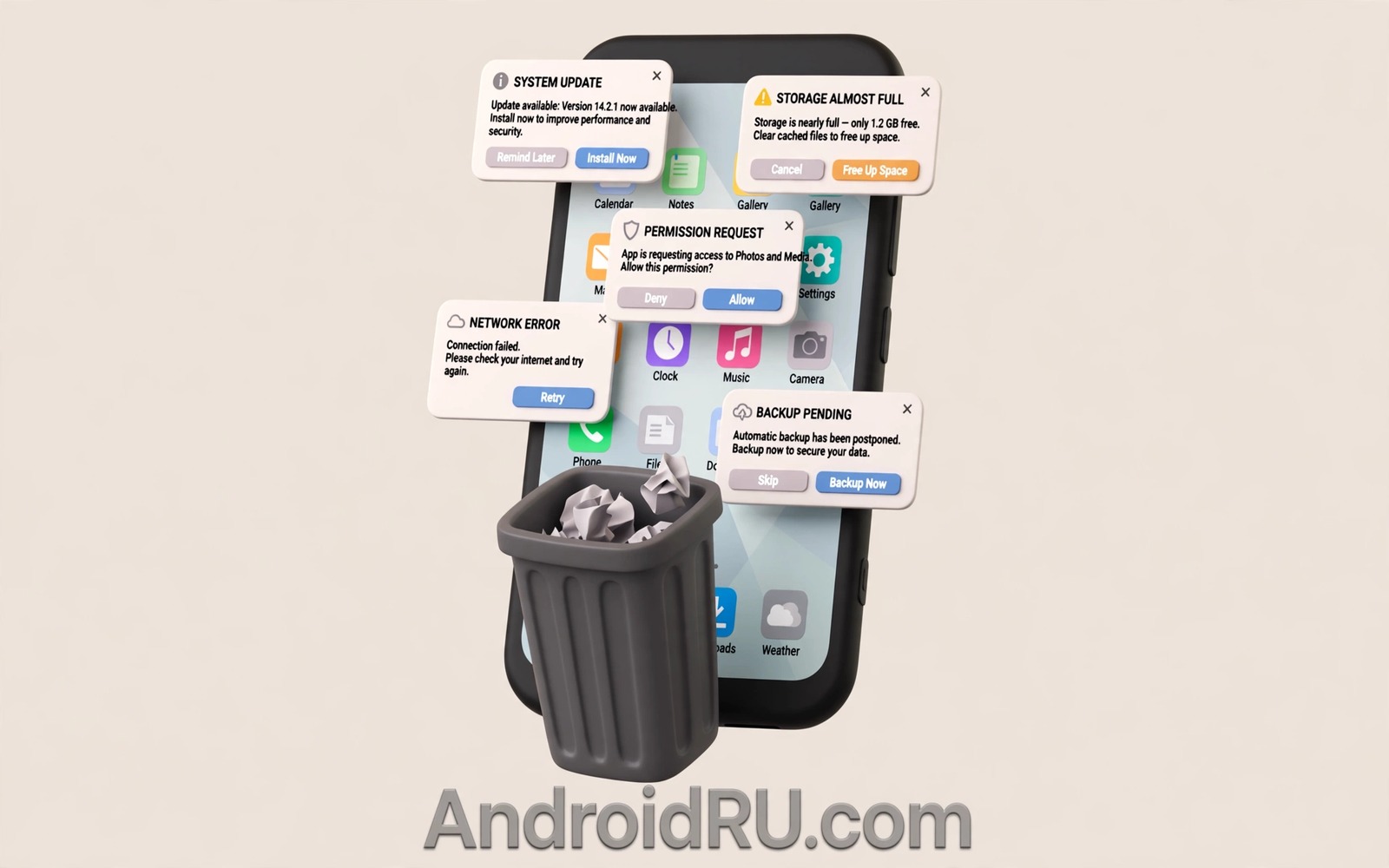
If You Notice Unexpected Popups on Home Screen, Delete This App!
You press the power button, the home screen lights up, and before you tap anything a full-screen ad appears. It warns of a virus, promises a prize, or begs you to install a cleaner. You did not open an app. You did not visit a website. The ad simply arrived, uninvited, on your own home screen. That is not normal Android behaviour, and it is not a setting you changed by accident.
The culprit is almost always an app already installed on your phone, abusing a permission called Draw over other apps to paint ads on top of everything, including the home screen and the lock screen. The app often hides its icon, uses a bland name like System Update or Phone Booster, and arrived bundled with something else you actually wanted. The good news: most cases end with one deletion and a permission cleanup, no factory reset needed.
This guide shows you how to stay safe in the first seconds, how to catch the exact app behind the popups, how to delete it properly, and how to lock the door behind it. Work through the steps in order, and do not tap the popup itself at any point.
Why Popups Appear on Your Home Screen Without Opening Any App
Android lets apps draw windows over other apps for legitimate reasons. Chat heads, screen filters, and floating video players all use the same permission, Draw over other apps, also called display over other apps. A fair app uses it while you use that app. Adware uses it around the clock, firing full-screen ads on a timer, when the screen wakes, or when you return to the home screen.
The ads pay the developer behind the bad app every time one appears, so the business model rewards frequency and sneakiness. That is why the culprit hides: no icon in the app drawer, a generic name, and an install date you do not remember. Some of these apps arrive as a bonus inside a free flashlight, a wallpaper pack, or a battery saver. Others arrive through a fake update prompt in a browser, or through a file shared in a chat group. The popup is the symptom; the hidden app is the disease.
Two other sources can mimic the same symptom, and it helps to rule them out early. A browser with notification permission can push ad notifications that look like popups, and a compromised home screen widget can show ad content. Both are rarer than app adware, and both are covered in the cleanup section below. If the popup covers the whole screen and appears even in airplane mode, an installed app is the cause, not a website.
Do Not Tap the Popup: What to Do in the First 30 Seconds
A home screen popup is built to provoke a panicked tap. The close button is small, grey, or fake, while the big bright button leads to a scam page, a payment form, or a second malicious install. Treat every unexpected popup as hostile until proven otherwise, and follow this order instead of tapping around.
Close the popup without touching its buttons
Press the back button or the back gesture first. If the popup stays, open the recent apps view and swipe the popup away. If it still stays, press the power button to lock the screen, then wake the phone again: many overlay ads dismiss when the screen locks. Do not tap the X inside the ad unless nothing else works, because some fake close buttons are wired to the same destination as the ad itself.
Never type anything into a popup form
A popup that asks for a phone number, a card number, a password, or a one-time code is a phishing attempt, full stop. Real security warnings never arrive as home screen ads, and no real antivirus product announces itself with a flashing prize banner. Close the popup, and if you already typed something into one, change that password from another device and watch the account for strange activity.
Turn on airplane mode to stop the ads while you hunt
Most popup ads are fetched from the internet, so airplane mode cuts off their supply. Swipe down the quick settings panel and tap Airplane mode. The ads already scheduled may still fire once or twice from cache, but no new ones can load. This gives you a quiet window to open Settings and find the culprit without another full-screen interruption every minute.
How to Find the App Behind the Home Screen Popups
Finding the culprit is a short detective job, and Android gives you three solid clues: the recent apps view, the overlay permission list, and the install timeline. Use them in that order, starting with the fastest.
Use the recent apps view to name the popup
Wait for the next popup, then immediately open the recent apps view without tapping the ad. On most phones the popup appears as its own card there, and the card shows the icon and name of the app that drew it. That name is your culprit. If the card shows a generic icon or a blank name, tap the app icon at the top of the card and choose App info: the system settings page that opens belongs to the real app, whatever it calls itself in the drawer.
Check which apps can draw over other apps
Open Settings, then tap Apps, then tap Special app access, then tap Draw over other apps. The list shows every app holding overlay permission. Scroll it slowly. Fair holders include your chat app, your screen filter, and your floating video player. Suspects include anything with a generic name, anything you do not remember installing, and anything with a blank or gear-shaped icon. Note the names before you change anything: you need the list twice, once to identify the culprit and once to clean up.
Sort the overlay list by suspicion, not by name
Ask three questions about each entry: do I remember installing this, does its name describe a real job, and does it need to draw over other apps at all? A torch app has no business drawing over your home screen. A cleaner app has no business drawing over anything. Any app that fails all three questions goes on your removal shortlist, even if it is not the one firing ads today.
Match the popup to your recent installs
Open the Play Store, tap your profile icon, tap Manage apps and device, then tap Manage, and sort by Recently updated or Recently installed. Look at what arrived in the days before the popups started. Adware often rides in as an update to an app you trusted months ago, or as a second app installed silently alongside a free tool. The install date is the strongest clue you have: a popup problem that began on Tuesday usually traces to an app that arrived on Monday or Tuesday.
Use battery and data usage as a second witness
Open Settings, then Battery, then Battery usage, and look for an app burning power in the background that you barely open. Then check Settings, then Network and internet, then Data usage, for an app moving data while the phone idles. Adware keeps a background service alive to schedule ads, and that service leaves a footprint in both places. An app you never open that sits near the top of both lists is almost certainly your culprit.
How to Remove the Culprit App Safely
Once you have a name, removal takes a minute. Do it from system settings rather than the home screen, because hidden adware often has no home screen icon to long-press, and the settings route works even when the icon is missing.
Delete the app from Settings step by step
- Open Settings, then tap Apps, then tap See all apps.
- Find the suspect app in the list and tap it to open App info.
- Tap Force stop first, so its background service cannot fire another ad or fight the uninstall.
- Tap Storage and cache, then tap Clear cache. Skip Clear storage unless the app holds accounts you are happy to lose.
- Go back and tap Uninstall, then confirm. The app, its ads, and its background service go with it.
- Restart the phone. A restart clears any overlay the app left drawn on screen and confirms the popups are gone.
What to do when the Uninstall button is greyed out
A greyed-out Uninstall button means the app made itself a device administrator, a trick adware uses to block removal. Open Settings, then Security, then Device admin apps, and switch off the suspect app. The phone warns you that the app will lose admin rights: accept it. Go back to App info and the Uninstall button should work now. If the app re-enables itself, repeat the step and uninstall immediately, before opening any other app.
When the app keeps coming back after deletion
Some adware has a partner app that reinstalls it, like a weed with two roots. If the popup returns after deletion, repeat the detective work: check the overlay list again and the recent installs again, and look for a second suspicious app you missed, often installed on the same day. Delete both, then restart. If the pair still returns, the infection runs deeper than an app, and the factory reset section near the end of this guide is your next step.
Revoke Draw Over Other Apps Permission From Every Suspicious App
Deleting the culprit stops the ads, but the cleanup is not finished until you audit the permission itself. Every app that keeps overlay permission is a future popup waiting for a bad update. A five-minute audit now saves a repeat of this whole hunt later.
Audit the overlay permission list app by app
Open Settings, then Apps, then Special app access, then Draw over other apps, and go down the list. Keep the permission only for apps that genuinely need it while you use them: chat bubbles, a blue light filter, a floating calculator. Switch it off for everything else, especially tools that have no visible reason to float: cleaners, boosters, flashlights, wallpaper apps, and anything with a generic name. An app that loses overlay permission keeps working normally in every other way; it simply cannot paint over your home screen any more.
Be thorough about the category, because app types to avoid installing is a longer list than most people expect, and the worst offenders are the free utility apps that promise to clean, boost, or cool your phone. Those categories exist mainly to serve ads, and overlay permission is how the ads reach your home screen. If an app on your phone matches one of those types, removing it outright beats merely revoking its permission.
Check notification permission and browser notifications too
While you are in a cleaning mood, open Settings, then Notifications, then App notifications, and look for apps you do not recognise holding notification permission. Then open Chrome, tap the three-dot menu, tap Settings, tap Site settings, tap Notifications, and remove any site you do not recognise. Browser notification spam looks different from overlay popups, it arrives as a banner rather than a full screen, but it comes from the same ecosystem of shady ad networks, and cleaning both at once is smart.
Clean Up Leftovers After Deleting the Adware App
The app is gone, but adware often leaves litter: a changed browser homepage, a new search engine, a shortcut on the home screen, or a second profile. Spend ten minutes on this section before declaring victory.
Remove stray home screen shortcuts and widgets
Long-press each home screen icon and widget you do not recognise and remove it. Adware sometimes drops a shortcut that looks like a system tool and reinstalls the app when tapped. Check every home screen panel, including the ones you never swipe to, and check the app drawer for icons with generic names. A clean home screen is part of the fix, not decoration.
Reset the browser homepage and search engine
Open Chrome, tap the three-dot menu, tap Settings, tap Search engine, and set it back to Google or your usual choice. Then tap Homepage and set it to the default or switch it off. Check the same settings in any other browser on the phone. A hijacked search engine sends your searches through an ad network, and it survives the app deletion because it lives in the browser, not in the app.
Scan the phone with Play Protect after the cleanup
Open the Play Store, tap your profile icon, tap Play Protect, then tap Scan. Play Protect checks installed apps against known harmful behaviour and flags anything it recognises. It is not perfect, and it rarely catches fresh adware on day one, but it is a free second opinion and it takes a minute. If it flags another app, remove that one too, then run the scan once more.
How the Bad App Got In: Sideloading, Bundles, and Fake Updates
Knowing the entry point matters, because the same door stays open for the next bad app unless you close it. Three routes account for nearly all home screen popup infections, and each has a different fix.
Free utility apps and bundled installs
The most common route is a free app that bundles a second app in its installer, or an app that quietly updates into adware months after you installed it. A torch, a QR scanner, or a cleaner looks harmless at install time, then an update flips on the overlay ads. The lesson is not that every free app is dangerous; it is that utility apps with no clear business model pay their bills with ads, and the most aggressive ones put those ads on your home screen. This is why security guides keep a list of apps that should be removed at once, and why it is worth checking your installed utilities against it every few months.
Sideloaded files and fake update prompts
The second route is a file installed from outside the Play Store: an APK from a chat group, a link in a video description, or a fake Flash or system update prompt in a browser. Sideloaded apps bypass Play Protect screening, so a bad one can hide its icon and claim device admin rights before you notice. Check whether Install unknown apps is on: open Settings, then Apps, then Special app access, then Install unknown apps, and switch it off for every app except the one you truly need, if any. While you are there, read the guide to permissions never to grant unknown apps before you ever sideload again, because overlay permission plus install permission in the same unknown app is the exact combination that produces home screen popups.
Stop It Happening Again: Settings That Block Popup Adware
Prevention is a short checklist, not a lifestyle change. Do these once, and the odds of a repeat infection drop sharply.
First, keep Play Protect on and let it scan automatically. Second, switch off Install unknown apps for every app that does not need it. Third, read permissions before installing: a torch that asks to draw over other apps is telling you its business model. Fourth, avoid cleaner, booster, and battery saver apps entirely; Android manages memory and battery on its own, and those apps exist to serve ads. Fifth, check the overlay permission list once a month, the same way you would check a bank statement. Two minutes a month beats another full cleanup.
One more habit helps: when a free app asks for a permission that does not match its job, deny it and watch whether the app still works. Most of the time it works fine, and you have just learned that the permission was for ads, not for features. Saying no is the cheapest security tool on the phone.
When a Factory Reset Is the Only Fix Left
Most popup infections end at deletion. A reset is the last resort, for the cases where the app returns after deletion, where two partner apps keep reinstalling each other, or where the popups survive airplane mode, safe mode, and every removal attempt. Before you reset, back up photos, chats, and contacts to your Google account, and write down your important passwords, because a reset wipes the phone clean.
To reset, open Settings, then System, then Reset options, then Erase all data, and confirm. Set the phone up as a new device afterwards, and install your apps fresh from the Play Store one at a time instead of restoring a full backup, because a backup can carry the bad app back onto the phone. If the popups return on a freshly reset phone before you install anything, the problem is in the firmware or the seller installed something at the system level, and that needs the shop or the manufacturer, not another reset.
Frequently Asked Questions About Unexpected Home Screen Popups
Can a popup on my home screen steal my passwords?
The popup itself cannot read passwords typed into other apps, but a fake popup can trick you into typing a password into its own form, and a malicious app with overlay permission can draw a fake login box over a real app. That is why the first rule is never to type anything into a popup. If you already did, change that password from another device, turn on two-step verification, and check the account for new logins.
Why do the popups appear even when I am not using the phone?
Because the adware runs a background service that fires ads on a timer, often when the screen wakes or when you return to the home screen. The service survives because the app holds background and overlay permissions. Force-stopping the app pauses the service, deleting the app removes it, and revoking overlay permission blocks the ads even if a leftover service tries to fire.
Is safe mode useful for finding the culprit app?
Yes. Hold the power button, then long-press Power off until the Reboot to safe mode prompt appears, and confirm. Safe mode disables all third-party apps, so if the popups stop, a third-party app is the cause, which confirms the diagnosis. Restart normally to leave safe mode, then use the recent apps view and the overlay list to name the app. Safe mode does not delete anything, so it is a safe test.
Do I need a paid antivirus app to remove popup adware?
No. Deleting the app and revoking its permissions removes the problem completely in most cases, and Play Protect gives you a free scan as a second opinion. Paid antivirus apps cannot do anything you cannot do in Settings, and some of them are adware themselves. Spend the money on nothing and spend ten minutes on the steps above instead.
Your next step is simple and takes five minutes: open Settings, then Apps, then Special app access, then Draw over other apps, and look at the list with fresh eyes. Anything generic, anything you do not remember installing, anything that has no business floating over your home screen loses its permission today. Then check your recent installs, delete the culprit, and enjoy a home screen that stays yours.

