

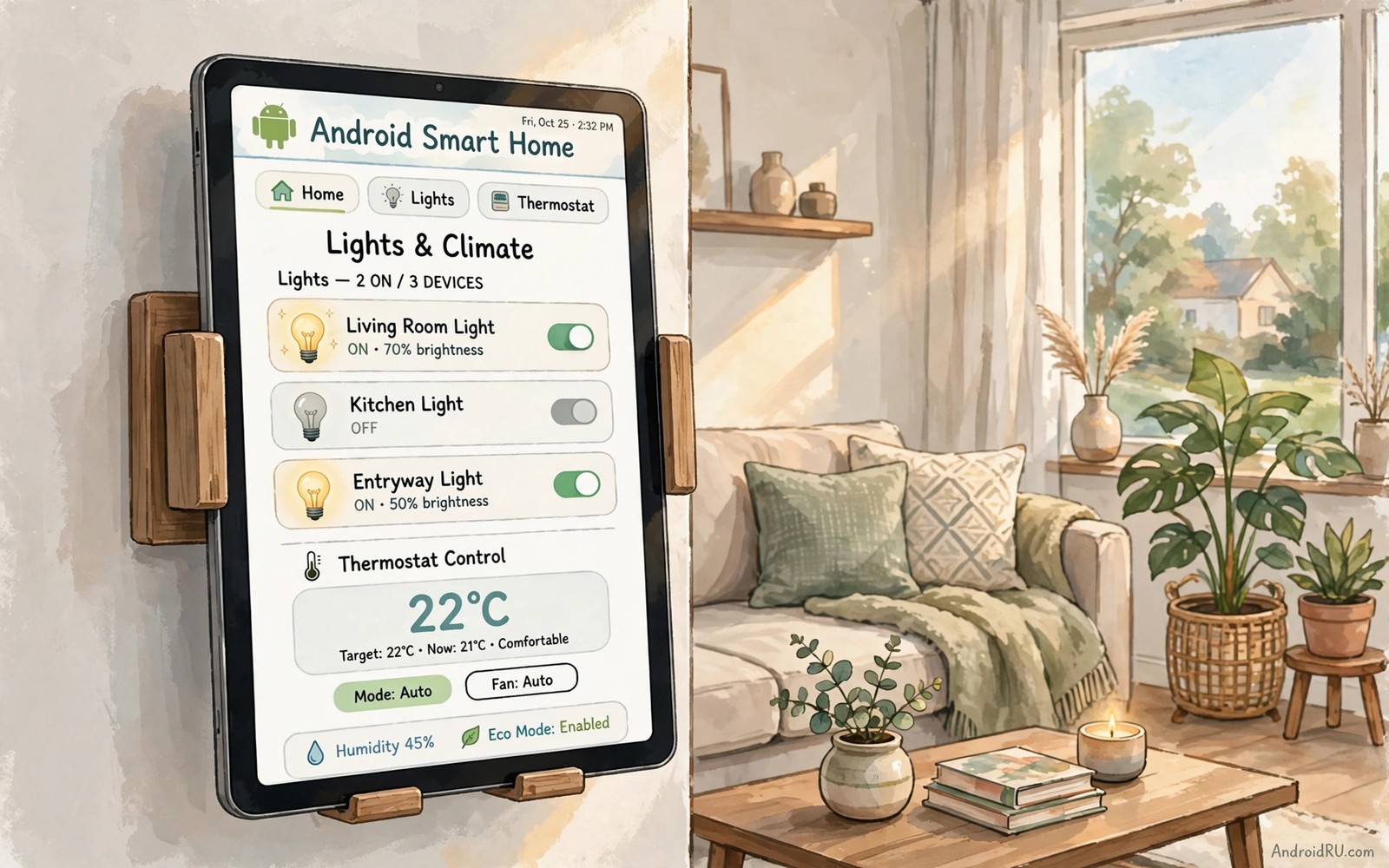
An old Android tablet that no longer gets daily use can become the most useful screen in your home. It can show lights and temperature and locks and cameras on one calm dashboard that anyone in the house can understand. A phone stays in your pocket and a television stays in one room but a tablet can move from kitchen to bedroom and still control the same home. That portability makes it ideal for guests and children and anyone who does not want to learn a complex app.
The project works best when you treat the tablet as a single purpose device rather than a general tablet. Remove distracting apps and lock the home screen to one dashboard view. Set brightness and sleep rules so the screen stays readable without burning power all day. Choose a dashboard app that talks to the devices you already own rather than forcing you to replace them. The result feels like a purpose built panel even though it started life as an ordinary tablet.
Plan the layout before you mount or charge anything. Put the most used controls at the top where a thumb can reach them without stretching. Group lights by room and put safety controls such as locks in a separate area with a confirmation step. For inspiration on a fixed version of this idea see turning a phone into a smart home dashboard and then adapt the layout for the larger tablet screen. A clear layout matters more than a fancy theme.
A tablet panel also helps visitors who feel unsure about voice commands or complex remotes. A guest can tap a large tile without learning a wake word or a menu path. That simplicity matters in a home where children and older relatives share control. A panel that anyone can use on first sight earns trust faster than a powerful panel that needs training. Design for the guest first and the expert second.
Pick The Right Tablet And Dashboard App
A tablet with a healthy battery and a bright screen will serve this role far better than a tablet with a swollen battery or a cracked display. Check the battery for swelling and check that the screen responds evenly across its surface. A device with at least a few hours of screen time can work while plugged in for most of the day. Avoid a tablet that overheats during video because an always-on dashboard will stress it in the same way.
Choose a dashboard app that supports your lights and plugs and sensors without a paid subscription for basic control. Test it with one room first and confirm that every device responds within a couple of seconds. If a device lags or drops offline often then fix its connection before you add more rooms. A dashboard that controls five devices reliably beats a dashboard that lists fifty devices with half of them offline.
Design A Dashboard Anyone Can Use
Good dashboard design starts with the person who will use it least often. Label each tile with a room name and a device name in plain words rather than a model number. Use large tiles for lights and temperature because those controls get tapped most often. Put scenes such as Good Night or Away at the bottom where they cannot be tapped by accident. Test the layout with a family member who did not build it and watch where they hesitate.
# Tablet panel daily profile
screen_timeout = 60_seconds
display_brightness = adaptive
panel_app = locked_to_dashboard
safety_controls = require_pin
night_mode = dim_after_22_00
The snippet above is an original example written for this guide. It shows generic settings that you can adapt to your own device. It does not copy code from any outside source.
Colour can help when it carries meaning and hurts when it only decorates. Use one colour for on and one colour for off across every tile so the state is clear at a glance. Avoid tiny text and avoid overlapping tiles that invite wrong taps. Keep the number of tiles on the first screen small enough to scan in five seconds. Extra rooms can live on a second screen that you reach with one swipe.
Power And Placement For Daily Use
A tablet that dies at midday is worse than no panel at all because people stop trusting it. Place the tablet near a charger in the kitchen or hallway where it gets used most. Use a short cable and a tidy stand so the tablet does not slide off a counter. Set the screen to dim after a short idle period and wake on touch so it saves power without going fully dark. A magnetic charging cable can make daily docking easier and it reduces wear on the tablet port.
Wall mounting suits a hallway or an entry point where the tablet stays in one place. A portable stand suits a kitchen counter where the tablet moves between cooking and dining. Try the portable setup for a week before you drill any holes because habits change once the panel is in use. Readers planning a fixed smart home layout can also read automated smart home scenes from a phone for scene ideas that transfer well to a tablet panel. Keep the charger accessible in either setup so a flat battery never blocks control.
Lock It Down Without Losing Convenience
A shared panel needs a balance between easy access and safety for locks and cameras. Leave lights and temperature open for anyone in the home. Require a PIN or a confirmation for locks and garage doors and security cameras. Set the tablet to stay on the dashboard app so a visitor cannot wander into email or messages. Use a separate limited account on the tablet when the system allows it so personal data stays out of reach.
Update the tablet and the dashboard app on a schedule and check for failed updates once a month. An outdated dashboard can lose support for a new device and an outdated system can expose the home network. Turn off app notifications on the panel so alerts do not cover controls at the wrong moment. A clean panel with no popups feels calmer and it responds faster because fewer apps compete for attention.
Add Cameras And Sensors Without Clutter
Cameras and sensors add awareness to a tablet panel but they can also clutter it quickly. Add one camera tile for the front door and one sensor tile for the main living area to start. Place those tiles on a second screen so the first screen stays focused on lights and temperature. A visitor does not need to see every sensor to use the panel well. Restraint keeps the dashboard calm.
Check camera privacy settings before you add any camera tile to a shared panel. A front door camera suits a shared screen while a bedroom camera does not. Set the camera tile to show a still image until tapped rather than a live stream by default. That choice protects privacy and it reduces network load on the tablet. A thoughtful camera policy keeps the panel welcome in every room.
Sensors work best when they trigger a simple visible change on the panel. A temperature sensor can tint a room tile when a room gets too warm. A door sensor can highlight a tile when a door stays open. Those subtle cues help without adding alerts that interrupt viewing. Test sensor tiles for a week and remove any tile that nobody checks.
Keep The Panel Useful As The Home Grows
A tablet panel can also mirror its dashboard to a larger screen when you want a wall view for a gathering. The method for mirroring a tablet display to a desktop monitor shows how a portable panel can scale up without rebuilding the layout. Keep the tablet as the main control point even when a larger screen shows the same dashboard. That habit avoids two competing control points.
Review the dashboard layout every season as devices change and rooms change use. Remove tiles for devices you no longer own and add tiles for new devices in their correct room groups. A seasonal review takes ten minutes and it prevents a slow drift into clutter. Ask a family member to try the panel after each review. Their hesitation points to tiles that need clearer labels.
Back up the dashboard configuration when the app allows it so a tablet replacement does not mean rebuilding from scratch. Store the backup with your other home notes and test restoring it on a spare device if you have one. A tested backup turns a broken tablet into a minor inconvenience. Without a backup the same failure becomes a weekend project. Preparation is part of good panel design.
Common Mistakes
The biggest mistake is loading the tablet with every smart app you own and calling that a dashboard. A panel with twenty apps forces people to hunt for controls and defeats the purpose of the project. Another mistake is mounting the tablet in direct sunlight where the screen overheats and dims itself. Choose a shaded spot with good Wi-Fi signal and the panel will stay bright and responsive. A third mistake is skipping a PIN for locks because convenience feels harmless until a guest taps the wrong tile. A wider device list can be found among smart home devices compatible with Android hubs for the next room you add.
People also forget to test the panel on the home Wi-Fi network from the farthest room. A dashboard that works next to the router may lag in a bedroom with weak signal. Add a simple access point or move the router if a room shows constant delays. Do not use a tablet with a damaged battery for an always plugged role because constant charging can worsen swelling. Retire that tablet safely and choose a healthier device for the panel.
Owners also place the tablet where Wi-Fi signal is weakest and then blame the dashboard app for lag. Test signal strength in the chosen spot before mounting or docking. A weak spot near a metal appliance can delay every tap by seconds. Move the panel a metre or add an access point and the same dashboard feels instant. Location testing belongs before any mounting decision.
Frequently Asked Questions
Can any old Android tablet work as a smart home panel?
Most tablets with a working screen and a stable Wi-Fi connection can work for this role. The battery should hold a charge and the tablet should run a current dashboard app without lag. A very old tablet with a dim screen or a failing battery will frustrate users and it should be replaced. Test the tablet for a day with the dashboard running before you mount it anywhere.
Should the tablet stay plugged in all day?
It can stay plugged in if you use a good charger and a battery care setting when one is available. Some tablets limit charging to protect the battery and that setting is worth enabling. If the tablet gets warm while charging then move it to a cooler spot and use a lower power charger. Check the battery once a month for swelling and unplug the tablet if you notice any change in shape.
How do I stop guests from opening other apps?
Lock the tablet to the dashboard app with a screen pinning or kiosk setting. That setting keeps the dashboard in front and blocks access to other apps without a PIN. Create a separate account without email or messages when the tablet allows it. Test the lock yourself by trying to leave the dashboard without the PIN before you hand the tablet to guests.
Conclusion
Pick your healthiest spare tablet today and install one dashboard app on it. Add lights for a single room and test the layout with someone else in the house. If they can turn a light on without help then mount the tablet in the kitchen and add the next room tomorrow. That slow rollout builds a panel people trust instead of a screen they ignore.
After a week of daily use ask every household member whether the panel feels easy or confusing. Their answers reveal tiles that need larger labels or a different room grouping. Move a tile that causes hesitation and remove a tile that nobody taps. A panel shaped by real use beats a panel shaped by a first guess. Repeat that short review each season and the panel will stay useful as the home changes.

