

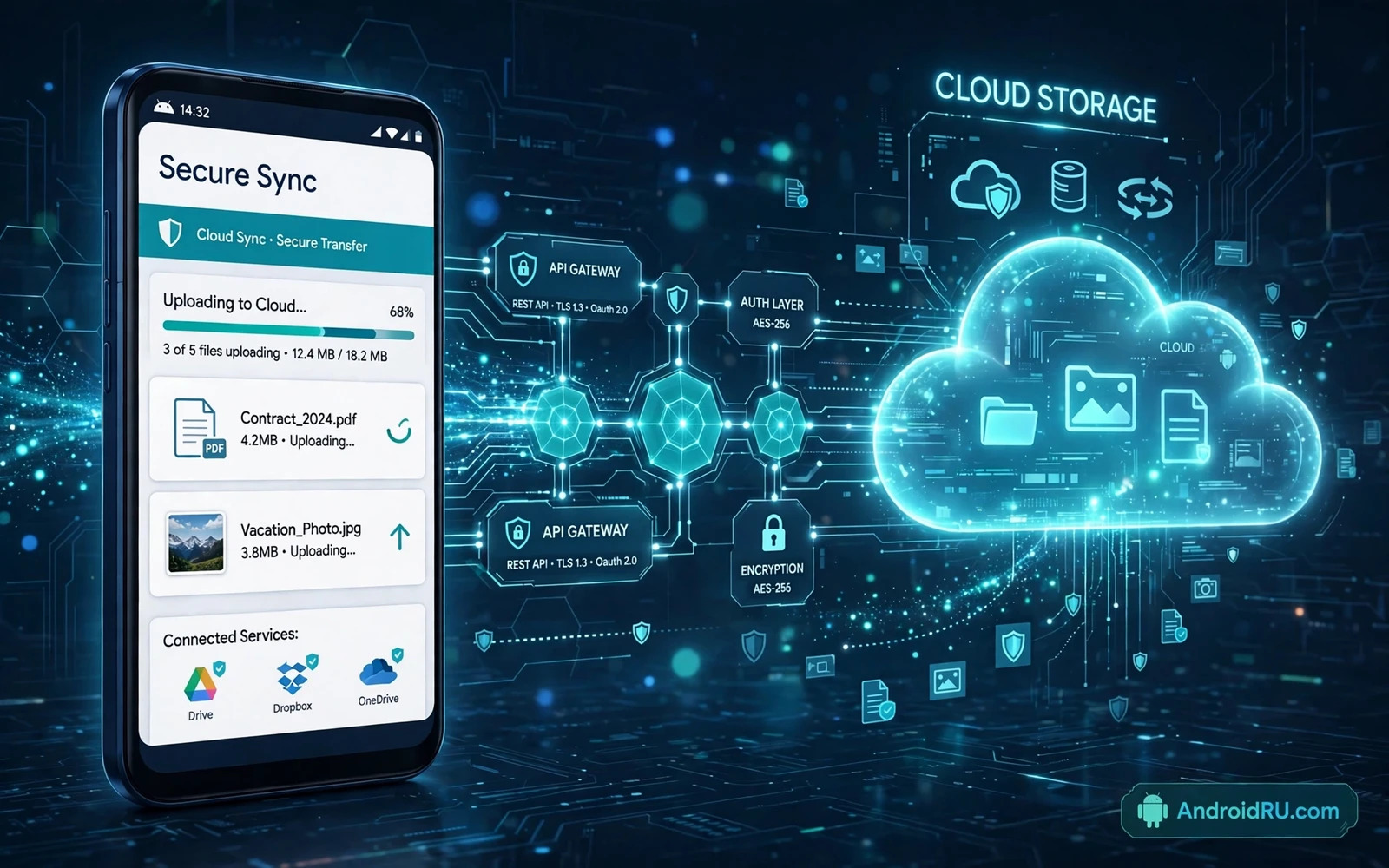
How to Integrate Cloud Storage APIs into Android Applications
People expect their files to follow them. A note started on a phone should be waiting on a tablet, a photo edited on one device should show the edit on another, and a document should survive a lost or broken phone. That expectation is what cloud storage integration delivers, and it is also what makes the feature harder than it looks at first glance.
A cloud integration is not a simple file download with a nicer name. Files can be large, networks can be unreliable, and the same file can be edited on several devices before any of them talks to the server. Sync logic has to handle conflicts, partial uploads, and offline changes, and it has to do all of that without draining the battery or eating a mobile data plan. A naive integration that assumes a perfect network will fail in real use, and the failure usually costs the user work they cannot get back.
This guide covers the full integration, from choosing a provider to handling errors, privacy, and cost. You will see how OAuth authentication works on Android, how to build uploads that survive interruption, how to design sync and conflict handling users can trust, and how to test the whole thing across emulators and real devices. The code samples use Kotlin and current Android APIs, and every pattern here has been used in production apps that store files people care about.
What cloud storage integration means for an Android app
Cloud storage integration lets an Android app store files on a remote service and retrieve them on demand. Users gain access to their files across devices, and they gain a backup when a phone is lost or damaged. Developers gain a managed storage backend without building their own file servers. The integration usually involves an API for authentication, upload, download, listing, and sharing. A clear understanding of that API surface is the starting point for a reliable integration.
The API surface you are actually integrating
Most cloud storage APIs expose the same handful of operations: authenticate a user, list files in a folder, upload a file, download a file, create or rename a folder, share a file, and read or write metadata such as the modified time and the revision id. The details differ, but the shape is familiar across providers. Learn the shape first, then learn the provider’s quirks: how it pages long file lists, how it reports a file’s revision, how it names its quota errors, and how it handles a file that changed since you last read it. Those quirks decide how much code you write.
Why offline-first thinking comes before the first API call
Plan for interruption from the start, and treat offline mode as a normal state rather than an error. A user on a train, in a basement car park, or on a throttled connection still expects the app to work. That means local copies of files, a queue for changes made offline, and a sync step that runs when connectivity returns. If offline handling is bolted on after the happy path works, it will be fragile. If it is designed first, the rest of the integration gets simpler, because every operation becomes a local change plus a queued sync.
Choosing a cloud storage provider for Android: Drive, Dropbox, OneDrive, and S3
Choosing a provider involves trade-offs in features, pricing, limits, and regional availability. Some providers focus on personal files, some focus on team collaboration, and some focus on raw app data backup. An app should choose a provider that matches its file types, its audience, and its sharing needs. Switching providers later is costly, because authentication, API details, and file formats differ. A careful choice at the start saves a painful migration later.
| Provider | Best for | Free tier | Key API strengths | Watch out for |
|---|---|---|---|---|
| Google Drive | Android apps, Google account users | 15 GB shared with the Google account | Deep Android integration, app data folder, strong search | Scoped access needs care; broad drive scope alarms users |
| Dropbox | Cross-platform file sync, sharing links | 2 GB | Simple API, reliable resumable upload, good SDKs | Small free tier; team features sit behind paid plans |
| OneDrive | Microsoft 365 users, Office documents | 5 GB | Microsoft Graph API, Office co-authoring, business plans | Graph API surface is large; setup takes longer |
| Amazon S3 | App-owned storage, large files, custom backends | Pay as you go; free tier covers limited use for 12 months | Storage classes, presigned URLs, fine-grained control | You build auth, sharing, and sync yourself |
| Box | Business teams, regulated content | 10 GB for personal accounts | Granular permissions, retention policies, admin controls | Consumer features are thinner than Drive or Dropbox |
Google Drive API strengths and limits
Drive is the natural first choice for an Android app whose users already have Google accounts, which is most of them. The app data folder gives your app a private space the user never sees in their Drive, which fits backups and settings. The Drive API supports resumable uploads, file revisions, and search by name or content. The catch is scope: request drive.file scope so the app only sees files it created or the user opened with it, and explain that scope plainly. A request for full drive access for a narrow feature will damage trust, and Google’s own review may question it.
Dropbox, OneDrive, and S3 compared on the same criteria
Dropbox wins on API simplicity. Its upload sessions are easy to implement, its SDKs are mature, and its sharing model is straightforward. OneDrive wins when the audience lives in Microsoft 365, because documents open in Office with co-authoring, and the Graph API covers mail and calendar as well as files. S3 wins when the app owns the storage rather than the user: you control the bucket, the storage class, and the access policy, but you also build the authentication and sharing layers yourself. The right answer depends on who owns the files. If the user owns them, pick the provider they already use. If the app owns them, pick the infrastructure you can control.
When object storage like S3 beats a consumer drive API
Object storage fits when files are app-generated rather than user-chosen: backups, exported data, cached media, or large attachments tied to an account in your backend. You get presigned URLs for direct upload and download, storage classes for hot and cold data, and lifecycle rules that move old files to cheaper storage automatically. The trade-off is that there is no user-facing file browser, no sharing UI, and no sync client. You build all of that, or you accept that users never see the bucket directly.
OAuth 2.0 authentication and scoped tokens on Android
Authentication for cloud APIs usually uses OAuth flows that grant scoped tokens rather than sharing a user password with the app. Scoped tokens limit access to only the folders and operations the app actually needs. Tokens must be stored securely on the device, and they must be refreshed safely when they expire. A token stored in plain text or logged in debug output creates a serious security risk. Secure storage and careful logging are basic requirements for any cloud integration.
The authorization code flow with PKCE, step by step
Modern Android apps use the authorization code flow with PKCE, which is the current recommendation for native apps. The steps are concrete. First, the app generates a random code verifier and derives a code challenge from it. Second, it opens the provider’s authorization page in a Custom Tab, never in a WebView, so the user sees the real provider domain and their existing session. Third, the user approves the requested scopes, and the provider redirects back to the app through a registered redirect URI. Fourth, the app exchanges the authorization code plus the code verifier for an access token and a refresh token. Fifth, the app stores both tokens securely and discards the verifier. Use a maintained library such as AppAuth for Android rather than hand-rolling this flow. The library handles the redirect, the state parameter, and the token exchange, and it has been audited far more than a custom implementation will be.
Storing tokens with EncryptedSharedPreferences
Store the access token and refresh token in EncryptedSharedPreferences, which encrypts keys and values with a key held in the Android Keystore. Never store tokens in plain SharedPreferences, in a database without encryption, or in a file the user can read. Never log a token, even in debug builds, because logs leave the device through bug reports. The code below shows the standard setup:
val masterKey = MasterKey.Builder(context)
    .setKeyScheme(MasterKey.KeyScheme.AES256_GCM)
    .build()

val prefs = EncryptedSharedPreferences.create(
    context,
    "cloud_tokens",
    masterKey,
    EncryptedSharedPreferences.PrefKeyEncryptionScheme.AES256_SIV,
    EncryptedSharedPreferences.PrefValueEncryptionScheme.AES256_GCM
)
prefs.edit().putString("access_token", token).apply()
Sign-in flow should be clear and reversible. Users should understand which account they connected and which folders the app can access. A disconnect option should revoke access cleanly and remove stored tokens from the device. A sign-in flow that hides scope or makes disconnect hard will damage trust. Transparency about scope is especially important when an app requests broad drive access for a narrow feature. Narrow scope should be the default whenever the provider supports it.
Refresh tokens and silent re-authentication
Access tokens expire, usually within an hour, and the refresh token is what keeps the user signed in. When an API call returns a 401, refresh the token once, retry the call with the new token, and only then ask the user to sign in again if the refresh itself fails. Queue concurrent requests behind a single refresh so ten parallel calls do not trigger ten refresh attempts. If the refresh token is revoked, clear all stored tokens, show a plain explanation, and offer a fresh sign-in. A silent re-authentication that works is invisible. One that loops forever is a bug users notice fast.
Upload and download patterns: resumable transfers, chunking, and honest progress
Uploads should support resumable transfers for large files, because a single failed upload should not force a full restart. Chunked upload breaks a large file into parts that can be retried individually. Progress reporting should be honest, and it should survive app backgrounding when the provider supports it. A progress indicator that jumps or freezes will frustrate users even when the upload eventually succeeds. Reliable progress is part of a professional cloud feature.
Resumable upload sessions in practice
A resumable upload works in three phases. First, the app starts a session and receives a session URL. Second, it sends the file in chunks, typically 256 KB to 8 MB each, and the server confirms how many bytes it has. Third, when the last chunk lands, the server returns the finished file resource. If the connection drops, the app asks the server how many bytes arrived and resumes from there instead of starting over. Google Drive, Dropbox, and OneDrive all support this pattern, with slightly different session calls. The code shape is the same everywhere: start a session, loop over chunks, confirm, finish. Test it by turning on airplane mode mid-upload and turning it off again. That test is worth more than ten happy-path runs.
// Start a resumable session, then upload in chunks and resume on failure
val sessionUri = startUploadSession(fileName, fileSize)
var uploaded = queryUploadedBytes(sessionUri)
while (uploaded < fileSize) {
    val chunk = readChunk(file, uploaded, CHUNK_SIZE)
    uploaded = uploadChunk(sessionUri, chunk, uploaded)
}
Downloads that resume and verify with a checksum
Downloads should also handle interruption and partial data gracefully. A download that resumes from where it stopped saves time and data on a mobile connection. Use the HTTP Range header to request only the missing bytes, and store the partial file beside the finished one so a restart does not lose progress. Downloaded files should be verified after transfer when the provider offers a hash or a size check. Verification catches truncated files before they are shown to the user as complete. A file that looks complete but is truncated will cause confusion and support reports that are hard to trace.
Background transfers with WorkManager
Large transfers belong in WorkManager, not in a foreground service you manage by hand. A CoroutineWorker can run the upload, report progress, and survive process death, and the system schedules it around battery and network constraints. The worker below shows the shape:
class CloudUploadWorker(appContext: Context, params: WorkerParameters) :
    CoroutineWorker(appContext, params) {
    override suspend fun doWork(): Result {
        val filePath = inputData.getString("file_path") ?: return Result.failure()
        uploadResumable(File(filePath)) { bytesDone, total ->
            setProgress(workDataOf("progress" to bytesDone, "total" to total))
        }
        return Result.success()
    }
}
Wi-Fi-only transfers and battery-friendly scheduling
Large transfers on mobile data can consume a user data plan quickly. An app should offer a Wi-Fi-only option for large files, and it should respect system battery optimisation. WorkManager constraints make this easy: require unmetered network for big uploads, require charging for multi-gigabyte jobs, and let the user override per file. A cloud feature that ignores data and battery costs will be uninstalled even when its core function works well.
Sync engines and conflict handling: last-write-wins vs keeping both versions
Sync logic must decide what happens when the same file changes on two devices before either change is uploaded. A simple last-write-wins rule is easy to implement, but it can silently discard user work. A better approach keeps both versions or asks the user to choose when a conflict is detected. Conflict handling should be visible and understandable rather than hidden in a log. Users who lose work to a silent conflict will not trust sync again.
Detecting a conflict with etags and revision ids
Every serious cloud API attaches a revision marker to each file: an etag, a revision id, or a hash. Store the marker from the last successful sync beside the local file. Before uploading a change, compare the local marker with the server’s current marker. If they match, the upload is safe. If they differ, someone else changed the file since your last sync, and you have a conflict. The check is a few lines:
val localRev = localFile.revision
val remoteRev = remoteFile.revision
if (localRev != remoteRev && localFile.modifiedAt > lastSyncAt) {
    // Both sides changed: keep both versions and ask the user
    keepBothVersions(localFile, remoteFile)
} else {
    upload(localFile)
}
Three conflict strategies and when each one fits
Last-write-wins fits caches and generated files where losing a version costs nothing. Keep both versions fits documents and notes, where the user can merge by hand: save the local copy with a name like “Report (conflict, this device)” and keep the server copy as it is. Ask-the-user fits the middle ground, where a dialog shows both versions with their dates and sizes and lets the user pick. Whichever strategy you choose, surface it. A visible conflict with two named versions is a small annoyance. A silent overwrite is a lost afternoon of work and a user who stops trusting sync.
Offline changes need a queue that survives restarts
Offline changes need a queue that survives app restarts and device reboots. Each queued change should record its file, its operation, and its local state. The queue should be processed in order when connectivity returns. A queue that loses entries on restart will lose user work in exactly the situations where offline mode matters most. Store the queue in a Room database rather than in memory, and mark each entry as pending, in progress, or done so a crash mid-upload can resume cleanly. Testing offline queues with forced restarts reveals problems that happy-path testing misses.
File organisation, metadata, sharing, and version history
File organisation in the cloud should mirror how users think about their files rather than how the API stores them internally. Folders, names, search, and recent files all shape the user experience. Metadata such as modified time, file type, and owner should be stored alongside the file reference. Good metadata enables sorting, filtering, and conflict detection. Poor metadata forces users to browse blindly through a flat list of files.
Folders, search, and recent files
Most users navigate by three routes: folders, search, and recent files. Support all three, even if your first version is simple. A folder view needs parent ids and a breadcrumb path. Search needs the provider’s query API or a local index built from synced metadata. Recent files needs a modified-time sort with a limit, and it should update after every sync. The three views share one file list, and that list should show the sync state of each file so users know what is safe to open offline.
Sharing links with the narrowest scope
Sharing adds another layer of design, because shared files involve permissions for other people. A share link should carry the narrowest access that still meets the sharing goal: view-only when the recipient only needs to read, edit when they need to change. Expiry and revocation options help users control shared access over time. An app should show clearly which files are shared and with whom. Hidden sharing state is a privacy risk that users discover only after a problem occurs, and by then the file has already been seen.
Version history as a safety net
Version history can protect users from accidental overwrites and deletions. Some providers keep prior versions that can be restored after a bad edit. An app that exposes version history gives users a safety net for important files, and it also helps teams that collaborate on shared documents. The app should explain how long versions are kept so users do not assume permanent history where none exists. Drive keeps revisions for a limited window, Dropbox keeps them longer on paid plans, and S3 versioning keeps them until you delete them. Say which one applies.
Error handling, retry policy, and Play Console policy checks
Cloud errors should be explained in plain language with a clear next step. A generic error message that says only that something went wrong leaves users helpless. A message that distinguishes network failure from auth failure from quota failure helps users to act correctly. Auth failures may need re-sign-in, while quota failures need cleanup or an upgrade choice. Clear error categories turn a frustrating failure into a solvable problem.
Error categories users can act on
Map provider errors to four user-facing categories. Network errors mean the connection dropped: say so, and offer a retry. Auth errors mean the token died: offer a fresh sign-in. Quota errors mean the account is full: show how much space is used and offer cleanup or an upgrade. Conflict errors mean the file changed elsewhere: show the conflict screen. Every other error gets a plain message with a support path, not a raw error code. The mapping table lives in one place in your code, so a new provider error gets a human message instead of a crash report.
Bounded retries with a visible cancel option
Retry logic should be bounded and visible. Automatic retries help for transient network errors, but they should not loop forever on a permanent error. A retry that continues in the background without user knowledge can waste data and battery. A visible retry state with a cancel option respects user control. Use exponential backoff, cap the attempts at three to five, and test the retry policy with forced failures so its behaviour is known rather than assumed. A retry storm during a provider outage can turn a small problem into a large one.
Policy awareness is part of responsible integration
Policy awareness also matters for cloud apps, because storage and account handling face store rules, and readers can check Google Play Console policy updates for developers for current policy context on data handling and declarations. Policy can affect how an app describes its cloud access and how it handles user data. A team that reviews policy during design avoids a late redesign before release. Policy review is part of responsible cloud integration rather than a final checklist item.
Privacy, encryption, deletion, and cost control
Cloud files may contain sensitive personal data, and the app must protect that data in transit and at rest where the provider allows it. Transport encryption is standard, but client-side encryption may be needed for highly sensitive files. The app should state plainly what it encrypts and what the provider can see. Users cannot make an informed choice when encryption claims are vague. Honest encryption language builds trust, and it prevents false confidence.
What is encrypted in transit and what the provider can see
Every major provider encrypts data in transit with TLS and at rest on its own servers. That protects files from interception and from disk theft, but the provider still holds the keys, which means the provider can read the files. For highly sensitive files, encrypt on the device before upload, with a key the provider never sees. Tell the user exactly which of these is true for their files, in one sentence, in the settings screen. If the app encrypts before upload, say so. If it relies on the provider’s encryption, say that instead. Vague claims help nobody.
Deletion, trash states, and quota warnings
Data deletion should be complete and understandable. Deleting a file in the app should delete it from the cloud, or explain clearly when it moves to a trash state first. A trash state that retains files for a period can help recovery, but it must be disclosed. Users who believe a file is deleted while it remains recoverable face a privacy surprise. Deletion behaviour should be documented in the app and tested after each provider API change. Quota handling should be graceful too: a clear warning before the limit is reached lets users clean up or upgrade before uploads start failing. A silent failure at the limit feels like a bug even when the provider behaved correctly, so quota status should be visible where users manage their files.
Storage classes and the monthly cost review
Cloud providers offer different storage classes for frequent access, infrequent access, and archival use. An app that stores user files should choose a class that matches how often files are actually opened. A wrong class can raise costs or slow retrieval for files that users need quickly. Cost and latency trade-offs should be reviewed with real usage patterns rather than guesses, and a periodic cost review keeps a cloud feature sustainable as usage grows. For S3-backed apps, set lifecycle rules early: move untouched files to a cheaper class after ninety days, and archive or delete them on a schedule the user can see.
Frequently asked questions about cloud storage APIs on Android
How do I choose between Google Drive and Dropbox for my app?
Pick the provider your users already have. If the audience is mostly Android users with Google accounts, Drive fits, and its app data folder gives you a private space for backups. If the audience is cross-platform and cares about simple sharing links, Dropbox fits, and its API is the easiest to implement well. Check the free tier, the scope model, and the pricing for your expected file sizes before you commit, because switching later means rewriting auth, upload, and sync code.
What happens to offline edits when the user switches devices?
The offline queue on the first device uploads its changes when that device reconnects, and the second device picks them up on its next sync. If both devices edited the same file while offline, the sync engine detects the conflict through revision markers and keeps both versions instead of overwriting one. The user sees a conflict screen with both versions, their dates, and their sizes, and picks the one to keep. Nothing is lost silently, which is the whole point.
Can I encrypt files before uploading them to the cloud?
Yes. Encrypt the file on the device with a key stored in the Android Keystore, then upload the encrypted bytes like any other file. The provider stores ciphertext it cannot read, and only your app can decrypt it. The trade-off is real: the provider’s search, preview, and thumbnail features stop working on encrypted files, and losing the key means losing the file. Use client-side encryption for sensitive files, and use the provider’s own encryption for everything else.
Do I need a backend server to integrate a cloud storage API?
Not always. Consumer providers such as Drive, Dropbox, and OneDrive are designed for direct integration from the app: the user signs in with OAuth, and the app talks to the provider directly. You need a backend when the app owns the storage, when you use S3 with presigned URLs, when you need to share files between users without sharing their accounts, or when you want to enforce business rules the client cannot be trusted with. Start without a backend if the provider model fits, and add one when the requirements outgrow it.
How do I test cloud sync without risking real user files?
Test against a dedicated test account on each provider, with files you can delete freely. Split the work between emulators and physical devices: readers can review testing Android apps on emulators versus physical devices to split cloud tests between controlled emulator runs and real network device runs. Emulators help with repeatable sync scenarios, and physical devices reveal real network interruption behaviour. Both are needed, because sync bugs often appear only under real network conditions. A test plan that covers both gives stronger sync confidence. Permission handling also shapes cloud access, because local files and accounts need user consent, and readers can study understanding the Android permission model and dynamic requests to design consent flows that feel clear rather than intrusive. A cloud feature that also needs local storage access should explain both needs at the moment of use.
A successful cloud integration feels invisible when it works and clear when it fails. It authenticates securely, uploads resumably, syncs honestly, and handles conflicts visibly. It respects data and battery and user control. It explains errors in plain language and offers a clean disconnect. When those qualities hold, users will trust the app with files that matter to them.
Start today with one concrete step: pick the provider your users already have, create a test account, and build the smallest working loop — sign in, upload one file, download it on a second device. If that loop works, you have the foundation. Everything else in this guide is that loop made resilient: resumable, offline-aware, conflict-safe, and honest about errors.

