

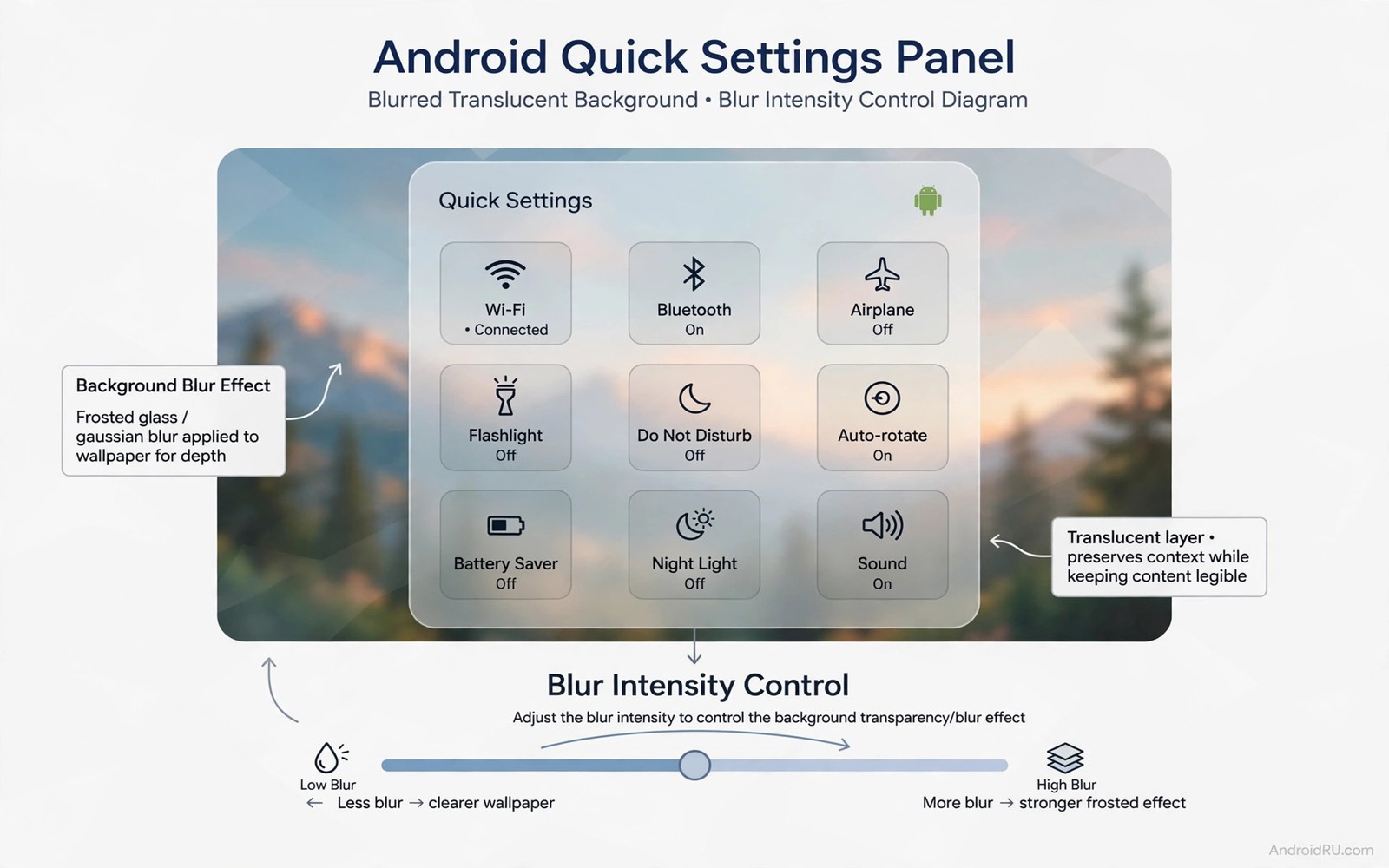
Quick settings panels appear when you swipe down from the top. They hold Wi-Fi and Bluetooth and brightness and other toggles. By default many panels use a solid colour. Dynamic blur replaces that solid colour with a live blurred version of whatever sits behind the panel. Wallpaper colours soften into a frosted background. App content behind the panel becomes a gentle wash. The panel feels connected to the screen rather than pasted on top of it.
Dynamic means the blur follows changes. Change the wallpaper and the panel blur changes with it. Open a colourful app and pull down the panel and the blur reflects that app. Switch to dark mode and the blur darkens. This adaptability is what separates dynamic blur from a static translucent panel. A static panel looks the same everywhere. A dynamic panel feels alive because it responds to context.
Enabling dynamic blur depends on your phone and theme. Some phones include it in theme settings. Others need a theme that supports it. A few need a third party panel tool. This guide walks through the native route first and then covers tools and tuning. It also covers readability because a blurred panel must keep toggles clear. Beauty without clarity is a failed quick settings design.
Check and enable native dynamic blur
Open settings and search for blur or transparency in display or theme sections. Some phones place a blur toggle under quick settings customisation. Others enable blur automatically with certain themes. Pull down quick settings over a colourful wallpaper. If the wallpaper looks soft behind the panel then blur is already active. If the wallpaper looks sharp or hidden behind solid colour then blur is off or unsupported.
Try built in themes that advertise frosted or glass panels. Apply a theme and pull down quick settings over the same wallpaper each time. Compare blur strength and tile readability across themes. Choose the theme where tiles stay clear and background softens pleasantly. Record that theme name. Theme choice is often the real blur setting on phones without a dedicated toggle.
Wallpaper choice affects dynamic blur visibility. A wallpaper with large colour areas blurs into a pleasant wash. A wallpaper with fine detail blurs into noise that still competes with tiles. Choose a wallpaper with soft gradients or large photo areas for the best dynamic effect. Test the panel over that wallpaper in both light and dark modes. A good wallpaper works in both modes with dynamic blur.
Check whether blur changes when you open different apps. Pull down quick settings over a browser and over a photo app. The blurred background should reflect each app in soft form. If the blur stays fixed on wallpaper regardless of app then your panel uses static blur rather than dynamic blur. Static blur is still attractive but it is not fully dynamic. Note the difference so you judge the result accurately.
Tune blur radius opacity and tile contrast
Blur radius controls how soft the background becomes. A small radius keeps shapes recognisable behind the panel. A large radius turns the background into pure colour. For quick settings a medium radius usually works best. Tiles need a calm background but not a blank one. Start medium and increase radius only if app details still distract from tiles. Decrease radius if the panel starts to look like a solid colour.
Opacity works with radius to control readability. Higher panel opacity makes tiles clearer but hides more blur. Lower opacity shows more blur but risks tile confusion. Set opacity to a middle value first. Pull down the panel and read tile labels. If any label blends into the background then increase opacity by a small step. Repeat until all labels read clearly in daylight. Daylight is the hardest test for panel readability.
Tile style is the third readability lever. Filled tiles with solid backgrounds create contrast islands inside the blur. Transparent tiles rely on blur contrast alone and they can vanish over bright areas. Choose filled tiles when using dynamic blur. Filled tiles look deliberate and they keep icons findable. Test tiles over bright and dark backgrounds. A filled tile style that works in both is ready for daily use.
Brightness slider needs special tuning over blur. The slider track can lose its ends against a blurred background. Use a thick track and a large thumb with strong contrast. Test the slider with one thumb while walking. If you cannot find the thumb quickly then increase its size or opacity. Quick settings must work fast in real conditions. A slider that looks elegant but is hard to grab fails its job.
Adapt dynamic blur to light and dark modes
Light mode blur should stay bright but soft. A light blurred background with dark tile icons reads well in daylight. Dark mode blur should stay dark but not black. A deep blurred background with light icons reads well at night. Test both modes over the same wallpaper. The panel should feel like two versions of the same design rather than two unrelated designs. Consistency across modes builds familiarity.
Automatic mode switching should also switch blur tone. If your phone schedules dark mode at sunset then blur should darken at the same time. Check the panel just after a scheduled switch. If blur stays bright after dark mode starts then the theme may need a manual reapply. Reapply the theme once to sync blur with the new mode. After that automatic switches should stay in sync.
App specific brightness can affect blur perception. A bright app behind the panel makes blur look lighter. A dark app behind the panel makes blur look darker. This variation is normal for dynamic blur. It means the panel adapts to context. If variation becomes distracting then increase panel opacity to reduce background influence. Higher opacity stabilises the panel look while preserving a hint of blur.
Night use deserves a calmer blur setting. A bright blurred panel in a dark room can glare even in dark mode. Set a night profile with higher opacity and lower brightness if your tool supports it. The panel will still show blur but it will not dominate the room. A calm night panel supports sleep and it reduces eye strain during late checks. Night comfort outranks vivid blur.
Fix performance issues and panel conflicts
Dynamic blur over moving content costs graphics power. Pull down quick settings over a playing video. If the video stutters or the panel animation jerks then blur is too heavy for that combination. Reduce blur radius or increase opacity so less background shows. Test again with the same video. Smooth panel animation matters more than perfect blur. A jerky panel feels broken even if it looks premium in a still image.
Live wallpapers increase blur cost because the background changes constantly. Dynamic blur must recompute as the wallpaper animates. If performance suffers then switch to a static wallpaper. Static wallpapers let blur cache its result. That caching cuts cost dramatically while preserving the glass look. A static wallpaper with dynamic blur is the efficient combination for most phones.
Conflicts with third party panel tools can cause double blur or flicker. If you use a custom quick settings tool then disable native blur themes to avoid stacking. One blur layer is enough. Two layers can darken the panel excessively and slow animation. Audit theme and tool settings together. Keep only one blur owner active. A single owner keeps the panel predictable.
When blur disappears after an update then recheck theme settings. Updates can reset themes to a default solid panel. Reapply your frosted theme and test the panel again. If blur still fails then check whether the update changed blur support for your model. Some updates remove blur on older devices for performance reasons. In that case a lighter static translucency may be the best remaining option. You can keep panel usability strong with custom quick settings tiles that prioritise clear tiles over heavy effects.
quick_settings_blur = {"radius": 20, "opacity": 0.75, "mode": "dynamic"}
print(quick_settings_blur["radius"])
The code above is an original example created for this article to show how quick settings blur settings could be written down as a simple preset. It is a planning aid and not a file you must apply on your phone.
Panel readability also improves with a matching home setup and icon only home screen ideas can reduce clutter that competes with blurred tiles.
Common mistakes
The biggest mistake is maximising blur radius for a dramatic glass look. Extreme blur turns the panel into a solid colour and loses the dynamic feeling. It can also cost performance over moving content. Use a medium radius that keeps colour mood while softening detail. Medium blur looks more refined than extreme blur in daily use.
Another mistake is using transparent tiles over dynamic blur. Transparent tiles vanish over bright blurred areas. Filled tiles solve this instantly. Choose filled tiles whenever blur is active. Tile contrast is not a minor detail. Tiles are the reason the panel exists and they must stay visible above all else.
People also forget to test over video and live wallpapers. A panel that looks perfect over a static wallpaper may stutter over video. Test over moving content before you settle. If performance drops then increase opacity or switch to a static wallpaper. Real content is the test that matters.
Frequently asked questions
Does dynamic blur work without root?
Yes native themes and panel tools offer dynamic blur without root on supported phones. Root allows deeper control over system panels but it is not required for a good result in quick settings. Start with themes and panel tools. Judge the effect before considering deeper methods.
Will dynamic blur drain battery?
Dynamic blur over static wallpapers uses little extra battery because the blur result can be cached. Blur over live wallpapers and video uses more because it recomputes constantly. Use a static wallpaper for efficiency. Check system interface battery usage after a week. If it grows noticeably then increase opacity or reduce radius.
Can I have blur only in quick settings and not elsewhere?
Yes many themes and tools let you enable blur per panel. Enable blur for quick settings while keeping other panels solid if you prefer. Per panel control lets you enjoy glass where it helps most without paying performance cost everywhere. A focused blur setup often feels more polished than blur everywhere. You can also explore broader glass effects through systemwide transparency blur effects once quick settings blur works well.
Conclusion
Dynamic blur on quick settings works when a medium radius and filled tiles keep controls clear over a soft background that follows wallpaper and mode. Start with a frosted theme and a soft wallpaper. Your concrete next step is to enable that theme tonight and pull down quick settings over three different apps tomorrow. If all tiles read clearly and animation stays smooth then keep dynamic blur and tune radius next.

