

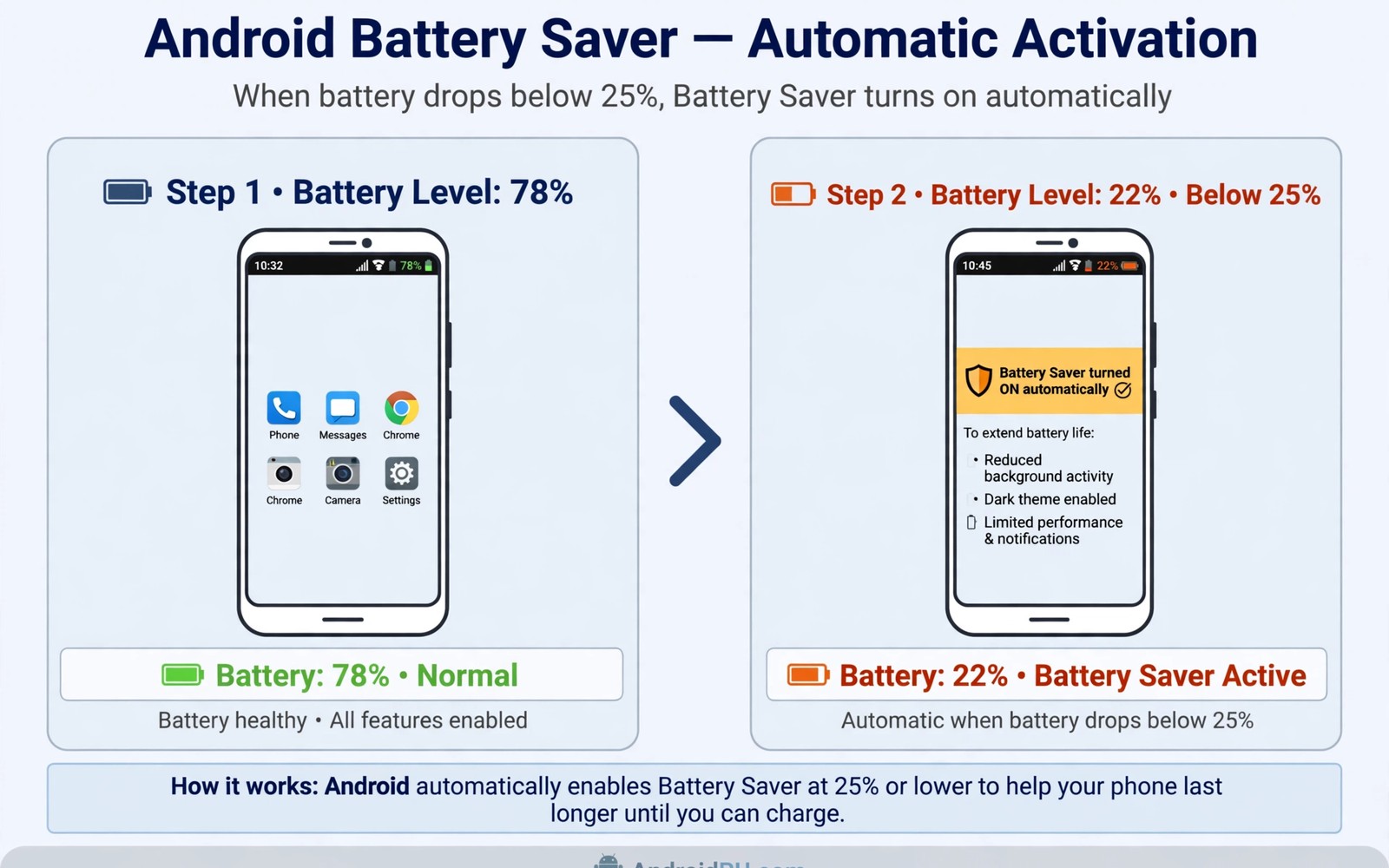
A phone at twenty five percent can still last hours with the right habits. It can also die within an hour if power hungry apps keep running. Battery saver mode changes that outcome by limiting background work and visual effects. Turning it on manually requires remembering at the right moment. Automation turns it on exactly when the level drops. This guide shows how to set up automatic battery saver at twenty five percent. It keeps the phone usable while it extends the remaining charge.
Twenty five percent is a sensible threshold for most users. A higher threshold such as forty percent triggers too early and limits the phone for a long time. A lower threshold such as ten percent leaves too little time to benefit. Twenty five percent gives a useful buffer for the rest of the day. It allows a few hours of essential use without constant anxiety. It also leaves room for an emergency call. A threshold should protect the rest of the day rather than panic at the end.
Battery saver works by reducing background activity and limiting performance. It may delay notifications from less important apps. It may reduce screen brightness and animation smoothness. It may limit location updates for background apps. Those limits are acceptable for essential use. Calls and messages usually continue normally. A phone in battery saver mode remains a phone rather than a brick. Understanding the trade offs helps you accept the mode without frustration.
Enable Automatic Battery Saver The Native Way
Many Android phones offer a native automatic battery saver setting. Open battery settings and look for battery saver schedule or automatic turn on. Set the threshold to twenty five percent if the phone allows a custom value. Some phones offer fixed thresholds such as twenty or fifteen percent. Choose the closest value to twenty five if custom values are unavailable. A native setting is the most reliable method because the system controls it directly. It survives reboots and app updates without extra tools.
Test the native setting by watching the battery level during a normal day. The mode should activate without a manual tap when the level crosses the threshold. A notification should confirm activation. Check that essential apps still deliver messages after activation. If an important app stops delivering then exempt that app from battery optimisation. An exemption keeps a critical app working while other apps stay limited. Essential communication deserves an exemption.
Review what battery saver changes on your specific phone model. Some models limit 5G connectivity in saver mode. Some models reduce refresh rate to sixty hertz. Some models disable always on display. Knowing your model behaviour prevents surprise during use. A user who expects full speed during saver mode will feel disappointed. A user who expects limits will plan around them. Model knowledge turns a generic mode into a personal tool.
Build An Automation Routine When Native Options Are Limited
An automation tool can watch battery level and enable saver mode at twenty five percent. Create a trigger for battery level below twenty six percent to catch the crossing. Add an action that enables battery saver through a system setting. Add a notification action that tells you the mode is active. Test the routine by setting the threshold temporarily higher during a test. A temporary higher threshold lets you verify the routine without waiting for a real low battery day. Restore the threshold to twenty five after the test.
Add a second routine that disables battery saver when charging starts. A phone that stays in saver mode while charging wastes performance unnecessarily. A charging trigger restores normal mode automatically. A charge trigger also prevents confusion the next morning. A phone that wakes in saver mode after a full charge feels slow for no reason. Automatic restoration completes the automation loop. A loop with both directions feels polished.
Add a third routine for a lower threshold at fifteen percent for stricter limits. A fifteen percent routine can disable additional features such as background sync. A stricter second stage protects the final hours of charge. A two stage system gives a gradual response rather than a sudden cliff. Gradual responses feel less disruptive. A phone that steps down gently stays usable longer. Two stages suit users who often end the day far from a charger.
Trigger: Battery level drops below 25 percent
Action: Enable battery saver mode
Action: Show notification Saver mode active
Trigger: Charger connected
Action: Disable battery saver mode
Trigger: Battery level drops below 15 percent
Action: Enable extreme saver limits
The routines above follow standard Android automation practice for personal devices and they are presented here as practical templates for battery protection rather than as a claim about any single automation app. Each routine uses one trigger and a small set of actions. Keep the action list short so the routine remains reliable. A short routine that fires every time beats a long routine that sometimes fails. Test each stage separately before relying on the full system.
Live Well In Battery Saver Mode
Plan essential tasks before the battery drops further. Send important messages while the phone still has charge. Download maps for an upcoming trip before leaving Wi-Fi. Save a boarding pass or a ticket to offline storage. A little planning during saver mode prevents a crisis later. Saver mode is a signal to prioritise rather than a signal to panic. Prioritisation turns a low battery into a manageable constraint.
Reduce screen brightness manually if saver mode does not lower it enough. A dim screen is the largest single battery saving. Lower the refresh rate manually if the phone allows it. Close apps that you opened for entertainment and no longer need. Entertainment apps drain a low battery quickly. Essential apps deserve the remaining charge more than entertainment apps. A disciplined hour in saver mode can stretch into several hours.
Carry a small power bank for days when saver mode alone is not enough. A power bank turns a low battery day into a normal day. A saver routine plus a power bank covers most situations. A saver routine alone covers a short delay before charging. Combine both tools for travel days. A layered approach beats reliance on a single tool. Layers protect against unexpected delays.
Common Mistakes
One common mistake is setting the threshold too low. A ten percent threshold leaves little time for saver mode to help. A low threshold also creates anxiety because the phone may die during a critical task. Twenty five percent gives a comfortable buffer. A comfortable buffer allows calm decisions. Panic thresholds create panic behaviour.
Another mistake is exempting too many apps from saver limits. An exemption for every social app defeats the mode. Exempt only communication apps that carry urgent messages. Let entertainment and shopping apps wait until charging. A saver mode with many exemptions saves little. Discipline in exemptions determines real savings.
A third mistake is forgetting to restore normal mode after charging. A phone that stays in saver mode feels slow and notifications stay delayed. An automatic restore on charging solves the problem. A manual restore habit also works if automation is unavailable. Check the mode after charging during the first week. A restored phone should feel normal immediately after unplugging.
Frequently Asked Questions
Does battery saver damage the battery over time?
Battery saver does not damage the battery. It reduces power use and heat which can help battery health. A cooler phone ages more slowly than a hot phone. Saver mode limits performance but it does not alter charging chemistry. Use it freely when charge is low. A phone protected from deep discharge lasts longer in practice.
Why do some notifications arrive late in saver mode?
Saver mode limits background activity for non essential apps. A delayed notification reflects that limit rather than a broken app. Exempt an app if its notifications are urgent. Keep exemptions narrow to essential communication. A delayed social notification is an acceptable trade for extra hours of use. Essential messages should never wait.
Can I set different thresholds for workdays and weekends?
A native setting usually offers one threshold for all days. An automation tool can add day conditions to routines. A workday routine can trigger at thirty percent while a weekend routine triggers at twenty percent. Day conditions add flexibility for different schedules. Keep day routines simple to avoid confusion. A workday and weekend pair covers most schedule differences.
Plan For Travel Days And Long Outings
Travel days drain batteries faster because navigation and photos run constantly. Set the saver threshold higher on travel days if your tool allows a schedule. A thirty percent threshold on a travel day gives earlier protection. A normal twenty five percent threshold suits office days. A schedule aware threshold adapts protection to the day type. Adaptation beats a single fixed rule for varied weeks.
Download offline maps and tickets before leaving home on a travel day. Offline content reduces network searching during the trip. Network searching in weak signal areas drains battery quickly. A prepared phone uses less power for the same journey. Preparation during charging time pays off during travel time. A travel checklist for offline content belongs beside the saver routine.
Carry a charging cable that matches your phone and a small adapter for public outlets. A cable without an adapter helps only in familiar places. A complete kit helps in airports and cafes and hotels. A kit plus a saver routine covers almost every travel delay. A delay without a kit turns a low battery into a dead phone. Small preparation prevents large inconvenience.
Conclusion
Set automatic battery saver to twenty five percent today in native settings or with one automation routine. Test it by raising the threshold temporarily and watching it activate. Restore the threshold and exempt only essential messaging apps. Readers who want more battery control may also like automatic Bluetooth disable when disconnected for another saving routine, and easier automation apps for daily routines for building routines faster, plus a master approach to Android power automation for a full system. Your next step is one threshold setting and one test activation.

