

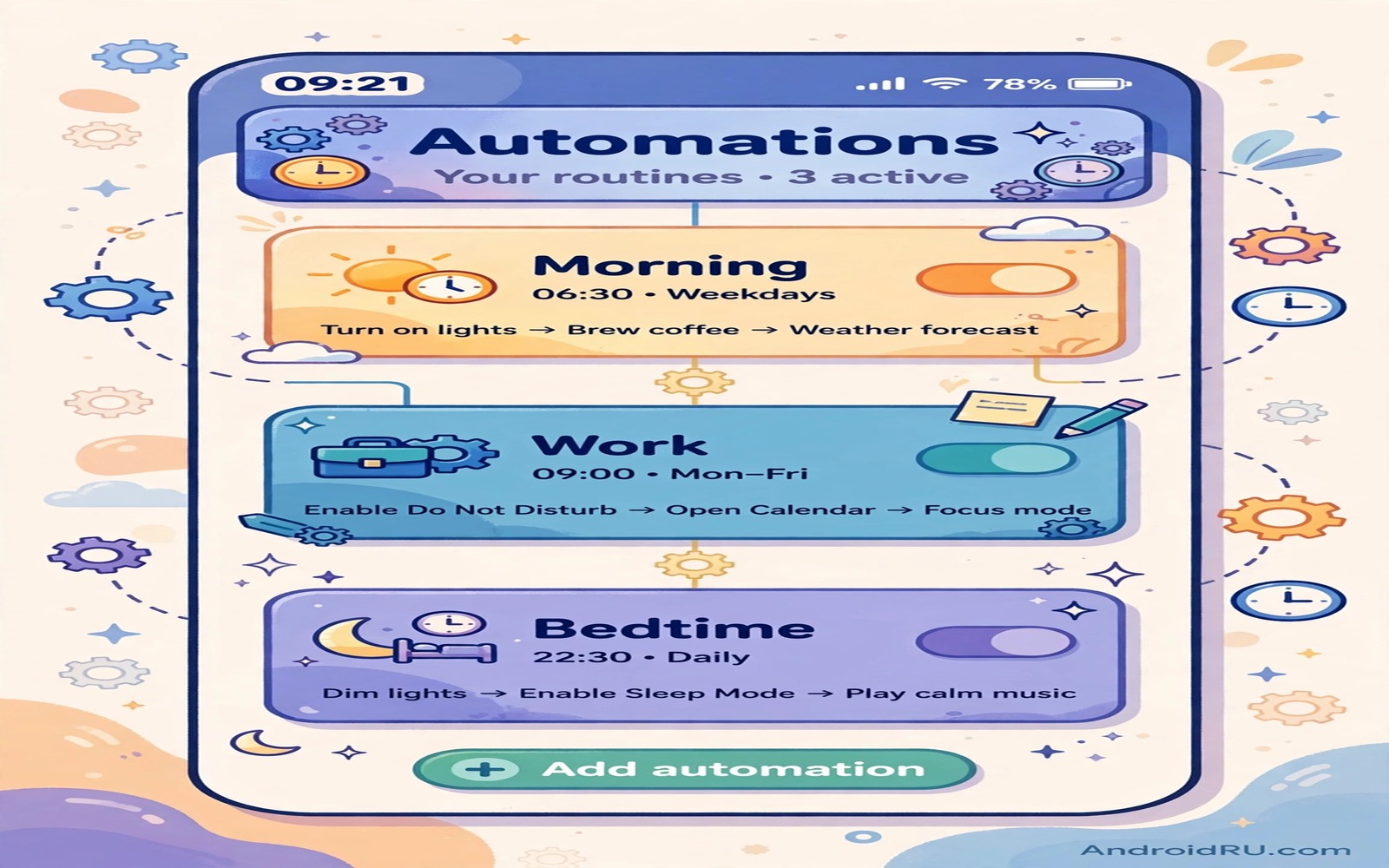
A phone can do many small jobs on its own but most owners use only a fraction of that power. Automation routines turn repeated taps into rules that run without thought. A morning routine can silence night mode and read the weather and open a calendar. A work routine can mute sound and turn on Wi-Fi. A bedtime routine can dim the screen and silence alerts. Each routine saves only a minute but seven routines save a noticeable chunk of every day.
The best routines solve a real friction that you feel every day. A routine that you set up because it sounds clever will fade after a week. A routine that fixes a daily annoyance will stay because you feel the benefit each time it runs. Start by listing annoyances for three days. Note each moment when you repeat the same taps or when you forget a setting change. That list is your automation plan and it beats any generic list of ideas.
Automation also needs a simple tool that you will actually open. A complex tool with hundreds of options can scare a beginner away. A simple routines app with clear triggers and actions is a better start. automation apps that are easier than complex Tasker can help you pick a tool that matches your comfort level. Start simple and move to a deeper tool only when a simple tool hits a limit.
Morning Routine That Starts The Day Right
A morning routine should prepare the phone for the day without noise. Set it to turn off Do Not Disturb at your wake time and to set brightness to a comfortable level. Add a step that turns on mobile data or Wi-Fi if you turned it off at night. Add a calendar check so you see the first meeting without opening three apps. Keep the routine short because a long morning routine can delay the phone when you need it fast.
Test the morning routine on a weekend first so a failure does not ruin a work morning. Wake the phone at the test time and watch each step run. If a step fails then fix that step alone before the next test. A weekend test gives you room to learn the tool without pressure. Once the routine passes a weekend test it can run on a workday with confidence.
Add a weather or news step only if you truly read it each morning. A step that you ignore adds noise and it slows the routine. A useful morning step gives a decision such as whether to carry an umbrella. A step that gives only trivia can wait until you open an app on purpose. Keep morning automation focused on decisions rather than entertainment.
Work Travel And Home Routines
A work routine can mute sound and turn on Wi-Fi and open a work chat app. A travel routine can turn on Bluetooth for the car and open a maps app. A home routine can connect to home Wi-Fi and turn off mobile data and set a relaxed volume. Each routine uses a trigger that matches the place or the time. A place trigger fits work and home and a time trigger fits a fixed commute.
Keep each routine to three or four actions at most. A routine with ten actions can fail in the middle and leave the phone in a mixed state. A short routine either runs fully or fails clearly. That clarity makes fixing easier. If a routine needs more actions then split it into two routines with a clear order. A split routine is easier to test and easier to trust.
Name each routine for its place and purpose such as Work Arrive or Home Evening. A clear name helps when you later edit a routine among many. A vague name such as Routine One tells you nothing after a month. A clear name also helps when you share a routine idea with a friend because the name explains the job at a glance.
A Routine Definition Example
The code below is a simple example of a routine definition in a readable format. It names a morning routine and it lists a trigger and two actions. It does not run on a phone on its own and it does not replace a routines app. Use it only to learn how a routine can be described in a clear structured way. A real app stores routines in its own format but the idea stays the same.
routine: Morning Start
trigger: time 07:00
 actions:
  - set do_not_disturb off
  - set brightness 70
Attribution: the code above is an original example written for this guide. It follows the standard command interface shipped with the Android platform tools and it uses only public commands that work on a normal developer setup.
After reading the example you can map each line to a step in your routines app. The trigger line matches the trigger screen and each action line matches an action step. That mapping helps when you move a routine idea from a note into an app. Write the routine in plain words first and then build it in the app step by step. A written plan prevents a half built routine that you abandon.
Bedtime And Battery Routines
A bedtime routine should protect sleep and battery at the same time. Set it to turn on Do Not Disturb and to dim the screen and to turn off Bluetooth if you do not need it at night. Add a step that turns on battery saver only if your battery is low. A bedtime routine that always turns on battery saver can delay morning alerts. Use a battery condition for that step so it runs only when needed.
A low battery routine deserves its own rule because it can save a phone during a long day. Set it to turn on battery saver at a chosen level and to turn off sync for non urgent apps. Add a step that lowers brightness and turns off vibration. Keep the rule simple so it runs fast when the battery is already low. A complex low battery routine can use power while it tries to save power.
A charging routine can also help because it can silence alerts while the phone charges at night. Set it to turn on Do Not Disturb when the charger connects after a chosen hour. Add an exit step that turns off Do Not Disturb when the charger disconnects in the morning. That pair of steps keeps nights quiet without a manual toggle each evening.
Safety And Focus Routines
A driving routine should silence non urgent alerts and keep navigation clear. Set it to turn on driving mode when car Bluetooth connects. Add a step that reads messages aloud only for urgent contacts. A driving routine that reads every message can distract rather than help. Limit the readout to a short list and let other messages wait until you park.
A focus routine can block social apps during a study or work block. Set it to start at a chosen time and to end after a chosen duration. Add a step that silences social notifications but keeps calls from starred contacts audible. A focus routine that blocks everything can cause anxiety about missed calls. A balanced focus routine protects attention without hiding emergencies.
A health routine can remind you to stand or drink water at regular intervals. Set it to show a gentle reminder rather than a loud alarm. A gentle reminder fits a workday better than a harsh alert. That gentle approach also fits other daily tools and auto answer for handsfree calls with headphones shows how a gentle trigger can serve a handsfree moment.
Common Mistakes
One common mistake is to create too many routines on day one. Ten routines feel exciting at first and they feel confusing after a week. Start with three routines that fix real annoyances and add a new routine only after the first three pass a week test. Another mistake is to use overlapping triggers that fight each other. Two routines that set different volumes at the same time will produce a random result. Check trigger times and places for overlap before you save a new routine.
A further mistake is to forget exit actions for place routines. A work routine without an exit action can leave the phone silent at home. Always test departure as carefully as arrival. A further mistake is to ignore battery permission for the automation app. Android can stop a background app and a stopped app cannot run a routine. Exclude the automation app from battery optimisation after you build the first routine.
A final mistake is to build a routine that needs a permission that you never granted. A location routine without location permission will fail silently. Check permissions after you build each routine and grant only the permissions that the routine truly needs. That check takes a minute and it saves a week of mystery failures. The same care helps with other power tools and a macro that turns off Wi-Fi when leaving home needs a clear trigger permission to work well.
Frequently Asked Questions
How many automation routines should a beginner start with?
Start with three routines that fix daily annoyances. A morning routine and a work routine and a bedtime routine cover most days well. Add a new routine only after those three work for a full week without a failure.
Do automation routines drain the battery?
Simple time and Wi-Fi routines drain very little power. Constant GPS routines can drain more power. Choose Wi-Fi or time triggers when possible and reserve GPS for places where no other trigger works.
Can routines conflict with each other?
Yes when two routines set the same setting at the same time. Check trigger times and places for overlap before you save a new routine. Keep each routine short and give each routine a clear name so conflicts are easy to spot.
Conclusion
Pick three annoyances from your last three days and turn each one into a short routine today. Build a morning routine and a work routine and a bedtime routine with clear triggers and exit actions. Test each routine for a week and fix one failure at a time.
After that week add only one new routine and test it the same way. A slow steady build gives you a phone that works quietly in the background. That quiet help is the real payoff of automation and it grows with each tested routine.
Review your routines once a month and delete any routine that you no longer notice. A routine that adds no felt benefit is just background noise. A short list of useful routines beats a long list of forgotten rules and it keeps your phone calm and predictable.
Write each routine in plain words in a note before you build it in an app. A written plan shows trigger and actions clearly and it prevents a half built routine. That note also helps you rebuild a routine after a phone change without starting from scratch.

