

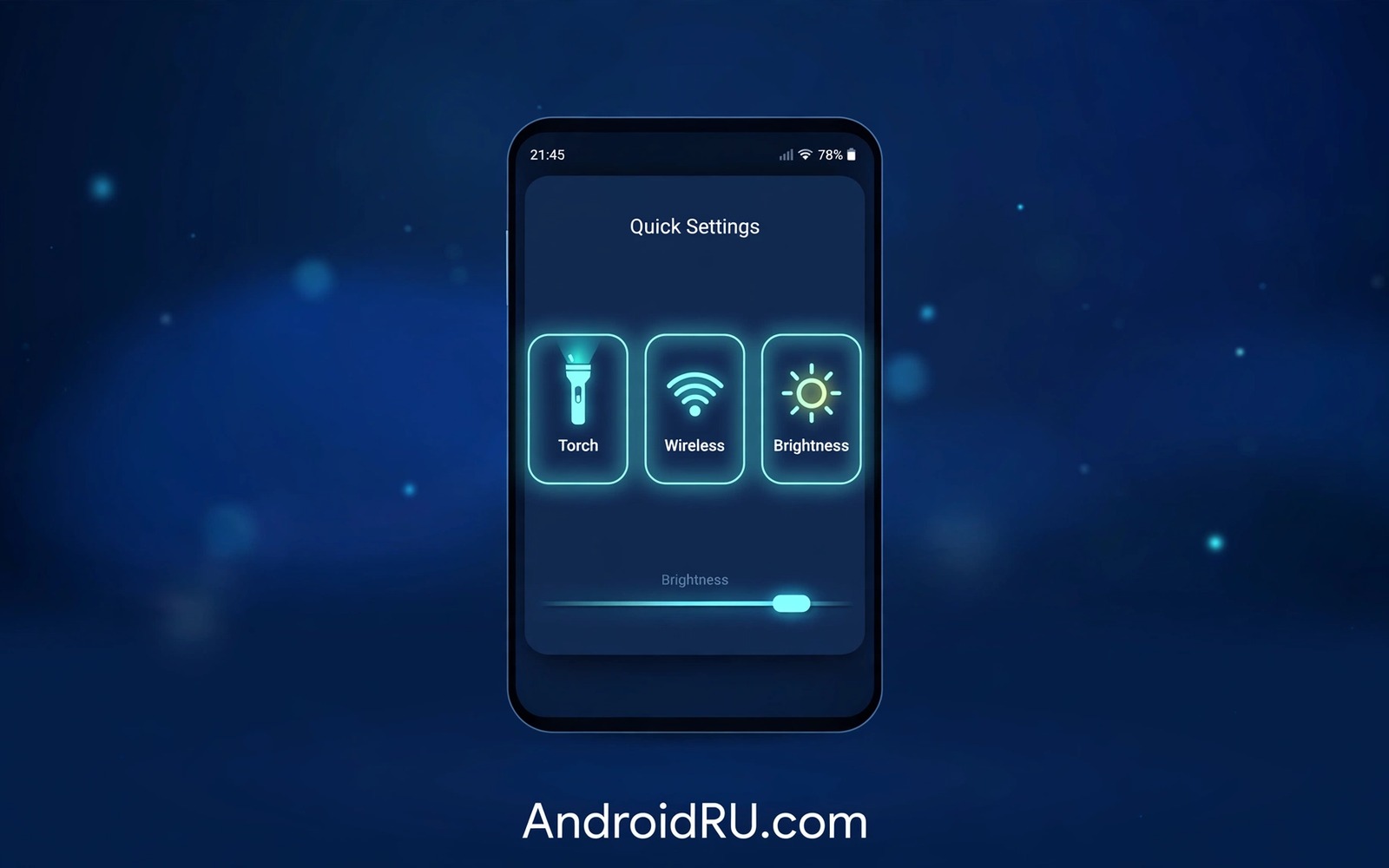
Quick Settings tiles put controls one swipe away. Wi-Fi and Bluetooth and torch already live there. Custom tiles extend that panel to actions that matter to you. A tile can toggle a work mode or open a specific tool. A tile can start a routine with one tap. A tile can show a live status at a glance. This guide shows how to create custom tiles that earn their place. It focuses on tiles you tap daily rather than on a crowded panel of novelties.
A good tile solves a repeated friction. A tile that you tap once a month does not deserve panel space. A tile that you tap five times a day deserves a prominent spot. Audit your repeated actions before creating any tile. Notice which settings you open through menus every day. Notice which routines you trigger through an app icon hunt. Those repeated actions are tile candidates. A tile built from real repetition pays for itself quickly.
Keep the panel calm by limiting custom tiles to a small number. A panel with twenty tiles becomes another menu to search. A panel with five custom tiles stays glanceable. Place the most used tile first among custom tiles. Place less used tiles further right where a second swipe reaches them. Order matters because the first swipe shows only a few tiles. A thoughtful order saves a swipe during busy moments.
Design Tiles Around Real Daily Actions
Name each tile with a short verb that describes its action. A tile named work mode tells you what it does. A tile named my tile tells you nothing. A clear name reduces hesitation during a busy moment. Use an icon that matches the action at a glance. A moon icon suits a night mode tile. A bell icon suits a quiet mode tile. Name plus icon should communicate without reading a manual.
Decide whether a tile should toggle or launch. A toggle tile switches a state on and off with a visual change. A launch tile opens an app or starts a routine. A toggle suits Wi-Fi style controls. A launch suits a specific tool or note. Mixing the two types without clarity confuses users. Make the tile behaviour obvious from its icon state. A toggle that looks active when it is off misleads the user.
Test each tile from the lock screen and from inside an app. A tile that works only from the home screen helps less than expected. Quick Settings should work from anywhere because it is a system panel. A tile that fails inside a game or a video call needs a fix. System wide availability is the point of a tile. Test in the contexts where you will actually tap it.
Create Tiles With A Trusted Tool
Choose a tile creation tool with a clear permission model. Grant only the permissions that the tile actions need. A tile that toggles a system setting needs that setting permission. A tile that launches an app needs no broad data access. Read permission prompts against the tile purpose. A mismatch is a reason to choose another tool. A focused tool with a stable history suits a system panel.
Build one tile at a time and test it for a full day before adding another. A daily test reveals whether the tile truly helps. A tile that feels exciting during setup may feel redundant after a day. A tile that survives a full day of real use earns permanent panel space. A disciplined pace prevents panel clutter. Clutter is the enemy of a quick panel.
Group related tiles by purpose rather than by creation order. Work tiles can sit together on one swipe page. Home tiles can sit together on another page. Grouping helps muscle memory because related actions live near each other. A grouped panel feels designed rather than accumulated. Reorder tiles after a week based on actual tap frequency. Real use data beats initial guesses about order.
Tile: Work Mode
Action: Silence notifications and dim screen
State: Toggle with active icon
Tile: Desk Notes
Action: Open notes app to new note
State: Launch only
Tile: Home Lights
Action: Toggle living room lights
State: Toggle with active icon
The tile definitions above follow standard Android Quick Settings practice for personal devices and they are presented here as a practical template for designing custom tiles rather than as a claim about any single tile app. Each entry names the tile and its action and its state behaviour. Keep the state column visible during design. A toggle without a clear active state confuses the user. A launch tile without a clear destination wastes a tap.
Keep Tiles Fast And Reliable
Make tile actions instant rather than multi step. A tile that opens a menu defeats its purpose. A tile that asks three questions before acting is not a quick control. Design the action to complete in one tap. Move any configuration to the setup phase rather than to tap time. A quick tile should feel like a light switch. A switch that asks questions is a broken switch.
Handle failures with a clear visual signal. A tile that fails silently leaves the user unsure. A tile that changes colour on failure communicates at a glance. A tile that shows a brief message after a failed action helps diagnosis. Test failure by disabling the underlying service briefly. A tile tested only in success mode will surprise you during an outage. Failure visibility is part of reliability.
Review the panel monthly and remove tiles that lost relevance. A work mode tile for a finished project should go. A seasonal tile for a past holiday should go. A monthly review keeps the panel aligned with current life. A panel that reflects current habits stays fast. A panel that reflects old habits slows you down. Pruning is maintenance rather than defeat.
Common Mistakes
One common mistake is filling the panel with every possible tile. A crowded panel requires searching and swiping. Searching defeats the purpose of quick access. Limit custom tiles to the actions you repeat daily. A small panel with trusted tiles beats a large panel with forgotten tiles. Restraint is a design skill for system panels.
Another mistake is creating tiles with vague names and icons. A vague tile forces a pause before every tap. A pause turns a quick control into a puzzle. Name tiles with verbs and choose matching icons. A clear tile communicates in less than a second. Clarity at a glance is the whole point.
A third mistake is ignoring tile behaviour inside apps. A tile tested only on the home screen may fail during a call. Test tiles from inside apps and from the lock screen. System wide tiles must work system wide. A tile that works in one context only is a partial solution. Full context testing prevents disappointment.
Frequently Asked Questions
How many custom tiles should I create?
Start with three tiles for your most repeated actions. Add a fourth only after a week of daily use proves the first three valuable. Most users settle between three and six custom tiles. A panel beyond that size starts to feel like a menu. Let real tap frequency decide the final count. Frequency data beats enthusiasm during setup.
Do custom tiles drain battery?
A tile itself adds almost no drain because it acts only when tapped. A tile that monitors a live status can add drain if it polls constantly. Prefer tiles that update on system events rather than on polling. Check battery use after a week if a tile shows live data. A static action tile should not affect battery noticeably.
Can tiles control smart home devices safely?
Tiles can trigger smart home actions through a trusted automation tool. Limit tile control to one room or one scene for safety. A tile that controls the whole house from a lock screen carries risk. Use a lock screen restriction for whole house actions if your tool allows it. Room level control from a tile is practical and safer.
Combine Tiles With Routines For Bigger Wins
A tile can trigger a routine that performs several actions at once. A work mode tile can silence notifications and dim the screen and open a focus app. A home arrival tile can turn on lights and play music and silence work apps. A routine tile multiplies the value of a single tap. Design the routine first and then attach it to a tile. A tile without a tested routine is just a button with hope attached.
Test routine tiles during a real transition rather than in a calm test. A work mode tile tested at a desk may behave differently during a commute. A home arrival tile tested at home may behave differently when location is uncertain. Real transitions expose timing and permission issues that calm tests hide. A routine tile proven in transition earns trust. A routine tile proven only at a desk earns suspicion.
Keep routine tiles separate from simple toggle tiles in your mental model. A routine tile can take a few seconds to complete its actions. A toggle tile should feel instant. Expect a brief delay from a routine tile and watch for its completion signal. A completion vibration or a status change confirms the routine finished. Without confirmation you may tap again and trigger a duplicate routine. Confirmation prevents double execution.
Document routine tiles in a short note with their full action lists. A note helps you rebuild a routine after a phone reset. A reset without documentation loses complex routines first. A short note with each tile and its actions turns a rebuild into a checklist. Documentation protects the time invested in routine design. Keep the note updated when a routine changes.
Review Tile Use After A Month
A month of taps reveals the true value of each custom tile. Check which tiles you tapped daily and which tiles you ignored completely. A tile ignored for a month should leave the panel regardless of how clever it seemed during setup. A tile tapped daily should move to the most prominent position. Usage data from a month beats enthusiasm from setup day. A panel shaped by a month of real taps feels effortless because it matches real life rather than imagined life.
Ask yourself whether each tile still matches a current need or a past need that has faded. A tile for a completed project or a finished season should go. A tile for a new routine should join the panel promptly. A panel that evolves with life stays quick. A panel frozen at setup time slowly drifts away from daily reality. Monthly evolution keeps quick settings truly quick.
Conclusion
Create one custom tile today for the action you repeat most often. Name it with a verb and test it from inside an app and from the lock screen. Keep it only if you tap it tomorrow without thinking. Readers building a shortcut system may also like gesture launching for faster app access for app launches, and double press flashlight control for a button habit, plus a master approach to Android power automation for routine design. Your next step is one tile and one day of real use.

