

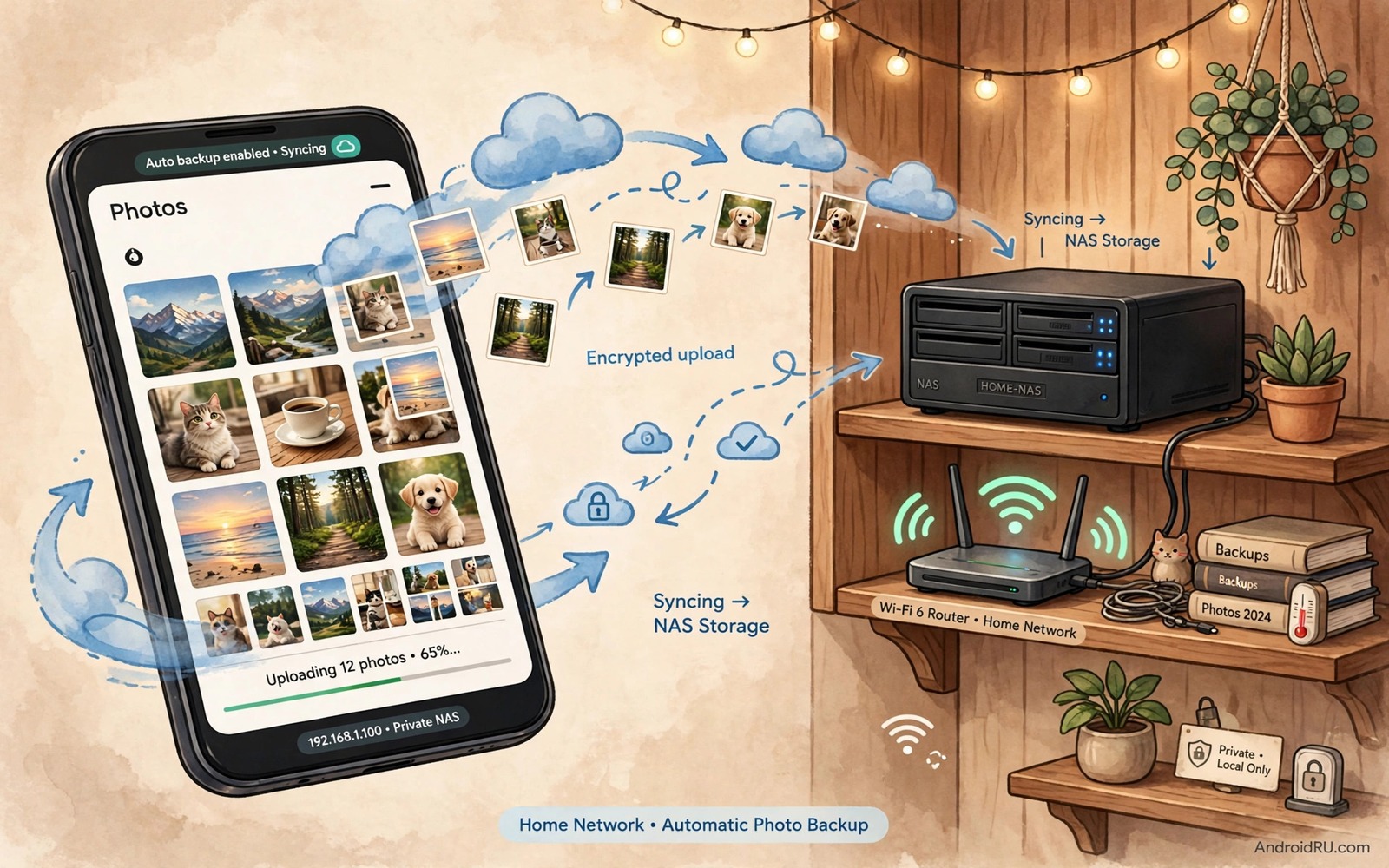
Photos pile up on a phone until storage runs low and a warning appears at the worst time. A private home NAS server solves that problem without sending every photo to a public cloud. A NAS is a small storage box on your home network that holds your files on your own hardware. An auto upload rule can send each new photo to that box as soon as you reach home Wi-Fi. That rule keeps the phone light and it keeps your photos under your own control.
Auto upload works best when it runs quietly in the background. A rule that asks for a tap each time will fail on busy days. A rule that runs on Wi-Fi arrival will succeed without thought. Set the rule to upload on home Wi-Fi only so mobile data stays untouched. Set it to upload original quality when storage allows and to keep a phone copy until the NAS copy is confirmed. That confirmation step is the safety net for the whole system.
A NAS upload rule pairs well with other home automation because the home network is the trigger for many calm rules. auto unlock when connected to home Wi-Fi uses the same home signal for a different benefit. Start with photo upload because it solves a storage pain that most owners feel. Add other home rules only after upload proves reliable for a week.
Choose A NAS And A Sync App
A NAS for photos needs enough storage for a year of photos plus room to grow. Check your current photo total and double it for a safe first size. A two bay NAS with mirrored drives adds safety because one drive can fail without losing photos. A single drive NAS is cheaper but it needs a separate backup for real safety. Choose the size and safety level that matches how much you value your photo history.
A sync app should offer a camera upload feature with Wi-Fi only mode. It should show upload progress and it should show a clear status for each photo. A good app also keeps a local queue when Wi-Fi drops so uploads resume later. Check whether the app uploads originals or compressed copies because that choice affects quality. Original quality costs more storage but it preserves detail for future prints.
Check the NAS software for a photos app or a file browser that can show uploads by date. A NAS that only shows raw folders can still work but a photo view makes browsing far nicer. Test browsing on a phone and on a computer before you commit to a large upload. A NAS that is hard to browse will not get used even when uploads work perfectly.
Set Up Auto Upload Step By Step
Connect the NAS to your home router and set a fixed address or a clear name for it on the network. Install the NAS sync app on your phone and sign in to your NAS account. Turn on camera upload and choose the NAS folder that will hold phone photos. Set the rule to Wi-Fi only and to home network only if the app offers that option. Save the settings and take a test photo.
Watch the test photo upload while you stay on home Wi-Fi. Open the NAS folder on a computer and confirm that the photo arrived in full quality. Check the file size against the phone original because a compressed copy will look smaller. If the size differs then check the quality setting in the app and switch to original. A quality mismatch found early saves a year of compressed uploads.
Set a phone cleanup rule only after uploads prove reliable for a week. A cleanup rule can free phone space by removing local copies that already sit on the NAS. Do not turn on auto delete on day one because an early bug could delete a photo before it uploads. A week of confirmed uploads is the minimum proof before any delete rule runs.
A Simple Upload Check Script
The script below is a small developer example that lists new photos and copies them to a NAS mount point. It uses a simple copy command and it prints each file that it copies. It does not replace a sync app and it does not handle conflicts on its own. Use it only as a learning example in a test folder with copies. A real sync app handles retries and conflicts and progress far better than a simple script.
for f in Camera/*.jpg; do
  cp "$f" /mnt/nas/photos/
  echo "Copied $f"
done
Attribution: the code above is an original example written for this guide. It follows the standard command interface shipped with the Android platform tools and it uses only public commands that work on a normal developer setup.
After a script test you should compare file counts between the phone folder and the NAS folder. A count match proves that every file copied. A size check proves that no file truncated during copy. A script that skips a file silently is worse than a script that fails loudly. Always check counts after a bulk copy and keep the phone copies until the counts match.
Organise Uploads By Date And Event
A NAS folder with thousands of photos in one place becomes hard to browse. Set the sync app to sort uploads by year and month when that option exists. A year month folder structure keeps each folder small and it matches how people remember photos. A single folder for a whole year can still work for a light user but it will slow down as the count grows.
Add event folders for special trips or projects after the date sort runs. Move a trip set into an event folder on the NAS after upload. That manual step takes a minute and it makes a trip easy to share later. A date structure plus an event folder gives two routes to the same photos. That double route mirrors the name plus tag idea that works so well on a phone.
Tag or rate favourite photos on the NAS when the NAS software supports it. A favourite mark lets you find the best photos fast without searching a whole year. Rate only a small set as favourites so the mark stays meaningful. A favourite list with five hundred photos is just another large folder. Keep favourites tight and the list stays useful.
Back Up The NAS Itself
A NAS is not a backup by itself because a fire or a theft or a double drive failure can still destroy it. Copy important NAS folders to an external drive once a month and store that drive away from the NAS. A monthly external copy is a simple habit that protects a lifetime of photos. Test the external copy by opening a few photos from it each time you copy.
A cloud copy of only the most precious photos can add a second safety layer. Choose a small set of family photos for cloud backup rather than the whole NAS. A small cloud set costs little and it survives a home disaster. A full cloud copy of a large NAS can cost a lot and it may duplicate the NAS for no clear gain. Pick the precious set with care.
Check NAS health in the NAS software once a month. Look for drive warnings and for storage use and for failed uploads. A drive warning caught early can save photos before a failure. A storage warning caught early gives time to add space. That monthly check takes five minutes and it keeps the whole system honest. The same health habit helps other home systems and auto sync that keeps specific folders matched across devices needs a healthy target to sync to.
Check Uploads After Travel And Events
A trip can create hundreds of photos in a few days and a queue can hide a failure among them. After a trip open the NAS folder and count the new photos against the phone count. A count match proves a full upload. A count gap points to a photo that needs a manual copy. That check takes five minutes after a trip and it prevents a silent loss.
Events create the same risk because many photos arrive at once and the phone may leave Wi-Fi before the queue clears. Stay on home Wi-Fi for an extra hour after a large event or check the queue status before you sleep. A queue that still runs in the morning needs attention. A queue that cleared overnight is ready for a phone cleanup.
Share event photos from the NAS rather than from the phone when the set is large. A NAS share link can serve many viewers without draining the phone battery. A phone share of a large set can stall on a weak signal. A NAS link is steadier and it keeps the phone free for calls during the event.
Common Mistakes
One common mistake is to allow upload on mobile data and then face a large data bill. Set Wi-Fi only before the first upload. Another mistake is to turn on auto delete before uploads prove reliable. Wait a week of confirmed uploads before any delete rule. A third mistake is to upload compressed copies without noticing. Check file sizes on the NAS against phone originals early.
A further mistake is to dump all photos into one NAS folder with no date structure. A date structure keeps folders small and browsing fast. A further mistake is to treat the NAS as a backup without an external copy. A NAS alone can still fail and an external copy is the real backup.
A final mistake is to ignore NAS drive health warnings. A warning is a chance to replace a drive before data loss. Act on a warning at once rather than hoping it goes away. The same warning habit matters for phone storage and auto cleanup that clears a downloads folder safely should run only after important files are safe.
Frequently Asked Questions
Will auto upload use my mobile data?
It should not when you set Wi-Fi only mode. Check that setting before the first upload and test with a photo while on mobile data off Wi-Fi. A Wi-Fi only rule should pause uploads until home Wi-Fi returns.
Can I delete phone photos after NAS upload?
Yes after uploads prove reliable for a week and after you check NAS file sizes. Use a cleanup rule that removes only confirmed uploads. Keep a recent set on the phone for quick sharing even after cleanup.
What happens if the NAS is off during a trip?
The sync app should queue new photos and upload them when home Wi-Fi returns. Check the queue after you return home and confirm that the count matches new photos. A queue that clears fully proves that the trip photos are safe.
Conclusion
Set up camera upload to your NAS today with Wi-Fi only mode and original quality. Take a test photo at home and confirm that it arrives on the NAS in full size. Check the file size against the phone original before you trust the rule.
After a week of confirmed uploads turn on a careful cleanup rule for older local copies. Keep the NAS date structure tidy and copy the NAS to an external drive once a month. That routine keeps your phone light and your photos safe on your own hardware.
Review NAS health monthly and act on any drive warning at once. A healthy NAS plus a monthly external copy is a photo system that can last for years. Start with the test photo today and let the routine grow from that proof.

