

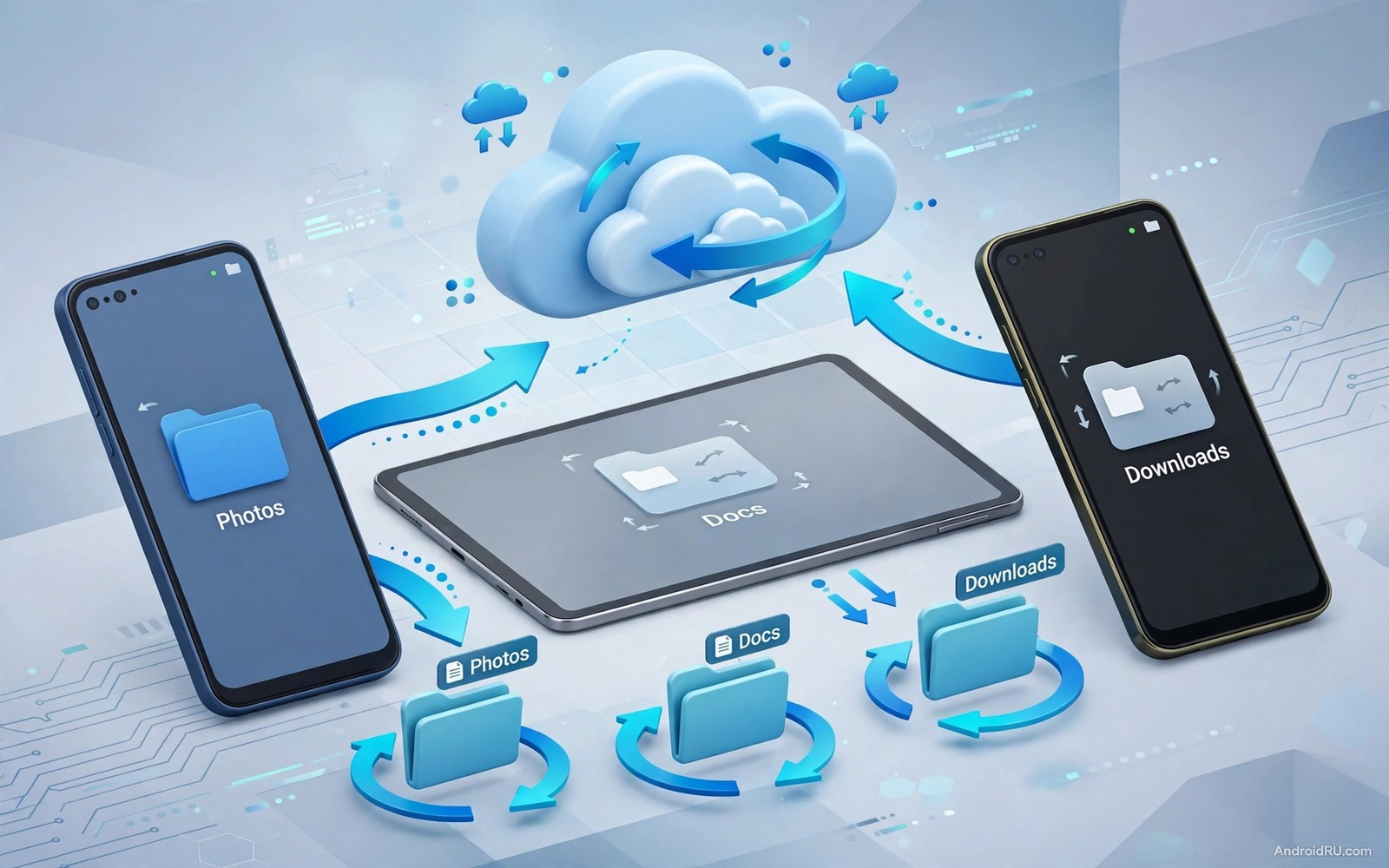
Files that live on only one phone can vanish with a lost device or a broken screen. Files that sync across devices stay available wherever you work. Auto sync for specific folders solves that problem without syncing your whole phone. You choose the folders that matter such as work documents and photos and notes. Those folders stay matched across a phone and a tablet and a second phone. That match gives you a safety net and a smoother workflow.
Specific folder sync differs from a full backup because it is selective and continuous. A full backup runs on a schedule and it copies everything. A folder sync runs when a file changes and it copies only that folder. That selectivity saves data and storage. It also keeps a work folder current while leaving a private folder untouched. Selectivity is the main advantage for owners with limited data or storage.
Folder sync pairs well with NAS upload because both keep files in more than one place. auto upload photos to a private home NAS server covers a home server copy for photos. Folder sync covers a device to device copy for work files. Use both for important folders and use one for casual folders. A double copy is worth the effort for files that you cannot recreate.
Choose Folders And A Sync Method
List folders that you truly need on two devices before you set up sync. A work folder and a notes folder and a photo folder for a current project cover most needs. A downloads folder rarely needs sync because it holds temporary files. A private folder with sensitive documents may need a local sync only rather than a cloud sync. Choose folders by need rather than by size or by habit.
Choose a sync method that fits your privacy needs. A cloud sync service works anywhere with internet and it handles conflicts well. A local network sync works only at home but it keeps data off a public cloud. A direct device sync over Wi-Fi Direct can work without a router. Test the method in your real locations because a cloud method that needs internet will fail in a dead zone.
Check conflict handling before you trust a sync method with real work. A file edited on two devices at once needs a clear rule. A good sync app keeps both versions or asks you which version to keep. A poor sync app silently overwrites one version. Test conflict handling with a test file edited on both devices. That test reveals the rule before a real conflict costs work.
Set Up Sync Step By Step
Install the same sync app on each device and sign in to the same account or pair the devices directly. Create a sync pair for the first folder and choose the direction. A two way sync keeps both devices equal and it suits work folders. A one way sync copies from phone to tablet only and it suits a read only reference folder. Choose direction carefully because a wrong direction can overwrite a newer file.
Test the pair with a small test file before you sync a real folder. Create a test note on the phone and watch it appear on the tablet. Edit the test note on the tablet and watch the change return to the phone. That round trip proves two way sync. If the change does not return then the direction is one way or the sync paused. Fix direction before you add real files.
Add folders one at a time after the first pair passes a round trip test. A folder added too early can hide a direction error behind many files. A slow add gives each folder a clean test. After each folder passes, check file counts on both devices. A count match proves a full sync. A count gap points to a file that needs a manual copy.
A Sync Status Example
The code below is a small developer example that shows how a sync check can compare file lists on two sides. It counts files in a folder and it prints the count. It does not sync real files and it does not replace a sync app. Use it only to learn how a count check can look in code. A real sync app also compares file sizes and modification times to catch changed files.
import os
files = os.listdir("work")
print(len(files))
Attribution: the code above is an original example written for this guide. It follows the standard command interface shipped with the Android platform tools and it uses only public commands that work on a normal developer setup.
After the example you can see why counts alone are not enough for a real sync. A file can change content without changing count. A real sync compares modification time and size as well as name. A count check is a quick first test and a full check needs those extra signals. Use counts for a fast sanity check and use a sync app for the full job.
Handle Conflicts And Deletes Safely
A conflict happens when the same file changes on two devices before sync runs. A good sync app will keep both versions with a clear conflict name. Open both versions and merge the changes by hand when the file matters. Delete the losing version only after you confirm that its changes live in the winning version. A rushed delete can lose a paragraph that took an hour to write.
A delete also needs care because a two way sync can spread a delete to all devices. A file deleted on one device will delete on the other device at the next sync. That spread is correct for a true delete but it is dangerous for an accidental delete. Check the trash or version history in the sync app before you panic. Many sync apps keep deleted files for a set period.
A version history feature can rescue a bad edit as well as a bad delete. Check whether your sync app keeps old versions of files. A version history of thirty days covers most mistakes. A version history of only a few days may miss a mistake found late. Choose a sync app with a version window that matches how slowly you notice errors.
Sync On Wi-Fi Only And Battery Care
Set sync to Wi-Fi only when mobile data is limited. A large photo folder can eat a data plan in one sync session. A Wi-Fi only rule pauses sync until a known network returns. That pause is safe because the sync queue holds changes until Wi-Fi returns. Test the pause by turning off Wi-Fi and editing a test file. The change should sync only after Wi-Fi returns.
Battery use grows during large sync sessions because the processor and the radio stay busy. Sync large folders while charging when possible. A charging sync avoids a dead battery mid session. A sync that runs on battery should focus on small text files first. Large media files can wait for a charging session without harming most workflows.
A sync app that runs constantly in the background needs battery optimisation excluded. A killed sync app cannot detect changes until you open it again. That delay can feel like a sync failure. Exclude the sync app from battery optimisation after setup. That exclusion is normal for sync apps and it keeps folders current.
Test Sync Across Three Devices
A two device test can hide a problem that appears only with a third device. Add a third device after two device sync passes for a week. Create a test file on the first device and watch it appear on the second and third devices. Edit it on the third device and watch the change return to the first two. That three way round trip proves a robust sync setup.
A three device test also reveals naming and folder path differences. A folder path that differs on one device can create a duplicate folder. Check folder paths on each device before the test. A consistent folder name and path across devices prevents duplicates. A duplicate folder created by a path difference can confuse a later search.
A three device setup also needs a clear primary device for conflicts. Choose one device as the tie breaker when versions conflict. A tie breaker rule prevents a sync loop where devices keep overwriting each other. That rule matters most for shared work folders. The same clear primary idea helps other multi device jobs and automation routines for a smarter daily phone can also use a primary device note in their plan.
Common Mistakes
One common mistake is to sync a downloads folder with temporary files. That folder fills sync storage with junk. Sync only folders with lasting value. Another mistake is to choose two way sync for a reference folder that should stay read only. A one way sync protects a reference folder from accidental edits. A third mistake is to ignore conflict handling until a real conflict happens. Test conflicts with a test file first.
A further mistake is to allow sync on mobile data without a limit. A large media folder can eat a data plan fast. Set Wi-Fi only before a large sync. A further mistake is to delete a file on one device without realising that sync spreads the delete. Check trash and version history before you panic after an accidental delete.
A final mistake is to trust sync as a backup without an external copy. Sync spreads deletes and bad edits to all devices. A backup that is separate from sync protects against those spreads. Keep an external copy for important folders. The same separation matters for other file jobs and auto cleanup that clears a downloads folder safely should never delete a synced folder without a backup check.
Frequently Asked Questions
Does folder sync need internet?
A cloud sync needs internet. A local network sync needs only a shared Wi-Fi network. A direct device sync can work without a router in some apps. Choose the method that matches where you actually work.
What happens when I edit the same file on two devices?
A good sync app keeps both versions or asks you which version to keep. Test conflict handling with a test file before you trust sync with real work. Merge changes by hand for important files and delete the losing version only after a check.
Can sync delete files from all my devices?
Yes in two way sync a delete spreads to all synced devices. Check trash or version history in the sync app to recover an accidental delete. Keep an external backup separate from sync for important folders.
Conclusion
Pick one work folder today and set up two way sync between your phone and tablet. Test with a small file and check the round trip both ways. That test proves direction and conflict handling before real files join.
After the test passes add folders one at a time and check counts after each add. Set Wi-Fi only mode and exclude the sync app from battery optimisation. Those settings keep sync reliable and cheap on data.
Keep an external backup separate from sync for important folders. A sync that spreads deletes is not a backup by itself. A separate backup plus a tested sync gives you both availability and safety.

