

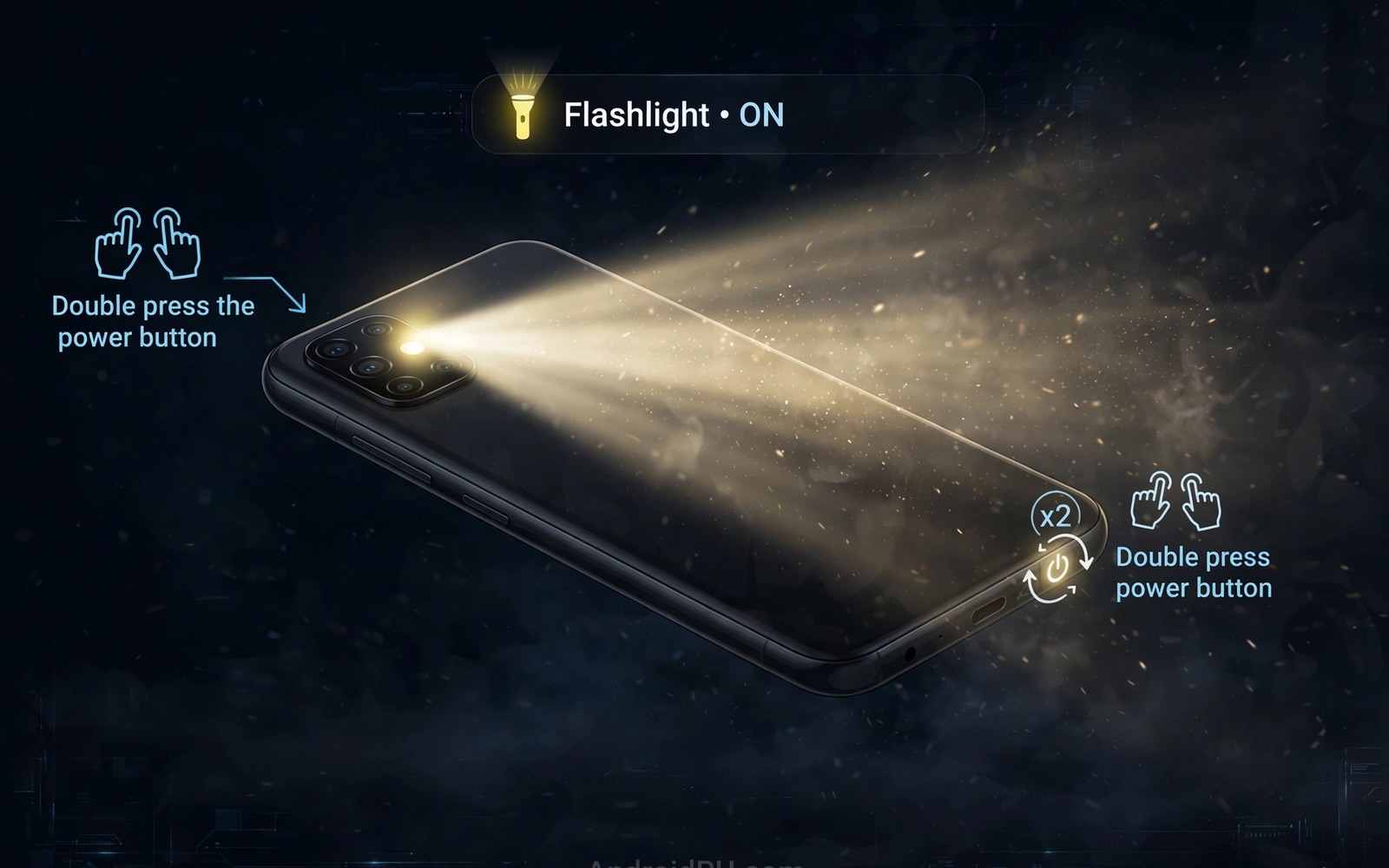
A flashlight should work the instant darkness catches you off guard. Fumbling through a lock screen menu in a dark stairwell wastes the very moment when light matters most. A double press of the power button can turn that search into a single reflex. Many Android phones already support a shortcut that wakes the torch without unlocking the device. Other phones need a small setting change or a trusted automation routine to reach the same result. This guide shows you how to set up the shortcut safely and how to test it in real conditions. You will end with a torch that answers to muscle memory rather than to menu hunting.
The idea works because the power button is always within reach of your thumb. You do not need to look at the screen to find it. You do not need to remember a swipe pattern in the dark. Two quick presses create a distinct signal that the phone can recognise even when the screen is off. That signal is far less likely to trigger by accident than a single press. It also avoids the delay of waking the display and searching for a tile. The result feels closer to a physical torch switch than to a software feature. That physical feeling is what makes the shortcut worth setting up.
Start by checking what your phone already offers before you install anything new. Open settings and search for flashlight or torch or gestures. Look for a phrase about pressing the power button twice or about a quick torch gesture. Some brands place the option under gestures while others place it under buttons or shortcuts. A few brands hide it under lock screen settings. Spend five minutes searching those areas before you assume the feature is missing. A native option is always more reliable than an added app. It also survives updates better than a workaround.
Enable The Native Double Press Shortcut
When you find a native torch shortcut you should enable it and test it at once. Lock the phone and press the power button twice with a steady rhythm. The torch should switch on within a second. Press twice again to switch it off. Repeat the test five times in a lit room first so you learn the correct rhythm. A press that is too slow may register as two separate screen wakes. A press that is too fast may register as a single long press. A calm and even double press works best on most devices.
Check the camera shortcut conflict before you settle on the power button. Many phones open the camera on a double power press by default. That camera shortcut is useful and you may not want to lose it. Some phones let you choose between camera and torch for the same gesture. Others require a different gesture for the torch such as a double press of a volume key. Decide which shortcut matters more in your daily routine. A torch that replaces a camera shortcut you use hourly is a poor trade. A torch that uses a gesture you never use is a clear win.
Some phones offer a back tap gesture that can trigger the torch instead. That option works well when the power button is already assigned. A double tap on the back of the phone can feel natural once you practise it. Test it with a case on the phone because thick cases can muffle the tap. A thin case usually preserves the gesture while a rugged case may weaken it. Keep the native option if it works reliably with your case. Reliability in the dark matters more than novelty.
Build A Reliable Automation When No Native Option Exists
An automation app can listen for a button pattern and switch the torch in response. Choose an automation tool with a clear permission model and a history of stable updates. Grant only the permissions that the torch routine actually needs. Avoid tools that request broad access to messages or contacts for a simple torch task. A focused tool with a single routine is easier to audit than a sprawling tool with dozens of features. Read the permission screen slowly before you accept anything.
Design the routine with a clear trigger and a clear action. The trigger can be a double press pattern or a shake gesture or a long press on a volume key. The action should toggle the torch rather than only turning it on. A toggle lets the same gesture switch the light off again without a second routine. Add a small vibration as feedback so you know the routine fired in the dark. Test the routine with the screen locked and with the screen on. A routine that works only on an unlocked phone fails exactly when you need it most.
Guard against accidental triggers by adding a simple condition to the routine. A condition can require the phone to be locked or it can require a short delay between presses. A shake trigger should require a firm shake rather than normal walking motion. Test the routine during a normal day of walking and sitting before you trust it at night. An accidental torch in a pocket wastes battery and it can heat the phone. A well tuned trigger stays silent during normal use and it responds instantly when you call for it.
Test The Shortcut In Real Darkness
A bright room test proves the shortcut works but it does not prove it helps. Wait for evening and test the shortcut in a dark hallway or a dim garage. Hold the phone naturally and press twice without looking at the screen. Notice whether your thumb finds the button easily with one hand. Notice whether the light points in a useful direction when it switches on. A torch that points at your face is less useful than one that points forward. Adjust your grip until the light lands where you walk.
Time how long the torch stays on during a realistic task. Walk a short route that mimics finding a key or reading a label. Watch for automatic timeouts that switch the torch off too soon. Some phones limit torch duration to protect the LED from heat. If your phone times out quickly then plan for a second double press during longer tasks. A torch routine that you understand beats a torch that surprises you mid task. Knowledge of the limit keeps you calm when the light fades.
Check battery impact after a week of normal torch use rather than after one night. Short bursts for finding objects cost very little battery. Long continuous use for a walk or a repair job costs more. The LED is bright and it draws real power over time. Keep a portable charger in mind for outdoor tasks that need light for an hour. A shortcut makes light convenient but it does not change the physics of the LED. Use the torch for short bursts and use a dedicated lamp for long work.
A Simple Automation Recipe To Copy
Write the routine down before you build it in any tool. A written recipe keeps the trigger and the action separate in your mind. It also makes troubleshooting easier when the routine misfires. The recipe below uses only the elements discussed in this guide. It contains no extra condition that could confuse the test. Build it exactly as written first and add refinements only after the basic version works.
Trigger: Power button pressed twice
Condition: Screen is locked
Action: Toggle torch on or off
Feedback: One short vibration
Timeout: Torch stays on until second trigger
The routine above reflects standard automation practice for personal Android devices and it is offered here as a clear template rather than as a claim about any single automation app. Each line names one decision that you can verify inside your chosen tool. If your tool uses different wording for the same idea then match the meaning rather than the label. A routine that you can explain line by line is a routine you can fix quickly.
Common Mistakes
One common mistake is assigning the torch to a gesture that already controls something important. A camera shortcut lost without thought can frustrate you every day. A volume shortcut that changes media control can confuse calls. Map the existing gestures on your phone before you assign a new one. Write down the current assignments so you can restore them. A deliberate map prevents a week of accidental triggers.
Another mistake is installing several torch apps at once to compare them. Multiple apps can fight over the same LED control and they can drain battery in the background. Choose one method and remove the others after testing. A single trusted method is easier to maintain than three competing methods. Uninstall the experiments once you pick a winner. Your phone stays cleaner and the torch stays predictable.
A third mistake is testing the shortcut only while the phone is unlocked. Many routines fail on a locked phone because of battery optimisation. Battery optimisation can pause the automation tool when the screen is off. Exempt the chosen tool from aggressive optimisation if the routine must work while locked. Test again after changing the optimisation setting. A locked screen test is the only test that matters for this shortcut.
Frequently Asked Questions
Can I use double press for torch and camera at the same time?
Most phones allow only one action for a single double press pattern. You need a different gesture for the second action if you want both. A back tap or a volume key gesture can carry the torch while the power button keeps the camera. Choose the gesture that matches the action you need in the dark. Camera speed matters in daylight while torch speed matters at night. Assign the power button to the action you reach for most urgently.
Does a torch shortcut drain battery when idle?
A native shortcut adds almost no idle drain because the system already monitors the button. An automation tool can add a small idle cost if it polls sensors constantly. Choose a tool that uses system events rather than constant polling. Monitor battery use for a few days after setup. If the tool appears near the top of battery use then reconsider the trigger method. A native option remains the most efficient choice.
Why does my torch switch off by itself after a few minutes?
Many phones protect the LED from heat by limiting continuous torch time. The limit varies by model and by ambient temperature. A hot phone reaches the limit sooner than a cool phone. Let the phone cool briefly and press twice again to resume light. For long outdoor work carry a dedicated torch with its own battery. The phone torch excels at short tasks rather than at replacing a proper lamp.
Conclusion
Enable the native torch shortcut tonight and test it five times in a dark room before you sleep. Lock the phone and practise the double press until it feels automatic. If no native option exists then build one toggle routine with a locked screen test tomorrow morning. Readers who like hands free control may also enjoy volume key control for smart home lights as a next step in physical button habits, and gesture launching for faster app access shows how a single motion can replace menu hunting, while custom quick tiles for advanced functions give you a calm fallback when a button gesture is not the right tool. A torch that answers to a reflex is a small change with a daily payoff. Your next step is one setting and one dark hallway test.

