

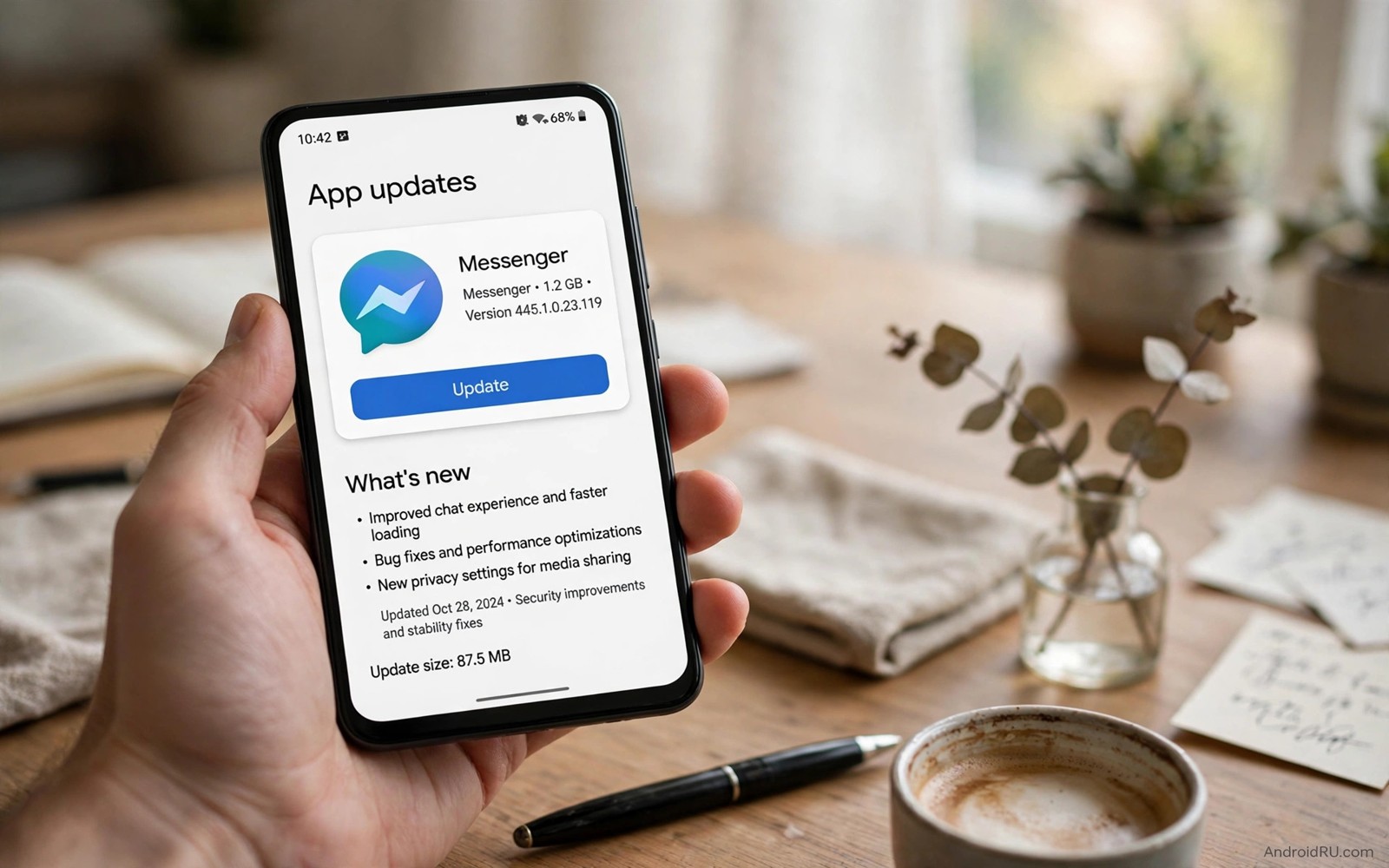
An app that worked yesterday can change overnight without any action from you. A redesign moves your favourite button. A new permission request appears. A beloved feature vanishes into a menu. Automatic updates cause all three surprises because they install changes while you sleep.
The critical setting in this guide is the auto-update control inside the app store. Changing it from automatic to Wi-Fi only or to manual approval returns control to you. Updates still arrive. You simply choose when they install and which apps deserve immediate attention.
This is not a call to abandon updates. Security fixes matter and outdated apps carry real risks. The goal is a deliberate update routine rather than a silent one. You will learn how to build that routine without missing important patches.
Find the auto-update setting first
Open the app store and tap your profile icon. Open Settings and then open Network preferences. Find the auto-update apps entry and read the current choice. Many phones ship with auto-update over any network enabled which spends mobile data without warning.
Change the setting to over Wi-Fi only as a first step. Wi-Fi only updates protect your data plan while keeping patches flowing at home. The change alone prevents the most expensive surprise which is a gigabyte update over a mobile connection.
Consider the stricter choice of manual updates for a trial month. Manual mode shows a list of pending updates each time you open the store. Review the list weekly and install security updates promptly while delaying feature updates for apps you rely on daily.
Why silent updates cause real problems
Developers ship bugs like everyone else. A faulty update can crash on launch or drain battery or break login. When updates install silently you cannot connect the fault to the change. You waste hours troubleshooting a phone that worked fine yesterday.
Feature removals cause quieter frustration. A note app may drop a widget you use daily. A music app may redesign its library view. A banking app may move a transfer button behind a new menu. Manual updates let you read change notes before accepting such redesigns.
Storage pressure forms a third problem. Large game updates download in the background and fill a nearly full phone. The phone then warns about storage during an important moment. Controlled updates let you schedule big downloads when space and Wi-Fi allow.
Set per-app rules for critical tools
The store lets you override the global setting for individual apps. Open an app page and tap the menu to find auto-update control for that app alone. Enable automatic updates for security sensitive apps such as browsers and banking tools. Disable them for creative tools where a redesign could disrupt a project.
Choose three apps that must always stay current and three apps that must never update without approval. A browser belongs in the first group because web threats evolve daily. A video editor with a workflow you depend on belongs in the second group until you test a new version.
Review per-app rules quarterly. An app that mattered last year may no longer deserve strict control. An app that grew important may deserve automatic security patches. Rules should follow your current life rather than fossilise from an old setup.
Build a weekly update ritual
Pick a calm weekly slot for updates such as Sunday evening at home on Wi-Fi. Open the store and review pending updates as a list. Read the change notes for major version jumps and skip updates that only add features you do not want.
Update one critical app at a time and test it briefly after install. A banking app deserves a login test before you need it urgently. A messaging app deserves a test message to a friend. Quick tests catch bad updates while rollback remains possible through other means.
Keep a simple note of updates that caused trouble. A short list of problematic apps helps you delay their future updates by a few days. Other owners usually report serious bugs quickly and a short delay lets you benefit from their warnings.
Data and battery costs of silent updates
Background updates consume data and battery even when the phone sits idle. A dozen apps updating at once can drain a noticeable share of battery overnight. The phone may also warm up during the process which adds heat stress to the battery.
Wi-Fi only updates solve the data cost yet battery cost remains. Schedule updates for charging periods when possible. A phone plugged in during updates avoids battery drain and heat worries in one move.
Owners who track power closely also review battery toggles for long days because update behaviour and background behaviour interact. A phone with controlled updates and restricted background apps holds charge noticeably longer.
What to do when an update breaks an app
First clear the cache of the broken app from its app info page. Cache clearing fixes many post-update glitches without touching personal data. Test the app again before trying stronger measures.
If cache clearing fails then check whether other owners report the same fault. A widespread fault usually receives a hotfix within days. Waiting beats drastic action when the developer already knows about the problem.
As a last resort uninstall and reinstall the app after confirming your data syncs to an account or a backup. Reinstalling gives you the latest version with clean data. Never reinstall a banking or messaging app without confirming backup first because local chats may not return.
Check installed apps before updating
The command below lists user installed apps through a computer connection. It gives you a clean inventory to review before a weekly update session. Mark apps that must stay current and apps that need approval so the ritual stays deliberate.
adb shell pm list packages -3The snippet above was written for this article as a read only app inventory command. It displays package names and it changes nothing on the phone. Compare the list with your per-app update rules each month. An app you forgot you installed should not update silently in the background.
Update over metered Wi-Fi with care
Not all Wi-Fi is free. Hotel networks and mobile hotspots often count as Wi-Fi while charging per gigabyte or throttling after a limit. Android treats those networks as ordinary Wi-Fi unless you mark them as metered. Open network settings for the hotspot and enable the metered flag so the store pauses large updates there.
Metered marking protects travellers from surprise charges. A phone that updates games over a hotel network can consume a daily allowance in minutes. A metered flag forces updates to wait for a truly unmetered home or office connection.
Review metered flags after changing routers or hotspots. A new home router starts unmetered by default which suits most owners. A portable hotspot should stay metered permanently because its data always carries a real cost.
Teach family members the same routine
Family phones often suffer the same silent update surprises. A parent or a teenager may blame the phone when an app redesigns itself overnight. A short explanation of Wi-Fi only updates prevents that confusion and it gives them the same control you now enjoy.
Set up the weekly ritual together the first time. Show them where pending updates live and how to read change notes for major versions. A shared routine turns updates from a mystery into a household habit that everyone understands.
Children benefit from the same lesson in simpler form. Explain that updates change apps and that checking first prevents surprises during homework or games. A child who understands the ritual will ask before updating a favourite game rather than losing progress to an unexpected redesign. The lesson builds digital patience that serves them far beyond phone settings.
Start the lesson this weekend.
Common mistakes
The biggest mistake is turning updates off completely and forgetting them. An abandoned app accumulates security holes that attackers actively exploit. Manual control means scheduled review rather than permanent neglect.
Another mistake is updating every app the moment a list appears. A flood of simultaneous updates makes faults hard to trace. Update in small batches and test critical apps between batches.
People also ignore change notes for major updates. A major version jump often redesigns workflows or adds permission requests. Reading notes for thirty seconds prevents most unpleasant surprises.
Finally avoid sideloading older app versions from untrusted sites to escape a bad update. Untrusted packages can carry malware that the store would block. Wait for a hotfix or use the web version temporarily instead.
Frequently asked questions
Will manual updates leave me insecure?
No when you review weekly. Security patches reach you within days rather than hours. That delay is acceptable for most owners. Enable automatic updates for browsers and banking apps to shrink the delay for the highest risk tools.
Does Wi-Fi only mode stop all mobile data use?
Wi-Fi only mode stops store updates over mobile data. Apps can still use mobile data for their own content such as video streaming. Review per-app mobile data settings separately for full control.
Can I roll back an app after a bad update?
The store offers no simple rollback for most apps. System apps sometimes allow uninstalling updates from their app info page. For other apps waiting for a hotfix is usually safer than sideloading an old version.
Conclusion
One setting changes the whole update experience. Wi-Fi only or manual approval turns silent surprises into deliberate choices. Security stays strong through a weekly ritual and critical apps keep automatic protection where it matters most.
Your concrete next step is to open store settings today and change auto-update to Wi-Fi only. Schedule a weekly review slot in your calendar before you close the app. Readers who want the wider safety picture can continue with ten hidden settings that reshape daily use and privacy switches for everyday safety as companion guides.

