

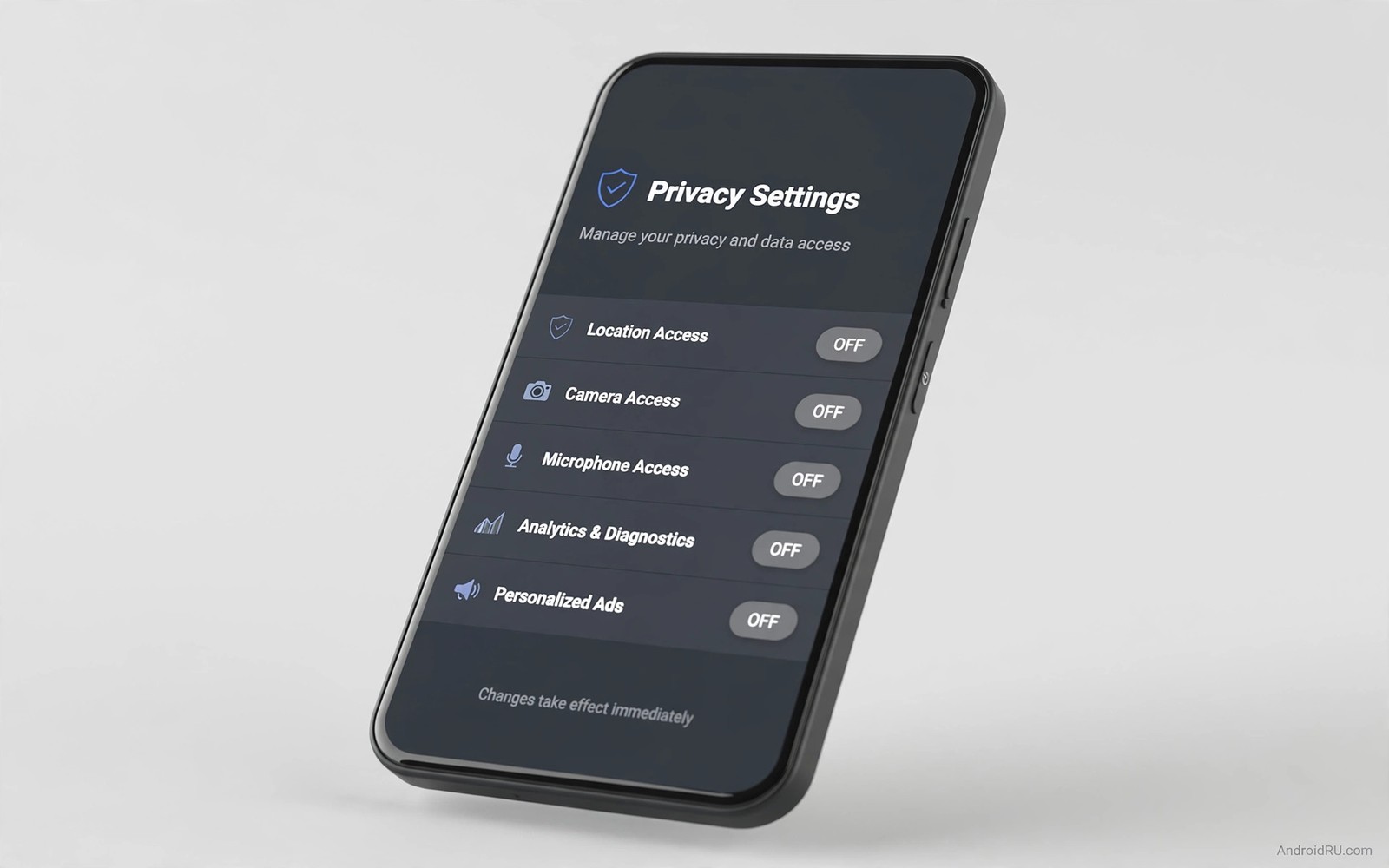
Privacy on Android is not a single switch. It is a set of quiet defaults that share location and usage patterns and advertising signals unless you change them. Most owners never visit those menus because the defaults feel invisible. The phone works fine while the data flows out in the background.
The five settings in this guide change that balance. Each one cuts a real data flow without breaking the features you use daily. Maps still navigate and messages still arrive and photos still back up. What changes is how much extra information leaves the phone along the way.
Work through the five switches in order and test the phone after each one. Privacy changes should feel boring. If an app stops working after a change then restore that single switch and look for a narrower fix. Calm adjustments beat dramatic ones every time.
One: turn off ad personalisation
Ad personalisation builds an interest profile from your app use and your searches. Advertisers then target you with uncannily relevant promotions. Turning it off does not remove ads. It stops the system from tailoring them from your personal behaviour.
Open Settings and then open Privacy and then open Ads. Delete the advertising identifier and turn off ad personalisation where your phone offers the switch. The profile resets and future ads become generic rather than personal. Repeat the deletion every few months because a fresh identifier can accumulate a new profile over time.
Generic ads feel less clever yet they protect a surprising amount of detail. Your interests and habits stop feeding a shared profile across apps. That single switch is the fastest privacy win on any Android phone.
Two: stop location history from building
Location history stores where you have been in a timeline that grows day by day. The timeline can help you remember a restaurant visit. It also creates a detailed map of your routines that lives beyond the phone itself.
Open Settings and then open Location and then open Location services. Turn off location history and delete the history already stored. Check the same menu for Wi-Fi scanning and Bluetooth scanning because those features can estimate location even when location itself is off.
Keep location access for apps that truly need it such as maps and ride services. Set those apps to allow location only while in use. A delivery app does not need to know where you sleep. A maps app does not need to track you after you arrive. Readers who review ten hidden settings worth changing often place location history at the top of their own lists for the same reason.
Three: end usage and diagnostics sharing
Usage and diagnostics data tells the maker which features you use and how often apps crash. The reports help improve software yet they also reveal patterns about your daily routine. Many phones enable this sharing during setup when owners tap through screens quickly.
Open Settings and then open Privacy or About phone and look for usage and diagnostics. Turn the switch off. The phone keeps working normally and crash reports simply stop leaving the device. You lose nothing visible in daily use.
Review the same area for personalisation services that learn from your typing and your routines. Some of those services improve suggestions yet they need broad access to do it. Turn off the ones whose benefit you never noticed. A suggestion you never used costs privacy for no return.
Four: cut background access for greedy apps
Background access lets apps refresh and track even when closed. Social apps and shopping apps are frequent offenders because their business depends on fresh data about you. Restricting background work cuts both data flow and battery drain at once.
Open Settings and then open Apps and sort by recent use. Pick the apps you open rarely and restrict their background battery use. Then open their permission pages and remove location and microphone access that serves no clear purpose. An app you open monthly needs no constant location feed.
Leave messaging and safety apps unrestricted so urgent contact still reaches you. The goal is a short list of trusted apps with broad access and a long list of casual apps with narrow access. That shape matches how most people actually use their phones.
Five: silence the clipboard and the sensors
Clipboard access deserves attention because copied text often contains passwords and addresses. Newer Android versions alert you when an app reads the clipboard. Turn that alert on where available and clear the clipboard after pasting sensitive text. A copied password should not linger for hours.
Sensor permissions form a quieter risk. Some apps infer activity from motion sensors without asking for obvious permissions. Review apps with physical activity permission and remove it from apps that have no fitness purpose. A shopping app does not need to know when you walk or run.
Camera and microphone indicators complete the picture. A green dot in the status bar shows when an app uses the camera or the microphone. If the dot appears while you use an unrelated app then open the permission manager at once. Owners who protect sensitive apps also value locking apps without extra downloads because privacy includes keeping other people out of your apps as well as keeping data off remote servers.
Review accounts connected to the phone
Connected accounts extend privacy far beyond the phone itself. A signed in account syncs contacts and calendar events and browsing data to remote servers. Open Settings and then open Passwords and accounts to see every account on the device. Remove accounts from services you no longer use and keep only the accounts that serve a current purpose.
Check sync settings for each remaining account. A single account may sync a dozen data types that you never requested. Turn off sync for categories such as contacts or calendar for accounts that only need mail. Narrow sync reduces the data that leaves the phone during every automatic refresh.
Review app sign ins inside the account security pages of major services. Revoke access for apps you stopped using long ago. Old sign ins often retain broad permissions even after you delete the app from the phone. A yearly revoke session closes those forgotten doors and it pairs naturally with the five switches in this guide.
Shared devices deserve extra care in this review. A tablet or an old phone signed into the same account inherits the same sync data. Sign out of devices you no longer own or use. Each signed out device shrinks the surface where your personal data can leak.
Set a quarterly privacy reminder
Privacy settings drift back toward sharing because apps request new permissions with every update. A calendar reminder every three months keeps the drift in check. Open the permission manager and the account list during the reminder and revoke anything that no longer earns its access.
Use the reminder to delete the advertising identifier again and to clear location history for the past quarter. Each cycle takes about fifteen minutes. The habit matters more than any single switch because it catches new sharing that slipped in quietly between reviews.
Check permission use with a quick command
The commands below list apps that recently used sensitive permissions through a computer connection. They help you verify that your five switches actually reduced access. Run them after a week of stricter settings and compare the results with your memory of normal use.
adb shell cmd appops query-op --user 0 android:coarse_location
adb shell cmd appops query-op --user 0 android:camera
adb shell cmd appops query-op --user 0 android:record_audio
The snippet above was written for this article as a read only permission check. It displays system records and it changes nothing on the phone. Look for apps in the output that you rarely open. Those names deserve a permission review in Settings before anything else.
Common mistakes
The biggest mistake is turning off location entirely and then wondering why maps fail. Privacy works best with precise controls rather than blunt bans. Keep location available while apps are in use and remove only the background and history layers that add little value.
Another mistake is changing settings once and never revisiting them. App updates can request new permissions and system updates can add new sharing options. A quarterly review of fifteen minutes keeps your earlier work intact.
People also confuse privacy with security. Strong privacy settings do not replace a lock screen or software updates. You need both layers. A private phone with an outdated system still carries security holes that attackers can exploit.
Finally avoid privacy apps that demand broad access themselves. An app that promises to protect you while requesting every permission defeats its own purpose. Prefer system settings over third party tools for the five switches in this guide.
Frequently asked questions
Will turning off ad personalisation remove all ads?
No. Ads remain but they become generic instead of tailored to your behaviour. You may see less relevant promotions. The benefit is a smaller shared profile rather than an ad free experience.
Does deleting location history affect maps?
No. Maps still navigate with live location while you use the app. Deleting history only removes the stored timeline of past places. Future navigation works exactly as before.
Should I turn off diagnostics on every device?
Yes for personal phones where privacy matters most. Diagnostics help makers fix bugs yet the benefit to you is indirect. Turning it off costs nothing visible and it removes one steady data flow.
Conclusion
Five switches transform a chatty phone into a quieter one. Ad personalisation and location history and diagnostics sharing and background access and clipboard exposure each leak a different kind of detail. Closing them together leaves daily features intact while shrinking the trail you leave behind.
Your concrete next step is to open Privacy settings today and delete the advertising identifier. That single action takes under a minute. Tomorrow turn off location history and delete the stored timeline. Readers preparing for worst cases should also set up the setting to enable before a phone gets lost so privacy protection extends to a missing device too.

