

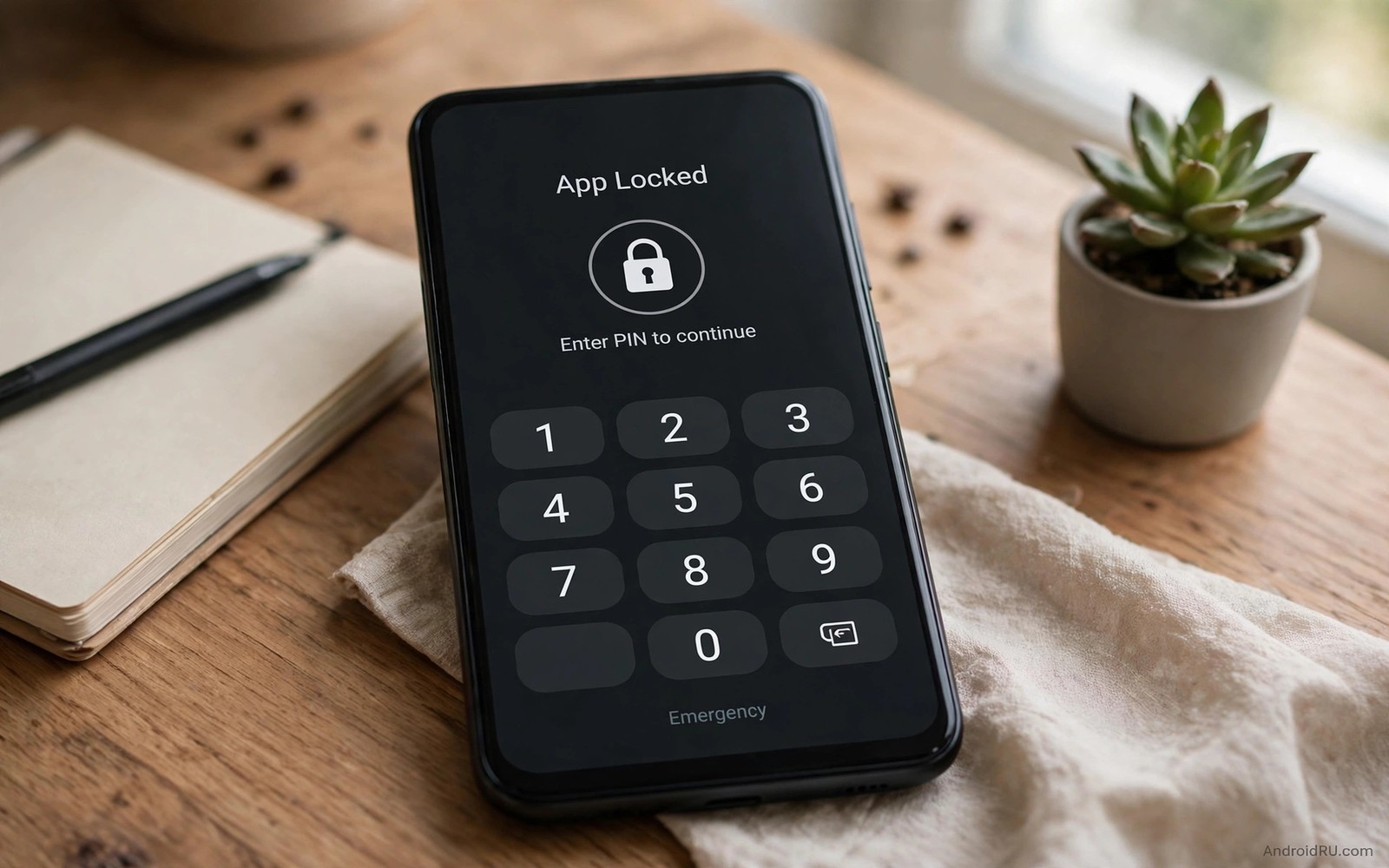
Handing your phone to a friend should not mean handing over your messages and photos and banking apps. Third party lock apps promise protection yet they demand broad permissions themselves. Android already contains several built-in ways to lock apps away without any extra download.
No single built-in method locks every app on every phone. Makers implement different tools under different names. Private space and secure folders and screen pinning and per-app biometrics together cover most needs. This guide maps each tool to the situation it suits best.
Start with the strongest tool your phone offers and add pinning for shared moments. A layered setup protects privacy even when one layer is unavailable on your model.
Private space: the cleanest built-in lock
Private space is a separate locked area on newer Android versions. Apps moved into private space disappear from the main app drawer and home screen. Opening the space requires your lock method such as a fingerprint or a PIN.
Set up private space from Security settings where your phone offers it. Choose a distinct lock method from your main lock if the phone allows it. Move banking apps and messaging apps and photo apps into the space. The main phone then looks ordinary to a casual borrower.
Private space apps run separately from their main copies. Notifications from private apps stay hidden until you unlock the space. That silence is a feature rather than a bug because it prevents previews from betraying private content on the lock screen.
Secure folders on maker software
Some makers ship a secure folder instead of private space. The folder works similarly as an encrypted area protected by biometrics. Apps inside the folder keep separate data from apps outside it. Photos moved into the folder vanish from the main gallery.
Open the secure folder app or its settings entry to begin setup. Sign in with your maker account where required and choose a biometric lock. Move sensitive files and apps into the folder through its add menu. The folder icon itself can hide from the drawer on many models for extra discretion.
Secure folder data deserves its own backup plan. A factory reset without a folder backup erases folder contents permanently. Check backup settings inside the folder after setup and confirm that important files sync to your chosen account.
Screen pinning for short shares
Screen pinning locks the phone to one app for a brief share. A friend can view a photo or play a game without reaching your messages. Enable pinning in security settings and pin from the recent apps screen.
Pinning suits moments rather than permanent protection. A child borrowing the phone for a video stays inside that video. A colleague viewing a document cannot wander into your gallery. Unpinning requires your lock method so the borrower cannot escape casually.
Combine pinning with private space for strong coverage. Private space protects apps permanently. Pinning protects the current moment. Together they handle both a nosy borrower and a trusted friend who only needs one app.
Per-app biometric locks where available
Many individual apps offer their own biometric lock inside their settings. Banking apps and messaging apps and note apps commonly support fingerprint unlock. Open each sensitive app and look for lock or privacy settings.
Enable biometric lock for every app that offers it. The lock triggers after a short idle period or whenever the app restarts. A phone left unlocked on a table still protects those apps because each one demands a fingerprint on open.
App locks complement system locks rather than replacing them. A strong lock screen remains the first line of defence. Per-app locks add a second line for the apps that matter most when the first line is already open.
Lock screen and notification discipline
App locks fail when notifications preview private content on the lock screen. Open notification settings and hide sensitive content on the lock screen. Previews then show only the app name without message text.
Set notification categories per app as well. A banking app can stay silent on the lock screen while still alerting with sound. A messaging app can hide sender names for group chats. Small category choices prevent leaks that no app lock can fix.
Owners who tighten the whole privacy picture also review privacy switches for everyday safety because locks and data sharing controls protect different sides of the same life. A locked app that still shares data freely is only half protected.
Guest mode and secondary users
Secondary user profiles create a clean phone for borrowers. A guest profile starts with default apps and no access to your files. Switch users from the quick settings panel when handing the phone to someone else.
Guest mode suits longer loans such as a child using the phone for an afternoon. The guest cannot install apps without permission on many models. Your profile remains untouched behind your lock method.
Remove guest data after the loan ends if the phone offers that choice. A fresh guest profile for each borrower prevents one guest from seeing another guest activity. The routine takes seconds and it keeps sharing tidy.
What to do when your phone lacks these tools
Budget phones sometimes ship without private space or secure folders. Screen pinning and per-app locks and notification discipline still work on those models. The combination covers most sharing situations even without a hidden area.
A strong lock screen with a short timeout becomes more important on such phones. Set timeout to thirty seconds and require biometrics after every lock. A phone that locks quickly spends less time exposed on tables.
Consider a maker launcher or a work profile as a last built-in resort. Work profiles separate work apps behind their own lock on many phones. The setup takes longer yet it creates a genuinely separate area without third party lock apps.
Check trust agent state
The command below reports trust agent information through a computer connection. It helps you confirm which lock helpers the phone recognises. Run it once after setting up private space or secure folders.
adb shell dumpsys trustThe snippet above was written for this article as a read only lock diagnostic. It displays system state and it changes nothing on the phone. Look for the active trust agents in the output. An unexpected agent may explain why the phone stays unlocked longer than you intended.
Hide private space from the app drawer
A private space that appears as an obvious folder invites curiosity. Hide the space entry from the main drawer where your phone offers that choice. Access then requires a search gesture or a special unlock motion that only you know.
Choose a discreet name for the space when custom names are allowed. A label such as utilities draws less attention than a label announcing privacy. The goal is invisibility rather than a challenge that dares a borrower to explore.
Test invisibility by handing the phone to a trusted friend and asking what they notice. A friend who finds nothing confirms the setup works. A friend who spots the space quickly tells you which setting still needs adjustment.
Remember the access gesture yourself by practising it weekly. A hidden space you cannot open quickly frustrates its owner as much as a borrower. A short weekly practice keeps the motion familiar without weakening its secrecy.
Rotate locks after sharing ends
A shared PIN loses secrecy the moment another person learns it. Change private space credentials after lending the phone to someone outside the household. A fresh credential restores the secrecy that sharing eroded.
Biometric locks need less rotation because fingerprints stay with you. A PIN or pattern that a child watched you enter deserves immediate change. Children remember patterns surprisingly well and they share them innocently with friends.
Review which apps sat in private space after a long loan. An app that no longer needs hiding can return to the main drawer for convenience. A tidy private space holds only current secrets rather than a museum of old ones.
Common mistakes
The biggest mistake is trusting a single app lock while leaving notifications fully visible. A locked messaging app still leaks previews on the lock screen. Hide sensitive notification content as part of every lock setup.
Another mistake is choosing a weak PIN for private space that matches the main lock. A borrower who guesses the main PIN then opens the private area too. Use a distinct method for the private area where the phone allows it.
People also forget private space contents during backups. A phone transfer that copies only the main profile leaves private files behind. Check private backup settings before switching phones.
Finally avoid third party lock apps that request accessibility access for basic locking. Broad access lets such apps read screens and inputs. Built-in tools achieve the same result without handing that power to a stranger.
Frequently asked questions
Does private space hide apps completely?
Yes on phones that support it. Private apps vanish from the main drawer and home screen. They reappear only after unlocking the space with your chosen method.
Can a borrower bypass screen pinning?
Pinning requires your lock method to exit when you enable that option. Without the lock requirement a borrower could unpin with the standard gesture. Always enable the lock requirement during pinning setup.
Will app locks slow my phone?
No noticeable slowdown occurs. Biometric checks take a fraction of a second. The phone performs the same work with or without per-app locks enabled.
Conclusion
Built-in tools lock apps effectively without extra downloads. Private space and secure folders hide sensitive apps entirely. Pinning handles short shares. Per-app biometrics add a second lock for the most important tools. Notification discipline closes the preview loophole.
Your concrete next step is to open Security settings today and check whether private space or a secure folder exists on your phone. Move one banking app into it as a test. Readers preparing for worst cases should also set up the setting to enable before a phone gets lost and review ten hidden settings that reshape daily use for the full privacy picture.

