

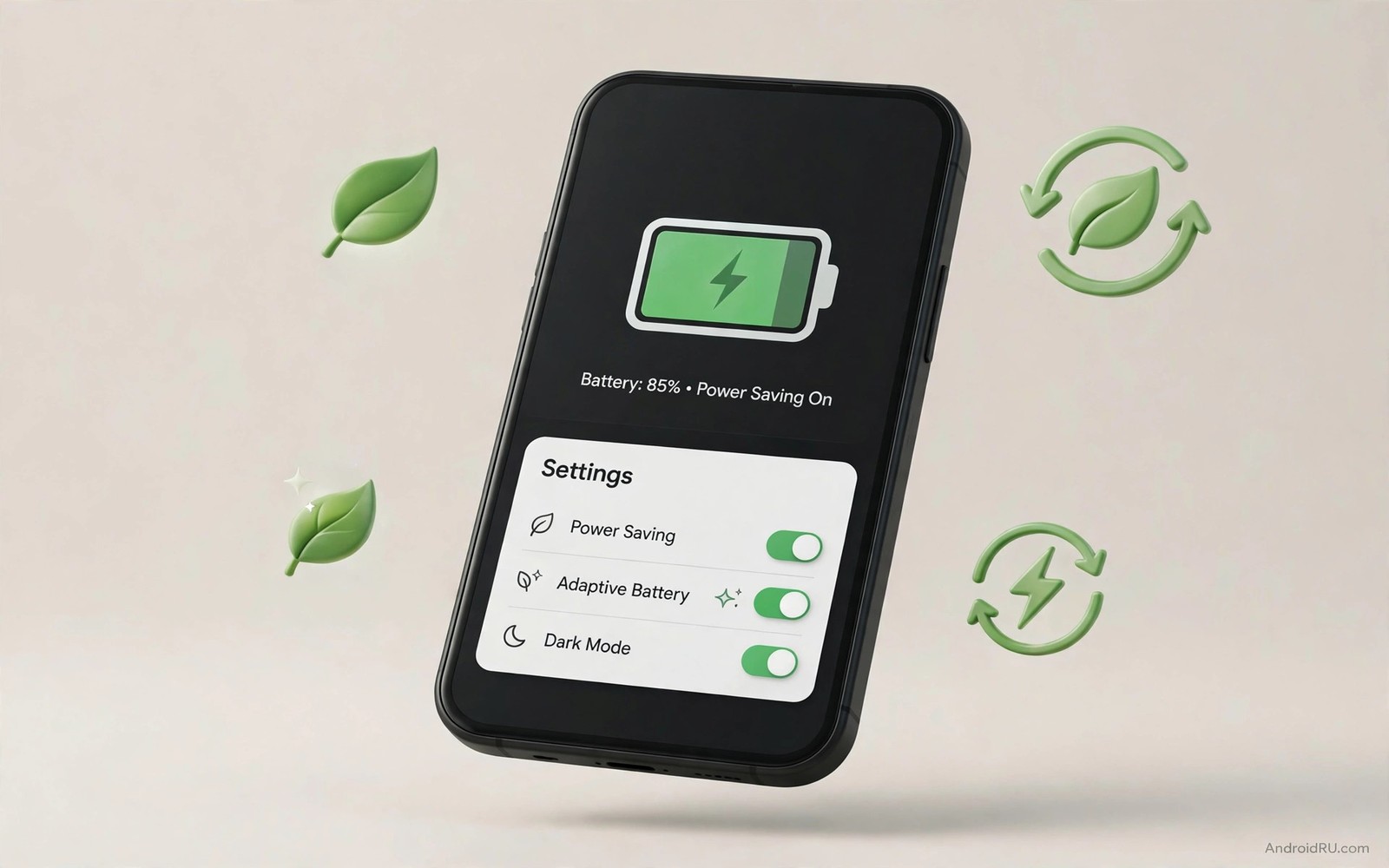
Battery life rarely improves from a single dramatic change. It improves from a handful of quiet toggles that reduce background work and screen power and sensor use. Those toggles hide deep in Settings because they trade small conveniences for longer life. Most owners never meet them.
The five toggles in this guide work together as a system. Adaptive battery learns your habits. Background restrictions stop greedy apps. Display controls cut the biggest power draw on the phone. Location precision trims sensor use. Sync controls stop constant cloud chatter. None of them alone transforms the phone. Together they often add hours.
Change one toggle per day and watch battery usage after each step. A patient method reveals which toggle matters most for your routine. A phone used for navigation needs different toggles from a phone used mainly for reading.
Toggle one: adaptive battery done properly
Adaptive battery uses on-device learning to limit apps you rarely open. The system watches usage patterns over days and then restricts background work for neglected apps. Open Settings and then open Battery and then open Adaptive preferences to confirm the feature is on.
Adaptive battery needs time to learn. The first week shows little change because the system still builds its model. Judge the feature after two full weeks of normal use rather than after two days. Patience pays because the restrictions grow smarter as patterns stabilise.
Exempt messaging apps and alarm apps from aggressive restriction if a message ever arrives late. Open the app info page and set battery usage to unrestricted for tools that must deliver instantly. Adaptive learning plus a short exemption list gives you learning benefits without missed alerts.
Toggle two: restrict the worst background apps
Battery usage screens reveal which apps drain power while closed. Social feeds and shopping apps often top the background list because they refresh constantly. Open each offender and set App battery usage to Restricted where the phone offers that choice.
Restricted apps still work fully when you open them. They simply cannot wake freely in the background. A shopping app restricted this way stops refreshing deals at night. A social app stops preloading videos you may never watch.
Restrict at most three apps per week. A sudden restriction of every app can delay important messages and confuse troubleshooting. Three per week keeps the phone stable while the worst offenders lose their background privileges one by one.
Toggle three: tame the display power draw
The display consumes more power than any other component on most phones. Refresh rate and brightness and screen timeout together decide how much energy the screen burns. Open Display settings and choose adaptive refresh rate so static pages use less power than scrolling feeds.
Set screen timeout to thirty seconds or one minute. A phone left on a table with a long timeout burns power for no reason. Short timeouts feel strict at first yet they become invisible within days because the phone wakes instantly on touch.
Brightness deserves the same attention. Automatic brightness usually beats a fixed high setting because it adapts to rooms and sunlight. Manual maximum brightness indoors wastes power and strains eyes. Trust the sensor indoors and reserve manual boosts for bright sunlight only.
Toggle four: reduce location precision
Precise location uses GPS hardware that draws significant power. Many apps work perfectly with approximate location which relies on Wi-Fi and towers instead. Open Location settings and change precision per app where the phone offers approximate choice.
Weather apps and news apps rarely need exact coordinates. Approximate location within a few blocks serves their purpose fully. Navigation and ride apps keep precise access because their core job depends on it. The split saves power without losing usefulness.
Turn off Wi-Fi scanning and Bluetooth scanning in location services when you do not need them. Scanning helps location accuracy in cities yet it wakes radios regularly. Owners who spend most time at home gain little from constant scanning.
Toggle five: control account sync frequency
Account sync keeps mail and contacts and calendar fresh by polling servers on a schedule. Aggressive sync from several accounts creates constant radio wakeups. Open Accounts settings and review sync toggles for each account.
Turn off sync for data types you never use from an account. A mail-only account needs no calendar sync. A work account on a personal phone may need no contact sync. Each disabled sync type removes a recurring wakeup.
Lengthen sync intervals where apps allow manual control. Mail that arrives fifteen minutes later rarely matters outside work hours. A calmer sync schedule lets the phone sleep longer between wakeups which is where real battery savings accumulate.
Dark mode and theme power savings
Dark mode saves power on phones with OLED screens because black pixels draw almost no current. The saving is real yet it varies with how much of the screen stays dark. A dark theme across system and apps maximises the gain.
Enable dark mode in Display settings and then enable dark themes inside your most used apps. A system dark mode with bright apps defeats half the benefit. Consistency across the apps you open most delivers the measurable saving.
Phones with LCD screens gain little from dark mode because the backlight stays on regardless. LCD owners should focus on brightness and timeout instead. Knowing your screen type prevents chasing a saving that your hardware cannot deliver.
Extreme saver mode for long days
Extreme battery saver mode exists for travel days and emergencies. It limits apps to essentials and pauses most background work. Enable it from Battery settings when the phone must last until late night without a charger.
Choose essential apps before enabling the mode. Messaging and maps and phone calls belong on the essential list. Social feeds and games do not. A prepared essential list prevents frustration when the mode blocks an app you suddenly need.
Exit extreme mode promptly after the long day ends. The mode trades convenience for survival and daily life deserves full features. A mode used only when needed feels like a rescue tool rather than a punishment.
Check adaptive battery state
The commands below read adaptive battery state and current battery information through a computer connection. They help you confirm that the learning feature is actually enabled after a system update. Run them once after changing the five toggles.
adb shell settings get global adaptive_battery_management_enabled
adb shell dumpsys battery
The snippet above was written for this article as a read only battery check. It displays system values and it changes nothing on the phone. Compare the adaptive value with your intended setting after each update. A reset value explains why battery behaviour changed suddenly.
Charge habits that protect the toggles
Toggles save power during use yet charging habits decide long term battery health. Charge to around eighty percent for daily routines when possible. Top up during the day instead of leaving the phone at full charge all night.
Heat during charging deserves attention too. A phone that charges under a pillow traps warmth around the battery. Charge on a hard cool surface and remove thick cases during long charging sessions.
Use a charger that matches the phone power rating. An oversized charger rarely harms modern phones because the phone negotiates power. A cheap charger with poor regulation can heat the battery and wear the port. Known brands and intact cables remain the safest choice.
Small savings compound daily.
Common mistakes
The biggest mistake is enabling extreme saver mode permanently. Daily life with crippled apps frustrates owners until they disable every saver feature in anger. Reserve extreme mode for genuinely long days and use the gentler toggles daily.
Another mistake is restricting messaging apps for battery savings. A delayed message can cost a job opportunity or a family emergency response. Keep communication tools unrestricted and restrict only entertainment and shopping apps.
People also judge battery changes after a single day. Usage varies wildly between travel days and home days. Compare two similar weeks before declaring a toggle useless or miraculous. Patterns beat single readings every time.
Finally avoid battery calibration myths such as draining to zero regularly. Full discharges stress modern batteries rather than teaching them. Gentle partial charges through the middle range keep chemistry healthiest over years.
Frequently asked questions
Will adaptive battery delay my messages?
Adaptive battery can delay messages from rarely used apps. Exempt your main messaging apps from restriction to prevent delays. Frequently used apps stay unrestricted automatically because the system learns they matter to you.
Does dark mode really save battery?
Dark mode saves noticeable power on OLED screens when apps also use dark themes. LCD screens gain almost nothing because backlights stay lit. Check your screen type before expecting large savings from dark mode alone.
How often should I review battery usage?
A monthly review suits most owners. Open battery usage and note the top three background consumers. Restrict a new offender only when it appears repeatedly across weeks rather than after one heavy day.
Conclusion
Five deep toggles plus dark mode discipline and a sensible extreme mode plan transform battery life without new hardware. Adaptive learning and background restriction and display control and location precision and sync calm together remove the steady drains that shorten every day.
Your concrete next step is to open Battery settings today and confirm adaptive battery is on. Then restrict the single worst background app from the usage list. Readers who want the wider tuning picture can continue with ten hidden settings that reshape daily use and privacy switches for everyday safety and performance settings for demanding use as companion guides.

