

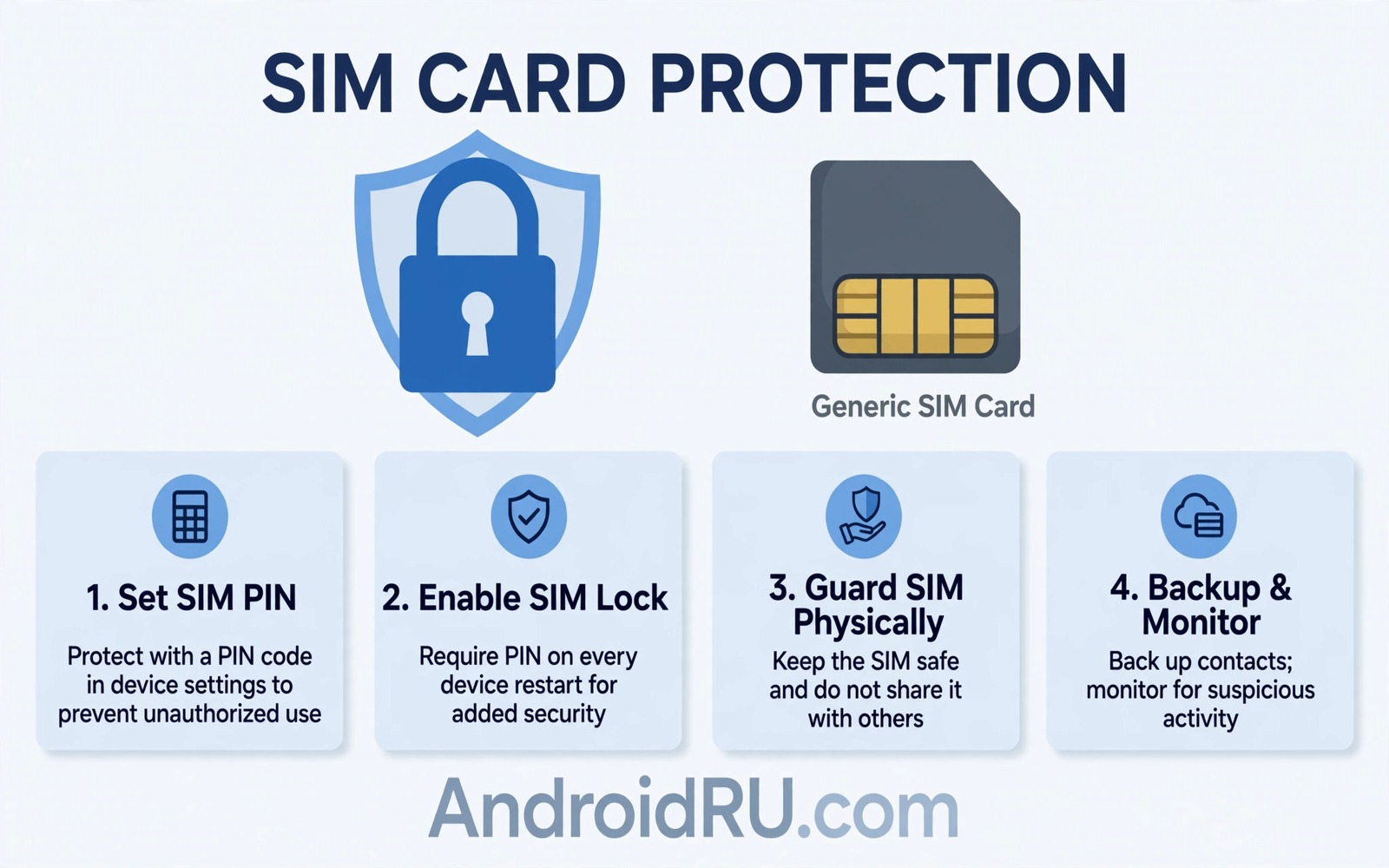
Most people lock their phone screen and think the job is done. The SIM card inside the phone has its own lock and most users never turn it on. That gap matters because a thief can remove the SIM and place it in another phone. The new phone then receives your calls and your texts and your reset codes.
A SIM PIN closes that gap with a short code that the card demands after every restart or SIM move. Without the code the card refuses to join the network. Calls and texts and mobile data stay blocked even when the thief holds the physical card. That single barrier can stop account takeovers that start with a stolen number.
Setting up the PIN takes only a few minutes and it needs no extra app. This guide explains the default code and the change process and the recovery plan. Follow it today while your phone is safe in your hands rather than after a theft when options shrink.
What a SIM PIN actually protects
A SIM PIN protects the card and not the phone screen. The screen lock stops a stranger from opening your apps on your own phone. The SIM PIN stops a stranger from using your number on any phone. Both locks matter and neither one replaces the other. Together they cover the device and the identity tied to the number.
The main threat is a SIM swap by physical theft. A thief moves your SIM into a cheap phone and requests password resets by text. Many services still send reset codes by SMS. Once the thief receives those codes the thief can take over email and cloud and payment accounts in sequence. A SIM PIN breaks that chain at the first link.
A SIM PIN also protects you during repairs and travel. A repair shop may test the phone with your SIM still inside. A lost phone at an airport may sit in a lost property box for hours. In both cases an unprotected SIM is an open door. A protected SIM stays silent until the correct code arrives.
Find your default PIN before you change anything
Carriers ship SIM cards with a default PIN that is often simple and public. Common defaults include four zeros or a short sequence printed on the SIM card holder. Check the card holder or the carrier app or the carrier support page for your exact default. Do not guess repeatedly because three wrong tries usually lock the card and demand a PUK code.
Locate the PUK code before you change the PIN. The PUK code appears on the original SIM holder and in many carrier accounts online. Write it on paper and store it away from the phone. A PUK code rescues a SIM after too many wrong PIN tries yet it also locks permanently after too many wrong PUK tries so handle it with care.
If you cannot find the default PIN then contact your carrier from another device. Support can confirm the default or issue a fresh SIM with a known code. Never pay a third party site for a default PIN list. Those sites often harvest numbers and they add risk instead of removing it.
Turn on SIM PIN lock step by step
Open Settings and search for SIM lock or SIM card lock. The exact path varies by brand yet the search box finds it on nearly every Android phone. Tap the SIM card lock entry and switch the lock to on. The phone asks for the current PIN which is the default code unless you changed it before.
Enter the current PIN carefully and confirm it once. The phone then enables the lock for that SIM card. Restart the phone to test the new protection. The lock screen for the SIM should appear before the normal home screen loads. Enter your PIN and confirm that mobile signal returns.
Change the PIN to a code only you know after the lock is on. Choose four digits that are not your birth year and not a simple sequence. Avoid codes that appear on your social profiles or on your lock screen hints. A random four digit code memorised through use beats a meaningful code that a thief can guess.
Manage a phone with two SIM cards
Dual SIM phones set a PIN per card rather than one PIN for the whole phone. Enable the lock for each active card separately in the same settings area. Test each card after a restart by confirming that both ask for a code. A single unprotected card leaves the same hole open on the second number.
Keep the two PINs different when you can remember both safely. Different codes limit the damage if one code leaks through shoulder surfing. If two codes feel hard to manage then use one strong code for both cards and store the PUK codes separately. Consistency you can remember beats complexity you will forget.
When you swap SIM cards for travel then plan the PIN step in advance. A travel SIM may arrive with its own default PIN and its own PUK code. Enable the lock on the travel SIM before you leave home. A foreign trip is a poor time to hunt for a PUK code from a carrier abroad.
What to do if you forget the PIN
Stay calm and stop after two wrong tries. Each failed try brings the card closer to a PUK lock. Open your carrier account from a computer or a second phone and find the PUK code. Enter the PUK code exactly once and set a fresh PIN when the phone prompts you.
If the carrier account is unreachable then call support from another phone. Support will verify your identity before sharing the PUK code. That verification may take time yet it protects your number from social engineering. Never share the PUK code with a caller who claims to be support first.
After a PUK reset choose a new PIN and test it with a restart the same day. Write the new PUK relationship down in your private notes without writing the PIN itself in plain text. A small note that says where the PUK lives is safer than a note that lists every code.
A quick settings check you can run
Power users can confirm SIM state through the phone settings search without any special tool. The search term below finds the lock screen for the card on most Android builds. Use it as a shortcut rather than hunting through nested menus each time.
Settings search: SIM card lock
Settings search: Change SIM PIN
The command sample above was written for this guide and it follows standard Android settings navigation practice. The two search terms point to the lock toggle and the PIN change screen on most phones. Use the search box when menu paths differ by brand and keep the PUK code ready before you change any value.
After you enable the lock restart the phone and watch for the SIM PIN prompt. A prompt that appears proves the lock is active. A missing prompt means the toggle did not save or you edited the wrong SIM on a dual SIM phone. Repeat the steps for the correct card.
Handle SIM PIN on shared and family phones
Family phones need a SIM PIN plan that balances safety with access. A parent phone with a SIM PIN protects the number when a child borrows the device. A child phone with a SIM PIN protects the family plan when the phone is lost at school. Discuss the PIN with trusted family members rather than hiding it completely.
Store the PUK code with other household emergency details in a private place. A sealed envelope at home works well for family PUK codes. The envelope should note which SIM each code belongs to without listing the PIN itself. That separation keeps rescue possible without exposing daily codes.
When a family member travels abroad set the travel SIM PIN before departure. A traveller who needs a PUK code abroad faces carrier support hours and language barriers. Preparation at home removes that stress entirely. A prepared traveller enjoys the trip instead of hunting for codes.
Review SIM locks after any phone change in the household. A new phone does not inherit the old phone SIM lock automatically in every case. Check the lock status on the new device during setup. A forgotten check leaves the new number exposed from day one.
Test SIM PIN after every carrier change
A carrier change or a SIM replacement can reset lock behaviour on some phones. Test the SIM PIN prompt after any carrier service change. A missing prompt after a change means the lock needs re-enabling. Testing takes one restart and it closes a silent gap.
Common mistakes
The worst mistake is enabling the lock without saving the PUK code first. That order turns a forgotten PIN into a dead SIM and a carrier visit. Save the PUK code before you touch the PIN toggle. The rescue code belongs in your plan from the start.
Another mistake is choosing a PIN that matches the phone unlock code. A thief who watches you unlock the screen learns both codes at once. Keep the SIM PIN different from the screen code and from banking codes. Separation limits the damage from a single observed entry.
People also disable the lock because the extra prompt feels annoying after every restart. That annoyance is the protection working as designed. A prompt that appears rarely is a tiny cost for blocking number theft. Keep the lock on and accept the few seconds it adds.
Finally do not share your SIM PIN with a repair shop unless the repair truly needs mobile testing. Most repairs need no SIM at all. Remove the SIM before handing the phone over when the shop allows it. A SIM in your pocket is safer than a SIM in a stranger’s workshop.
Frequently asked questions
Does a SIM PIN slow down my phone
No. The PIN check runs once at startup or after a SIM move. It adds a few seconds to a restart and it has no effect on daily speed or battery life. Normal use feels exactly the same after setup.
Will a SIM PIN block emergency calls
No. Emergency calls remain possible even when the SIM is locked. The lock blocks normal network use and account access yet it preserves the emergency path required by law. Keep the phone charged so emergency use stays available.
Should I enable SIM PIN on a tablet with mobile data
Yes. Any device with a SIM card benefits from the same protection. A data only SIM can still receive account codes when the plan supports SMS. Lock every active SIM regardless of the device type.
Conclusion
A screen lock guards the phone and a SIM PIN guards the number behind it. Thieves exploit the gap between those two locks every day. Closing the gap takes minutes and it blocks a whole class of account takeovers before they start. There is no reason to leave the SIM open once you know the risk.
Your concrete next step is to find your PUK code today and then enable SIM PIN lock on every active card. Restart the phone and confirm the prompt appears before you finish. Readers who want a broader safety routine can explore a guide to mistakes to avoid after losing a phone and a guide to default passwords to replace at once plus a guide to permissions never to grant unknown apps for stronger protection.

