

Stop Leaving Bluetooth and GPS Turned On 24/7! Here’s Why
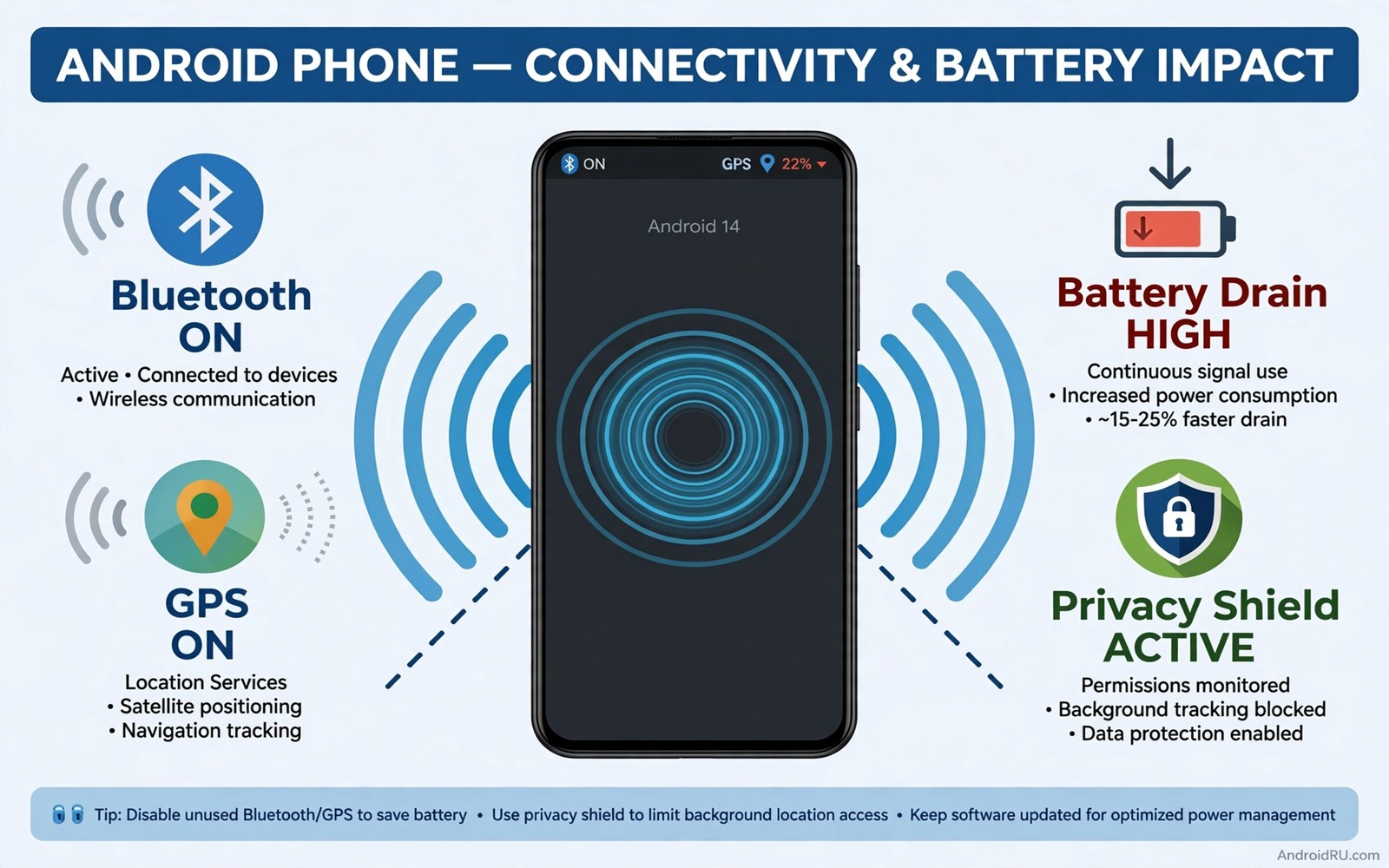
Bluetooth and GPS feel like background utilities that should simply stay on. The phone pairs with earbuds instantly and maps open without delay. That convenience hides two costs that accumulate every hour. Radios that stay active scan and broadcast and drain power even when you use nothing connected to them. They also advertise your presence to nearby devices and apps in ways you never see.
This guide explains what each radio actually does while you ignore it, how much battery it costs, and how to build a habit that turns them off when they are not needed. The habit takes seconds a day, and it buys you battery life and privacy at the same time.
The Two Hidden Costs of Radios Left On
Every radio left on costs you twice: once in battery, once in privacy. Battery cost is the smaller problem but it is the easiest to measure. A radio scanning for devices burns power in small bursts all day. Location services add processor work on top of radio work. Together they can cost a noticeable slice of daily battery on phones that already struggle to reach bedtime.
Privacy cost is larger and harder to notice. Bluetooth broadcasts identifiers that nearby scanners can log. Location history built from always-on GPS reveals routines that no single app should hold. Reducing both radios to when-you-need-them shrinks that exposure without losing any feature you actually use.
How much battery do idle radios really use
On a modern phone, idle Bluetooth and GPS together usually cost a few percent of battery per day, not half the battery. The cost grows when many apps hold location permission, when many paired devices are nearby, or when the phone is already old and its battery is weak. Owners who complain about standby drain often leave both radios on out of habit rather than need, and the radios are the easiest drain to fix.
| Radio | What it shares | Main risk when left on |
|---|---|---|
| Bluetooth | Device identifiers and pairing signals | Tracking by nearby scanners and pairing attacks |
| GPS | Precise position to apps with permission | Location history that reveals daily routines |
| Wi-Fi scanning | Nearby network names that reveal position | Location tracking even with GPS off |
| NFC | Short-range signals for payments and tags | Low risk, but tap-to-pay stays armed |
| Mobile hotspot | Your data connection to nearby devices | Battery drain and open access if unsecured |
What Bluetooth Broadcasts While You Ignore It
A phone with Bluetooth on and discoverable can be seen by nearby devices. Modern phones limit discoverability, but they still broadcast for paired accessories and for services such as audio handoff. Shops and trackers can log those broadcasts to infer visits and dwell time. You never see that logging happen. It happens silently in the background of a shopping trip.
Bluetooth Low Energy beacons make the tracking quieter and cheaper. A beacon in a shop can note that a phone passed by, how long it stayed, and whether it returned the next week. One beacon tells little. A network of beacons across a mall tells a story about your habits. Turning Bluetooth off when you are not using it removes you from that story.
Bluetooth trackers and beacons in shops
Retail beacons are legal and common. They help shops count visitors and measure which displays attract attention. They also create a record of your movements that you never agreed to in any visible way. You cannot opt out of a beacon by ignoring it, because your phone broadcasts whether you look at it or not. The only reliable opt-out is the toggle.
Pairing attacks in crowded places
Old Bluetooth flaws add a security angle as well. Pairing attacks target phones with Bluetooth left on in crowded places, and the most famous example, BlueBorne in 2017, showed that a vulnerable Bluetooth stack could be attacked without any pairing at all. Modern phones have patched those flaws, but the lesson stands: a phone that is not discoverable and has no pending pairing is a harder target. Turning Bluetooth off in crowds removes the attack surface entirely.
What Always-On GPS Reveals About You
GPS alone does not broadcast your location to strangers. Apps with location permission do that job. Always-on GPS simply makes precise location instantly available to every app holding that permission. An app that checks location in the background can log your movements without any visible activity. You may never open that app on a given day while it still records where you went.
Location history accumulates into patterns that reveal home and work and school and medical visits. A single day of points is mildly sensitive. Months of points form a biography. Limiting GPS availability and limiting which apps hold location permission work together. Either control alone leaves a gap that the other must close.
Which apps hold location permission right now
Open Settings, then Location, then App location permissions, and read the list honestly. Most users find apps on that list that have no business knowing where they are: a shopping app, a game, a flashlight. Change each one to “Only while using the app” or “Don’t allow” unless the app genuinely needs your position to work. A weather app needs your city, not your street, and approximate location is enough for it.
Location history as a biography
Think of a year of location points as a diary you never wrote. It shows where you sleep, where you work, which doctor you visit, and which places you visit late at night. That diary is valuable to advertisers and dangerous in the wrong hands. Deleting location history regularly and limiting which apps can add to it are the two habits that keep the diary short.
Location Modes Explained: High Accuracy, Battery Saving, Device Only
Android offers three location modes, and they trade accuracy for battery and privacy. High accuracy uses GPS, Wi-Fi, Bluetooth, and mobile networks together for the most precise fix. Battery saving uses networks rather than satellites, which is less precise but cheaper. Device-only uses GPS satellites alone, which avoids network assistance but still feeds apps your exact position.
The strongest control is the toggle itself. Turn GPS off when navigation ends and turn it back on for the next trip. Navigation apps will prompt you when they need it, so you will never miss a turn because you forgot to switch it on.
High accuracy mode
High accuracy is the right choice while you navigate, because a wrong turn costs more than a little battery. It combines every signal the phone has, which is why it drains fastest. Use it for driving and walking directions, then turn location off when you arrive.
Battery saving mode
Battery saving mode is enough for weather, local search, and rough location. It uses nearby Wi-Fi networks and cell towers instead of satellites, which saves power and is less precise. Choose it as the default mode for days when you do not need turn-by-turn directions.
Device-only mode
Device-only mode sounds private, but it is not a privacy win. It still gives apps your exact GPS position; it only avoids the network-based helpers. If you want privacy, turn location off or use approximate location, not device-only mode.
The Battery Cost You Can Measure Yourself
Test the impact over two days rather than trusting claims. Leave both radios on for one normal day and note battery at bedtime. Turn both off when unused on the next similar day and note battery again. Most owners see a small but real gain on the second day. The gain grows on phones with many paired devices or many location-hungry apps.
Check battery usage to see which apps use location most. An app with high background location use deserves restriction regardless of radio habits. Restrict that app and keep the radios off when idle. Combined controls beat either control alone because they attack both the radio cost and the app cost.
How to read the battery usage screen
Open Settings, then Battery, then Battery usage, and look at the list. Apps are sorted by consumption, and location-heavy apps usually sit near the top on days you travelled. Tap an app to see whether its use was foreground or background. Background use is the number that matters, because it means the app worked while you were not looking.
How to Automate the On-Off Habit So You Forget It
Routines remove the willpower problem. Set a routine that turns Bluetooth off at bedtime and on again in the morning if you use earbuds daily. Set a routine that turns location off when you arrive home and on when you leave. Most phones include routines or modes for exactly this purpose. A five-minute setup replaces dozens of manual toggles.
Use quick settings tiles for both radios and place them where your thumb reaches easily. A toggle that takes two swipes gets used. A toggle buried in Settings gets ignored. Arrange the tiles once and the habit becomes frictionless. Pair the habit with a weekly permission review so new apps do not quietly gain location access.
Routines on Samsung and Pixel
Samsung phones have Modes and Routines, and Pixel phones have Rules and Bedtime mode. Both can switch Bluetooth and location based on time, place, or connection. A bedtime routine that turns both radios off at night is the easiest automation to start with, because it needs no location trigger and it saves standby battery every single night.
How to build a bedtime routine
Open Modes and Routines or the Rules settings, create a routine triggered by bedtime or by a clock time, and add two actions: turn Bluetooth off and turn location off. Add a matching morning routine that turns Bluetooth on if you use earbuds daily. Test it for two nights before you trust it.
How to build a driving routine
For driving, use a car routine that enables Bluetooth when connected to car power or when the car stereo pairs. That automation keeps hands-free calling working without leaving Bluetooth on all day. When the car turns off, the routine can switch Bluetooth off again. Smart automation gives you convenience without constant exposure.
A Simple Daily Radio Routine
Morning: turn on Bluetooth only if earbuds or car use is planned. Keep GPS off until navigation starts. Evening: turn off both radios when you settle at home. Night: confirm both are off before sleep so standby drain stays low. That routine takes seconds and it becomes automatic within a week.
Travel days need a different radio plan. Turn GPS on for navigation legs and off again at the hotel. Turn Bluetooth on for the flight entertainment or the rental car and off again at dinner. Airports and stations are crowded radio environments where pairing attacks are more likely, so avoid pairing new accessories in a crowded terminal. Pair headphones at home before departure so the airport needs no discovery at all.
Morning checklist
Bluetooth on only if earbuds or car use is planned. GPS off until navigation starts. Wi-Fi scanning off unless you need it for location. That is the whole morning routine, and it takes less time than reading this sentence.
Evening checklist
Both radios off when you settle at home. Paired device list reviewed once a month, forgetting devices you no longer own. A forgotten pairing is a trusted path into your phone that serves no current purpose, and a sold headset or a rental car stereo may remain paired and trusted long after you stop using it.
Frequently Asked Questions About Bluetooth and GPS
Will turning off Bluetooth break my smartwatch?
Yes, while Bluetooth is off the watch cannot sync. Turn Bluetooth on when you want watch sync and off when you do not need it. Many watches queue health data and sync it later. That delay is usually harmless and it buys battery life on both devices.
Does GPS off stop emergency location?
No. Emergency services can still receive location through network and system channels during an emergency call on most phones. Turning off user GPS does not disable emergency location features. Keep emergency features enabled in Settings regardless of your daily GPS habit.
Is Wi-Fi scanning just as risky as GPS?
Wi-Fi scanning can also reveal location through nearby networks. Disable Wi-Fi scanning for location when you do not need it. That setting lives in location services on most phones. Combine it with GPS discipline for a fuller privacy habit.
Do I need a booster app to manage my radios?
No, and you should avoid them. Booster apps often need broad permissions themselves and they add background work. Built-in routines and quick tiles already manage radios without extra access. Keep the solution inside the system.
Your Next Step Tonight
Bluetooth and GPS left on around the clock cost battery, broadcast presence, and feed location-hungry apps. Neither radio needs to run when you are not using it. Toggle them on for a task and off when the task ends. Automate the pattern with routines and quick tiles so the habit survives busy days.
Your concrete next step is to turn off both radios right now and add their tiles to quick settings. Use them only for the next task that truly needs them. That single change starts the habit tonight. Check the battery again after a week of radio discipline to see the gain for yourself. Review the paired device list at the same time and forget every device you no longer own or use. The same thinking applies to unsecured public Wi-Fi habits because an open radio is an open door even when no attack is visible. The same discipline helps with settings you should never turn on because risky toggles waste power and safety together. Pair that setup with settings to verify on a new phone so a fresh phone starts with safe radio defaults.

