

Sideloaded apps arrive without the review that store apps receive. That single difference changes how you should treat every permission they request. A store app with a bad permission may still be caught by review or by user reports. A sideloaded app faces no such check. The permission you grant is the only barrier between that app and your data.
Unknown makers deserve a default answer of no. A legitimate tool explains why it needs each permission in plain language tied to a feature you can see. A harmful app requests broad access early and vaguely and punishes refusal by refusing to work. That pressure is a signal rather than a reason. Walk away from any app that demands everything before it shows anything.
The seven permissions in this guide are the most abused on Android. Each one alone can expose sensitive data. Combined they can give an app near total control over your phone and your accounts. Learn them by name so you can recognise them instantly during install. That knowledge also helps when you judge risky app types to avoid installing because risky apps often pair a tempting promise with a broad permission demand.
Accessibility access is full remote control
Accessibility services can read screen content and observe taps and press buttons for you. That power was built for owners who need help using a phone. In a malicious app it becomes a silent operator that reads banking screens and copies codes and approves dialogs. No game or cleaner or wallpaper app needs this power to function.
Refuse accessibility access from any unknown sideloaded app without exception. If an app claims it needs the service for a simple feature then the claim is false or the design is reckless. Find an alternative that works without screen access. Check the installed services list regularly and remove anything you do not recognise at once.
Accessibility grants persist across reboots and they survive casual cleanup. An app you forgot can keep observing for months. That persistence is why this permission tops the list. A single careless grant can outlast your memory of installing the app.
Device admin and overlay powers resist removal
Device admin access lets an app lock the screen and enforce policies and resist uninstallation. Malware uses admin power to survive your attempts to remove it. An app that asks for admin rights during install is asking to become hard to delete. No ordinary tool needs that privilege.
Draw over other apps is the companion trick. An overlay app can draw fake login screens on top of real apps. You type your password into a window you believe belongs to your bank. The overlay captures it instead. Refuse overlay permission from unknown apps and revoke it from any app that shows unexpected popups over other apps.
Both powers share a warning sign. They are requested outside the normal permission flow through special settings screens. An app that guides you to those screens with urgency deserves deep suspicion. Close the app and uninstall it rather than following its instructions to a powerful grant. The same suspicion applies to apps you should uninstall at once because an app that weakens protection first rarely has honest intentions.
Contacts and call logs and SMS reveal your network
Contacts permission exposes everyone you know and how you reach them. Call logs add who you spoke to and when. SMS access adds verification codes and private conversations. Together they let an attacker impersonate you to your contacts or reset your accounts using codes sent to your phone. A sideloaded game or tool has no honest need for that trio.
Read and send SMS is especially dangerous because it bypasses two-factor codes. An app that can read incoming messages can steal codes silently. An app that can send messages can spread itself to your contacts or subscribe you to premium services. Refuse SMS access from unknown apps even when the app promises a useful messaging feature.
Call management permission belongs in the same refusal group. An app that can make calls or manage calls can dial premium numbers or intercept verification calls. Your phone app already handles calls. A third-party tool does not need that job unless it is a dialer you deliberately chose from a trusted maker.
Precise location and background location track your life
Precise location tells an app where you live and work and travel. Background location tells it where you go when the app is closed. Combined they build a movement history that can reveal routines and home addresses and sensitive visits. A sideloaded torch or editor or cleaner has no reason to know any of that.
Grant location only to apps with a visible location feature and only while the app is in use. Unknown apps should receive no location at all. Review location permissions monthly and remove background location from every app that does not need it for a safety feature you chose. That review takes minutes and it removes a detailed diary of your movements.
Location data also feeds advertising and data brokerage when an app shares it. A free app that demands location may be selling your movements as its business model. Paying with your location history is a poor trade for a tool you could replace with a safer alternative.
Files and media access can empty your private folders
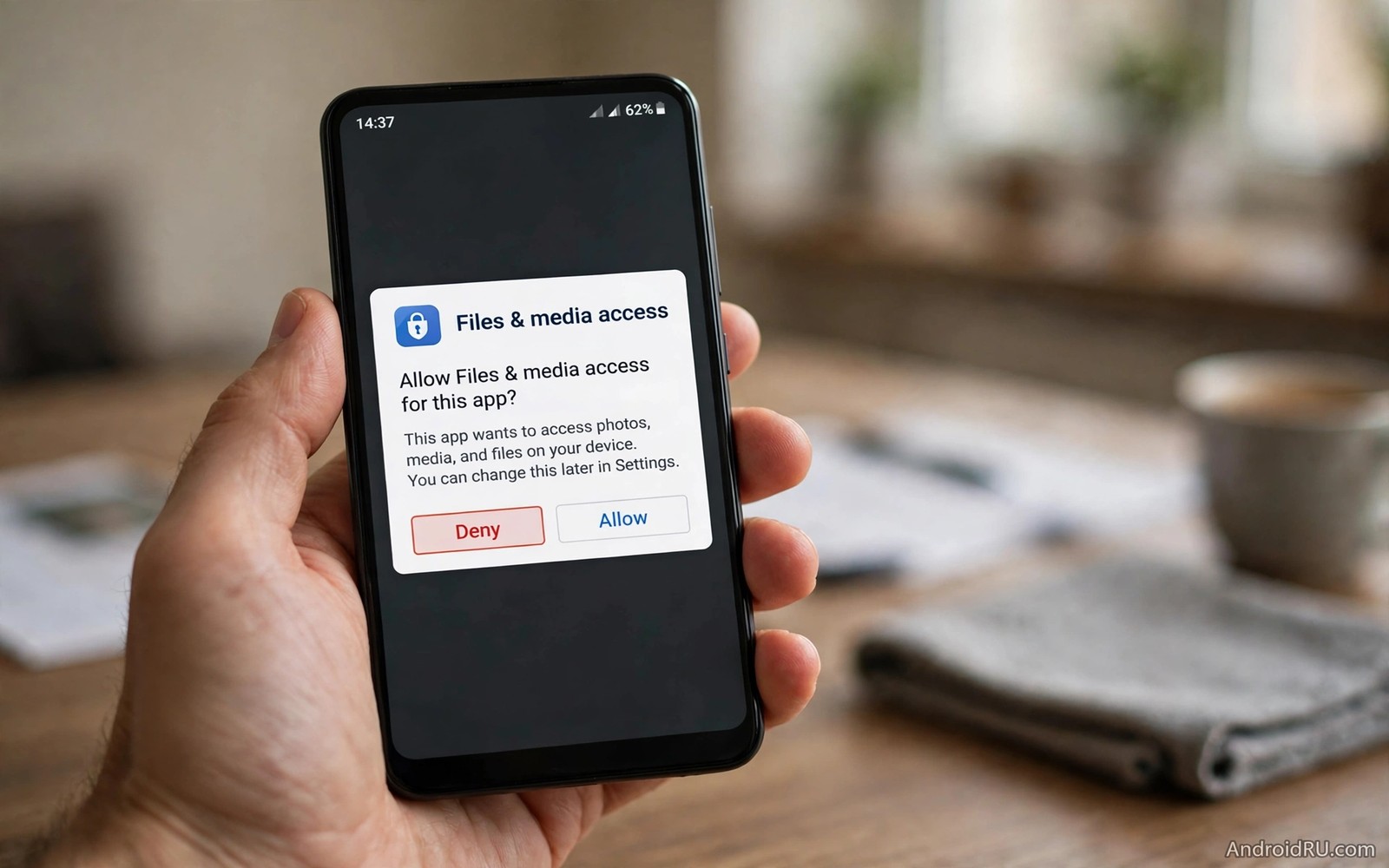
All files access lets an app read documents and downloads and private folders beyond photos. Photos and videos access exposes your camera roll and your screenshots. Those screenshots may include passwords and codes and personal documents. An unknown app with broad file access can copy your private life to a remote server in minutes.
Use the photo picker for single images instead of granting full media access. Modern Android lets an app receive only the photos you choose. Prefer that narrow path for every unknown app. For files prefer sharing one document at a time rather than opening your whole storage to an app you cannot verify.
Check the files permission for sideloaded apps first during any audit. It is the permission most owners grant without thinking because file tools seem harmless. A file tool from an unknown maker is exactly the app that benefits most from broad access. Treat it with the most suspicion rather than the least.
A permission audit you can finish tonight
Open Settings and then privacy and then permission manager. Work through accessibility and device admin and SMS and location and files in that order. Revoke anything granted to an app you do not trust. Uninstall sideloaded apps that complain about the revocation. A useful app adapts to narrow permissions. A harmful app demands broad ones. Treat any app that matches disabling built-in app protection as an immediate uninstall candidate.
Settings > Accessibility > Installed services
Settings > Security > Device admin apps
Settings > Privacy > Permission manager
Settings > Apps > Special app access
The checklist above was written for this article to organise a permission audit for sideloaded apps. It lists only the screens where powerful grants live. Visit each screen and ask whether every grant there still earns its place. Revoke first and test the app afterwards rather than trusting its explanation before you act.
Teach family members the same rules
Children and older relatives face the same permission traps with less experience to spot them. Show them the accessibility and SMS screens on their own phones. Explain in plain words that a game never needs to read messages or watch the screen. A five-minute lesson protects every device in the household.
Agree on a family rule for sideloaded apps. Nobody installs an app from outside the store without checking its permissions with another family member first. That second pair of eyes catches pressure tactics that one person might miss. Shared rules beat individual vigilance because scams target the least guarded phone in a home.
Common mistakes
The biggest mistake is granting permissions to make a warning dialog disappear. Install screens push owners toward approval with repeated prompts. Tapping allow to reach the app is how harmful apps gain power. Pause at each request and ask what feature needs that data. If no feature justifies it then refuse.
Another mistake is trusting an app because it looks polished. A professional icon and smooth screens cost little to fake. Polish proves design skill rather than trustworthiness. Judge an unknown maker by its permissions and its behaviour rather than by its appearance.
People also forget that permissions persist after they stop using an app. An app installed for one task can keep its grants for years. Audit permissions when you clean up apps and revoke everything from apps you no longer use. Uninstalling is even better because it removes the grant entirely.
Finally avoid granting a permission because a video told you to. Setup videos often rush through permission screens without explaining risks. Follow the feature rather than the video. If a feature works without a grant then the grant was never needed.
Frequently asked questions
Can I use a sideloaded app safely at all?
Yes when you trust the maker and you grant only the permissions tied to visible features. Install one app at a time and audit its permissions after install. Revoke anything broad and test whether the app still works. A safe sideloaded app keeps working with narrow permissions.
What if an app refuses to work without a permission?
Consider that a warning rather than a requirement. A legitimate app explains the need and offers a limited mode. An app that blocks all use over one broad permission is pressuring you. Find an alternative that respects narrow grants instead of surrendering.
How do I remove a stubborn device admin app?
Open device admin apps in Settings and deactivate the admin right first. Then uninstall the app normally. If the admin screen itself is blocked then boot into safe mode and remove the app there. Seek professional help rather than granting more access to force a removal.
Conclusion
Seven permissions turn an unknown sideloaded app from a tool into a threat. Accessibility and admin and overlay and contacts and SMS and location and broad file access each deserve a default no. Grant narrow permissions tied to features you can see and audit the powerful grants regularly.
Your concrete next step is to open the permission manager tonight and revoke accessibility and SMS access from any sideloaded app you cannot fully trust. That single audit removes the most dangerous grants before they can be abused.

