

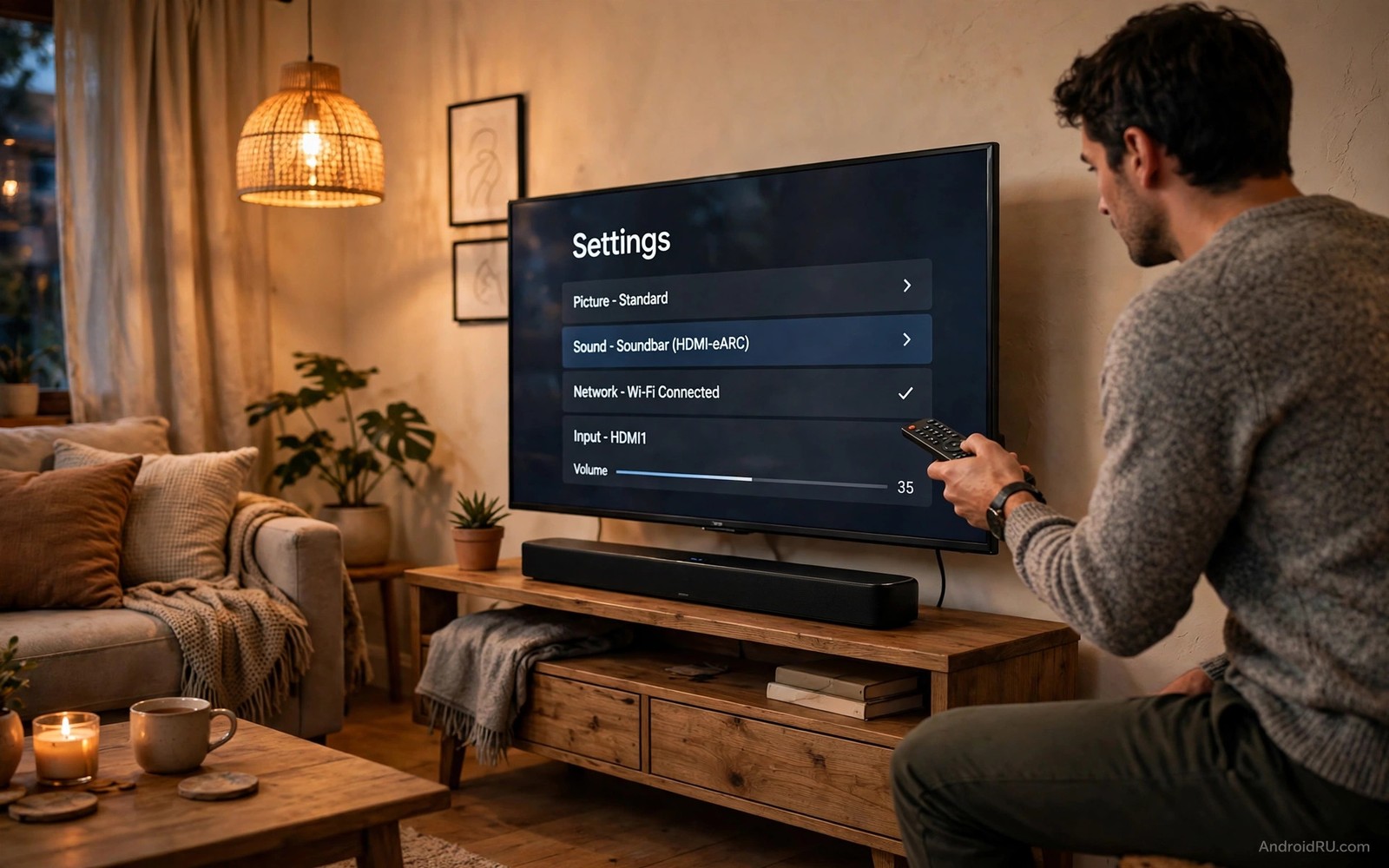
Audio sync lag turns a good show into a distraction. You see lips move and then you hear the words a fraction of a second later. The delay may feel small at first but it grows tiring over a full episode. Soundbars add extra steps to the audio path and each step can add delay. The television processes sound and the soundbar processes sound again and the wireless link adds its own delay. Fixing sync means finding which step adds the delay and then removing or compensating for it.
Start with a simple test that isolates the problem. Play the same show through the television speakers first and then through the soundbar. If the television speakers sound in sync then the soundbar path causes the delay. If both sound out of sync then the source or the television setting causes it. That one test saves hours of random setting changes. It also tells you whether the fix belongs in the soundbar menu or in the television menu. A related cleanup in hidden Android TV settings can remove processing that adds delay before you touch the soundbar.
Measure the delay before you change settings
Watch a close up talking scene and note whether sound arrives early or late. Sound that arrives late is the common case with soundbars. Sound that arrives early is rarer and it usually points to a television processing mode. Knowing the direction matters because sync controls move sound in one direction only. Moving the wrong control makes the problem worse.
Use a news clip or a talk show for the test. Faces fill the screen in those formats and lip movement is easy to see. Action scenes hide sync errors behind fast cuts and loud effects. A calm talking scene reveals a delay of even a tenth of a second. Repeat the test after each change so you know which change actually helped.
Write down the starting delay setting before you change anything. Soundbar menus often use milliseconds and the range runs from zero to several hundred. A note of the starting value lets you return to it if a new value feels worse. Settings without a baseline turn a simple fix into guesswork.
Fix the connection first
The connection type shapes the delay more than any other factor. HDMI ARC and HDMI eARC carry sound with low delay when both devices support them. Optical connections also work well for stereo and basic surround sound. Bluetooth adds the most delay because it encodes and decodes audio over a wireless link. If you use Bluetooth then switching to HDMI or optical often fixes sync at once.
Check the HDMI cable itself when delay appears suddenly. A damaged cable can force the television to fall back to a slower audio path. Swap in a different cable and test again. Cables cost little and a swap rules out a whole class of problems in minutes.
Match the audio format to what the soundbar truly supports. A television that sends an advanced surround format to a basic soundbar forces extra decoding work. That work adds delay and it can also drop sound entirely. Set the television audio output to a format the soundbar handles natively. Stereo PCM is a good test format because almost every soundbar handles it without extra processing.
Use the soundbar sync control
Most soundbars include a lip sync or audio delay control. The control shifts sound forward or backward in small steps. Increase the delay value when sound arrives before lips move. Decrease it when sound arrives after lips move. Move in steps of 25 milliseconds and test after each step. Large jumps overshoot the sweet spot and make the problem feel random.
Some televisions also include their own audio delay setting. Use only one delay control at a time. Using both controls at once doubles the adjustment and makes the result hard to predict. Pick the soundbar control first because it sits closest to the speaker. Leave the television control at zero while you tune the soundbar.
Save the setting per input when the soundbar allows it. A streaming box and a game console may need different delay values. A single global value can fix one input and break another. Per input settings keep each source in sync without constant retuning.
Turn off processing that adds delay
Television sound modes add processing time. Modes that simulate surround sound or enhance dialogue or normalise volume all process audio before it reaches the soundbar. Turn those modes off for a sync test. If sync improves then turn modes back on one at a time to find the culprit. Keep only the modes that do not hurt sync.
Soundbar modes add delay too. Virtual surround and night mode and voice enhancement each add a processing step. Test with the soundbar in its standard mode first. A standard mode gives the cleanest path from source to speaker. Add enhancements back only when sync stays correct.
Game mode on the television can help even when you are not gaming. Game mode reduces video processing delay and that reduction can bring video closer to audio timing. If your television has a game mode for the HDMI input then try it for streaming as well. The picture may lose some enhancement but the sync gain often matters more.
adb shell dumpsys audio | grep -i latency
adb shell settings get global hdmi_audio_delay_ms
The snippet above was written for this article to show how advanced users inspect audio latency values through a computer connection. It prints audio service details and it reads a stored audio delay value when the device exposes one. Use it only for diagnosis on a device you own. The everyday fix stays inside the soundbar and television menus.
Test sync across different sources
Sync behaviour changes between sources because each source uses different audio formats and buffers. A streaming app may sync perfectly while a live television channel lags. A game console may need a different delay from a streaming box. Test each source separately and note the delay value that works for it. A notebook of per source values saves retuning every time you switch inputs. That notebook becomes your personal sync reference.
Live broadcasts add a special challenge because the broadcaster controls timing. A live sports event may drift slightly during the broadcast. A small drift feels annoying but it rarely indicates a broken setup. Check a recorded show after a live event to confirm the setup still works. Recorded content gives a stable test that live content cannot provide.
Bluetooth headphones introduce their own sync behaviour on top of soundbar sync. A headphone that lags on Bluetooth may sync perfectly over a wired link. Test headphones with a wired connection first to isolate the cause. A wired test tells you whether the headphone itself lags or whether Bluetooth adds the delay. That distinction guides the next fix accurately.
Room acoustics can trick your ears about sync. A large room with hard walls creates echoes that blur the timing impression. Sit in your normal seat for sync tests rather than standing near the soundbar. Your normal seat gives the timing impression that matters for daily viewing. A test from an unusual position can lead to a wrong delay value.
Keep a sync notebook for your setup
A small notebook for sync settings saves repeated tuning across devices. Write down the delay value for each input and each sound mode. Note which settings you changed and why you changed them. A notebook turns a fragile setup into a repeatable setup. It also helps when a housemate resets the soundbar by accident.
Update the notebook after every successful change. A notebook that lags behind reality misleads future troubleshooting. A current notebook guides it. Spend thirty seconds updating it after each tuning session. That habit pays off the next time sync drifts after an update.
Share the notebook location with household members. A shared notebook lets anyone restore good sync without calling the person who set it up. Shared knowledge makes a home system resilient. It also prevents well meaning resets that erase careful tuning.
Check firmware updates for audio fixes
Television and soundbar firmware updates sometimes fix audio timing bugs quietly. An update may improve HDMI handling or Bluetooth latency without mentioning sync in release notes. Install firmware updates promptly and retest sync after each one. A retest after an update reveals whether a long standing delay finally cleared. It also reveals whether an update introduced a new delay.
Note firmware versions alongside sync values in your notebook. A version note lets you connect a sync change to a specific update. That connection helps support teams when you report a problem. It also helps you decide whether to roll back an update when rollback is possible. Version notes turn vague complaints into precise reports.
Common mistakes
The biggest mistake is changing five settings at once and then not knowing which one worked. Change one setting and test it and note the result. A careful sequence beats a fast sequence because it leaves you with a setup you can repeat.
Another mistake is blaming the soundbar when the streaming app itself lags. Test the same show in a different app before you buy new hardware. If only one app lags then reinstall that app or clear its cache. Hardware cannot fix an app specific bug.
A third mistake is leaving Bluetooth on as a fallback path. A television may switch to Bluetooth when the wired path drops for a second. That switch brings back delay without warning. Disable Bluetooth audio on the television when you use a wired soundbar connection.
Frequently asked questions
Why is only one app out of sync?
That app may use a different audio format or a different buffer size. Clear the app cache and test again. If the problem stays then check the app audio settings for a surround option you can simplify.
Does a new HDMI cable really help sync?
A new cable helps when the old cable forces a fallback audio path. It will not help when the delay comes from processing modes. Test the cable swap first because it is cheap and fast.
Should I use Bluetooth for a soundbar?
Use Bluetooth only when no wired option exists. Bluetooth adds encoding delay that no sync control fully hides. HDMI or optical gives a cleaner and more stable result for television viewing.
Conclusion
Soundbar sync lag usually comes from one clear cause and not from broken hardware. Test with television speakers first and then fix the connection and then tune one delay control in small steps. Your concrete next step is to play a talking scene tonight and note whether sound arrives late. If it does then switch to HDMI or optical and set the soundbar delay in 25 millisecond steps until lips and sound match. The home screen cleanup in how to customize the Google TV home screen and the playback ideas in how to watch web videos on Android TV without browsers make the fixed setup easier to enjoy every night.

