

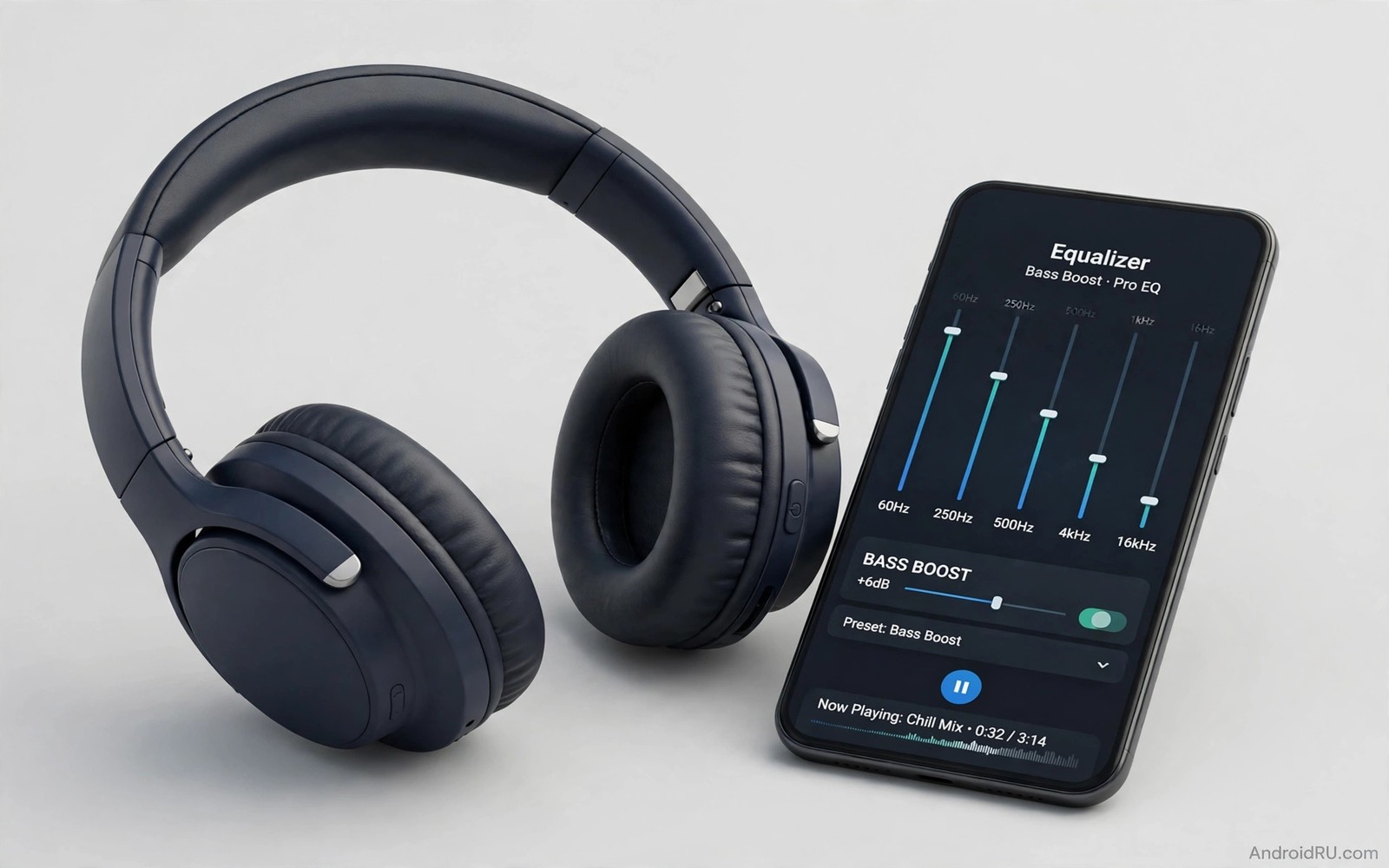
Wireless headphones often sound thin out of the box because the default tuning favours clarity over bass depth. A companion equalizer app lets you reshape that tuning for your ears and your music. A careful bass boost adds warmth and punch to drums and bass guitars. A careless boost adds mud and distortion and hides vocals. Understanding how equalizer bands work helps you get depth without losing detail.
An equalizer divides sound into frequency bands from low bass to high treble. Raising a low band increases bass energy in that range. Lowering a competing mid band can make bass feel clearer without raising volume. A companion app sends those settings to the headphones or applies them on the phone. The method varies by brand but the listening goal stays the same. A balanced curve sounds full yet clear across different tracks.
Start with a small boost and test with familiar music. A boost of a few decibels in the low bass often gives a noticeable improvement. A large boost of ten decibels or more usually causes distortion and muddy sound. Your headphones have physical limits and no app can force more clean bass than the drivers can produce. Respect those limits and aim for a natural full sound rather than maximum thump. For studio sound ideas from budget earbuds see studio sound tips for cheap wireless earbuds for tuning basics.
Understand bass bands before you boost
Sub bass below sixty hertz gives the deep rumble felt in electronic music. Mid bass between sixty and two hundred fifty hertz gives punch to drums and bass guitars. Boosting sub bass alone can feel deep but weak. Boosting mid bass alone can feel punchy but boomy. A good bass boost usually raises both ranges gently with a smooth curve. That smooth curve avoids a sudden peak that sounds unnatural.
A low shelf filter raises all frequencies below a chosen point. That filter is useful for a gentle overall bass lift. A peak filter raises a narrow range around a chosen frequency. That filter is useful for fixing a specific thin spot. Companion apps often offer both types through presets and custom curves. Learn which control your app offers before making large changes. A small change with the right filter beats a large change with the wrong filter.
Watch the midrange when you boost bass because bass energy can mask vocals. If vocals become muffled after a bass boost then reduce the boost slightly. Alternatively raise the vocal presence range by a small amount to restore clarity. Balance is the goal of equalizer tuning. A curve that sounds good on one track should also sound good on a vocal track and on a podcast. Test across genres before saving a preset.
Build a safe bass preset step by step
Choose a reference track with clear bass and clear vocals that you know well. Play it at your normal listening volume with the equalizer off. Note the bass level and vocal clarity in that baseline. Turn the equalizer on and raise the low bass band by two decibels. Listen again and note whether bass feels fuller without distortion. Repeat in small steps until the improvement stops or distortion appears.
Stop at the step before distortion appears and save that curve as your main preset. Create a second preset with a smaller boost for podcasts and calls. Podcasts need vocal clarity more than bass depth. A bass heavy preset can make speech sound muddy. Switching presets by content type gives the best result for both music and speech. Most companion apps let you switch presets quickly from the main screen.
Test the preset at a lower volume as well because bass perception changes with volume. A curve that sounds balanced at high volume may sound thin at low volume. A curve that sounds full at low volume may sound boomy at high volume. Choose a middle curve that works at your usual volume. Avoid raising overall volume to compensate for a weak bass preset because loud listening can harm hearing over time. For hiss and clarity checks see external USB DACs that upgrade Android sound for clean audio principles.
Use presets wisely and protect your hearing
Factory presets like bass boost or dynamic are useful starting points. They are tuned for average listeners and not for your specific ears. Use a preset as a base and adjust it in small steps for your headphones. Save your adjusted version under a clear name. A named preset lets you return to a good curve after trying a new one. Experiment freely because you can always return to a saved preset.
Volume limits matter because a bass boost can tempt you to listen louder. Set a comfortable volume before adjusting the equalizer. Keep that volume fixed during tuning. If the preset only sounds good at a high volume then the preset is probably too extreme. A good preset improves sound at a normal volume. Protecting hearing is part of good audio tuning and not a separate concern.
Battery use can increase slightly with heavy equalizer processing. That increase is usually small for modern headphones. If battery life drops sharply after enabling an equalizer then reduce the processing or use a simpler preset. A simple preset with fewer bands uses less processing. Daily listening should balance sound quality with battery life for wireless use.
bass_preset_notes.txt
Preset name: Warm Daily
Low bass plus 3 decibels
Mid bass plus 2 decibels
Vocals unchanged
Test tracks: bass and vocal
The notes above are an original example written for this guide. They show a simple record format for a bass preset. Use the format to compare presets without relying on memory. A written preset is easier to recreate after an app update resets settings.
Back up your presets if the app allows export or cloud sync. An app update can reset custom curves without warning. A written note of your main preset lets you rebuild it quickly. Keep that note in a phone note app for easy access. A backup habit protects tuning work that took time to perfect. It also helps when you switch to a new phone or a new headphone model.
Test bass presets on different music styles
A bass preset that sounds great on electronic music may sound muddy on acoustic music. Test your preset on at least three styles before saving it as a daily default. Include a vocal track and a rock track and an electronic track in the test. A preset that passes all three is a balanced daily choice. A preset that fails one style needs a smaller boost or a different curve shape.
Save a second preset for acoustic and vocal music with a gentler bass lift. Switch presets when you change genre rather than forcing one curve onto every track. That switching habit takes seconds in most companion apps. It gives each style its best sound without constant manual tuning. A genre aware preset system is the mark of a thoughtful listener.
Common mistakes
The most common mistake is boosting bass to the maximum and expecting clean sound. Maximum boost usually causes distortion and driver strain. Another mistake is tuning only with one bass heavy track. That tuning may sound terrible on vocal music. A third mistake is raising overall volume to hear bass better. Loud volume hides tuning problems and risks hearing damage. Tune at normal volume with varied tracks for a reliable result.
People also forget to turn off a second equalizer on the phone. Two equalizers stacking can double a bass boost and cause distortion. Use only one equalizer at a time for a clear tuning path. Check phone audio settings for a system equalizer before using a companion app. A single clean equalizer path gives predictable results. For earbud care during long listening see charging case care practices to protect battery life.
A final mistake is copying a preset from another headphone model without testing. Different headphones have different bass responses. A preset that works for one model may sound boomy on another. Use shared presets as starting points only. Adjust in small steps for your exact headphones. Personal testing beats a copied preset every time.
FAQ
Can an equalizer app damage my headphones?
A moderate equalizer boost at normal volume is safe for most headphones. An extreme boost at maximum volume can strain drivers over time. Avoid maximum bass boost combined with maximum volume. That combination is the risky case for driver damage. Tune at normal volume and stop before distortion appears. That rule keeps headphones safe while improving sound.
If you hear rattling or buzzing during bass notes then reduce the boost at once. Rattling signals driver stress. A lower boost should remove the rattle. If rattling persists at normal settings then the headphones may have a fault. Seek service rather than forcing more bass through a faulty driver.
Why does bass sound different on different apps?
Different apps may apply their own audio processing or volume normalisation. A music app may use a different output path than a video app. A companion equalizer may apply only to certain apps depending on the brand. Check whether the equalizer applies system wide or only inside the companion app. That scope explains many differences between apps.
Test the same track in two apps with the same preset to compare. Note which app sounds bassier and use that app for critical listening if needed. A system wide equalizer gives more consistent results across apps. A companion only equalizer may need a separate preset for each app. Understanding scope prevents confusion during tuning.
Should I use bass boost for calls and podcasts?
No because bass boost can make speech sound muddy and less intelligible. Use a flat or vocal focused preset for calls and podcasts. A small presence boost can improve speech clarity. Save a separate preset for speech content. Switch presets when you switch content types. That habit gives clear speech and full music from the same headphones.
Some companion apps switch presets automatically by app type. Enable that feature if available. Automatic switching saves manual changes during a busy day. Test automatic switching with a call and a music track. A correct automatic switch feels seamless and improves both content types.
Conclusion
Companion equalizer apps boost bass by reshaping low frequency bands with care. Small boosts add warmth and punch without distortion. Balanced curves preserve vocal clarity across genres. Presets for music and speech give the best daily result. Hearing protection and normal volume remain part of good tuning. A thoughtful preset turns a thin default tuning into a full personal sound.
Your concrete next step is to create a warm daily preset tonight with a low bass boost of three decibels. Test it with a bass track and a vocal track at normal volume. If both sound clear then save the preset and use it for a full day. If vocals sound muffled then reduce the boost by one decibel and test again tomorrow.

