

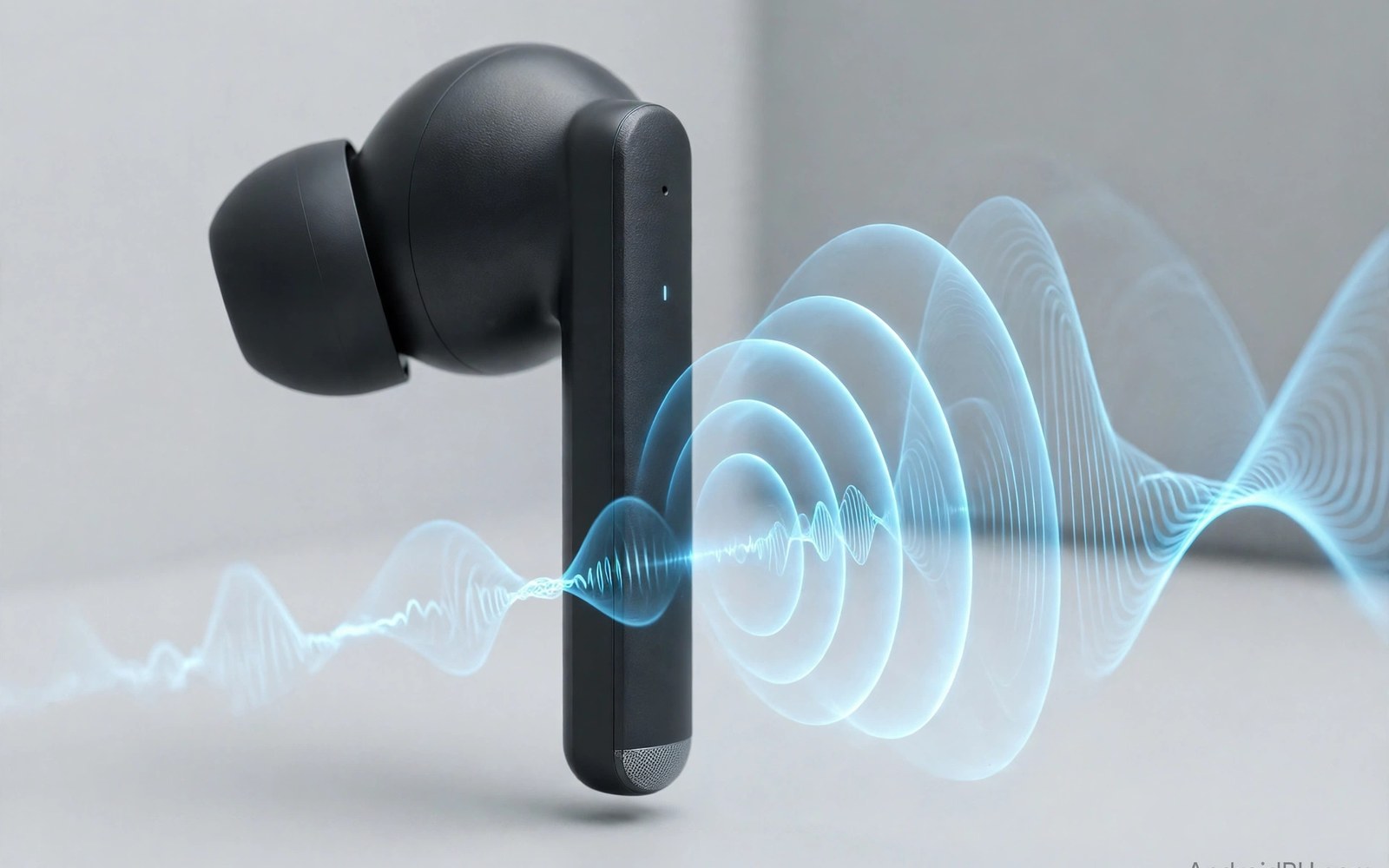
A quiet earbuds microphone makes every call harder than it should be. The other person asks you to repeat yourself and you end up shouting in a public place. The problem often comes from a simple setting or a blocked microphone hole rather than a broken earbud. Wind and distance and app permissions can each lower mic volume sharply. This guide shows how to find the true cause of quiet mic audio and fix it step by step. You will learn checks for fit and settings and apps that restore clear voice without buying new earbuds.
Start with the microphone position relative to your mouth. Wireless earbuds sit in the ear and their microphones sit far from the mouth compared with a wired headset. That distance makes voice quieter by nature. A microphone hole blocked by wax or dust makes the problem far worse. Inspect the small mic hole on each earbud under bright light. A soft dry brush can clear dust from the hole without pushing debris deeper. Never use a sharp pin because a pin can damage the microphone membrane inside the earbud.
Fit also changes mic volume because a loose earbud shifts during speech. A loose earbud moves its microphone away from the best pickup angle. Try different ear tip sizes until the earbud sits firmly without pain. A firm fit keeps the microphone stable during a call. A tip that is too large can press painfully and a tip that is too small can slip out during movement. Test a call after each tip change to hear the difference in volume and clarity. That simple tip test solves many quiet mic complaints.
Check Phone Settings And App Permissions
Phone settings can limit microphone volume without an obvious warning. Open the call app settings and look for noise reduction or voice enhancement options. Noise reduction can help in a noisy street but it can also make a quiet voice sound distant. Try a call with noise reduction off to compare volume. Some phones also offer a microphone mode for calls that favours voice over background sound. Choose the voice mode for calls in quiet rooms and the noise mode only for noisy places.
App permissions matter for calls inside messaging and video apps. An app without microphone permission may use a fallback audio path that sounds quiet. Check permissions for each calling app and grant microphone access where needed. Restart the app after changing a permission so it picks up the new setting. For multipoint calls that switch devices then Bluetooth multipoint for two devices explains how a switch can affect mic routing. For battery care during long calls then earbud charging case practices keep earbuds ready. For a desk call setup then accessories to turn a phone into a PC show how a headset fits a workspace.
Reduce Wind And Background Noise
Wind is a major enemy of a small earbuds microphone. A light breeze across the mic hole can drown out voice completely. A wind guard or a foam cover can reduce wind noise on some earbuds. Turning your back to the wind also helps because the earbud body shields the mic hole. In a car with windows open the wind effect is similar. Close windows during an important call or move to a sheltered spot. A call in a quiet room will always sound clearer than a call in wind no matter how good the earbuds are.
Background noise from a busy street or a fan can trigger noise reduction that also cuts voice. Move away from a fan or a loud television during a call if you can. A quiet room gives the microphone a clean voice signal to send. If you must call in noise then speak slightly louder and closer to the microphone side of the earbud. Hold the phone in a hand near your chest can sometimes reflect voice toward the mic but that trick varies by earbud design. Test it on a short call before relying on it for an important meeting.
Test Mic Volume With A Recording
A recording test gives an objective check of mic volume. Record a short voice note in a quiet room using the earbuds and then using the phone microphone. Compare the two recordings at the same playback volume. If the earbuds recording is much quieter then the problem lies with the earbuds or their settings. If both recordings sound quiet then the problem may lie with the app or the phone setting. That comparison saves time because it isolates the earbuds from the phone quickly.
Test both earbuds separately if your model allows a single earbud call mode. One earbud may have a blocked mic while the other works well. Use the working earbud for calls until the blocked one is cleaned or repaired. A single earbud call can also improve volume because the phone may use the main mic on that side. Keep notes on which earbud sounds clearer so you can report the fault accurately if a repair is needed.
Check Audio Routing With Commands
A computer check can show audio device state on the phone. Use these audio routing checks on a computer that already trusts the phone. They read audio settings without changing any setting. Use them to confirm that the phone recognises the earbuds as a communication device rather than as a media only device. That distinction affects mic routing during calls.
adb shell dumpsys audio
adb shell settings get system volume_voice
Attribution: This code sample is an original example written for this article. It shows standard audio diagnostic commands that help a reader check microphone routing. It does not modify the device and it does not come from any outside guide.
If the phone shows the earbuds as media only then a call may fall back to the phone microphone. That fallback can sound distant if the phone sits in a pocket. Reconnect the earbuds and test a call again. A fresh Bluetooth connection often restores the correct communication profile. If the problem returns after each reconnect then check for a firmware update in the earbuds app.
Firmware updates often improve microphone tuning for calls. Install an update on a full charge and test a call right after. A new firmware version may change noise reduction behaviour and it may raise mic gain slightly. If mic volume gets worse after an update then reset the earbuds and pair them again. A reset clears old audio settings that may conflict with the new firmware.
A quiet mic in only one app often points to that app rather than to the earbuds. Test the same earbuds in a different calling app to isolate the fault. If the mic sounds fine in one app and quiet in another then check that app settings for mic gain or noise suppression. Reinstalling a faulty app can restore its mic handling. Keep a second calling app installed for testing so you can isolate app faults quickly.
A mic test in a car with the engine running can reveal noise problems that a quiet room test hides. Engine noise and road noise can trigger noise reduction that cuts voice. Test a call in a parked car with the engine on before a long drive call. That test shows whether the earbuds handle car noise well. If car noise overwhelms voice then use a wired headset for car calls instead.
A mic hole that is cleaned with compressed air should be cleaned from a distance rather than at close range. Close range air can push dust deeper into the microphone chamber. A short burst from several centimetres away clears surface dust safely. After an air burst test a call again to confirm volume improved. If volume did not improve then the blockage may be deeper and needs a different approach.
A call app that offers a mic test feature can help you hear your own voice as the other person hears it. Use that test feature in a quiet room first and then in a noisy room. That comparison shows how noise reduction changes your voice in different environments. A test feature is more useful than asking a friend to judge volume during a real call.
A mic that sounds quiet only during video calls may face a different audio path than during phone calls. Video apps sometimes use a different microphone mode for echo cancellation. Test the same earbuds on a normal phone call and on a video call to compare. If only video calls sound quiet then check that video app for a mic mode setting.
A mic that sounds quiet after a phone update may need a permission reset. An update can change permission handling for a calling app without warning. Remove microphone permission and grant it again after an update. That reset often restores the correct audio path for calls on the updated system.
Common Mistakes
One common mistake is shouting into earbuds when the mic hole is blocked. Shouting distorts voice and it does not fix a blocked hole. Another mistake is cleaning a mic hole with a sharp pin that damages the membrane. A third mistake is blaming earbuds for a quiet call in a windy place. Wind affects every small microphone and a sheltered spot helps more than a new earbud.
Some users also forget to grant microphone permission to a new calling app. That app may then use a quiet fallback path. Another error is using a loose ear tip that lets the earbud shift during speech. A firm tip keeps mic position stable. Check tip fit and permissions before buying replacement earbuds.
Frequently Asked Questions
Why do callers hear me quietly on earbuds but loudly on speaker?
Earbuds microphones sit farther from your mouth than a phone held near your face. That distance makes voice quieter by nature. A blocked mic hole or a loose fit can make it worse. Clean the mic hole and try a firmer ear tip. If the problem stays then test a different calling app to isolate an app setting.
Can wind really make my mic sound quiet?
Wind across a small mic hole can drown out voice and trigger noise reduction that cuts voice further. Turn your back to the wind or move to shelter for an important call. A foam cover can help on some models. A quiet room test will show whether wind or earbuds cause the problem.
Should I reset earbuds for a quiet mic?
A reset is worth trying after cleaning and settings checks fail. A reset clears corrupted Bluetooth profiles and audio settings. Pair the earbuds again and test a call in a quiet room. If mic volume stays low after a reset and a firmware update then the microphone may need repair.
Conclusion
Quiet wireless earbuds mic audio usually comes from a blocked hole or a loose fit or a setting or wind. Clean the mic gently and try a firmer tip and check permissions and noise reduction. Test with a recording and compare earbuds with the phone mic. Update firmware and reset only after those checks. Your concrete next step is simple. Tonight record a voice note with your earbuds in a quiet room and compare it with a phone mic recording at the same volume.

