

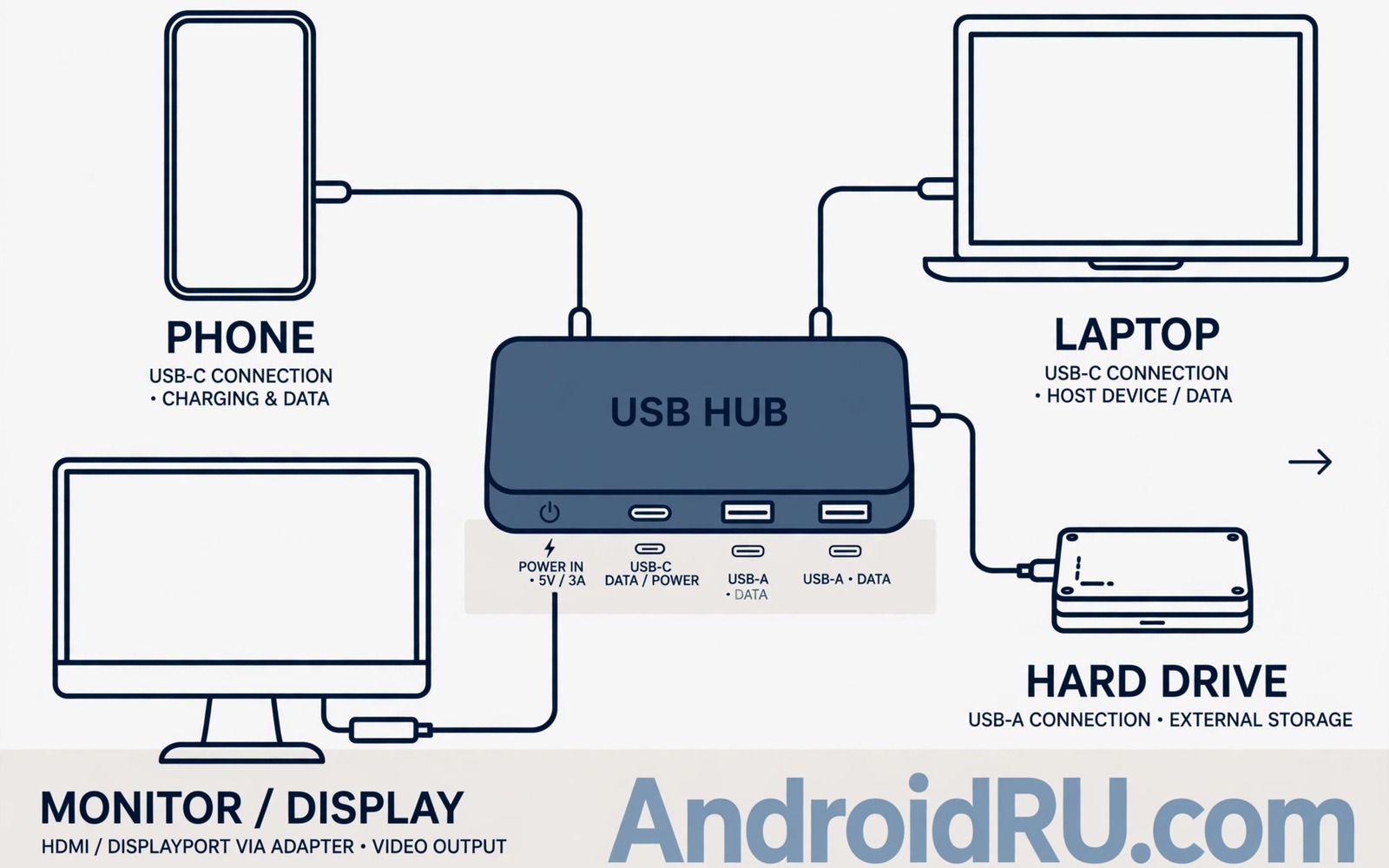
A USB hub looks like a simple splitter until you plug in several devices and something stops working. A cheap hub may drop a hard drive or slow a monitor or fail to charge a phone. An overpriced hub may charge you for ports you will never use. The right hub matches your devices and your power needs without wasting money on fancy features. This guide explains which hub features matter most and which ones you can safely ignore. You will learn how to read power and speed ratings and how to test a hub before you rely on it daily.
Start by listing every device you plan to connect at the same time. A phone and a mouse and a keyboard need far less bandwidth than a monitor and a fast drive together. A hub that shares one slow link among many ports will bottleneck the fastest device. A hub with a dedicated fast link for video will keep a monitor smooth while other ports handle slower gear. Count the ports you need today and add one spare port for a guest device. A hub with too few ports forces you to swap cables often and that swapping wears connectors over time.
Power delivery is the feature that most buyers misunderstand. A hub can pass power to a phone or a laptop while it also moves data. The total power rating must cover the hub itself plus the devices that draw power from it. A hub rated for low total power may charge a phone slowly when a drive is also connected. A hub with its own power adapter handles several powered devices far better than a bus powered hub. If you charge a laptop through a hub then check that the hub power rating meets or exceeds the laptop charger rating.
Speed Ratings That Actually Matter
USB speed ratings describe the maximum link speed for a port. A port rated for a high speed can still run slowly if the hub shares that link among many devices. For a monitor the video link matters more than the general USB speed number. A hub that supports a high resolution monitor at a high refresh rate needs a video capable port. Check the monitor resolution and refresh rate in the hub description rather than trusting a vague speed claim. A hub that only supports a lower resolution may force your monitor to run at a reduced setting.
For storage devices the port speed and the drive speed must match. A fast solid state drive on a slow hub port will run at the slow port speed. That limit can turn a fast drive into a slow one for large file transfers. Test a drive on the hub with a large file copy and compare the time with a direct connection. A small slowdown is normal through a hub. A large slowdown signals a shared link or a low speed port. Keep fast drives on the fastest port on the hub and move slow accessories to the remaining ports.
Power Delivery And Charging Through A Hub
Power delivery lets a hub charge a device while it connects other gear. The hub must negotiate power correctly with the charger and the device. A hub that passes only part of the charger power will charge a laptop slowly or not at all under load. Read the power delivery rating for the hub output port separately from the total hub rating. Some hubs advertise a high total power yet deliver far less to a single port. That gap matters when a laptop needs most of the power for itself.
A powered hub with its own adapter is the safer choice for a desk with several devices. It can supply stable power to drives and phones without draining the host laptop battery. A bus powered hub draws all power from the host and it can struggle with a hard drive that needs a spin up surge. For phone charging through a hub then magnetic cable charging protection can reduce port wear when you plug in daily. For wireless charging at a desk then rated 3 in 1 wireless charging stations keep phones charged without extra cables. For turning a phone into a desktop then accessories to turn a phone into a PC show how a hub fits a full desk setup.
Port Types And Build Quality To Check
Port types should match your current devices rather than future guesses. A hub with many old style ports may waste space if your devices use USB-C. A hub with only USB-C ports may need adapters for older gear. A mix that matches your desk today is usually best. Check that ports sit far enough apart for wide plugs. Ports packed too close can block a neighbouring port when a wide drive adapter is plugged in. A hub with a short built in cable can be convenient but a hub with a detachable cable is easier to replace if the cable fails.
Build quality shows in the case and the cable strain relief. A metal case dissipates heat better than a plastic case during long transfers. A plastic case can feel lighter and it may be fine for light use. Check the cable entry point for a firm strain relief that prevents bending at a sharp angle. A hub that runs hot during a long copy may throttle speed to protect itself. Feel the hub after a long transfer and note any extreme heat. A hub that stays warm is normal while a hub that feels too hot to touch needs better ventilation or a lower load.
Test A Hub With A Simple Script
A simple log helps you compare hubs under the same load. Note which devices were connected and whether any device dropped during a transfer. This short script saves hub stability notes into a plain text file. It does not measure speed directly but it gives a clear record of stability. Use the log to decide whether a hub needs its own power adapter or a different port layout.
notes = []
notes.append('hub test phone drive monitor stable')
with open('hub_notes.txt', 'w') as f:
    for n in notes:
        f.write(n + chr(10))
Attribution: This code sample is an original example written for this article. It shows a simple way to store hub test notes in a text file. It does not come from any outside guide and it does not change device settings.
Test the hub with all devices connected at once rather than one at a time. A hub that works with one device may fail when a drive and a monitor draw power together. Run a file copy while the monitor displays video and the phone charges. If any device drops then reduce the load or switch to a powered hub. That full load test reveals the real limit of a hub far better than a single device test.
A hub cable also deserves attention because a long thin cable can limit speed and power. A cable that is too long can drop voltage and it can make a drive disconnect under load. Use the shortest cable that reaches comfortably from host to hub. A thick quality cable usually handles power better than a very thin cable of the same length. If a device drops only with a long cable then test a shorter cable before replacing the hub.
Label hub ports with small tags if you share a desk with other people. A labelled port stops a colleague from unplugging a drive during a transfer. A simple tag for drive and monitor and phone saves confusion during a busy day. Keep a spare hub cable in a drawer so a cable failure does not stop work. That spare cable is cheap insurance for a desk that depends on a hub every day.
A hub on a laptop that runs on battery needs extra care because the laptop battery drains faster when it powers several devices. A powered hub removes that drain and it keeps the laptop battery for work away from a desk. If you must use a bus powered hub on battery then connect only the devices you need at that moment. Disconnect a drive when you finish a transfer so it does not draw idle power. That habit extends laptop battery life on a trip and it reduces the chance of a drive dropping when power runs low.
Keep a hub away from a monitor power brick that radiates heat. A hot power brick next to a hub can raise hub temperature during long use. A small gap between the brick and the hub improves airflow and it keeps both devices cooler. That gap costs no money and it prevents heat related speed drops on a busy desk.
A hub used for video editing should be tested with the largest file you normally move. A small test file can hide a speed drop that only appears during a long transfer. Copy a large video file and watch for speed changes halfway through the copy. A hub that slows sharply during a long copy may be overheating or sharing bandwidth. That test gives a realistic picture of desk performance before a deadline.
Common Mistakes
One common mistake is buying a hub by port count alone without checking speed and power. A hub with many slow ports is poor value for a fast drive or a high resolution monitor. Another mistake is using a bus powered hub for several powered devices. That hub will drop drives and charge phones slowly. A third mistake is ignoring port spacing. Wide plugs can block neighbouring ports and reduce the usable port count in practice.
Some buyers also pay extra for a hub with video features they will never use. If you never connect a monitor then a simpler hub with strong power delivery is better value. Another error is placing a hub in a closed drawer where heat builds up. A hub in a closed space can throttle during long transfers. Keep the hub on a desk with airflow and keep its cable free from sharp bends.
Frequently Asked Questions
Do I need a powered hub for a phone and a drive?
A powered hub is safer when a drive and a phone draw power at the same time. A bus powered hub may work for light accessories but it can drop a drive during a large copy. If you use a hard drive regularly then choose a hub with its own power adapter. That adapter keeps power stable for all connected devices.
Why is my monitor blurry through a USB hub?
A blurry or low resolution monitor through a hub often means the hub video link does not support your monitor setting. Check the hub description for the maximum resolution and refresh rate. Lower the monitor setting to the hub limit or choose a hub with a stronger video port. A direct connection test can confirm whether the hub or the cable is at fault.
Can a USB hub slow down my internet adapter?
A hub can slow a network adapter if the adapter shares a slow link with other devices. Move the network adapter to the fastest port and reduce other traffic during a speed test. A powered hub with a fast link usually keeps network speed stable. If speed stays low then test the adapter directly on the host to isolate the hub.
Conclusion
The best USB hub matches your devices for speed and power without paying for unused video features. List your devices and check total power and video needs before you buy. Choose a powered hub for several devices and test the full load on day one. Keep the hub ventilated and check port spacing for wide plugs. Your concrete next step is simple. Tonight list every device you will connect at once and order a powered hub whose total power covers that list.

