

The Secret Trick to Enable Wi-Fi Calling on Unsupported Carriers
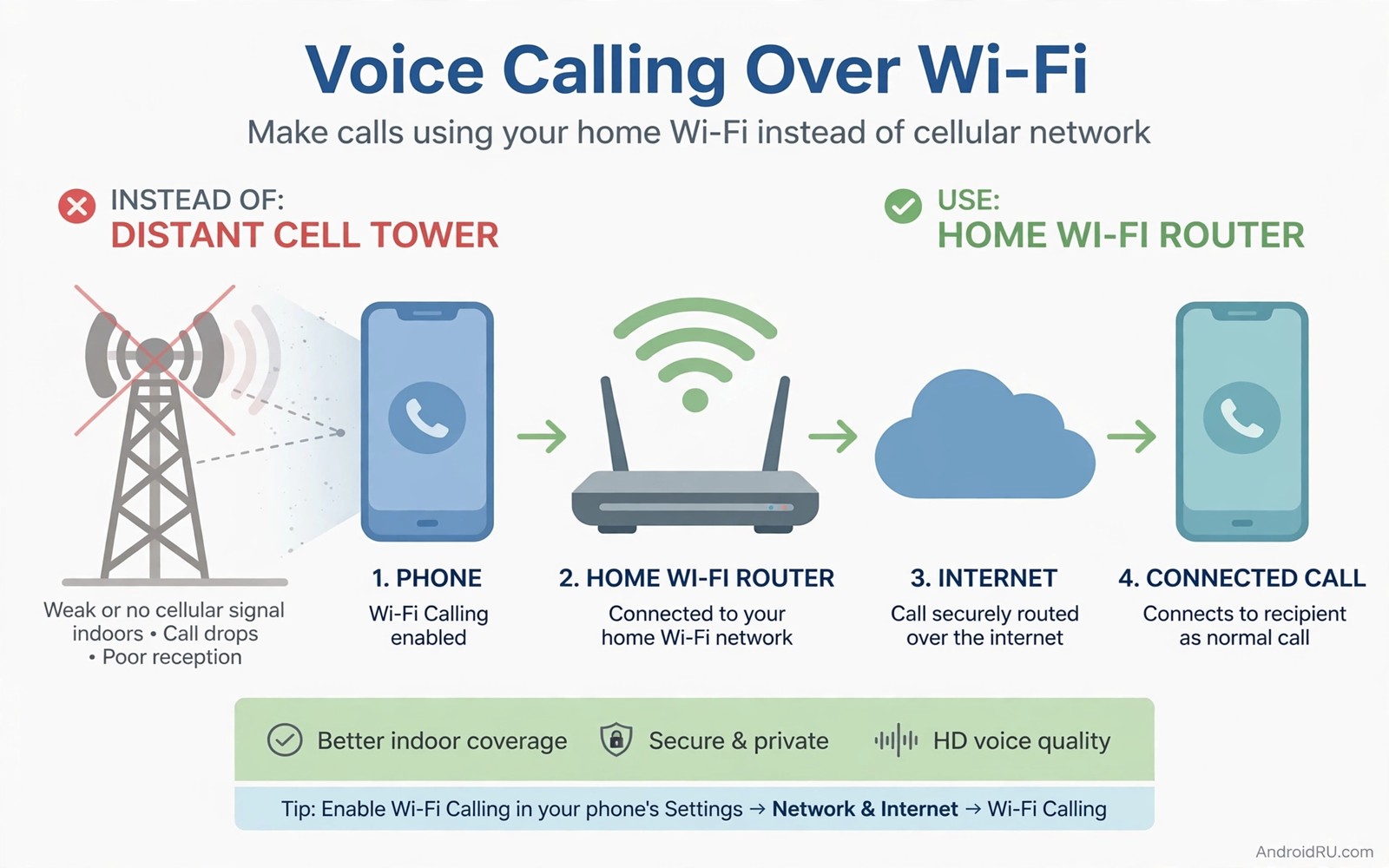
My phone showed one bar of signal in my own living room, yet the Wi-Fi icon sat at full strength. Calls dropped halfway through sentences, texts arrived late, and anyone ringing me heard it go straight to voicemail. The fix was already built into the phone. Wi-Fi calling routes a normal voice call over a Wi-Fi network instead of a cell tower, so a flat with thick walls or a basement office stops being a dead zone. The trouble is that many carriers never list the feature, and some phones hide the switch entirely even when the hardware supports it.
The block usually comes from the carrier, not from the handset. A carrier has to approve Wi-Fi calling for its network and switch the feature on for your line before the phone will even show the toggle. Your phone can support the technology fully and still show nothing in Settings, because the carrier profile loaded on your SIM tells the phone to keep the option hidden. That distinction matters. A hunt through Settings cannot override a carrier block, but a provisioning request, a hidden menu, or a small helper app often can.
This guide walks the paths in order, from the easy check to the hidden trick. You will check the standard switch first, test whether your line is provisioned, open the secret IMS menu with a dialer code, and use Shizuku with Pixel IMS where the menu stays locked. You will also get workarounds for the day the carrier simply says no. Every step names the real menu, the real code, and what to check after you tap it.
Why Wi-Fi Calling Disappears on Unsupported Carriers
Wi-Fi calling is not a separate app. It is a carrier service that rides on the same IMS core as voice over LTE. When you place a call over Wi-Fi, your phone registers with your carrier over the internet, the carrier routes the call exactly like a normal mobile call, and your own number shows on the other person’s screen. Because the carrier stays in the middle, it gets to decide who may use the service. That is why two identical phones on two different networks can behave so differently: one shows a Wi-Fi calling toggle on day one, the other never shows it at all.
What IMS Registration Actually Does
IMS stands for IP Multimedia Subsystem, and it is the system your carrier uses to carry voice calls as data. When your phone has mobile signal, it registers with the IMS core over LTE or 5G. When Wi-Fi calling is on, it registers over your Wi-Fi connection instead. IMS registration is the handshake that proves your phone, your SIM, and your account all belong together. If that handshake fails, calls fall back to the mobile network, and if there is no mobile signal, the call simply fails. That is why the status line “IMS Registration: Registered” matters so much later in this guide: it tells you the carrier accepted your phone over Wi-Fi.
Carrier Profiles Decide What Your Phone Shows
Every SIM carries a carrier profile, a small bundle of settings that tells Android which features the network supports. The profile can switch the Wi-Fi calling toggle on or off, set whether the phone prefers Wi-Fi or mobile for calls, and even decide which menu the toggle lives under. A profile from a carrier that never certified Wi-Fi calling will hide the toggle completely. Voice over LTE and voice over Wi-Fi share that same IMS core, so enabling the hidden VoLTE toggle often goes hand in hand with getting Wi-Fi calling to appear. If VoLTE is off, the IMS core is barely used at all, and Wi-Fi calling has nothing to stand on.
Why Some Phones Hide the Switch Even When the Hardware Supports It
Phone makers ship the same model with different software builds for different regions and carriers. A build sold through one carrier may show the toggle, while the SIM-free build of the same phone hides it until a carrier profile turns it on. Dual-SIM phones add another wrinkle: the toggle may exist for SIM 1 and not for SIM 2, or the setting may sit under each SIM separately instead of in one shared menu. Software updates can change this too. I have seen a phone gain the toggle after a monthly security patch that carried a fresh carrier profile, with no other change at all. That is why the first steps in this guide are about updates and testing before you touch any hidden menu.
Check the Standard Wi-Fi Calling Switch Before Trying Anything Else
Before you open a hidden menu, spend five minutes on the ordinary path. Half the people who think their carrier blocks Wi-Fi calling simply looked in the wrong menu, or looked before an update delivered the toggle. The standard switch also gives you a clean baseline: if it appears and works, you are done, and none of the tricks below are needed.
The Exact Menu Path on Pixel, Samsung, and Other Android Phones
Follow the path that matches your phone, and check under each SIM if you use two:
- On a Pixel, open Settings, tap Network & internet, tap SIMs, pick your SIM, then look for Wi-Fi calling. On Android 14 and newer the same toggle also appears under Settings, Network & internet, Calls, Wi-Fi calling.
- On a Samsung phone, open Settings, tap Connections, then tap Wi-Fi Calling. If it is not there, tap Mobile networks inside Connections and look again, because some One UI versions bury it one level deeper.
- On Xiaomi, Oppo, Vivo, and OnePlus phones, open Settings, tap SIM card & mobile network or Mobile network, pick your SIM, then look for Wi-Fi calling or Make calls using Wi-Fi.
- On any phone, open the Phone app, tap the three-dot menu, tap Settings, tap Calls or Calling accounts, then look for Wi-Fi calling. Some builds place it here and nowhere else.
- If you find the toggle, switch it on, set the calling preference to Wi-Fi preferred, then move to the test in the next section.
Test the Switch the Right Way
A toggle that is on proves nothing until a call goes through over Wi-Fi alone. Turn on airplane mode, then turn Wi-Fi back on and connect to your home network. Wait about thirty seconds for the phone to register, then call a friend or a family member and talk for a full minute. Watch the call screen: it should say Wi-Fi Calling, Wi-Fi call, or show a small Wi-Fi icon next to the call timer. If the call connects and holds for a minute with airplane mode on, Wi-Fi calling works on your line. If the phone refuses to dial at all, the toggle may be a dead switch that the carrier never provisioned.
What a Successful Test Looks Like
On a working setup, the status bar shows a small phone handset over a Wi-Fi symbol, or the words “Wi-Fi Calling” appear in the dialer while the call is active. The call sounds like a normal call, because it is one, just carried over your broadband instead of a tower. Call quality depends on your Wi-Fi: a 5 GHz network close to the router gives the cleanest result, while a crowded 2.4 GHz network at the far end of the house can still crackle. If the test passes, leave the preference on Wi-Fi preferred at home and switch it to mobile preferred only if you notice calls hopping between Wi-Fi and mobile while you walk around the house.
What to Do When the Switch Is Missing After an Update
Check for updates before you conclude the carrier blocks you. Open Settings, tap System, tap Software update, and install anything waiting. Then open the Play Store, search for Carrier Services, and update it if an update is listed, because that Google app delivers carrier profiles between system updates. Restart the phone and look in the same menu again. If the toggle appears after the restart, the profile was the whole problem. If it is still missing, the evidence now points at provisioning or a hidden flag, which is where the next sections come in.
The Secret Trick: Open the Hidden IMS Settings Menu
Here is the trick the title promises. Android hides a testing menu that exposes the IMS provisioning flags directly, and a dialer code opens it on most phones. The code is *#*#4636#*#*. Dial it in the Phone app exactly as written, including the stars and hashes, and the phone opens a screen called Testing, with entries for Phone information, Usage statistics, and Wi-Fi information. Inside Phone information you will find the VoLTE, VoWiFi, and video calling provisioned flags. On many phones these flags are off even though the carrier supports the features, and switching them on is what finally makes the Wi-Fi calling toggle appear in Settings.
Step by Step: Reach Phone Information With the Dialer Code
Follow these steps exactly, and do not change anything else on the Testing screen:
- Open the Phone app and tap the keypad, the same place you type a number to call.
- Type
*#*#4636#*#*slowly. The Testing screen should open on its own as soon as you type the last star. You do not need to press the call button. - If nothing happens, the code is blocked on your build. Some Samsung phones and some carrier-branded builds disable it. Skip to the Shizuku section below instead of trying random codes from the internet.
- On the Testing screen, tap Phone information. If you have two SIMs, tap the dropdown at the top and pick the SIM you want to fix.
- Scroll down until you see the provisioning flags. The exact labels vary, but look for VoLTE Provisioned, VoWiFi Provisioned, and Video Calling Provisioned, usually grouped together near the bottom.
- Read the IMS Registration Status line near the top first and note what it says. “Not registered” before you change anything is normal on a line that was never provisioned.
Turn On the VoLTE, VoWiFi, and Video Calling Provisioned Flags
Tap each flag to switch it on: VoLTE Provisioned first, then VoWiFi Provisioned, then Video Calling Provisioned. The toggles should stay on when you leave the screen. Go back, open Settings, and look for the Wi-Fi calling toggle in the menu path from the earlier section. On many phones it appears immediately. On others you need to toggle airplane mode on and off once, or restart the phone, before Settings picks up the change. After the restart, run the airplane-mode test from the earlier section: airplane mode on, Wi-Fi on, call someone, and watch for the Wi-Fi Calling label. If the IMS Registration Status line now reads “Registered”, the carrier accepted your phone and the trick worked.
Why the Flags Sometimes Reset After a Reboot
The flags live in the phone, but the carrier profile can overwrite them. When the phone restarts, it reloads the profile from the SIM, and a strict profile can flip VoWiFi Provisioned back off. If that happens, the toggle disappears again and the airplane-mode test fails. This is not a sign that you did something wrong. It means the carrier profile is actively fighting the setting, and you need the next two sections: ask the carrier to provision the line, or use Shizuku and Pixel IMS to re-apply the flags every time the phone boots. Some people set up a small routine that re-applies the flags after each restart, which takes seconds once Shizuku is running.
The IMS Registration Status Line to Watch
That one line tells you more than any toggle. “Registered” means the carrier knows your phone is on Wi-Fi and will route calls to it. “Not registered” means the handshake failed, and no toggle in Settings will fix it. “Registering” that never changes means the phone is trying and the carrier is not answering, which usually points at provisioning. Check this line before and after every change you make, because it turns guesswork into evidence: if the line flips to Registered after you switch a flag, you found the fix, and if it stays at Not registered, the carrier side still needs work.
Ask Your Carrier to Provision Wi-Fi Calling on Your Line
Carrier provisioning is the step most guides skip, and it is the one that fixes the problem permanently when the hidden flags keep resetting. Provisioning means a support agent switches the feature on for your phone number in the carrier’s own system. No setting on your phone can replace it, because the carrier’s IMS core checks your line every time you register. A phone that is provisioned keeps working after updates, after SIM swaps into the same account, and after factory resets. A phone that is only forced on with flags can lose the feature at the next reboot.
The Exact Words to Use With Support
Call or chat with support and say: “Please check whether Wi-Fi calling is provisioned on my line, and provision it if it is not.” Use those words. A vague question like “does my plan support Wi-Fi calling?” often gets a vague answer about the plan in general, while a provisioning check gets the agent to look at your actual line. Ask them to confirm three things: that Wi-Fi calling is active on your account, that your plan tier includes it, and that there is no block on your line from an old device or an unpaid feature change. Write down the agent’s name and the ticket number. If the agent says the feature is active but your phone still shows nothing, ask them to remove the feature and add it again, because a stale provisioning flag is a real thing and re-adding it clears it.
Plan Tiers, Prepaid Lines, and MVNO Limits
Some carriers keep Wi-Fi calling behind a postpaid plan or a higher tier, and prepaid or virtual operator lines may not get it at all. Ask directly whether your plan includes it before you spend an hour on phone settings. If you are on a mobile virtual network operator, a smaller brand that rents space on a big network, the parent network may support Wi-Fi calling while the virtual brand never switched it on for its customers. In that case the honest answer is that no trick on the phone will help, and your options are the workarounds near the end of this guide, or a move to a carrier that provisions the feature. That is a frustrating answer, but it saves you from chasing a setting that was never going to appear.
Shizuku and Pixel IMS: Switching the Feature On Without Root
When the dialer code is blocked and the flags reset on their own, Shizuku plus the Pixel IMS app can do the same job without root. Shizuku is a tool that lets an app run privileged commands through Android’s wireless debugging feature, and Pixel IMS is a small app by a community developer that uses Shizuku to switch the IMS flags on and off. The combination works on Pixel phones and on many other Android phones, it needs no root, and it does not void anything. It does need a few minutes of setup, and Shizuku stops after a reboot, so you will repeat a short start step each time the phone restarts.
Set Up Shizuku With Wireless Debugging
Get Shizuku from the Play Store, then start it with wireless debugging:
- Install Shizuku from the Play Store and open it. Tap Pairing, then tap Notification options if the app asks you to allow notifications.
- Open Settings, tap System, tap Developer options. If Developer options is not visible, tap About phone, then tap Build number seven times until the phone says you are a developer.
- In Developer options, switch on Wireless debugging. Tap Wireless debugging, then tap Pair device with pairing code. A six-digit code appears on screen.
- Pull down the notification shade and tap the Shizuku pairing notification, or open Shizuku and tap Pairing, then type the six-digit code and tap the send arrow.
- Go back to Shizuku and tap Start. The status should change to Shizuku is running. If it says the service stopped, repeat the pairing step once, because the code expires after a short time.
Enable VoWiFi in Pixel IMS
With Shizuku running, install Pixel IMS from the Play Store and open it:
- Open Pixel IMS and grant it the Shizuku permission when the prompt appears. The app shows one entry per SIM.
- Tap your SIM, then switch on VoLTE, VoWiFi, and VoNR if your phone shows those toggles. Pixel IMS writes the same provisioned flags the dialer-code menu exposes.
- Go back to Settings and look for the Wi-Fi calling toggle. If it is not there yet, toggle airplane mode on and off once, then look again.
- Run the airplane-mode test: airplane mode on, Wi-Fi on, make a one-minute call, and check for the Wi-Fi Calling label.
- If the flags reset after a reboot, restart Shizuku with wireless debugging and open Pixel IMS once more. The toggles take seconds to re-apply once the setup is done.
Keep Shizuku Alive After a Reboot
Shizuku stops when the phone restarts, because wireless debugging does not survive a reboot on most phones. The fastest routine is to open Settings, Developer options, Wireless debugging, tap Pair device with pairing code, then open Shizuku and pair again. After a few times the whole routine takes under a minute. Some people pair Shizuku once and use the “Start via wireless debugging” shortcut in the app to cut out a step. Do not use random auto-start apps that promise to keep Shizuku alive, because they often hold a debugging connection open in ways that drain the battery and confuse the system.
When the Switch Still Will Not Appear: Workarounds That Keep You Reachable
Sometimes the answer is no. The carrier refuses to provision the line, the virtual operator never bought the feature, or the phone build blocks every path to the flags. That does not mean you have to live with missed calls. The goal was never the toggle itself. The goal was a phone that rings at home, and there is more than one way to get there.
Wi-Fi Calling Through a Second SIM or a Carrier App
If you have a second SIM slot, a cheap prepaid SIM from a carrier that provisions Wi-Fi calling can become your home calling line, while your main number keeps handling data and messages. Set the second SIM as the default for calls in Settings, SIMs, Calls, and leave your main SIM for mobile data. Some carriers also offer their own calling app that places calls over Wi-Fi with your own number, even when the system toggle is missing. Check your carrier’s app in the Play Store before you give up. These apps are not as smooth as the built-in feature, and they need to stay running in the background, but they keep your number reachable from a Wi-Fi-only room.
Keep Calls Going With a Stronger Signal Instead
When Wi-Fi calling is truly out of reach, the next best fix is to stop the mobile signal from dying indoors in the first place. Move the phone near a window during important calls, keep it off the metal shelf that blocks signal, and check whether 5G or LTE gives you a steadier connection in your rooms. The guide to fixing a weak 5G signal walks through the settings and habits that lift a one-bar connection into something a call can survive, from forcing the preferred network type to checking whether a case with a metal plate is eating your signal. A femtocell or a carrier signal booster is the heavier option: your carrier may lend you one if you report a coverage problem at your address, and it creates a small mobile cell inside your home that your phone connects to like any tower.
Secure the Wi-Fi You Call Over
Calls over Wi-Fi travel across your home network and your broadband connection, so the network itself deserves the same attention as the phone. A call on an open or poorly protected network can be intercepted, and a crowded guest network can starve a call of bandwidth until it breaks up. The guide to connecting to Wi-Fi networks safely covers the habits that matter here: check that your home router uses WPA2 or WPA3 with a strong password, keep the router firmware updated, and avoid placing calls over public hotspots without protection. At home, give your phone the 5 GHz band and keep the router in the same room where you take most calls. A call that drops because the Wi-Fi is weak feels exactly like a call that drops because the signal is weak, so fix the network before you blame the carrier again.
Troubleshooting: Wi-Fi Calling Problems and Fixes
Use this table to match what you see on your phone with the most likely cause and the fix that fits. Work down the rows in order, and re-test with the airplane-mode call after each fix, because two problems can hide behind one symptom.
| What you see | Likely cause | Fix to try |
|---|---|---|
| No Wi-Fi calling toggle anywhere in Settings | Carrier profile hides the feature, or the line is not provisioned | Update Carrier Services, restart, then open the *#*#4636#*#* menu and switch on the VoWiFi Provisioned flag |
| Toggle is on but calls never use Wi-Fi | Calling preference is set to mobile preferred, or IMS is not registered | Set the preference to Wi-Fi preferred, then check IMS Registration Status in the Testing menu |
| Toggle appears, then vanishes after a reboot | Carrier profile overwrites the flags on boot | Ask the carrier to provision the line, or re-apply the flags with Shizuku and Pixel IMS after each restart |
| IMS Registration stays at Not registered | Line not provisioned, or the carrier blocks your plan tier | Call support and ask for provisioning by name; check whether your plan tier includes the feature |
| Calls connect over Wi-Fi but break up | Weak or crowded Wi-Fi, or the phone hopping between bands | Move to the 5 GHz band near the router, restart the router, and keep the phone off the far edge of the network |
| Dialer code *#*#4636#*#* does nothing | Build blocks the hidden testing menu | Use Shizuku with Pixel IMS instead, or check the toggle under each SIM in Settings first |
One more pattern is worth naming. If Wi-Fi calling works on one SIM and not the other, the problem is the line, not the phone. Swap the SIMs between slots and test again: if the working line keeps working in the other slot, the phone is fine and the second line needs provisioning. If the working line stops working after the swap, the slot or the SIM tray may be at fault, and a new SIM card from the carrier is the cheap test that settles it.
Frequently Asked Questions About Wi-Fi Calling on Unsupported Carriers
Why does Wi-Fi calling not show up on my phone?
The usual reason is the carrier profile. Your SIM tells Android which features the network supports, and if the profile says Wi-Fi calling is off, the toggle never appears. The second most common reason is provisioning: the feature exists on the network but was never switched on for your number. Update Carrier Services, restart, check the *#*#4636#*#* menu, and then ask support to provision the line. Work through those four steps in that order and you will find which one was blocking you.
Can I enable Wi-Fi calling without root?
Yes, and this guide never needs root. The dialer code opens a menu that Android ships with, Shizuku works through wireless debugging, and Pixel IMS uses Shizuku to flip the same flags. Root would open other paths, but none of them are needed here. The one thing root cannot fix is provisioning: if the carrier has not switched the feature on for your line, even a rooted phone still has to register with a carrier core that does not expect it.
Will Wi-Fi calling work on a prepaid or MVNO plan?
Sometimes, and it depends entirely on the brand. Some prepaid plans include Wi-Fi calling, some keep it for postpaid customers only, and some virtual operators never bought the feature from the network they rent. The only reliable way to know is to ask support whether Wi-Fi calling is provisioned on your line. If the answer is that your plan does not include it, the workarounds in this guide are your real options: a second SIM from a carrier that includes it, a carrier calling app, or a signal booster at home.
Does Wi-Fi calling use my mobile data or my minutes?
It uses your Wi-Fi for the connection and your normal plan minutes for the call itself. The call does not count against your mobile data allowance, because the data travels over your broadband. International calls still follow your plan’s international rates, so a Wi-Fi call to another country is not free just because it went over Wi-Fi. Emergency calls are the exception worth knowing: when you call an emergency number over Wi-Fi, the carrier uses the emergency address you registered for the line, so keep that address current in your carrier account if you move house.
Your Next Step: Make One Test Call Tonight
Start with the five-minute check. Look for the toggle in Settings, update Carrier Services, and restart. If the toggle is missing, dial *#*#4636#*#*, open Phone information, and switch on the VoLTE, VoWiFi, and video calling provisioned flags. Then run the airplane-mode test: airplane mode on, Wi-Fi on, one minute of talk. If the call holds and the IMS line reads Registered, you are done, and your living room is no longer a dead zone. If the flags reset or the line stays unregistered, call support tomorrow and ask for provisioning by name. VoWiFi provisioned flag aside, the real win is a phone that rings where you actually live, and one test call tonight tells you whether you already have it.

