

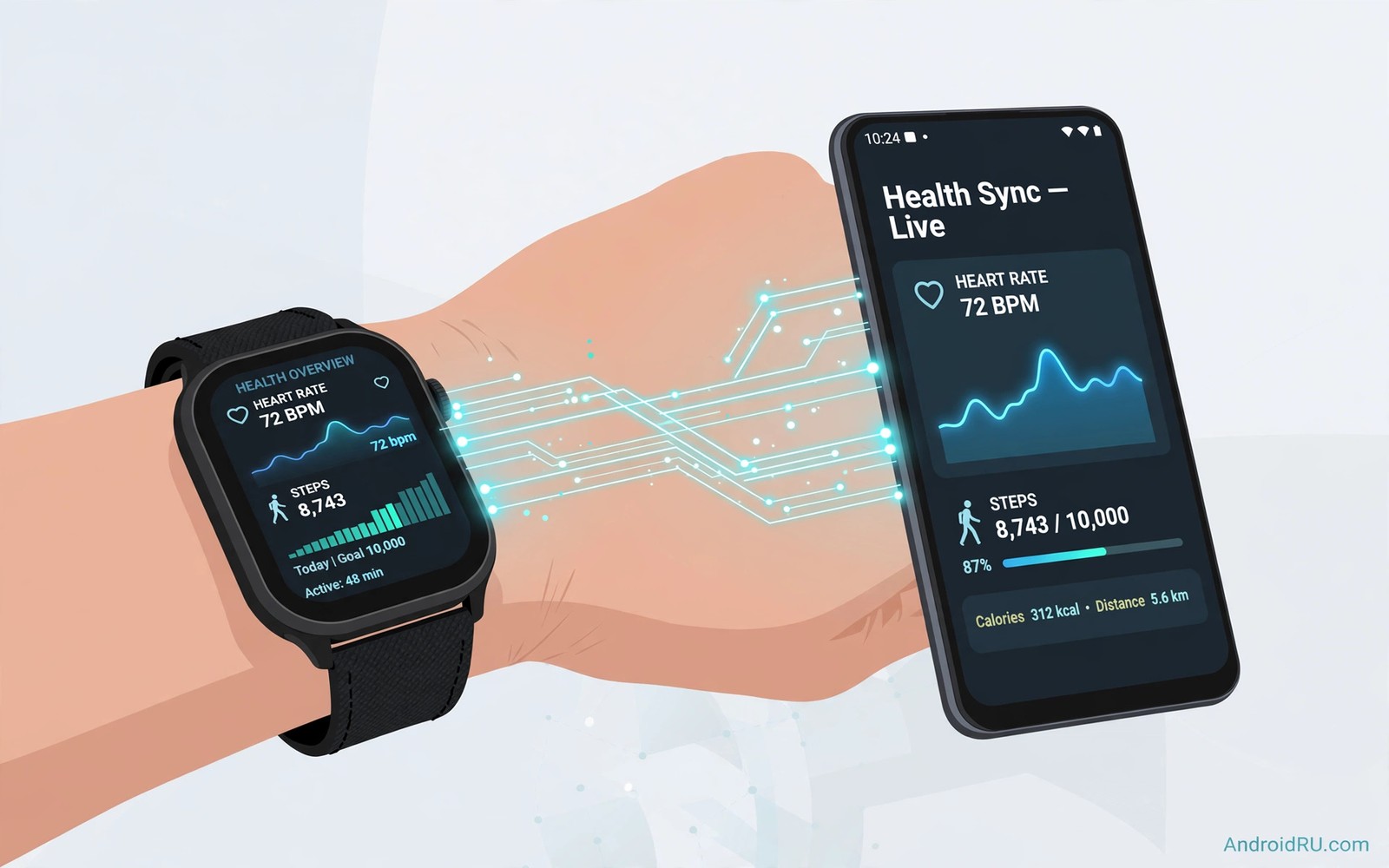
Wear OS watches collect health data all day while your phone stays in a pocket. Steps and heart rate and sleep and workouts live first on the watch. The phone later shows that data in charts and trends and weekly summaries. Sync bridges those two worlds. When sync works well you never think about it. When sync breaks you lose a workout or a night of sleep data and the gap frustrates you for weeks.
Understand the two layers of sync before you troubleshoot anything. The watch and phone sync locally over Bluetooth for recent data. The phone then syncs that data to a cloud health account for backup and for long term trends. Local sync handles speed. Cloud sync handles safety. A break in either layer creates a different symptom. Local failure shows missing recent data. Cloud failure shows missing old data on a new phone. The battery guide in best Wear OS power saving tweaks matters here because aggressive battery saving can pause the very sync you rely on.
How local sync works between watch and phone
Bluetooth carries health data from watch to phone in small batches throughout the day. The watch stores data locally when the phone is out of range. It sends the stored batches when the phone returns. That store and forward design explains why a morning run appears on the phone after lunch when the phone was left at home. The data was never lost. It was simply waiting for a connection.
Sync frequency depends on battery settings and on how often you open the health app. Opening the app on the phone often triggers an immediate sync. Background sync runs less often to save watch battery. A watch that syncs only when you open the app is behaving normally on strict battery settings. It is not broken. It is conserving power.
Workouts sync differently from background steps. A workout creates a detailed record with heart rate samples and GPS points and timing splits. That record takes longer to transfer than a simple step count. A long workout may need several minutes on Bluetooth to fully appear on the phone. Give it time before you assume data vanished.
How cloud sync protects long term data
Cloud sync copies phone health data to your health account. That copy lets a new phone restore years of history after you sign in. It also lets a tablet or web dashboard show the same trends as the phone. Cloud sync runs over Wi-Fi or mobile data when the phone charges or when you open the health app. It does not need the watch to be nearby.
Account choice shapes cloud sync more than any setting. Health data syncs to the account signed into the health app on the phone. A different account on a new phone sees different data. Check the account before you reset a phone or switch watches. A wrong account creates an empty history that looks like data loss but is actually just a login mismatch.
Privacy controls let you choose which data types sync to the cloud. Steps and workouts and sleep can sync separately. Turning off one type keeps that data local to the phone only. That choice suits people who want trends without cloud storage for sensitive data. It also means a phone reset loses the unsynced types. Choose deliberately rather than by accident.
Fix sync gaps without losing data
Start sync troubleshooting with the simplest steps. Restart Bluetooth on the phone and restart the watch and open the health app on both devices. Those three actions resolve many temporary sync stalls. Do not uninstall the health app as a first step. Uninstalling can delete local data that has not yet synced to the cloud.
Check battery optimisation settings for the health app and the companion app on the phone. Aggressive optimisation pauses background sync to save power. Exempt both apps from optimisation when sync matters more than a small battery saving. The battery cost of sync is tiny compared with the value of complete health history.
Force a manual sync from the watch health app when recent data stays missing. Many watch apps offer a sync or refresh action inside settings. A manual sync bypasses background schedules and pushes pending batches at once. If manual sync succeeds then background settings caused the delay. If manual sync fails then connection or account settings need attention.
Keep history clean across devices
Use one health app as the single source of truth for trends. Multiple health apps can duplicate steps when both count the same walk. Duplication inflates daily totals and confuses weekly trends. Pick the app that pairs best with your watch and let other apps read from it rather than counting independently.
Merge duplicate workout records carefully after a sync repair. A workout that appears twice usually comes from a manual import plus an automatic sync. Delete the duplicate with the less complete heart rate data. Keep the record with full GPS and heart rate samples. A clean history gives better training insights than a history padded with duplicates.
Export a backup of health data once a quarter when the app supports it. An export gives you a personal copy outside any single account. Store the export in a private folder and not in a shared drive. Quarterly exports take minutes and they protect years of effort from account problems.
adb shell dumpsys activity service com.google.android.wearable.health | head -40
adb shell settings get global bluetooth_sync_enabled
The snippet above was written for this article to show how advanced users inspect wearable health service state through a computer connection. It prints health service details and it reads a sync setting value when the device exposes one. Use it only for diagnosis on a device you own. The everyday sync path stays inside the watch and phone health apps.
Read trends instead of single days
Health data misleads when you focus on a single day. One bad night of sleep or one low step day means little alone. Weekly trends reveal real patterns in activity and rest. A week of declining steps signals a lifestyle shift. A week of improving sleep signals a habit that works. Trends guide decisions far better than daily numbers.
Compare similar weeks rather than consecutive days. A work week compares fairly with another work week. A holiday week compares poorly with a work week. Context explains variation that raw numbers cannot. A fair comparison prevents discouragement from normal variation. It also prevents false celebration from an unusually easy week.
Watch resting heart rate trends for fitness insight. A gradually lower resting rate often signals improving fitness. A sudden rise may signal illness or stress or poor sleep. Resting rate trends need weeks of data to mean anything. Single readings fluctuate with caffeine and stress and time of day. Patience turns heart data into useful insight.
Set health goals around trends and not around perfect days. A goal like walk more this week than last week adapts to real life. A goal like walk ten thousand steps every single day punishes one busy day unfairly. Trend goals encourage consistency without perfectionism. Consistency over months beats perfection over days for health outcomes.
Protect health data privacy on shared devices
Health data on a shared phone or tablet needs privacy care. A family member borrowing the phone could open health charts accidentally. Use app locks or phone profiles to separate personal health data. Separation protects sensitive trends from casual viewing. It also prevents accidental edits to health records by another user.
Review health app sharing permissions quarterly. An app granted access years ago may no longer deserve it. Revoke access for apps you stopped using. Quarterly reviews keep the permission list current. A current list reduces exposure without losing useful integrations.
Think before sharing health achievements publicly. A shared workout map can reveal home location and daily routines. Share achievements without location data when possible. Privacy aware sharing celebrates progress without exposing personal patterns. That balance keeps social motivation safe.
Use watch data for doctor visits
Watch health trends can help conversations with a clinician when presented clearly. Bring a weekly summary rather than raw daily numbers. A summary shows resting heart rate trends and sleep patterns over weeks. Clinicians value trends because they show patterns that single readings cannot. A clear summary makes a short appointment more productive.
Never use watch data alone to diagnose a condition. Watches estimate health metrics with consumer sensors. A concerning trend deserves professional evaluation rather than self diagnosis. Use watch data as a conversation starter with a clinician. Professional tests confirm or rule out what a trend suggests. That partnership gives the best health outcomes.
Common mistakes
The biggest mistake is resetting the watch before pending data syncs to the phone. A reset erases local watch data that never reached the phone. Sync manually and confirm the workout appears on the phone before any reset. That check takes a minute and it saves a workout.
Another mistake is signing into a different health account on a new phone. The new account shows empty history and people assume years of data vanished. Check the old account first before you panic. Signing back into the original account usually restores the full history.
A third mistake is enabling battery saver on the watch during a workout. Battery saver can pause GPS and heart rate sampling to save power. A workout recorded under battery saver looks incomplete. Turn off battery saver before important workouts and charge the watch fully instead.
Frequently asked questions
Why does a workout appear hours later on my phone?
The watch stores workout data locally and sends it when Bluetooth connects reliably. Background sync runs on a schedule to save battery. Opening the health app on the phone usually triggers an immediate sync.
Will changing phones lose my health history?
No when cloud sync used the same account. Sign into the same health account on the new phone and history restores. Local only data types will not restore because they never left the old phone.
Can two watches sync to one phone?
Yes in most setups but only one watch stays active at a time for continuous tracking. Switch watches in the companion app when you change devices. History from both watches merges under the same account.
Conclusion
Wear OS health sync works through local Bluetooth batches and cloud backup working together. Local sync gives speed and cloud sync gives safety. Your concrete next step is to open the health app on your phone tonight and confirm that today steps and last night sleep both appear. If anything is missing then restart Bluetooth and force a manual sync from the watch before you try deeper fixes. Once sync feels reliable then review the battery tweaks in Wear OS power saving tweaks and the camera ideas in how Wear OS watches act as remote camera shutters to get more value from the same watch. As a related next step, explore mirroring a tablet display to a desktop PC monitor to extend what you set up here.

