

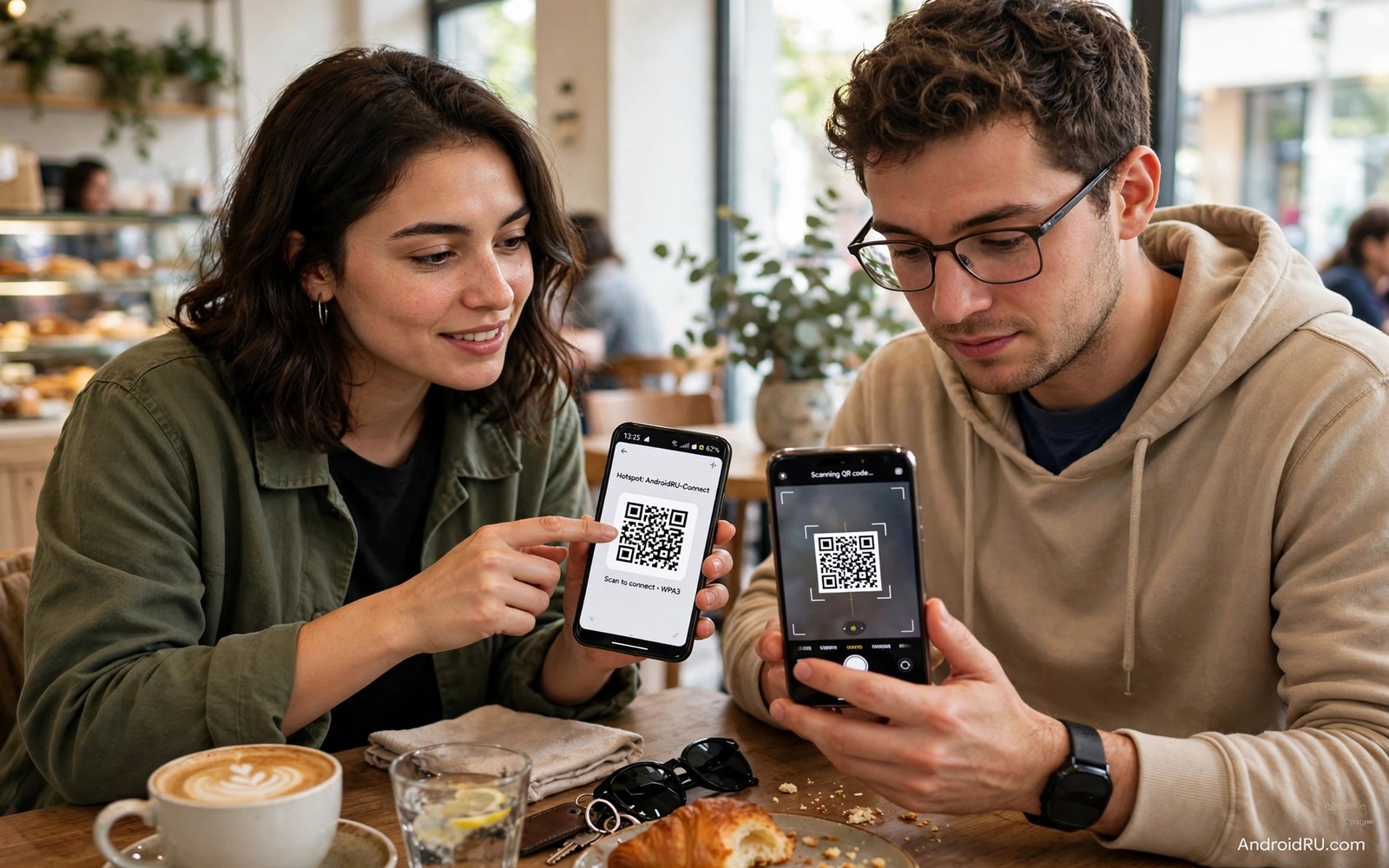
Sharing your hotspot feels generous until the password spreads further than you planned. A friend saves the password and a second friend gets it later and soon a stranger joins your connection without asking. Your data drains faster and your phone heats up while unknown devices use your plan. You can avoid that chain by sharing access without ever speaking or typing the password aloud.
Android offers two clean paths for this goal. A QR code lets a guest join by scanning a picture rather than by reading a password. A guest setup with a separate password or a time limit lets you revoke access later without changing your main password. Both paths keep the real password hidden. Both paths also work on most modern Android phones without any extra app.
This guide shows the QR method first because it is the fastest for a single guest. It then shows how to build a safer guest setup for repeat visitors. You will also learn how to check who is connected and how to remove a device at once. The goal is simple hospitality with firm control over your connection.
Share with a QR code instead of a password
Open Settings and tap Network and internet and then tap Hotspot and tethering. Open the Wi-Fi hotspot screen and look for the QR code option beside the network name and password. Some phones show a QR icon at the top of the screen. Tap it to reveal a code that encodes the network details. Your guest opens the camera app and points it at the code. The phone asks for confirmation and then it joins without showing the password in plain text.
Test the code with your own second device before you share it widely. A quick test proves that the code works and it shows you exactly what the guest sees. If the camera does not scan the code then raise the brightness and hold the phone steady at a normal reading distance. A screenshot of the QR code can work in a pinch but do not send that screenshot to a group chat. A screenshot spreads just like a password and it defeats the purpose of hiding the password in the first place.
Build a guest setup for repeat visitors
Change your hotspot password to a guest password when friends visit often. Use a password that you do not use anywhere else and change it after the visit ends. That habit protects your main password because the guest password never unlocks your other accounts. It also gives you a clean reset point. A single password change after a visit removes every guest at once.
Set a device limit if your phone offers one. A limit of two or three devices keeps a small gathering fast and it stops a chain of extra joins. Turn off the hotspot when the visit ends rather than leaving it on all day. An idle hotspot still invites scans and it still drains battery. A short active window is safer and faster than a hotspot that runs from morning to night. The fastest way to share credentials in a family setting is the method in sharing Wi-Fi passwords by QR code and the same idea works well for a hotspot guest.
Check who is connected right now
Open the hotspot screen while guests are connected and look for the connected devices list. Most phones show a device name and a data usage figure for each connection. An unknown name deserves a closer look at once. You can block or disconnect a device from that list on many phones. If your phone lacks a block button then change the password and restart the hotspot. That step drops every device and only guests with the new code can return.
Watch the data usage during the visit. A sudden jump often means that a guest device started a large update or a cloud backup in the background. Ask the guest to pause updates or set their device to a metered connection. That request protects your plan without an awkward argument about usage. A hotspot is a shared resource and a clear limit at the start keeps the visit friendly. For a stronger home setup the guide to turning your phone into a dual-band hotspot explains band choices that keep guest traffic fast.
Use this safe sharing routine
Follow the same routine each time so that you never leak the main password by habit. Prepare the QR code before guests arrive. Share it on your own screen rather than by message. Check the device list after ten minutes. Turn the hotspot off when the visit ends.
Step one: open Hotspot settings on your phone
Step two: show the QR code on your own screen
Step three: guest scans the code with a camera app
Step four: check the connected devices list
Step five: turn off the hotspot after the visit
This routine is an original example written for this guide. It uses only standard Android hotspot screens and it needs no extra app or account. The routine matters because it replaces a spoken password with a controlled scan. A scan on your own screen stays private while a password in a message can travel far beyond the intended guest.
Test the setup before guests arrive
Run a dry test with a family member the day before a larger gathering. A dry test reveals a missing QR option or a device that cannot scan codes. Some older phones need a QR scanner app rather than the camera app. Knowing that detail early saves an awkward delay at the door. It also lets you prepare a guest password as a backup for older devices.
Check battery and signal during the dry test. A hotspot in a weak signal area will run hot and slow even for one guest. Move near a window or a stronger signal spot if the test feels sluggish. A better position can lift speed more than any setting change. Note the best spot in your home for hotspot use and use that spot for real visits.
Set a clear data limit before you share
Agree a simple limit before you turn the hotspot on. A limit can be a time window such as one hour or a task such as checking email and maps. A clear limit prevents a guest from starting a large system update without realising the cost. It also protects you from an awkward conversation later. Most guests will respect a limit that you state kindly at the start.
Watch the hotspot data counter during a long visit. A counter that jumps quickly often means that a guest device started a cloud photo backup. Ask the guest to pause the backup until they return to their own Wi-Fi. That request is reasonable and it keeps the visit pleasant. A hotspot works best for browsing and messaging rather than for large downloads.
Turn the hotspot off during meals or breaks even if guests stay longer. A short pause saves battery and it gives the phone a chance to cool down. A cool phone shares a faster connection when you turn the hotspot back on. That pause also reminds everyone that the hotspot is a favour rather than a permanent service.
Plan for guests with older phones
Some older phones cannot scan a QR code with the camera app alone. Keep a short guest password ready as a backup for those devices. Write the guest password on paper and show it briefly rather than sending it in a message. Change that guest password after the visit so that the older device cannot rejoin later without asking.
Test the backup password with the older device before the main visit if you can. A test reveals a typing error or a band mismatch early. Some older phones only support the older Wi-Fi band. Switching the hotspot to a compatible band for the visit can help those devices join. Return the band setting to your normal choice after the visit ends.
Remind guests to turn off auto join for your hotspot after they leave. An auto join setting can reconnect their phone to your hotspot days later when you turn it on for someone else. That surprise connection can drain your data without a new request. A polite reminder at the end of the visit prevents that problem.
Common mistakes
The most common mistake is to read the password aloud in a room full of people. Everyone in earshot can save it and share it later. Another mistake is to leave the hotspot on after guests leave. An open hotspot invites new joins and it drains battery all day. Turn it off as soon as the visit ends.
Do not reuse your email password or your banking password for a hotspot. A guest password should be unique and easy to change. Do not send a QR screenshot to a large group either. A screenshot is just a password in picture form. Show the code on your own screen and keep control of who scans it. If unwanted devices keep appearing then the steps for changing hotspot broadcast channels can help you stabilise the link while you tighten access.
Frequently Asked Questions
Can a guest see my hotspot password after scanning a QR code?
Most guests will join without seeing the password in plain text. Some phones can reveal a saved network password in settings later. A unique guest password still protects you because it is not used for any other account.
What if my phone has no QR code option?
Use a temporary guest password and change it after the visit. That method still hides your main password. You can also set the hotspot name to something neutral so that strangers cannot guess whose connection it is.
How do I remove a guest quickly?
Open the connected devices list and disconnect the device if your phone offers that option. If not then change the password and restart the hotspot. That step drops all devices at once and only guests with the new details can return.
Review hotspot history after a gathering
Open the hotspot screen after guests leave and check the data total for the day. A total that matches your expectation means that no surprise device joined. A total that looks far too high deserves a password change even if no unknown device name remains. A password change is cheap and it closes any quiet access that a device list missed. Make that check a habit after every larger gathering and you will catch leaks early.
Ask a trusted guest whether the QR scan felt smooth or awkward. A smooth scan means that your routine works well. An awkward scan may mean that the code was too dim or the phone was too far away. A small change such as raising brightness or holding the phone closer can fix the next visit. Guest feedback turns a technical routine into a friendly routine that people actually enjoy using.
Check hotspot speed after sharing starts
Run a quick speed test on your own phone after guests join. A test result that drops sharply suggests that a guest device started a heavy download. A test result that stays steady means that sharing is working well. A quick test during a visit gives you early warning before the connection becomes unusable. Act on a sharp drop by checking the device list at once.
Ask guests to pause video streaming if the hotspot slows for everyone. A single video stream can consume most of a mobile link. A pause for browsing and messaging keeps the visit pleasant for all. A polite request at the start prevents a later argument about speed. A shared link works best when everyone knows the limits.
Conclusion
Today open your hotspot screen and find the QR code option on your phone. Test it with a second device and note where the option lives. The next time a friend asks for internet access you can show the code on your own screen instead of speaking a password. Turn the hotspot off when the visit ends and change a guest password after a larger gathering. That small routine keeps your connection generous and private at the same time.

