

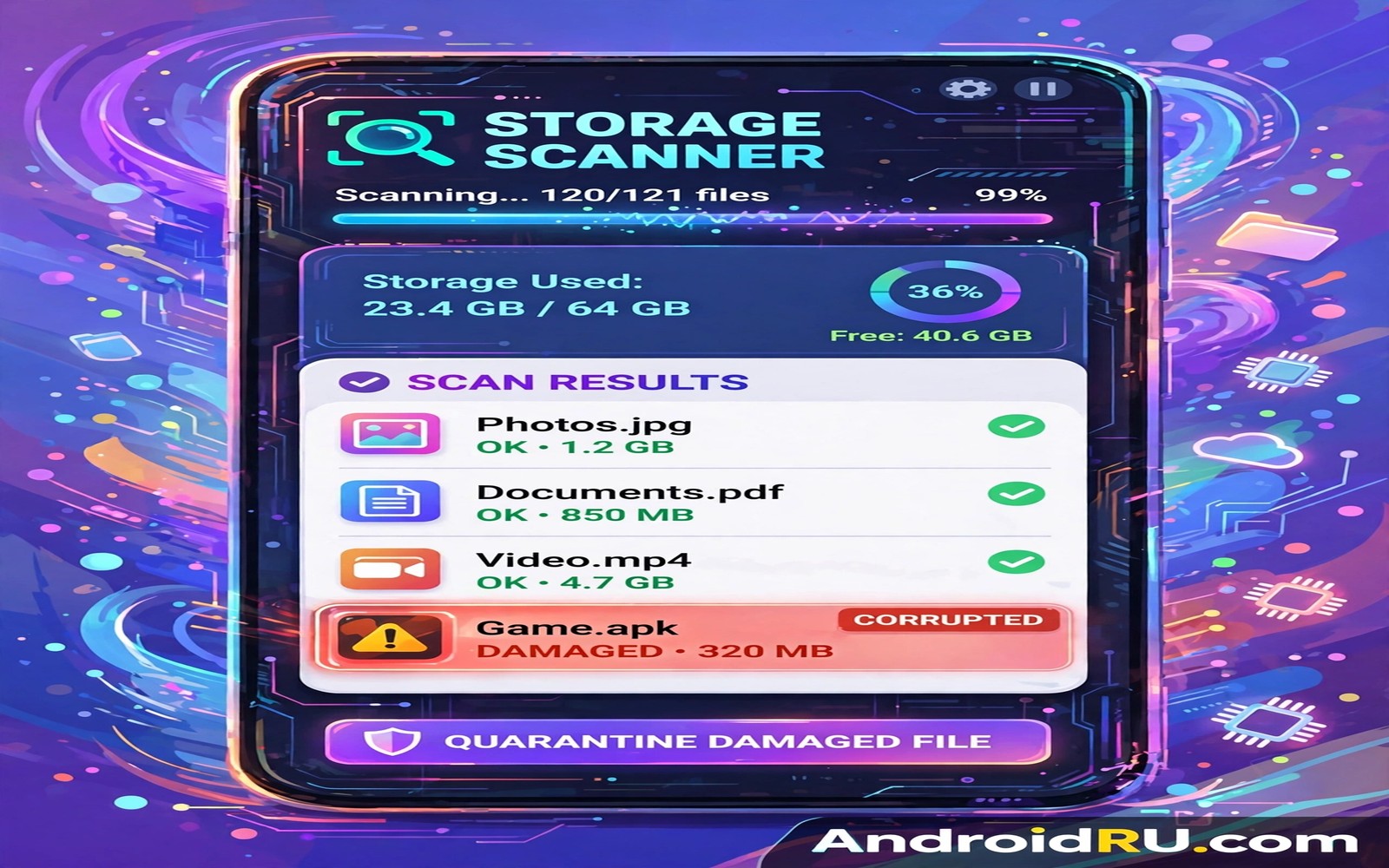
Corrupted files rarely announce themselves until the worst moment. A photo opens as a grey block during a family gathering. A video freezes halfway through an important clip. A downloaded document refuses to open on the day of a meeting. Scanning storage early finds these damaged assets while a backup or a fresh download still offers a way out.
Corruption happens for simple reasons. A phone runs out of battery during a save. A memory card loosens during a write. A transfer stops halfway through a large file. A cheap card writes data incorrectly under heat. None of these events leaves an obvious warning. A regular scan turns hidden damage into a short repair list.
Start with a visual and playback sample
Open your most important folders and preview a sample of recent photos and videos. Look for grey blocks and colour bands and frozen frames and files that refuse to open. A sample of twenty recent files often reveals a pattern. Damage that clusters around one date usually points to one bad transfer or one failing card.
Check documents separately because a document can look fine in a list while its content fails to load. Open a few recent downloads and confirm that pages render fully. A document that opens to a blank page deserves a fresh download from its source. Early checks save far more time than a frantic search on deadline day.
Use a file manager with integrity checks
A capable file manager can show file sizes and dates and can sometimes verify a checksum for a downloaded file. Compare the size of a suspect file with the size shown by its source where that information exists. A file that stops far short of its expected size likely suffered a truncated download. Delete that file and download it again on a stable connection.
For archives and installers a checksum check gives a firm answer. A checksum is a short fingerprint that changes when even one byte changes. Compare the checksum of a local file with the checksum published by its source. A match confirms integrity and a mismatch confirms damage. Readers who handle large downloads can explore managing large file downloads on low storage phones to reduce truncated downloads.
Scan photos and videos in batches
Work through one folder at a time rather than scanning the whole phone at once. A batch of one hundred photos takes only a few minutes to preview in thumbnail view. Mark suspect files by moving them to a review folder. That folder becomes a repair list that you can work through without losing track of damaged items.
Keep a backup copy of suspect files before you try any repair. Some repair tools overwrite the original file and a failed repair can destroy the last readable part. A backup in a separate folder protects the original while you test a repair. Delete the backup only after the repaired file opens cleanly.
Test the storage card itself
Repeated corruption across many folders points to the card rather than to single files. Move the card to a computer and copy its contents to a safe folder. Watch for read errors and unusually slow files during the copy. Errors during a computer copy confirm a card problem far more clearly than phone symptoms alone.
Replace a failing card promptly and restore files from backup rather than from the failing card. Continued use of a failing card creates more damage with every write. A new card with a verified backup restores stability in one clean step. Keep the old card untouched until the restore proves complete.
A small check for file integrity
List files in a folder with sizes and dates to spot files that look too small for their type. A video that should run for minutes but measures only a few kilobytes is almost certainly truncated. A photo with a zero size holds no image at all. Size alone does not prove corruption yet it directs attention to the right files.
find /sdcard/DCIM -type f -size -10k -exec ls -lh {} \;
sha256sum /sdcard/Download/important.zip
The snippet above was written for this article to show one safe way to list tiny files and to check a file fingerprint. It reads files and it changes nothing on the phone. Use the fingerprint output only for comparison with a trusted source value.
Distinguish corruption from app bugs
Corruption and app bugs produce similar symptoms yet they need different fixes. A photo that fails in one gallery app but opens in another app likely suffers from an app bug rather than file damage. A video that freezes at the same timestamp in every player likely suffers from file damage. Testing a suspect file in two different apps separates these causes quickly. That separation prevents a wasted reinstall when the file itself is damaged and it prevents a wasted file deletion when the app is at fault.
Test suspect documents in a similar way by opening them in two different viewers. A document that renders in one viewer but fails in another points to viewer compatibility. A document that fails everywhere points to file damage. A methodical test with two viewers takes a minute and it directs the next step correctly. Random fixes without diagnosis waste far more time.
Recover damaged files from multiple sources
Recovery works best when you check every possible source before declaring a file lost. A damaged photo may still exist in a cloud backup with a clean copy. A damaged video may still exist in a messaging chat where it was originally shared. A damaged document may still exist as an email attachment from its sender. Checking all three sources takes time yet it often recovers a file that a single source check would miss.
Ask the original sender for a fresh copy when all local sources fail. A sender often retains the original file long after the recipient deleted it. A polite request with a clear file name and date helps the sender locate the file quickly. A fresh copy from the sender beats any repair tool when the damage is extensive.
Protect new files from future corruption
Future corruption prevention starts with stable storage habits. Avoid removing a memory card while the phone writes to it. Avoid letting the battery die during a large save or transfer. Use a charger during long video recordings and during large file transfers. Stable power and stable connections prevent the interruptions that cause most corruption.
Choose quality storage cards from reputable makers for important files. Cheap cards fail more often under heat and heavy use. A quality card costs more yet it protects irreplaceable photos and documents. Replace a card at the first sign of repeated errors rather than waiting for a catastrophic failure. Early replacement costs little compared with data loss.
Document corruption incidents for patterns
Keeping a short log of corruption incidents reveals patterns that a single incident hides. Note the date and the file type and the storage location for each damaged file. A pattern that clusters around one card or one folder points to a hardware problem. A pattern that clusters around one app points to a software problem. A log turns isolated annoyances into actionable evidence.
Review the log every few months and act on any pattern that emerges. Replace a suspect card when the log shows repeated damage on that card. Report a suspect app when the log shows repeated damage from that app. Pattern-based action fixes root causes while random fixes only treat symptoms.
Use file recovery tools with caution
File recovery tools promise to restore damaged or deleted files yet they vary widely in quality and safety. A reputable recovery tool works on a copy of the damaged file and it never overwrites the original. A poor recovery tool may overwrite the original during its first scan and destroy the last readable data. Research a recovery tool before using it and test it on an unimportant file first. A test run reveals whether the tool respects originals before real files depend on it.
Stop using a storage device immediately when you suspect serious corruption and need recovery. Continued use can overwrite deleted data and worsen damage. Copy the device contents to a safe location before running any recovery attempt. A copy-first approach preserves the best possible starting point for recovery. Hasty recovery attempts on the original device often cause more harm than the original corruption.
Common mistakes
One common mistake is deleting a damaged file before checking for a backup. A cloud copy or a computer copy may hold a clean version even when the phone copy fails. Check every backup location first. Another mistake is running a repair tool on the only copy. Always work on a copy and keep the original safe until the repair proves successful.
People also blame apps for damage that comes from a failing card. Reinstalling an app cannot fix a card that writes data incorrectly. Test the card on a computer before a long app troubleshooting session. Readers who suspect card trouble can explore formatting memory cards properly to stop losing data for a card-focused guide.
Frequently asked questions
Can a corrupted photo be repaired?
Sometimes. A photo with a damaged header may still hold most of its image data. Repair tools can rebuild a header in some cases. A photo with large missing sections usually cannot return to its original quality.
Does scanning damage healthy files?
No. Reading a file for a scan does not change its content. Avoid repair tools until you hold a backup copy. A read-only scan stays safe for every file on the phone.
How often should I scan storage?
Scan important folders once a month and scan after any interrupted transfer or sudden shutdown. A monthly habit catches damage early. A post-incident scan catches damage caused by that specific event.
Conclusion
Corrupted assets hide quietly until they block a moment that matters. A monthly sample check and a checksum habit and a card test together expose damage early. Backups turn most discoveries into a simple restore rather than a loss.
Your concrete next step is to preview twenty recent photos today and move any damaged file to a review folder. Check backups for a clean copy before you delete anything. Readers who want a wider storage health plan can next explore finding hidden thumbnail files that waste space and storage analyser apps that find giant hidden files as follow-ups.

