

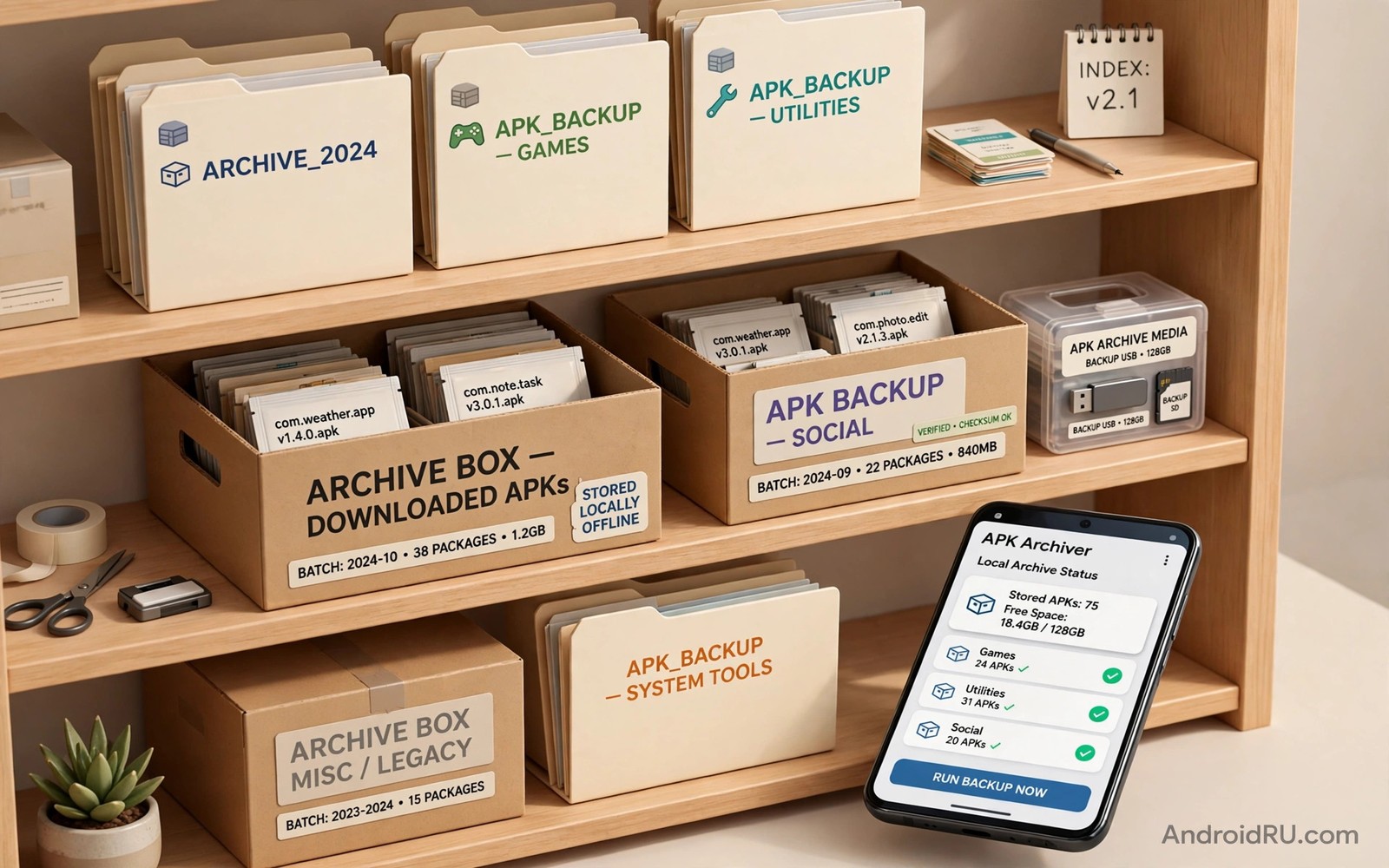
Downloaded APK files disappear easily. A file saved last month may hide in a downloads folder full of unrelated files. A version you need for reinstall may be overwritten by a newer download with a similar name. A phone reset can wipe the whole collection at once. Local archiving solves those problems with a simple organised folder system and a backup copy.
Archiving is not the same as hoarding every file you ever downloaded. A good archive keeps verified files that you may need again. It discards test files and broken downloads and duplicates promptly. That discipline keeps the archive useful rather than turning it into another messy downloads folder. Size stays manageable when you archive with purpose.
This guide shows how to build a local APK archive that survives phone changes and reinstall needs. It covers naming and folders and verification records and backups. Archiving pairs naturally with extracting installed apps as backup APKs because extracted files also need a home that you can find later.
Design a folder system you can follow
Use one top level folder for the archive and subfolders by app name. Inside each app folder create subfolders by version. That structure lets you find a specific version in seconds. A flat folder with hundreds of files forces you to search by memory. A nested structure guides you to the file even when you forgot its exact name.
Name files with app name and version and version code when you know it. A name such as notes app version 3 point 2 is clearer than a generic download name. Avoid spaces in file names when you plan to use computer tools with the archive. Underscores or hyphens work reliably across systems. Consistent naming is more important than any single naming rule.
Keep a small text note in each app folder. Record the source and the download date and the hash when you verified it. That note turns a file into a verified archive entry. Without the note a file is just a file that you once trusted for unknown reasons. With the note you can reverify it years later.
Verify files before they enter the archive
Archive only files you have checked. Compute the hash when a published hash exists and compare it fully. Check the file size against the source page. Open the install summary to confirm app name and version before you file the APK away. A file that enters the archive unchecked undermines the whole system because you will trust it later without questioning it.
Delete broken downloads at once rather than archiving them for later repair. A truncated file will not repair itself in storage. Keeping it wastes space and creates confusion during a future reinstall attempt. A clean archive contains only files that installed correctly or that passed verification checks.
Remove duplicates when you find them. Duplicates often appear when the same file downloads twice under different names. Compare sizes and hashes to identify true duplicates. Keep the clearly named copy and delete the rest. Duplicate removal keeps the archive size honest and search results clean.
Store the archive in two places
A single copy on the phone is not a real archive. Phones get lost and reset and damaged. Copy the archive to a computer or an external drive regularly. A monthly copy is enough for most users. A weekly copy suits users who download frequently. Choose a rhythm you will actually follow rather than an ideal rhythm you abandon.
Use a simple copy method rather than a complex sync tool when possible. A direct USB copy or a local network copy gives you full control. Cloud sync can work as a second copy but it adds privacy questions for APK files from sensitive sources. Local copies keep the archive under your control entirely.
Test the backup copy occasionally. Open the backup folder on the computer and confirm that files open and hashes still match. A backup that has never been tested is only an assumption. A tested backup gives you confidence during a real phone loss when stress is high.
sha256sum archived-app.apk
ls -lh archive/notes-app/3.2/
cp archived-app.apk /backup/archive/notes-app/3.2/
The snippet above follows the standard command pattern for system file tools. It is included so you can verify an archived file and copy it to a backup location with its folder structure intact.
Manage versions without confusion
Keep at most two versions per app in the active archive. The current version and the previous version cover most reinstall and downgrade needs. Older versions beyond those two rarely help and they consume storage. Move very old versions to a cold storage folder on a computer when you want to keep them for history. That separation keeps the active archive lean.
Label the current version clearly in the folder note. When a new version arrives update the note and move the old current version to the previous slot. That rotation takes a minute and it prevents version confusion during urgent reinstalls. A clear current label matters most when you are in a hurry.
Delete versions for apps you no longer use. An archive should reflect your current app set plus a few essential tools. Apps abandoned years ago do not need archived files. Periodic pruning keeps the archive relevant and searchable.
Archive extracted apps correctly
Extracted apps from your own phone are useful backups when an app leaves a store. Extract the APK and file it at once with a note about the source device and date. An extracted file without a note quickly becomes mysterious. You may forget whether it came from your phone or from a download. That distinction matters for trust.
Check extracted files for split parts. Some apps extract as multiple files rather than one APK. Keep split parts together in the same version folder. Do not separate a base file from its splits across folders. A split set separated by folder is as useless as a split set with missing parts.
Note the Android version the extracted app came from. An app extracted from a newer Android version may behave differently on an older phone. That note helps you judge compatibility during a future reinstall on different hardware. Compatibility notes save troubleshooting time later.
Keep the archive secure
APK archives can contain apps with access to sensitive data. Store the archive where other people cannot casually browse it. A password protected computer folder or an encrypted drive suits sensitive archives. A shared family computer folder does not. Security for the archive mirrors security for the phone itself.
Do not share archive files casually with others. A file you verified for your own use may not suit another person device or needs. Sharing also spreads files beyond your control. When someone asks for an app file direct them to the original trusted source instead. That habit protects both of you.
Review archive permissions when you store it on a computer with multiple users. Ensure that only your account can read the archive folder. A quick permission check prevents accidental exposure through a shared account. Privacy for archived apps is easy to overlook and easy to fix.
Schedule a quarterly archive review
A quarterly review keeps the archive aligned with the apps you actually use. Open each app folder and check whether the app is still installed and whether the archived version is still relevant. Delete folders for apps you removed months ago. Update notes for apps that changed version. That review takes less than an hour for a typical archive and it prevents slow growth into an unmanageable collection.
During the review also check backup health on the computer copy. Confirm that the computer folder still opens and that file counts match the phone archive roughly. A mismatch may mean a copy job failed silently. Fixing a failed copy during a calm review is far easier than discovering it during a phone loss. Quarterly reviews turn archiving from a one time project into a lasting habit.
Recover from a phone reset with the archive
A phone reset is the moment an archive proves its value. After reset install your file manager and copy the archive back from the computer before you reinstall apps one by one. That order lets you verify each file from the archive rather than downloading fresh copies under pressure. Reinstall essential tools first and test each one before moving to the next. A calm reinstall from a trusted archive takes longer than a rushed reinstall from random mirrors but it avoids modified files at a vulnerable moment. Keep the archive copy on the computer until the phone setup is fully stable.
Common mistakes
The most common mistake is archiving every download without verification. An unverified archive creates false confidence during reinstalls. Verify before filing and the archive becomes a trusted resource rather than a pile of files.
Another mistake is keeping only one copy on the phone. A phone reset then destroys the archive at the moment you need it most. A second copy on a computer turns a disaster into a minor inconvenience. Two copies are the minimum for any archive that matters.
A third mistake is using vague file names that hide version information. Vague names force you to open files to identify them. Clear names with version details let you find the right file at a glance. Naming discipline pays off every time you search.
Frequently asked questions
How much storage does an APK archive need?
Storage need depends on how many apps you archive and their sizes. Most utility apps are small while games are large. Archiving ten utilities usually needs less than one gigabyte. Archive games selectively rather than keeping every large game file.
Should I archive apps from the official store too?
Official store apps are easy to reinstall from the store so archiving them is less urgent. Archive store apps only when they are region specific or at risk of removal. Focus archive effort on apps that are hard to obtain again.
Can I archive APK files on an SD card?
Yes an SD card works as archive storage when it is reliable. Use a quality card and keep a computer copy as well. SD cards can fail without warning so they should never be the only archive copy.
Label archive folders by year
Adding a year label to archive folders helps long term organisation. An app folder from two years ago may hold versions that no longer run on current Android. A year label tells you at a glance how old the archive entry is. Move very old folders to cold storage on a computer during quarterly reviews. That habit keeps the active archive focused on versions that still matter. Year labels cost nothing and they prevent confusion during urgent reinstalls.
Conclusion
A local APK archive works when it is organised by app and version and verified before filing and backed up in two places. That system turns scattered downloads into a reliable resource. Your concrete next step is to create the top level archive folder today and file five verified APK files into app and version subfolders with notes. Copy that folder to a computer before the week ends. Further organisation help comes from downgrading apps safely and installing split APK files and verifying APK hashes.

