

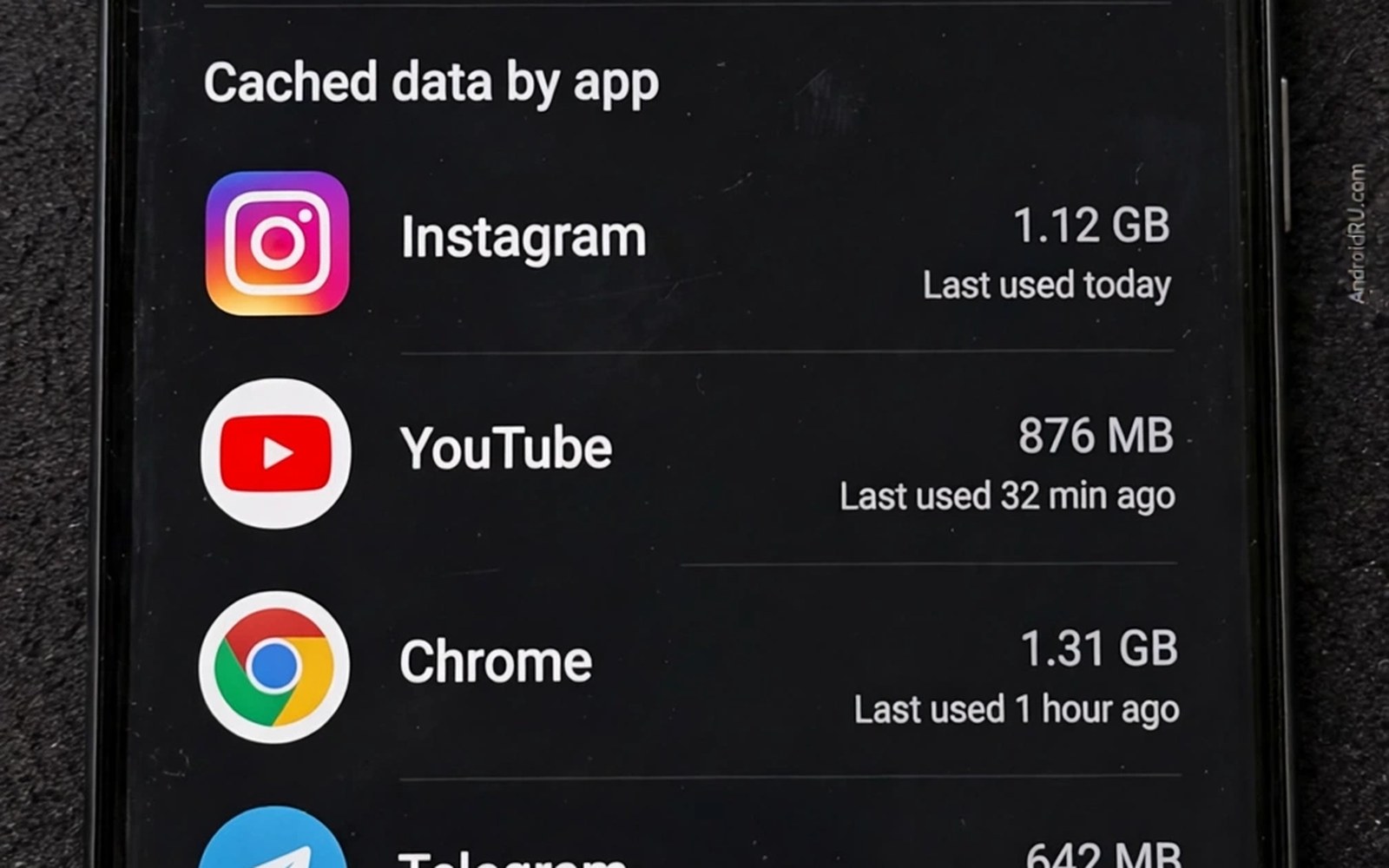
Cache is meant to be a helpful shortcut. An app stores images and data locally so it does not download them again. That shortcut saves time and mobile data. It also grows silently when an app caches every feed image and every video preview. A cache that starts small can reach gigabytes in a month of heavy use. Owners often blame photos for a full phone when cache is the real culprit.
Cache differs from user data in an important way. User data holds your settings and your saved content. Cache holds temporary copies that the app can rebuild. Clearing cache should not delete your account or your saved work. Clearing user data can delete those things. That distinction lets you clean cache with confidence when you choose the right button. Owners who clean too eagerly should read the warning about clearing app cache too eagerly before they tap clear on every app.
Start by finding the worst cache offenders in Settings. Open storage for each large app and note the cache number. A social app and a video app often top the list. A shopping app and a news app can also cache heavily. A short list of offenders gives you a focused cleanup target. A broad clear of every app wastes time and it rebuilds quickly anyway.
Set per app cache habits
Clear cache for the top offender and then watch how fast it regrows. A cache that regrows to gigabytes in a week needs a usage change. Reduce auto play of videos in that app. Reduce image quality in the feed when the app offers that setting. Those two changes cut cache growth at the source. A cache clear alone only treats the symptom.
Use in app storage settings when the app provides them. Some apps let you set a cache size limit directly. Others let you clear cached media from inside the app. An in app clear is often safer than a system clear because the app knows which files are safe. The same in app approach helps when you clean Telegram download cache taking over devices through its own storage screen.
Build a monthly cache routine
Schedule a cache check on the first day of each month. Open storage settings and sort apps by size. Clear cache only for apps above a threshold that you choose. A threshold such as five hundred megabytes keeps the routine focused. Smaller caches can wait because they do not threaten free space. A monthly rhythm prevents a sudden storage crisis.
Record the top three cache sizes in a note after each monthly check. A rising trend for one app signals a setting change or a new feature that caches more. A stable trend shows that your usage changes worked. A note takes seconds and it turns a vague feeling into clear evidence. Evidence helps you decide whether an app deserves to stay on the phone.
Track cache size with a short script
cache = {"Social": 1200, "Video": 900, "News": 150}
for name, size in cache.items():
    print(name, size, "MB", "clear" if size > 500 else "keep")
The snippet above follows a standard pattern for listing app cache sizes with a simple clear decision. It only prints names and decisions and it changes no file. You can adapt the app names and sizes for your own monthly check.
A threshold list keeps cache decisions consistent from month to month. Change the threshold only when your free space situation changes. A low threshold suits a phone with little free space. A higher threshold suits a phone with room to spare. Consistency stops emotional clearing that rebuilds wastefully.
Control cache in social and video apps specifically
Social apps cache feed images aggressively because instant scrolling is their core appeal. A social feed that loads instantly feels smooth. That smoothness costs storage when every image in a long feed gets cached. Reduce feed image quality in app settings when the app offers that choice. A lower feed quality still looks acceptable on a phone screen. A lower quality also reduces cache growth dramatically over a week.
Video apps cache previews and thumbnails for recommended videos. A video app may cache far more than the videos that you actually watch. Disable auto play of previews when the app offers that switch. A manual tap to play a preview gives you control over what gets cached. A preview that you never tap should never consume storage. That control is especially valuable on a small phone.
Shopping apps cache product images for fast browsing. A shopping session with many product views can create a large image cache. Clear shopping app cache after a large browsing session. A cleared shopping cache does not affect your cart or your orders in most cases. Check the app after a clear to confirm that account data remains intact. A post clear check builds trust in the routine.
Use storage settings to spot cache trends
Storage settings show cache size per app at a moment in time. A single snapshot cannot show a trend. Record cache sizes monthly in a note to reveal trends. A rising trend for one app signals a new feature or a changed habit. A falling trend shows that a setting change worked. A trend note turns a snapshot into a story.
Compare cache trends with usage trends. An app that you use more will naturally cache more. An app that you use less should cache less over time. A mismatch such as a rarely used app with a huge cache deserves investigation. A rarely used app with a huge cache may be syncing in the background unnecessarily. Restrict background activity for such an app when the system allows it.
Set a cache budget for the whole phone rather than for each app alone. A total budget such as two gigabytes for all caches keeps the phone healthy. When total cache exceeds the budget clear the largest offenders first. A total budget is easier to remember than many per app budgets. A total budget also adapts when you install a new heavy app.
Advanced cache control for gaming apps
Gaming apps create cache differently from social apps. A game may download large asset packs for levels and characters. Those asset packs can look like cache but they may be essential for gameplay. Clearing a game asset cache can force a large redownload. A game cache clear therefore needs more caution than a social cache clear. Check game settings for a cache or data download option before clearing.
Manage game downloads by removing games that you no longer play. A game that you finished months ago may still hold gigabytes of assets. Removing the game frees that space completely. A game can be reinstalled later when you want to replay it. A save file backed up to the cloud preserves progress across a reinstall. A clean game list keeps storage focused on current play.
Use a memory card for game media when the game supports it. A card can hold large game files without crowding internal storage. A fast card is important for games because slow reads cause stuttering. A card rated for application performance handles game reads better. A slow card can ruin a game experience even when storage looks sufficient.
Check game update sizes before updating on a tight phone. A game update can be larger than the original game. An update that fails due to space can leave a game in a broken state. Free space before a large game update by clearing other caches first. A pre update free space check prevents a broken game and a wasted download.
Separate game cache from game progress in your mind. Cache holds temporary assets that can be rebuilt. Progress holds saves and achievements that cannot be rebuilt easily. Never clear game data when you mean to clear game cache. A data clear can erase progress that a cloud save may not restore. A careful button choice protects hundreds of hours of play.
A practical cache checklist for travellers
Travellers need cache control because offline content matters more abroad. A traveller checklist starts by clearing caches for apps that you will not use on a trip. A cleared cache frees space for offline maps and travel guides. A travel phone with free space handles new photos and downloads better. A pre trip clear is a simple preparation step.
Download offline maps and guides before departure and then check cache growth during the trip. Offline content uses storage but it replaces network use abroad. A cache that grows from travel apps during a trip may need a mid trip clear. A mid trip clear of social app caches frees space without touching offline travel content. A selective clear protects travel essentials.
After a trip clear caches for travel apps that you will not use again soon. A travel app cache for a city that you visited once does not need to stay. A post trip clear restores the phone to its normal state. A clean phone after a trip is ready for daily life again. A post trip habit closes the travel storage loop.
Keep a travel cache note that lists which apps you cleared and when. A note helps you remember which offline content you removed. A note also helps you restore offline content for a repeat trip quickly. A simple note turns a one time clear into a reusable travel routine.
Common mistakes
One common mistake is clearing cache for every app every day. Daily clearing forces constant rebuilding and it can slow apps. A second mistake is clearing user data when you meant to clear cache. A third mistake is ignoring the source of cache growth. A cache that regrows fast needs a setting change rather than another clear.
Another mistake is using a cleaner app that clears cache aggressively in the background. Aggressive clearing can break downloads and can interrupt offline content. A manual monthly routine with a threshold is safer than a constant background cleaner. Control beats automation when the automation lacks nuance.
Frequently asked questions
Will clearing cache delete my login?
Clearing cache alone should not delete your login or your saved content. It removes temporary copies that the app can rebuild. Clearing user data is different and it can remove login state. Choose the cache button carefully in app settings.
How large should a cache be allowed to grow?
A cache up to a few hundred megabytes is normal for a heavy media app. A cache above a gigabyte deserves attention on a small phone. Set a personal threshold based on free space. Clear only caches above that threshold each month.
Does cache clearing speed up my phone?
Cache clearing frees storage but it does not always speed up apps. An app may feel slower at first while it rebuilds cache. Speed improves only when free space was critically low. Focus on free space rather than on speed claims.
Conclusion
Cache limits work best as a monthly threshold habit rather than a daily purge. Per app usage changes cut growth at the source. In app storage settings give a safer clear than a blind system tap. A simple size note tracks trends and guides decisions.
Your concrete next step is to check cache sizes today and clear only apps above five hundred megabytes. Then turn off video auto play in the top offender. Readers who manage messaging bloat can follow weekly automatic cleanup for the downloads folder as the next app pass.

