

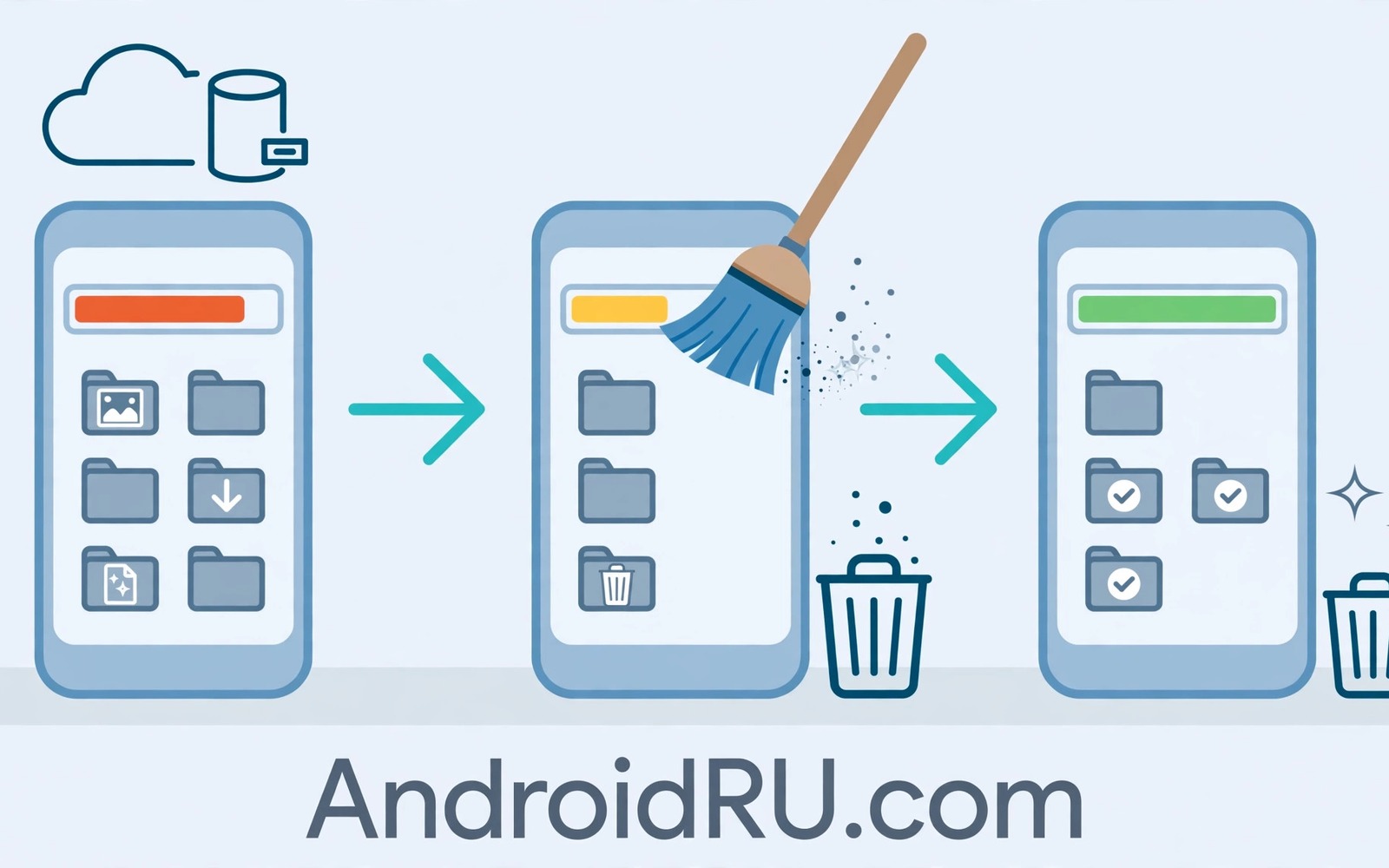
The Other category in Android storage settings confuses almost everyone. It grows without a clear owner and it resists simple deletion. Photos show a number and apps show a number but Other remains a mystery total. Many owners assume Other means system files that cannot be touched. In reality Other often includes app data and caches and hidden files that you can manage safely with the right method.
Other is a catch all bucket for data that does not fit neatly into photos or videos or apps totals on your device. It can include system files and app private data and cached files and leftover data from uninstalled apps. Some of Other is essential and must stay. Some of Other is stale waste that can be reclaimed. The challenge is telling the two apart without a detailed breakdown.
This guide gives five practical ways to shrink Other safely. You will work from the least risky method to the most careful method. You will learn how to use built-in tools and file managers and app settings to target the waste inside Other. You will also learn when to stop because the remaining Other size is normal system overhead.
Restart and let the system settle first
A restart clears temporary system files and lets Android recalculate storage totals accurately. Storage numbers can lag after a large deletion or an update. A restart often reduces Other by a small amount as temporary files clear. It also gives you a reliable baseline before deeper cleanup. Restart before judging Other size after any other change.
After restart wait a few minutes for background processes to finish. Open Storage settings again and note the new Other total. A drop after restart confirms that part of Other was temporary. A stable total after restart points to app data or hidden files that need a targeted method. A baseline prevents chasing a number that would have fallen on its own.
Restart also helps after clearing a large app cache. The system may need a restart to reflect the change in the Other total. Do not assume a cache clear failed simply because Other did not drop instantly. Restart and recheck before trying a more aggressive method.
Clear caches for the largest apps
App caches sometimes count toward Other rather than toward the apps total depending on how your phone reports storage. Clearing the largest app caches can therefore shrink Other noticeably. Open Settings and Apps and sort by size. Clear cache for the top few apps that you do not need offline this week. Check Other after a restart to see the effect.
Focus on social and shopping and streaming apps because their caches grow fastest. A single social app cache can reach gigabytes of stale media. Clearing it is safe in most cases but check offline downloads first. A streaming app with offline episodes may lose downloads when cache is cleared. Delete finished downloads inside the app instead when offline content matters.
Do not clear cache for every app at once. A blanket clear forces every app to rebuild cache and it may slow the phone for hours. Selective clearing of the largest caches gives most of the benefit. Readers who want cache safety details will benefit from the important warning before clearing app cache because cache and Other overlap in confusing ways.
Remove leftover data from uninstalled apps
Uninstalled apps sometimes leave private folders behind. Those folders can count toward Other because they no longer belong to an installed app category. A file manager that shows hidden folders helps you find them. Look for folders named after apps you no longer use. Check their contents for personal files before deleting.
Delete leftover folders one at a time and restart the phone after a batch. A one at a time approach lets you spot a mistake quickly. A leftover folder that contains only cache files is safe to delete. A leftover folder that contains exported documents deserves a backup first. Personal files should never be deleted in a bulk Other cleanup.
Some leftover folders hide inside an Android data folder that requires a file manager with appropriate access. On newer Android versions access to that folder is restricted for privacy. Use system storage tools for those areas rather than forcing access. Forcing access can break app permissions and it rarely yields a safe large gain.
Manage app private data and downloads
App private data includes databases and settings and downloaded content that an app stores outside its cache. A messaging app may store voice notes and stickers as private data. A map app may store offline maps as private data. Review private data inside each large app settings rather than deleting it from a file manager blindly.
Delete old offline content inside apps that offer a download manager. Remove offline maps for places you no longer visit. Remove downloaded episodes you have finished watching. Remove voice notes you have already backed up. In app deletion targets the exact private data that inflates Other while keeping the app functional.
Downloads also contribute to Other on some devices when files sit outside standard media folders. Sort the Downloads folder by size and delete installers and old documents. Move important documents to a cloud backup before deletion. A downloads pass is a safe and visible way to shrink a mysterious total.
Use a file manager to find hidden giants
A file manager with folder size sorting reveals hidden folders that settings groups into Other. Sort all folders by size and drill into the largest ones. A hidden thumbnail cache or a log folder may emerge as the culprit. Delete only folders you can identify as cache or leftover data. Leave system named folders untouched.
When a large folder belongs to an app you still use then check that app settings for a cleanup option. An in app cleanup is safer than a manual folder delete for active apps. A manual delete of an active app private folder can cause crashes or data loss. In app tools understand the folder structure better than a manual sweep.
Accept a normal Other size after these steps. A phone needs system files and app databases to function. Other will never reach zero and it should not. A reduction of several gigabytes from waste is a success. Chasing the last few hundred megabytes risks deleting essential data for no real benefit.
A small script to estimate Other waste
The script below estimates waste from a list of folder sizes you record. It helps you decide whether a cleanup effort is worth the time. Enter folder sizes from your file manager and the script prints a total.
folders = {"Thumbnails": 900, "Old logs": 120, "Leftover app": 650}
total = sum(folders.values())
for name, size in folders.items():
    print(f"{name}: {size} MB")
print(f"Estimated waste total: {total} MB")
The code above was written for this guide as an original waste estimator. It uses example folder sizes in megabytes and it prints each folder and a total. Replace the example values with sizes from your own file manager. The script never accesses your phone and it never deletes any folder.
Track Other over a month
Tracking Other over a month reveals whether cleanup methods actually work. Note the Other total on the first day of the month and after each cleanup step. A falling total confirms that cache and leftover methods help. A stable total suggests that the remaining Other is mostly system data.
A tracking note also reveals regrowth speed. A total that returns to its old level in a week points to an app that creates data rapidly. A total that stays low for a month shows that your routine works. Tracking turns a single cleanup into a measurable habit with evidence rather than guesswork.
Common mistakes
The biggest mistake is treating Other as pure junk and deleting system folders. System folders inside Other are essential for updates and core features. Deleting them can cause crashes and update failures. Target only identifiable cache and leftover folders and leave system named folders alone.
Another mistake is clearing data instead of cache in an attempt to shrink Other. Clearing data logs you out and removes offline content. It may shrink Other dramatically but it creates a recovery chore. Use cache clearing and in app deletion for Other cleanup rather than a data clear.
People also factory reset a phone solely to shrink Other. A reset is a drastic step that should be a last resort after backup. Most Other waste can be reclaimed with cache and leftover and download cleanup. Reserve a reset for a phone that remains unusable after all safe methods.
Finally avoid cleaner apps that claim to delete Other completely. No safe tool can delete all Other because part of it is essential system data. A tool that promises zero Other is either misleading or dangerous. Trust a tool that explains what it will delete and leaves system data intact.
Frequently asked questions
What exactly is Other storage on Android?
Other is a catch all category for data that does not fit into standard media and apps totals on your device. It includes system files and app private data and caches and leftover files. The exact mix varies by phone brand and Android version. That variation explains why Other looks different on different phones.
Is it safe to delete Other storage?
It is safe to delete the waste parts of Other such as stale caches and leftover folders. It is not safe to delete system parts of Other. Use selective methods that target identifiable waste. Leave system named folders untouched and use in app cleanup for active apps.
Why does Other grow again after cleanup?
Apps create new caches and private data during normal use. Other will regrow as you use apps and download content. A monthly cleanup routine keeps growth under control. A settings change for auto download and offline content slows regrowth more than repeated deletion alone.
Conclusion
Cleaning Other storage instantly is possible when you target its waste components rather than the whole category. A restart and selective cache clearing and leftover folder removal and in app download management shrink Other safely. A file manager size hunt finds hidden giants that settings groups together. Accepting a normal system remainder prevents dangerous deletions in pursuit of zero.
Your concrete next step is to restart your phone today and note the Other total after it settles. Clear cache for your largest social app and recheck Other after another restart. If Other falls significantly then continue with leftover folders next. Readers who want a full hidden file method will also like hidden files to delete for system storage and the secret folder taking up gigabytes as follow-ups.

