

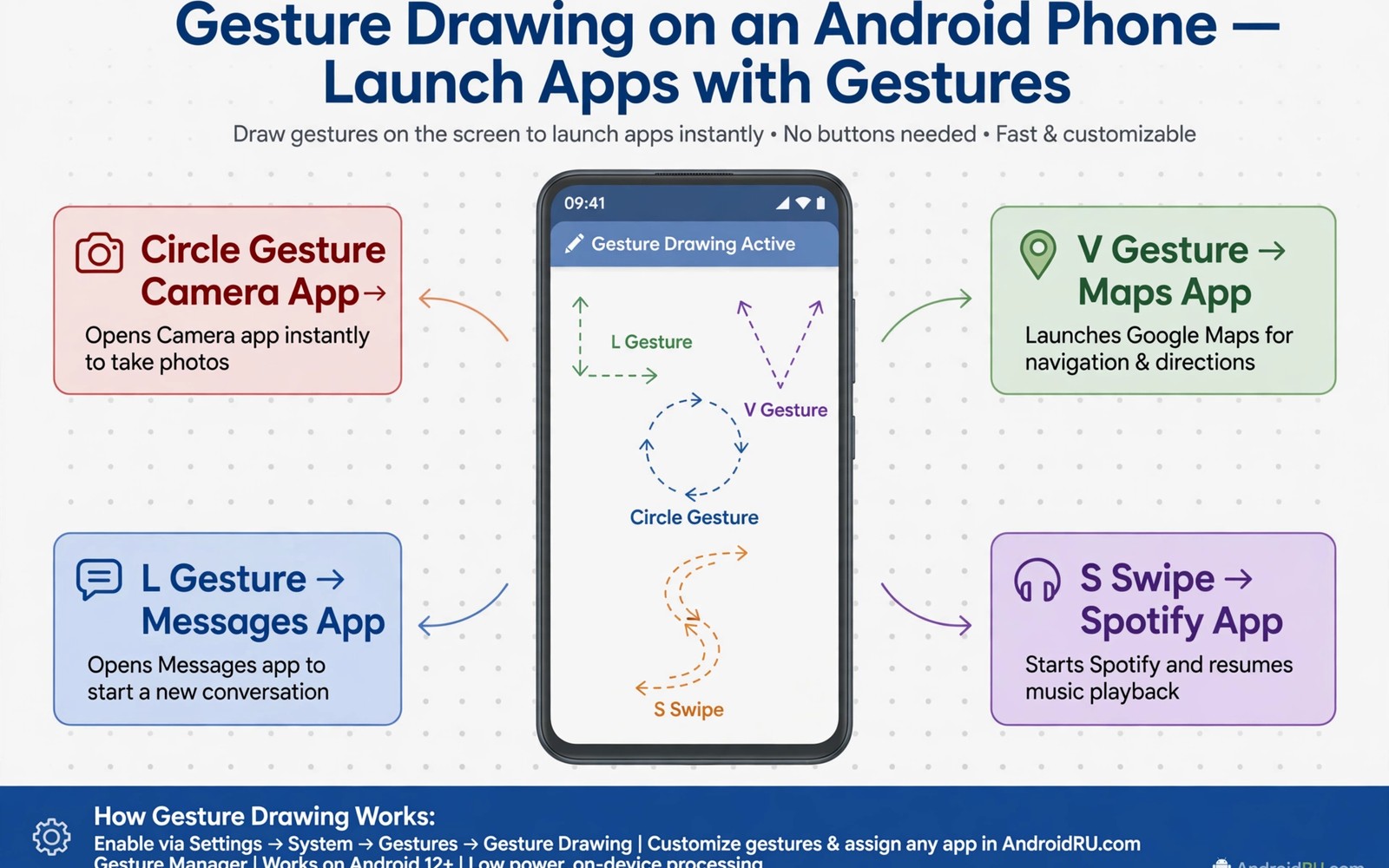
Opening apps through menus costs seconds that add up across a day. You unlock the phone and search for an icon. You swipe through pages while the thought fades. A drawn gesture can replace that search with a single motion. Draw a letter on a dark screen and the right app opens. Draw a shape on the home screen and a tool launches. This guide shows how to set up gesture launching that feels natural. It focuses on gestures you can remember under pressure rather than on a large gesture library.
Gesture launching works because muscle memory beats visual search. Your hand learns a shape faster than your eyes learn an icon position. A letter C for camera feels obvious after a few days. A letter M for messages feels obvious after a week. A shape that matches the app purpose sticks better than a random shape. A circle for a clock app makes sense. A wave for a music app makes sense. Meaningful shapes reduce the learning curve dramatically.
Start with a tiny gesture set rather than a large one. Five gestures cover most daily launches for many people. A phone app gesture and a messages gesture and a camera gesture form a strong core. Add a browser gesture and a notes gesture to complete the set. Five gestures are easy to practise and hard to confuse. Twenty gestures create confusion and accidental launches. A small set that you use daily beats a large set that you forget.
Choose Gestures That Survive Real Use
Test each gesture with one hand while walking. A gesture that needs two hands fails during real life. A gesture that needs precise drawing fails on a moving bus. A simple letter drawn in one stroke works in most situations. A complex shape with multiple strokes fails when you rush. Simplicity under movement decides whether a gesture survives. Practise in realistic conditions rather than only at a desk.
Avoid gestures that resemble normal scrolling or swiping. A gesture that overlaps a common swipe will trigger by accident. A letter drawn with a clear start and end differs from a swipe. A shape drawn in the centre of the screen differs from an edge swipe. Test the gesture beside normal navigation for a day. Accidental triggers during that day reveal a poor gesture choice. Change the gesture at once if it fires during normal use.
Consider screen off gestures separately from home screen gestures. A screen off gesture launches an app without unlocking. That power needs a simple and distinct shape. A home screen gesture can be slightly more complex because the phone is already awake. Keep screen off gestures to three at most for safety. A screen off gesture that opens a banking app is a poor choice. Reserve screen off gestures for camera and torch and music.
Build The Gesture Set Step By Step
Open the gesture settings in your launcher or in a dedicated gesture app. Create the first gesture for the app you open most often. Draw the shape three times so the tool learns your natural variation. Test the gesture ten times in a row and note any failures. A gesture that fails twice in ten needs a simpler shape. A gesture that passes ten times is ready for daily use. Do not add a second gesture until the first one passes.
Add gestures one per day rather than all at once. A daily addition lets muscle memory form for each shape. A bulk addition creates a study task that feels like homework. Practise the new gesture each morning before other tasks. Use the gesture for its real purpose rather than in a test loop. Real use cements memory faster than repetition alone. A gesture learned through need stays learned.
Review the gesture set after a week and remove any gesture you never used. An unused gesture occupies mental space without benefit. A removed gesture simplifies the system. A system with four used gestures beats a system with ten forgotten gestures. Pruning is part of design rather than a sign of failure. Keep the set lean as your habits change.
Gesture: Letter C
Action: Open Camera
Scope: Screen off allowed
Gesture: Letter M
Action: Open Messages
Scope: Home screen only
Gesture: Letter N
Action: Open Notes
Scope: Home screen only
The mapping above follows standard gesture launching practice for personal Android devices and it is presented here as a practical template for a small starter set rather than as a claim about any single launcher. Each entry pairs one simple shape with one app and one scope. Keep the scope column visible while you build the set. A scope decision protects sensitive apps from screen off access. A clear mapping also makes future pruning easy.
Prevent Accidents And Confusion
Disable gestures for sensitive apps on the lock screen. A gesture that opens email from a locked phone exposes private messages. A gesture that opens photos exposes personal images. Keep lock screen gestures for camera and torch only. Those tools are useful without unlocking and they expose little private data. Security and convenience meet at that narrow list. A locked phone should stay locked for personal data.
Teach the gesture set to your fingers through short daily practice. Draw each gesture once in the morning and once in the evening. A brief practice keeps shapes crisp. A shape that drifts over weeks becomes harder for the tool to recognise. If recognition drops then redraw the gesture template with your current natural shape. Templates should follow your hand rather than forcing your hand to follow an old template.
Combine gestures with other shortcuts once the core set feels automatic. A gesture can launch a notes app while a quick tile toggles a setting. Readers exploring that combination may enjoy custom quick tiles for advanced functions as a companion to gesture launching. Use gestures for app launches and tiles for toggles. That division keeps each shortcut type focused. A focused shortcut system stays fast under pressure.
Common Mistakes
One common mistake is creating too many gestures on the first day. A large set feels impressive during setup and confusing during use. Start with five gestures and grow slowly. A slow growth path respects memory limits. Memory limits are real and they shape good design. A small reliable set is a success.
Another mistake is choosing gestures that look clever but feel awkward. A star shape looks interesting and draws slowly. A letter shape looks plain and draws quickly. Speed matters more than cleverness for a launch shortcut. Choose the plain shape that your hand draws without thought. A shortcut should disappear into habit.
A third mistake is ignoring accidental triggers during the first week. An accidental launch dismissed as a fluke will repeat. Track accidents for a week and change any gesture that misfires twice. A gesture system with frequent accidents teaches you to distrust it. Trust is essential for a shortcut you use in a hurry. Remove the untrustworthy gesture at once.
Frequently Asked Questions
Do gesture launches work when the screen is off?
Some phones and launchers support screen off gestures for selected apps. Support varies by manufacturer and by launcher. Check gesture settings for a screen off section. Enable only camera and torch gestures there for safety. Test each screen off gesture with the phone locked. A gesture that works only on the home screen still saves time but it serves a different purpose.
Why does my gesture sometimes open the wrong app?
Similar shapes confuse recognition when gestures share strokes. A letter C and a letter G can look alike when drawn quickly. Choose shapes with distinct starting strokes. Redraw templates after your hand settles into a natural style. A distinct set with clear shapes reduces misfires. Test confusing pairs back to back during setup.
Can gestures replace the app drawer entirely?
Gestures replace the drawer for your most used apps. Less used apps still need the drawer or search. A hybrid approach works best for most people. Use gestures for five daily apps and search for the rest. A drawer remains useful as a complete catalogue. Gestures are a fast lane rather than a total replacement.
Teach Gestures To Other Hands And Devices
A gesture set that works on one phone may need adjustment on a larger tablet. A letter drawn on a small screen feels different on a wide screen. Test the core gestures on each device you use regularly. Adjust the template for the larger screen rather than forcing the phone template to fit. A device specific template recognises your natural shape on that screen. Recognition should adapt to the device rather than the reverse.
Family members who share a tablet may want their own gesture meanings. A shared device with one gesture set can confuse different users. Agree on a shared core set for common apps and keep personal gestures on personal phones. A shared core set prevents arguments about a gesture that opens the wrong app. Shared devices need shared conventions. Personal phones can carry personal shortcuts freely.
Document the final gesture set in a short note on the phone itself. A note with each letter and its app helps you recover the set after a reset. A reset without documentation forces a full rebuild from memory. A short note turns a rebuild into a ten minute task. Documentation protects a habit that took weeks to form. Keep the note simple and update it when the set changes.
Recover Quickly When A Gesture Stops Working
An update can reset gesture settings or change how a launcher handles shapes. Check gesture settings first after any major update before assuming the hardware failed. Re-enable the gesture feature and redraw any template that the update cleared. A five minute check after an update prevents days of frustration. Updates change settings silently and a quick check restores order.
A new case or a screen protector can also change touch recognition slightly. A thick case edge can alter where a gesture starts. A new protector can change friction under your finger. Redraw templates after changing a case or a protector. A template drawn with the old setup may misread under the new setup. Hardware changes deserve a fresh template.
Conclusion
Create one gesture today for the app you open most often. Draw it ten times and use it for every launch tomorrow. Add a second gesture only after the first feels automatic. Readers who want a broader shortcut system may also like double press flashlight control for a physical button habit, and a master approach to Android power automation for routine design. Your next step is one letter and ten test draws.

