

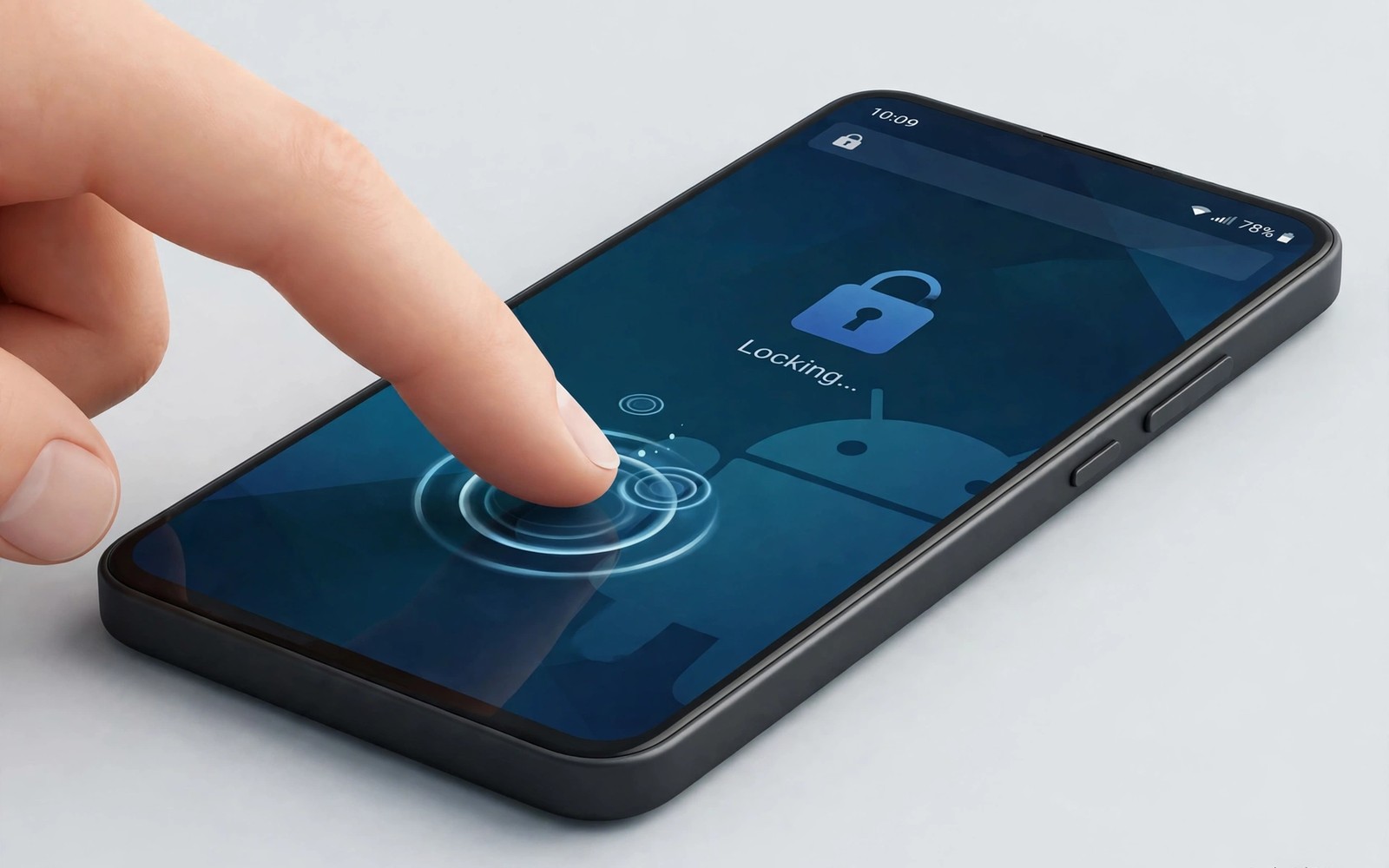
Swiping to lock a phone feels slow when you do it dozens of times a day. A double tap gesture locks the screen with a quick tap on an empty area. That gesture saves time and it reduces wear on the power button over months of use.
Many phones include double tap to lock inside launcher settings or gesture settings. Other phones need a small widget or a launcher feature to add the gesture. Both paths lead to the same result once the gesture is active.
This guide shows how to enable double tap to lock and how to test it safely. You will learn where the setting lives and how to avoid accidental locks and how to combine the gesture with other shortcuts. A two tap lock soon feels like the natural way to end a session. The same shortcut mindset carries into power-user gestures, where a few practiced motions can replace several taps for navigation and app switching.
Find double tap to lock in settings
Open Settings and search for double tap to lock or for gestures. Some phones place the option under home screen settings rather than under general gestures. The search box finds the option faster than browsing every menu.
Turn on double tap to lock and test it on an empty area of the home screen. Tap twice quickly on a blank space and watch the screen lock at once. A slow double tap may register as two single taps so practice a brisk rhythm.
When the setting is missing your launcher may offer the gesture instead. Open launcher settings and look for gestures or for tap actions. Assign double tap to the lock screen action and test it on the home screen.
Use a lock widget when gestures are missing
A lock widget gives you a one tap lock button on the home screen. Place the widget in an easy spot near the edge of the screen. A widget works on almost any launcher even when gesture options are absent.
Some automation apps can create a lock shortcut that behaves like a widget. That shortcut locks the screen when tapped and needs no special permission beyond device admin in some cases. Follow the app prompts carefully when you grant that permission.
Remove the widget after you enable a true double tap gesture to avoid duplicate lock controls. A single clear method prevents accidental locks from a stray tap on a widget. Keep the method that feels most natural for your hand size.
Avoid accidental locks during daily use
Double tap to lock should trigger only on empty home screen areas rather than inside apps. Test the gesture inside a browser and inside a game to confirm it does not interfere. A gesture that locks during a game would cause frustration fast.
Adjust the tap speed setting when your phone offers sensitivity controls. A very sensitive setting may lock the phone during normal scrolling. A slightly slower threshold still feels fast yet reduces false triggers.
Readers who automate other phone tasks will enjoy ten genius hacks to automate an Android phone because double tap locking fits naturally into a wider automation routine. A lock gesture and a bedtime routine together end the day with two simple actions. Automation works best when each piece feels effortless.
Combine double tap with wake gestures
Double tap to wake pairs well with double tap to lock for a symmetrical routine. Tap twice to wake the phone and tap twice on an empty area to lock it again. That symmetry makes the phone feel responsive without touching the power button.
Enable double tap to wake in display settings when your phone supports it. Test the wake gesture on a dark screen before you rely on it. Some phones need a firm tap on the centre of the screen rather than a light tap near the edge.
Keep the power button as a backup for times when gestures fail. A wet screen or a thick case can reduce tap sensitivity. A backup method prevents a locked phone from becoming a stuck phone.
Teach the gesture to family members
Family members who borrow your phone may lock it by accident when they tap twice. Show them the gesture once and explain the empty area rule. A short demo prevents confusion and accidental locks during shared use.
Children may enjoy tapping the screen repeatedly which can trigger locks often. Explain that double tap is a tool rather than a game. A simple explanation usually stops playful locking after a few tries.
A shared phone benefits from a consistent lock method across users. When everyone uses the same gesture the phone behaves predictably. Predictability matters more than novelty for a device that many hands touch.
A small code check for lock settings
A quick command can show screen timeout values on a phone with debugging enabled. Connect the phone and run the command below once to view timeout settings. The output helps you pair a fast lock gesture with a sensible timeout.
adb shell settings get system screen_off_timeout
adb shell dumpsys power
The snippet above was written for this article to show a safe read only way to review screen timeout settings. It alters no timeout setting while it reports screen values. You can use the timeout value to decide how long the screen should stay on after a gesture. Keep a note of the output when you tune lock behaviour.
Use gestures for other quick actions
A swipe gesture can open the camera from the lock screen on many phones. That gesture captures a fleeting moment faster than unlocking and finding the camera app. Practice the camera gesture before you need it for a real photo.
A gesture can also open search from the home screen with a swipe down. Search that opens fast helps you find an app without scrolling the drawer. A fast search gesture reduces home screen clutter because you rely less on icons.
Keep gesture assignments consistent across launchers when you switch. A consistent gesture set prevents confusion after a launcher change. Note your gesture map in a private note before switching launchers.
Protect the power button with gestures
A power button that is pressed dozens of times a day wears out faster than other buttons. Gestures for lock and wake reduce button presses sharply. That reduction extends the life of a physical button that is costly to repair.
Use a lock widget as a backup when gestures feel unreliable on a particular day. A widget gives a tap target that does not depend on tap sensitivity. A backup method prevents frustration when a gesture misfires.
Clean the screen regularly because dirt can affect tap sensitivity for gestures. A clean screen registers double taps more reliably. A quick wipe once a day keeps gestures responsive.
Combine gestures with automation
A double tap lock gesture can trigger a bedtime routine when used at night. An automation app can watch for screen lock at a set time and start Do Not Disturb. That combination turns a simple gesture into a routine trigger.
A wake gesture in the morning can trigger a morning routine that opens the calendar. That routine replaces several manual taps after waking. A gesture plus automation together create a seamless start to the day.
Test combined gestures and routines for a week before relying on them. A combined system can fail in ways that a single gesture cannot. A week of testing reveals timing problems and false triggers. Readers who want broader automation will benefit from ten genius hacks to automate an Android phone because gestures and routines share the same goal of fewer taps.
Use gestures to reduce screen touches
Gestures reduce the number of precise touches needed to operate a phone. A swipe or a double tap replaces a hunt for a small button on screen. That reduction helps owners with large hands or with a cracked screen area. Fewer precise touches means fewer missed taps and less frustration.
A gesture for opening recent apps can replace a small navigation button at the screen edge. Edge buttons are hard to hit accurately on phones with curved screens. A gesture from the screen centre feels more reliable than an edge tap. Test a centre gesture when edge navigation feels awkward.
Combine gestures with voice commands for actions that gestures cannot cover. Voice can open an app by name while gestures handle locking and navigation. That combination gives you two fast methods for different tasks. A mixed approach avoids overloading gestures with too many assignments.
Review gesture assignments after a screen protector change because a thick protector can affect tap sensitivity. A protector that dulls taps may require a firmer double tap rhythm. Adjust sensitivity or tap force after a protector change. A quick retest after a protector change keeps gestures reliable.
Common mistakes
The biggest mistake is enabling double tap to lock inside apps where it conflicts with content taps. A gesture that works everywhere can lock a video or a game at the wrong moment. Restrict the gesture to the home screen when the launcher allows that choice.
Another mistake is forgetting the gesture after a launcher change. A new launcher may not carry the old gesture setting across. Re-enable double tap to lock after every launcher switch and test it before daily use.
People also rely on the gesture alone without a strong screen lock behind it. A gesture locks the screen yet a weak PIN still leaves data exposed. Pair the gesture with a strong lock method for real security.
Frequently asked questions
Does double tap to lock work on every Android phone?
Most modern phones support the gesture through settings or through a launcher. Older phones may need a widget or a third party launcher to add it. Check launcher settings first when the system setting is missing.
Can double tap to lock drain battery?
The gesture uses the normal touch sensor that already runs while the screen is on. Battery impact is negligible compared with screen brightness and app use. A widget alternative uses similarly little power.
What if double tap locks the phone too easily?
Adjust tap sensitivity when available or move the gesture to a less used home screen area. A second home screen page can host the gesture away from daily icons. Test the new area for a day before you settle on it.
Conclusion
Double tap to lock replaces a swipe and a button press with a quick two tap motion. Settings and launcher options and widgets together cover almost every phone. A tested gesture plus a strong lock gives speed without sacrificing security.
Your concrete next step is to search Settings today for double tap to lock and enable it. Test the gesture ten times on an empty home screen area. Readers who want location automation will benefit from a macro that turns off Wi-Fi when leaving home as a next automation project.

