

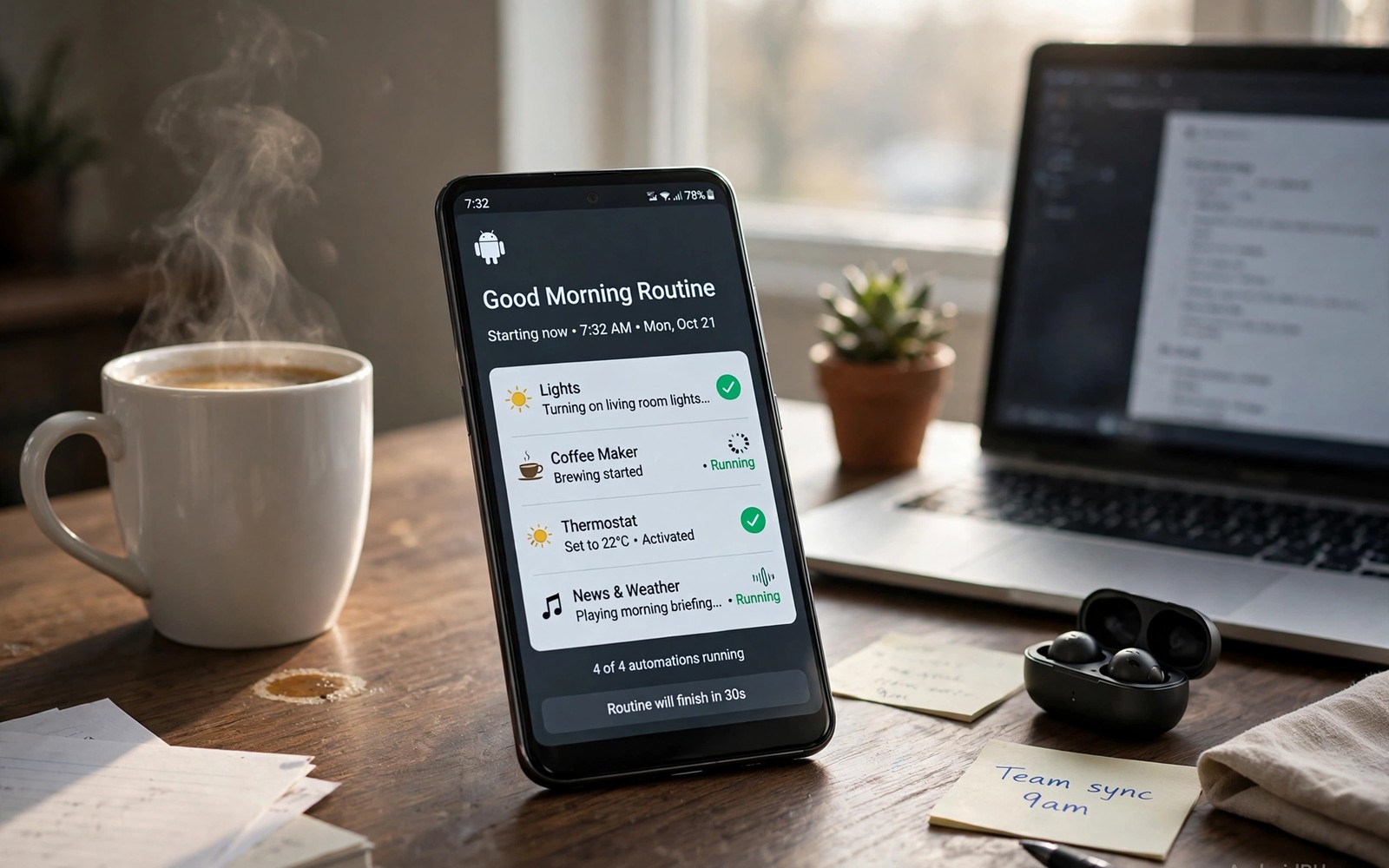
Automation turns a phone from a tool you operate into a helper that acts on your behalf. A routine can silence the phone at night and turn on Wi-Fi at home and remind you about a task at the right moment. Those small automatic actions save time every day without demanding attention.
The ten hacks in this guide use built in routines and simple automation apps that need no coding skill. You will learn location routines and time routines and device state routines that cover morning and work and travel and sleep. Each hack starts simple and grows only when you feel confident.
Start with one routine that solves a daily annoyance. A routine that saves you a few taps each morning proves the value fast. Add a second routine only after the first one runs reliably for a week. Once those first routines feel reliable, everyday automation routines can extend the same idea to charging and volume and app launches without adding new apps to learn.
Silence the phone automatically at night
A bedtime routine can turn on Do Not Disturb at a set time each evening. That routine protects sleep from late notifications while still allowing calls from starred contacts. Set the start time to match your real bedtime rather than an ideal bedtime you never keep.
Add an end time for the morning so notifications return when you wake. A routine without an end time can silence important morning messages by accident. Test the routine on a weekend first so a mistake does not affect a work morning.
Allow alarms and repeated calls through the Do Not Disturb filter. An alarm must ring even when notifications stay silent. A repeated call from the same number within a few minutes often signals an emergency and deserves to break through.
Connect and disconnect networks by location
A location routine can turn on Wi-Fi when you arrive home and turn it off when you leave. That routine saves battery and avoids weak public networks that slow the phone. It also connects you to your trusted home network without a manual tap.
Set the home location with a generous radius so the routine triggers before you reach the door. A tight radius may fail when GPS drifts inside a building. Test the trigger by leaving and returning once to confirm the timing.
Readers who want a dedicated location macro will like a macro that turns off Wi-Fi when leaving home because it covers the leaving home side in detail. A general routine and a focused macro together handle both arrival and departure cleanly. Use whichever tool feels clearer on your phone.
Automate morning setup in one tap
A morning routine can turn off Do Not Disturb and read the weather and open your calendar in sequence. That sequence replaces several manual taps with one trigger at a set time. A morning that starts smoothly sets a calmer tone for the day.
Keep the morning routine short at first with only two or three actions. A long routine that fails halfway creates confusion about what already ran. Add actions one at a time after each version proves reliable.
Trigger the morning routine with an alarm dismissal when your automation app supports that event. An alarm trigger adapts to weekends and holidays better than a fixed clock time. A fixed time works well when your wake time never changes.
Save battery with smart charging routines
A charging routine can turn on battery saver when the battery drops below a threshold. That routine extends the remaining charge without you watching the percentage. Set the threshold at a level that still leaves time to reach a charger.
A routine can also turn off background sync for heavy apps when the battery runs low. Social feeds can wait until you charge again while messages still arrive. That balance keeps the phone useful during a low battery period.
Test a battery routine by simulating a low battery state when the app allows a manual trigger. A manual test proves the actions run in the right order. A routine that you never test may fail on the day you need it most.
Automate messages and reminders by context
A routine can send a preset message when you arrive at work or when you leave home. That message can tell family that you arrived safely without a manual text. Keep preset messages short and generic so they fit many situations.
Location reminders work better than time reminders for tasks tied to a place. A reminder to buy milk triggers when you reach a shop rather than at a fixed hour. That context makes the reminder useful at the exact moment you can act.
Review automated messages once a month to remove routines that no longer fit your life. A routine that sends a stale message causes confusion. A short monthly cleanup keeps automation helpful rather than noisy.
A small code check for automation triggers
A quick command can show device state values on a phone with debugging enabled. Connect the phone and run the command below once to view battery and Wi-Fi related settings. The output helps you choose thresholds for a battery routine.
adb shell dumpsys battery
adb shell settings get global wifi_on
The snippet above was written for this article to show a safe read only way to review device state for automation design. It changes no device setting while it reports battery and Wi-Fi values. You can use the values to set a battery threshold that matches real usage. Keep a note of the output when you tune a routine later.
Automate volume by time and place
A volume routine can lower media volume at night and raise it during the day. That routine prevents a loud video from disturbing sleep when you open the phone late. A time based volume change feels natural once it runs for a week.
Add a location condition so volume changes only at home rather than everywhere. A home only volume routine avoids silencing the phone during a commute. A location condition makes automation context aware rather than blunt.
Test volume routines with a short audio clip at each transition time. A test clip confirms that volume changed as expected. A routine that fails silently can leave the phone loud at night or quiet during the day.
Automate app launches for recurring tasks
A routine can open a transit app when you leave home in the morning. That launch saves taps during a rushed departure. A transit app that opens automatically also shows live departure times sooner.
Add a routine that opens a notes app when you arrive at work. A notes app that opens at work reminds you to capture tasks early. That reminder improves planning without a manual habit.
Review auto launch routines monthly to remove ones tied to old jobs or old routes. A stale auto launch wastes time and clutters the screen. A monthly cleanup keeps automation aligned with current life. Readers who want scripted control will benefit from seven Tasker scripts for a daily routine because basic routines and scripts share the same trigger logic.
Automate backups and cleanup
A weekly routine can remind you to back up photos to a trusted location. A reminder routine does not perform the backup itself yet it prompts the action at a good time. A prompt on a Sunday evening fits a weekly backup habit.
A cleanup routine can remind you to delete screenshots and downloads once a month. Screenshots accumulate fast and waste storage. A monthly reminder keeps storage lean without constant attention.
Pair a backup reminder with a storage check so you know how much space remains. A storage check before backup prevents a failed backup due to full storage. That pairing turns a simple reminder into a useful maintenance step.
Automate charging reminders
A charging reminder routine can alert you when battery drops to a level that still allows a full evening. That alert prevents a dead phone during an important call. Set the reminder at a level that gives you time to reach a charger comfortably. A well timed reminder feels helpful rather than nagging.
Pair a charging reminder with a location condition so it triggers only when you are near a charger. A reminder at home is useful while a reminder during travel may be ignored. Location aware reminders respect context and reduce alert fatigue. A reminder that fires at the right place gets acted on faster.
Add a second reminder when the phone reaches full charge to prevent overcharging habits. A full charge alert lets you unplug promptly and protect long term battery health. That habit also frees the charger for another device. A simple alert can extend battery lifespan over years.
Review charging reminder thresholds after a battery replacement or a phone change. A new battery may hold charge differently and need a different threshold. An adjusted threshold keeps reminders accurate for the new hardware. A yearly threshold review keeps automation aligned with battery age.
Common mistakes
The biggest mistake is building ten routines in one day without testing any of them. A set of untested routines can conflict and produce strange behaviour that is hard to trace. Build one routine and test it for several days before you add the next.
Another mistake is granting an automation app every permission it requests without thought. An automation app needs specific permissions for specific triggers yet it does not need access to everything. Grant only the permissions that match the routines you actually use.
People also create routines that loop or that trigger each other in a cycle. A Wi-Fi routine that triggers a location routine that triggers Wi-Fi again can drain the battery fast. Check trigger conditions for cycles before you enable a new routine.
Frequently asked questions
Do automation apps need root access?
Most everyday routines work without root using built in routines or a standard automation app. Root unlocks deeper system control yet it adds risk and complexity. Start with non root routines because they cover most daily needs.
Will automation drain my battery?
A well designed routine saves battery by turning off radios and sync at the right times. A poorly designed routine that polls location constantly can drain battery fast. Use location triggers with a sensible radius and time triggers when possible.
Can automation run while the phone is locked?
Yes for most system actions such as Do Not Disturb and Wi-Fi and battery saver. Some actions that need screen interaction may require an unlocked phone. Test each routine while locked to confirm it behaves as expected.
Conclusion
Automation saves time by handling repetitive phone tasks in the background. Night silence and location networks and morning setup and battery saving together remove dozens of manual taps each day. A slow start with tested routines builds a system you can trust.
Your concrete next step is to create one bedtime Do Not Disturb routine today with a start time and an end time. Test it tonight and adjust the times tomorrow morning. Readers who want deeper scripting will benefit from seven Tasker scripts for a daily routine as a natural next step.

