

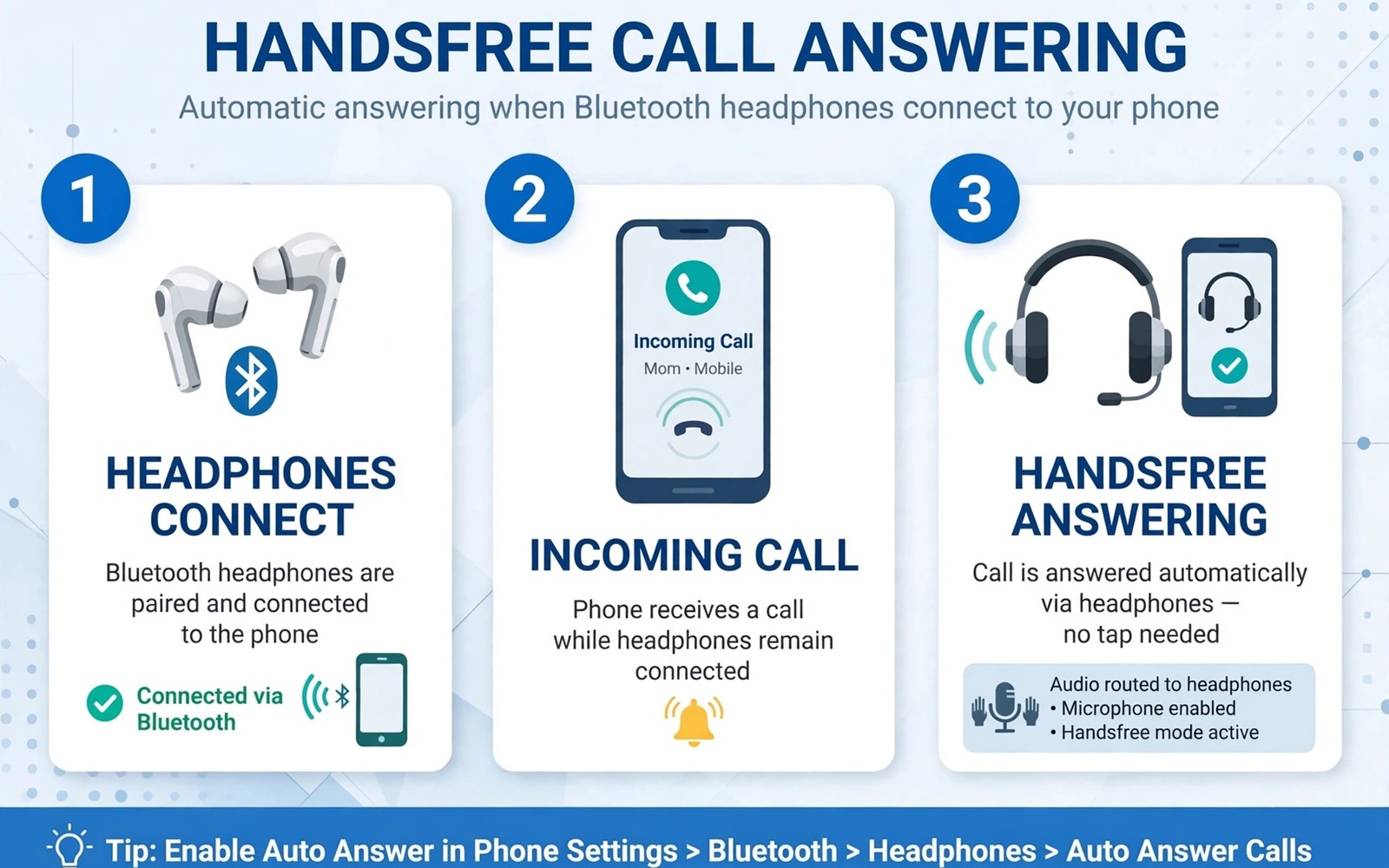
Auto answering a call when headphones connect sounds like a small convenience yet it matters when your hands are busy. A driver with a mounted phone or a cook with wet hands can take a call without touching the screen. That hands free answer keeps attention on the road or on the task.
Android does not include a universal auto answer toggle in all versions. Some phones offer the feature inside accessibility or call settings. Other phones need an automation app to create the behaviour reliably.
This guide shows the built in option first and then an automation method for phones that lack it. You will learn safety limits and testing steps and how to avoid answering unwanted calls. A tested auto answer setup gives convenience without surprises.
Check for a built in auto answer option
Open Phone settings and look for auto answer or answering options. Some phones place the option under accessibility settings rather than call settings. Use the Settings search box and type auto answer to find the entry fast.
When the option exists set a delay of a few seconds before the phone answers. A delay gives you time to reject an unwanted call before auto answer triggers. A zero delay answers every call instantly which can feel intrusive.
Restrict auto answer to headphone connected state when the setting allows a condition. A condition prevents auto answer when the phone rings on a table without headphones. That restriction keeps the feature tied to hands free use.
Build auto answer with an automation app
A macro or automation app can watch for a headset connected event and then enable auto answer behaviour. Some apps use an accessibility action to accept the call when a trigger fires. Follow the app guidance for your Android version because call control rules vary.
Create a profile with a trigger for Bluetooth headset connected or wired headset plugged. Add an action that answers an incoming call after a short delay. Test the profile with a call from a second phone to confirm the timing.
Add an exit condition that disables the behaviour when headphones disconnect. An exit condition prevents auto answer after you remove headphones. A complete profile handles both connection and disconnection cleanly.
Set safety limits for auto answer
Auto answer should apply only to known contacts when your automation app supports a contact condition. A known contact filter prevents a spam call from gaining an open microphone. That filter is the most important safety limit for auto answer.
Keep the phone volume at a comfortable level for hands free calls. A sudden loud call through headphones can startle a driver. Test volume with a real call before you rely on auto answer on the road.
Readers who share audio with a partner will also like how to split audio to two Bluetooth headphones because both features depend on headphone routing. A phone that routes calls well usually routes media well too. Test headphone routing after any Bluetooth update.
Test auto answer in safe situations first
Test auto answer at home with a call from a family member while headphones are connected. Confirm that the call answers after the delay you set. A home test reveals timing problems without road risk.
Test rejection as well by declining a call before the delay ends. A rejection should cancel auto answer for that call. When rejection fails adjust the delay or the trigger condition before daily use.
Test the setup with both wired and Bluetooth headphones when you use both types. A trigger for one headphone type may not cover the other. Create separate profiles when the automation app treats wired and Bluetooth events differently.
Avoid answering calls you do not want
Turn off auto answer during meetings or quiet hours when you do not want an open microphone. A schedule condition can disable the profile at set times. That schedule prevents an embarrassing auto answer during a presentation.
Use Do Not Disturb with starred contacts allowed during auto answer hours. That combination lets important callers reach you while blocking unknown callers. A layered approach balances convenience and privacy.
A hands free routine pairs well with double tap gestures to lock a phone for quick phone handling without button presses. A gesture locks the phone fast and auto answer handles calls fast. Both habits reduce fumbling with the device.
A small code check for headset state
A quick command can show headset and Bluetooth state on a phone with debugging enabled. Connect the phone and run the command below once to view headset related values. The output helps you confirm that the phone detects headphones correctly.
adb shell dumpsys audio
adb shell settings get global bluetooth_on
The snippet above was written for this article to show a safe read only way to review headset state for auto answer testing. It changes no headset setting while it reports audio and Bluetooth state. You can run it again after connecting headphones to confirm detection. Keep a note of the output when you troubleshoot a trigger that fails.
Use auto answer for accessibility
Auto answer helps owners with limited hand mobility who cannot tap a screen quickly. A hands free answer removes a barrier to taking calls independently. That independence matters for daily communication and safety.
Pair auto answer with a loud speaker or a hearing aid connection for accessibility. A clear audio path ensures the caller is heard without fumbling. Test the audio path with a family call before daily use.
Set a longer delay for accessibility use so the owner has time to prepare. A longer delay gives time to move to a quiet spot before answering. That preparation improves call quality and comfort.
Manage auto answer during driving
Driving laws vary by region yet hands free calling is generally safer than holding a phone. Auto answer through headphones keeps hands on the wheel during a call. That safety benefit is the strongest case for auto answer.
Mount the phone in a stable holder during driving so the screen stays visible for navigation. A stable mount prevents the phone from sliding during a turn. That stability also helps voice commands work reliably.
End a call with a voice command or a steering wheel button when available. A voice end command avoids reaching for the phone after a call. That habit keeps attention on the road after the conversation ends.
Review auto answer logs monthly
Review call logs monthly to see which calls auto answered and whether any were unwanted. A monthly review reveals a spam pattern that needs a filter change. A pattern caught early prevents repeated unwanted answers.
Adjust the contact filter after a monthly review when a legitimate caller was blocked. A blocked legitimate caller suggests the filter is too strict. A small filter adjustment restores access without opening the door to spam.
Test auto answer after each monthly review to confirm settings still work. A test call from a family member proves the profile remains active. A regular test prevents a silent failure from going unnoticed. Readers who want a full routine will benefit from ten genius hacks to automate an Android phone because auto answer is one piece of a hands free routine.
Use auto answer for elderly relatives
Elderly relatives may struggle to tap a small answer button quickly before a call ends. Auto answer through headphones removes that time pressure and lets a relative take a call calmly. That calm answer improves communication with family members who call regularly. A relaxed relative is more likely to enjoy phone calls.
Set a longer delay for elderly relatives so they have time to settle before the call connects. A longer delay gives time to sit down and adjust headphones. That preparation improves call clarity and comfort. A rushed answer can cause confusion at the start of a call.
Test auto answer with a family member who calls often to confirm the setup works for the relative. A test call reveals volume and timing problems before daily use. Adjust settings after the test based on the relative feedback. A test that includes the relative ensures the setup fits their needs.
Teach a relative how to end a call with a simple button or voice command. An easy end method prevents a call from staying open after the conversation ends. That knowledge gives a relative confidence to use auto answer independently. Independence is the main benefit of a well set up hands free system.
Common mistakes
The biggest mistake is enabling auto answer without a delay or a contact filter. An instant answer to every caller creates privacy and safety risks. A delay plus a known contact filter together make auto answer sensible.
Another mistake is forgetting to disable auto answer after headphones disconnect. A phone that keeps auto answering on speaker can broadcast a private call. An exit condition tied to headphone disconnection prevents that problem.
People also test auto answer only once and assume it works forever. A system update can change call control permissions and break the profile. Retest auto answer after major updates to confirm it still behaves as expected.
Frequently asked questions
Does auto answer work on every Android phone?
Built in auto answer varies by maker and Android version. An automation app can add the feature to many phones that lack a built in toggle. Check Phone settings first and use automation as a fallback.
Can auto answer answer spam calls?
Yes when no contact filter is set. A spam call can gain an open microphone through auto answer. Use a known contact filter or a Do Not Disturb filter to reduce that risk.
Will auto answer drain battery?
A trigger based profile waits quietly until headphones connect and a call arrives. Battery impact is negligible for a well designed profile. A profile that polls constantly can drain battery so prefer event triggers.
Conclusion
Auto answering hands free calls when headphones connect gives real convenience for drivers and busy owners. Built in options and automation profiles together cover most phones. Delays and contact filters and exit conditions keep the feature safe.
Your concrete next step is to search Phone settings today for auto answer and set a delay when the option exists. Test it with a call from a family member while headphones are connected. Readers who want a full routine will benefit from seven Tasker scripts for a daily routine as a next automation project.

