

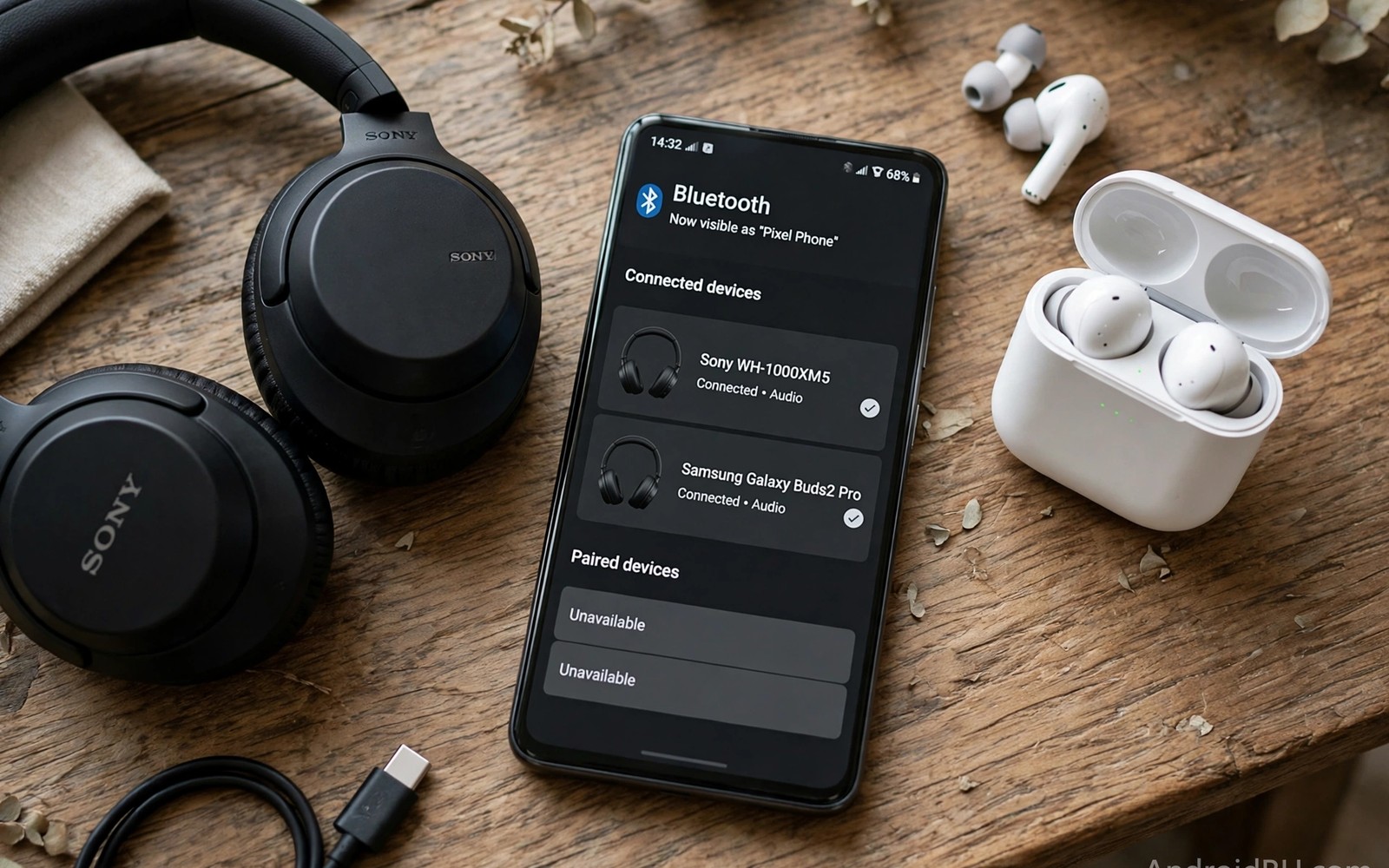
Two people sharing one phone for music or a film often end up sharing one earbud each. Dual audio changes that compromise by sending sound to two Bluetooth headphones at once. Each listener hears full stereo sound without a splitter cable or a second device.
Dual audio works on phones that support Bluetooth dual output in system settings. The feature may hide under a name such as dual audio or media output or audio sharing depending on the maker. A quick settings check tells you whether your phone supports the feature.
This guide shows how to enable dual audio and pair two headphones and balance the experience. You will learn volume control tricks and troubleshooting steps for common pairing problems. Shared listening becomes simple once both headphones stay connected. A related trick is playing audio from two apps at once, which helps when one listener wants music while the other follows a podcast on the same phone.
Check whether your phone supports dual audio
Open Settings and open Bluetooth and look for a dual audio or audio sharing option. Some phones show the option only after two Bluetooth devices are paired. Pair both headphones first when the option does not appear at once.
Check the phone specifications for Bluetooth version support when the option stays missing. Dual audio usually needs a newer Bluetooth version and a compatible chipset. An older phone may support only one audio device at a time.
Update the system software before you conclude that dual audio is missing. A maker may add dual audio in a later update for a model that lacked it at launch. A software check takes minutes and can unlock the feature.
Pair the first headphone normally
Put the first headphone into pairing mode and select it from the Bluetooth list. Confirm the pairing and play a short audio clip to test sound quality. A first headphone that works alone gives a clean baseline for dual testing.
Keep the first headphone connected while you pair the second one. Some phones drop the first connection when a second pairing starts. A stable first connection proves the phone can hold two audio devices.
Name each headphone clearly in Bluetooth settings when names look similar. Clear names prevent confusion when you adjust volume for one listener later. A name such as Blue Left and Black Right helps during a shared film.
Add the second headphone to the audio output
Put the second headphone into pairing mode and select it from the Bluetooth list. Open media output settings and choose both headphones as output devices. Sound should now play through both headphones at the same time.
Play a song with distinct left and right sounds to test stereo balance on both headphones. Each listener should hear both channels rather than a mono mix. A mono mix suggests that only one headphone received the full stream.
Adjust volume for each headphone separately when the phone offers individual volume controls. One listener may prefer louder sound than the other. Individual control prevents arguments about a single shared volume level.
Fix common dual audio problems
A second headphone that pairs yet stays silent often needs a media output refresh. Disconnect both headphones and reconnect them in order. A fresh connection sequence usually restores sound to both devices.
Audio delay between headphones can ruin a shared film experience. Delay often comes from different Bluetooth codecs on each headphone. Use two headphones with similar codec support when synchronisation matters.
Readers who want hands free calls with headphones will also like how to auto answer handsfree calls with headphones because shared listening and hands free calls both depend on Bluetooth behaviour. A phone that handles two headphones well usually handles a hands free call well too. Test both features after a Bluetooth update.
Use dual audio for travel and home
Dual audio shines on a plane or a train where two travellers watch one film without disturbing others. Each person keeps their own headphone volume and comfort. A shared film becomes a shared experience without shared earbuds.
At home dual audio lets two people listen to a workout video or a language lesson together. A parent and a child can follow the same lesson without a loudspeaker. That quiet shared listening suits late evenings.
Turn off dual audio after shared listening to save battery. Two Bluetooth streams use more power than one stream. A single headphone routine after the film keeps battery use normal.
A small code check for Bluetooth audio state
A quick command can show Bluetooth state on a phone with debugging enabled. Connect the phone and run the command below once to view Bluetooth and audio related settings. The output helps you confirm that Bluetooth remains active during testing.
adb shell settings get global bluetooth_on
adb shell dumpsys bluetooth_manager
The snippet above was written for this article to show a safe read only way to review Bluetooth state for dual audio testing. It leaves Bluetooth settings unchanged while it reports audio state. You can run it again after pairing a second headphone to confirm Bluetooth state. Keep a note of the output when you troubleshoot a silent headphone.
Balance volume for different listeners
Two listeners often prefer different volume levels for the same film. Individual volume controls let each person set a comfortable level without affecting the other. That independence prevents a shared film from becoming a volume negotiation.
Test volume balance with a quiet dialogue scene rather than a loud action scene. Dialogue reveals whether one headphone is too quiet for speech. A dialogue test gives a better balance than a music test.
Save a preferred volume pair in a note when you share films regularly with the same person. A note speeds up setup for the next shared session. A saved pair also helps when a phone update resets volume settings.
Choose headphones that pair well together
Headphones with similar Bluetooth versions tend to sync better during dual audio. A large version gap can cause delay between the two streams. Matching versions reduces the chance of a distracting echo.
Check codec support on both headphones before a long shared film. A shared codec gives both listeners the same audio quality. A codec mismatch can force one headphone to a lower quality stream.
Charge both headphones to a similar level before a shared session. A headphone that dies early ends shared listening abruptly. A full charge for both devices prevents a mid film interruption.
Use dual audio for language learning
Dual audio lets a teacher and a learner listen to the same lesson without a loudspeaker. A learner can replay a phrase privately while the teacher keeps listening. That shared yet private listening suits tutoring sessions.
A parent and a child can follow a language lesson together during a car journey. Each listener hears the lesson clearly through their own headphone. That clarity beats a car speaker during road noise.
Turn off dual audio after a lesson to restore normal single device output. A forgotten dual output can play the next media through an unused headphone in another room. A quick output reset after each lesson prevents that surprise. Readers who want hands free calls will also like how to auto answer handsfree calls with headphones because headphone routing matters for both media and calls.
Share audio during a workout
Two workout partners can share a training audio guide through dual audio headphones. Each partner hears instructions clearly without a loudspeaker in a gym. That private shared audio keeps a workout focused and quiet for others. A shared guide also keeps partners in sync during interval training.
Choose sweat resistant headphones for workout dual audio sessions. Sweat can damage headphones that lack resistance and end a session early. A resistant pair lasts longer during intense training. Check resistance ratings before buying headphones for workouts.
Keep volume at a safe level during workouts to protect hearing over time. A loud shared session can tempt both listeners to raise volume together. Agree on a moderate volume before the workout starts. A moderate level protects hearing while keeping instructions clear.
Clean headphones after a workout to prevent sweat buildup and hygiene problems. A quick wipe after each session extends headphone life. Hygiene matters more when headphones are shared between partners. A clean pair is ready for the next session without delay.
Common mistakes
The biggest mistake is assuming every phone supports dual audio. A phone without dual audio support cannot send sound to two headphones at once no matter how you pair them. Check support first to avoid wasted troubleshooting.
Another mistake is pairing two headphones with very different battery levels. A headphone that dies halfway through a film ends shared listening abruptly. Charge both headphones fully before a long shared session.
People also forget to set media output back to a single device after shared listening. A phone that still outputs to two devices may play sound through a forgotten headphone in another room. Reset media output to your main headphone after the session.
Frequently asked questions
Can I use two different headphone brands together?
Yes when both headphones support the Bluetooth profiles your phone uses for dual audio. Different brands may use different codecs which can cause slight delay. Test a short clip first to check synchronisation.
Does dual audio work for phone calls?
Dual audio mainly covers media playback rather than calls. A call usually routes to one Bluetooth device at a time. Check your phone call settings for a separate audio routing option.
Will dual audio halve the sound quality?
Dual audio can reduce bandwidth per device on some phones yet most listeners notice little difference for music and films. High resolution audio may fall back to a standard codec during dual output. Test your favourite track to judge the quality yourself.
Conclusion
Splitting Android audio to two Bluetooth headphones turns shared listening into a comfortable experience. Support checks and ordered pairing and individual volume control together make dual audio reliable. Troubleshooting steps for silence and delay cover the common problems.
Your concrete next step is to pair a second headphone today and open media output settings. Play a song through both headphones for five minutes. Readers who want to mirror sound and video to a larger screen will benefit from how to mirror an Android screen to any TV as a next project.

