

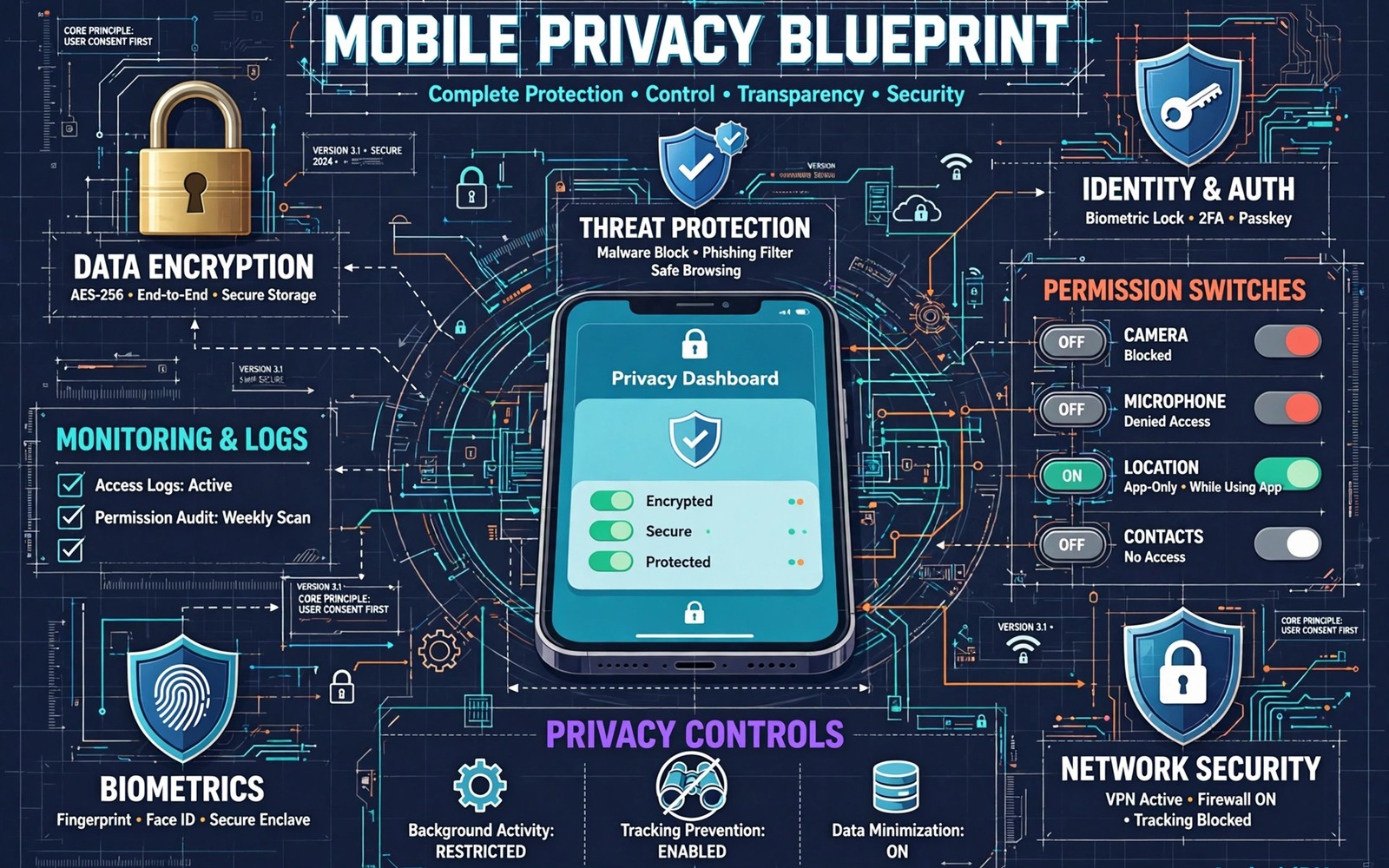
A privacy blueprint turns scattered settings into a single plan that you can follow and maintain. Random toggles help a little yet they leave gaps that an attacker can exploit. A blueprint covers locks and permissions and networks and backups in one coherent order.
This blueprint starts with the foundations that protect the whole phone. You will secure the lock screen and the accounts and the system updates before you touch individual apps. Foundations matter because a weak account can undo strong app settings in minutes.
Work through the blueprint in order and test each stage before you move on. A plan that you finish slowly beats a plan that you start quickly and abandon. By the end you will have a phone that is private by default rather than private by accident.
Lock the phone and the accounts first
Set a strong screen lock that uses a long PIN or a password rather than a short code. A strong lock protects data when the phone is lost and it protects encryption keys tied to that lock. Biometrics can help daily use yet the fallback code must stay strong.
Secure your main email account with a unique password and two factor authentication. Email controls password resets for many other services so a compromised inbox opens many doors. A password manager makes a unique strong password easy to keep.
Turn on automatic system updates so security fixes arrive without delay. An outdated system carries known flaws that attackers can exploit with public tools. Check for updates manually after a major release when automatic updates feel slow.
Audit permissions and apps in one pass
Open Permission manager and review location and camera and microphone access for every app. Change Allow all the time into Allow only while using the app for most apps. That single change stops background tracking without breaking daily features.
Remove apps you no longer use because each unused app holds permissions and may receive risky updates. A smaller app list is easier to audit and easier to trust. Reinstall an app later when you truly need it again.
Readers who want to hide sensitive tools should explore how to hide secure apps from the launcher drawer as part of this audit. A hidden app draws less attention and a removed app draws none at all. Both choices reduce the surface that an attacker can explore.
Control tracking and advertising profiles
Turn off personalised ads and delete the advertising ID in privacy settings. That step breaks the link between your device and an advertising profile built across apps. Check individual social apps for their own ad personalisation switches too.
Review activity controls in your main account and turn off history that you do not need. Activity history feeds recommendations and ads across services. A smaller history means a smaller profile for advertisers to use.
Use a browser with tracker blocking for daily browsing. Tracker blocking cuts data collection and speeds up pages at the same time. Pair the browser with a system level tracker control when your phone supports that option.
Secure networks and backups
Avoid banking and email on public Wi-Fi unless a reputable virtual private network is active. A shared network can let other users see traffic that passes through the same hotspot. Wait for a trusted network for sensitive tasks when no tunnel is available.
Review backup settings and decide which data should leave the phone. A cloud backup that includes private files needs a strong account password and two factor protection. A local encrypted backup on a computer suits owners who prefer to keep data at home.
Encrypt sensitive files before you place them in any backup. An encrypted archive stays unreadable even when a backup account is compromised. Keep the archive password in a password manager rather than in the same backup.
Add private spaces for sensitive data
Create a private folder or a work profile for banking and work and personal files. A separate space uses its own lock and hides apps and files from the main drawer. That separation protects privacy when you hand the phone to another person.
Move only files that truly need protection into the private space at first. A private space crowded with everyday files becomes hard to manage. Start with documents and photos that would cause harm when exposed.
A private space works best alongside an encrypted private folder profile setup because that guide covers locks and file moves in detail. The blueprint gives the order and the folder guide gives the hands on steps. Together they turn a plan into a working vault.
A small code check for system security state
A quick command can show basic security settings on a phone with debugging enabled. Connect the phone and run the command below once to review encryption and lock related values. The output helps you confirm that core protections remain active.
adb shell getprop ro.crypto.state
adb shell settings get secure lockscreen_disabled
The snippet above was written for this article to show a safe read only check for core security state. It alters no security setting while it reports core values. You can run it again after a system update to confirm that encryption and lock settings remain as you set them. Keep a note of the output for future comparisons.
Review privacy settings after travel
Travel can change privacy settings through new networks and new apps and roaming services. Review permissions and network settings after you return home from a trip. A post travel review catches apps that gained access during the journey.
Remove travel apps that you installed only for one trip. A travel app that stays installed can keep tracking location long after the trip ends. A quick deletion after travel keeps the app list lean.
Check for new Wi-Fi networks saved during travel and remove networks you will not use again. A saved network can auto connect on a future trip to the same area. An auto connection to a spoofed network poses a risk.
Maintain privacy through device changes
A new phone needs a privacy setup before you restore a full backup. Check Ad ID and permission defaults on the new phone first. A backup restore can carry old settings that weaken privacy on the new device.
Transfer only the data you need to a new phone rather than restoring everything blindly. A selective transfer avoids carrying forgotten apps and old permissions. A clean transfer gives you a chance to rebuild a lean privacy setup.
Wipe the old phone fully before you sell or give it away. A factory reset plus encryption check ensures old private data cannot be recovered. Test the wipe by checking that no personal files remain after reset.
Keep a privacy checklist for the year
A yearly checklist covers items that monthly reviews miss such as account recovery and backup encryption. Review recovery options and backup locations once a year. A yearly review catches slow drift that monthly checks overlook.
Update the checklist when a major Android version changes privacy menus. A menu change can move a toggle to a new location. An updated checklist prevents a moved toggle from being forgotten.
Share the checklist with a trusted family member who can help during an emergency. A trusted person who knows your privacy setup can assist when you lose a phone. That assistance matters most during a stressful lockout. Readers who want daily habits will benefit from seven daily security habits for smartphone owners because a yearly checklist and daily habits together cover short and long term privacy.
Plan privacy for a lost phone
A lost phone plan starts with a remote lock and remote wipe option enabled before loss happens. Enable Find My Device or a similar service while the phone is still in your hands. A remote service lets you lock the phone from another device within minutes. That speed limits the window for a finder to explore data.
Keep a list of accounts to change passwords for after a phone loss. A list prepared in advance saves time during a stressful loss. Change email and banking passwords first because those accounts control many others. A prepared list prevents a forgotten account from staying exposed.
Test remote lock once from a computer to confirm the service works for your phone model. A test lock that you can reverse proves the service is active. A service that you never test may fail due to a disabled permission. A single test gives confidence for a real loss.
Store the remote service login in a password manager that you can access from another device. A login that lives only on the lost phone cannot help you lock it. A second device access path is essential for a lost phone plan. That path turns a crisis into a manageable recovery.
Common mistakes
The biggest mistake is changing many settings at once without testing each change. A phone that behaves strangely afterwards gives no clue about which setting caused the problem. Change one area and live with it for a day before you move on.
Another mistake is focusing only on apps while ignoring the main account. A weak email password can reset banking and cloud accounts even when app settings look perfect. Secure accounts first and apps second in every privacy plan.
People also abandon a blueprint after the first week because maintenance feels boring. A short monthly review keeps the plan alive without much effort. Set a reminder for permission and update checks on the first day of each month.
Frequently asked questions
How long does a full privacy lockdown take?
A careful first pass takes about an hour when you follow the blueprint in order. Monthly maintenance takes only a few minutes after that. The initial hour pays off every day through quieter tracking and stronger locks.
Will a privacy lockdown break my favourite apps?
Most apps keep working after permission changes and ad changes because core features need only basic access. An app that demands background location for a simple feature deserves a closer look. You can restore a permission when a feature you value stops working.
Should I use a VPN all the time?
A reputable VPN can stay on for most daily use without harming performance. Some banking and streaming apps may block VPN traffic. Use a quick toggle for those apps rather than abandoning the tunnel entirely.
Conclusion
A mobile privacy blueprint replaces scattered toggles with a clear order. Strong locks and secure accounts and permission audits and tracking controls and safe networks together form a defence that is hard to bypass. Maintenance keeps that defence strong over time.
Your concrete next step is to set a strong screen lock and enable two factor authentication on your main email account today. Those two actions alone close the most common attack paths. Readers who want daily habits will benefit from seven daily security habits for smartphone owners as a companion to this blueprint.

