

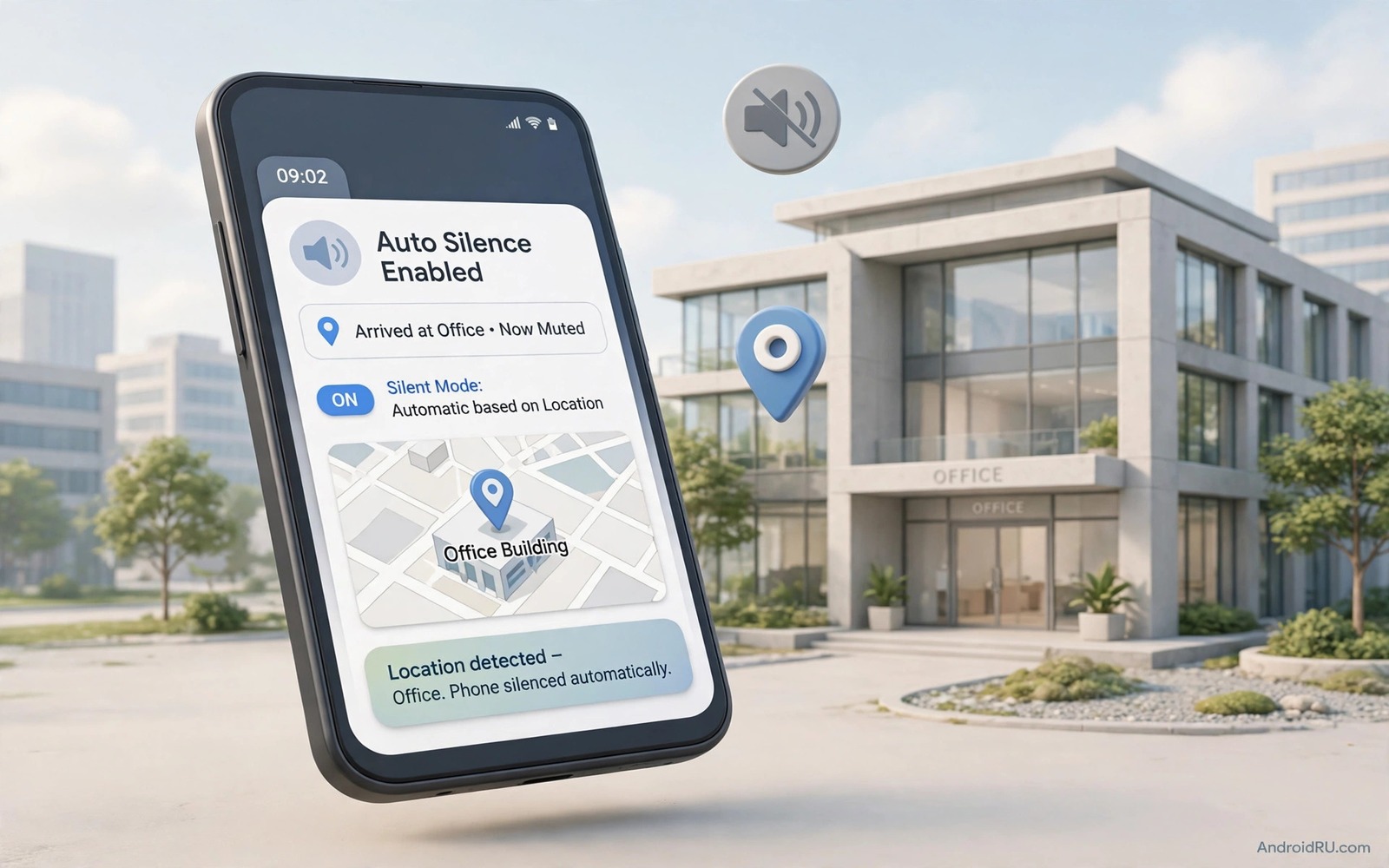
A phone that rings in a meeting can break focus for a whole room. A phone that stays loud in an office can also break your own train of thought. An automatic mute rule solves both problems because the phone silences itself when you arrive at work. You do not need to remember a manual switch each morning and you do not need to explain a loud ring after the fact. The rule runs in the background and it restores sound when you leave.
Location based mute uses a place trigger rather than a time trigger. A time trigger fails on a holiday or a late start or an early finish. A place trigger follows your real arrival and your real departure. That accuracy is the main advantage of this setup. It also works for a library or a clinic or any place where silence matters. Set one place at a time and test it before you add another place.
A work mute rule is one part of a wider calm phone system. Other rules can silence social apps during focus hours and can keep only urgent calls audible. Tasker scripts that automate a daily routine show how small rules stack into a calmer day. Start with work mute because it has a clear place and a clear benefit. Add other rules only after work mute proves reliable for a full week.
Choose A Location Trigger That Fits Your Office
A GPS fence works well for a large office campus because it can cover a whole site with one circle. Set the circle wide enough to include the car park and the entrance so the phone mutes before you walk inside. A circle that is too tight may mute only after you reach your desk. A circle that is too wide may mute on a nearby road. Test the edge by walking the normal route to your desk and noting where silence starts.
A Wi-Fi trigger works well for a small office with a stable network name. The phone mutes when it joins the office Wi-Fi and it restores sound when it leaves that network. This trigger uses less battery than constant GPS checks. It can fail if the office Wi-Fi name changes or if the phone connects to a guest network instead. Check the exact network name in your Wi-Fi settings and use that name in the rule.
A Bluetooth trigger works well when your office has a fixed beacon or a car dock that you use daily. The phone mutes when it sees that device and it restores sound when the device leaves range. This trigger is precise but it needs a device that stays in the office. A shared beacon can also trigger mute for a colleague by mistake if the beacon moves. Choose the trigger that matches your real office layout rather than the trigger that sounds clever.
Build The Mute Rule Step By Step
Open your automation app and create a new rule with a clear name such as Work Mute. Add the location or Wi-Fi trigger that you chose and set the action to set media and ring volume to silent or vibrate. Choose vibrate if you need to feel urgent calls and choose full silent if your office demands it. Save the rule and turn it on. A clear name helps later when you have many rules and you need to find this one fast.
Add an exit action that restores the previous volume when you leave the place. Without an exit action the phone may stay silent at home and you may miss evening calls. Test the exit action by leaving the office area and checking the volume icon. Some apps need a separate exit task and some apps handle exit inside the same rule. Read the app help for exit handling before you rely on the rule for a whole week.
Add an exception for starred contacts if your job needs it. An exception lets a manager or a family member break through silence for a real emergency. Keep the exception list very short because a long list defeats the purpose of mute. Two or three contacts cover most emergencies. Tell those contacts that they are on the exception list so they use it only for urgent matters.
A Simple Location Check Example
The code below is a small developer example that checks whether a device is near a saved work location. It compares the current latitude and longitude with the saved work coordinates and it returns true when the distance is small. It does not change volume on its own and it does not replace an automation app. Use it only to learn how a distance check works in a location project.
float[] results = new float[1];
Location.distanceBetween(lat, lon, workLat, workLon, results);
boolean atWork = results[0] < 200;
Attribution: the code above is an original example written for this guide. It follows the standard command interface shipped with the Android platform tools and it uses only public commands that work on a normal developer setup.
After the check you can decide what action should follow. A real app would set an audio mode when the check returns true and would restore the old mode when it returns false. A real app also needs location permission and it must explain why it needs that permission. Never track location in the background without a clear user facing reason and a simple off switch.
Handle Meetings Calls And Alarms
A work mute rule should not silence an alarm that you need for a deadline. Check whether your automation app separates alarm volume from ring volume. Many phones keep alarms audible even in silent mode and that behaviour is useful. Test an alarm while the rule is active and confirm that it still sounds. If the alarm stays silent then adjust the rule to leave alarm volume untouched.
Calls need a separate decision because a silent phone can still vibrate. Vibrate in a quiet meeting can still distract a room. Full silent avoids that noise but it hides urgent calls. A middle path uses vibrate plus a short exception list. That path keeps most meetings calm and it keeps urgent calls visible. Pick the path that matches your office culture and your job duties.
Meetings inside the office need extra care because a mute rule for the building may not cover a meeting room in another building. Add a calendar trigger as a second rule if your meetings move around. A calendar trigger mutes during a meeting event and restores sound after it ends. Two rules can overlap safely when both restore sound on exit. Test the overlap on a day with two meetings in different places.
Test The Rule For A Full Week
A one day test can hide a problem that appears only on a different route or a different network. Test for a full work week and note each arrival and each departure. Note the time that mute starts and the time that sound returns. A pattern of late mute points to a trigger that needs a wider fence or a faster Wi-Fi check. A pattern of early mute points to a fence that reaches too far.
Battery use also needs a week view because a GPS fence can drain power if it checks too often. Check battery stats after the week and compare them with the week before the rule. A small increase is normal and a large increase means the trigger checks too often. Switch to a Wi-Fi trigger if GPS drain is high. A Wi-Fi trigger usually costs far less power than a constant location check.
Share the result with a colleague only after the week test passes. A rule that works for your route may fail for a colleague with a different entrance or a different network. Help them test their own trigger rather than copying your settings blindly. That care keeps automation useful for a team. A similar care helps with other daily rules and auto answer for handsfree calls with headphones shows how a trigger can serve a different daily moment.
Common Mistakes
One common mistake is to set a fence that is too small and then arrive at a desk before mute starts. Widen the fence to include the entrance and test the walk again. Another mistake is to forget the exit action and then miss calls at home. Always test departure as carefully as arrival. A third mistake is to mute everything including alarms and then miss a deadline reminder. Keep alarms separate from ring mute.
A further mistake is to add many places at once before the first place works. One reliable place beats five unreliable places. Add a second place only after the first place passes a week test. A further mistake is to use a work Wi-Fi name that changes often. A guest network name can change without warning and a rule tied to it will fail silently. Use the main office network name when possible.
A final mistake is to ignore battery permission for the automation app. Android can kill a background app to save power and a killed app cannot run a mute rule. Exclude the automation app from battery optimisation after you create the rule. That exclusion is a normal step for automation apps and it keeps the rule alive. The same background care matters for other routines and text expansion hacks that cut long typing can save time once core rules stay alive.
Frequently Asked Questions
Will work mute also silence my alarm?
It should not if you keep alarm volume separate from ring volume. Test an alarm while the rule is active before you rely on it. If the alarm stays silent then change the rule to leave alarm volume alone.
Does a location mute rule drain the battery a lot?
A Wi-Fi trigger drains very little power. A GPS fence can drain more power if it checks often. Choose Wi-Fi when your office has a stable network and use GPS only when Wi-Fi is unreliable.
What happens if I leave work early?
The exit action should restore sound as soon as you leave the fence or the Wi-Fi network. Test departure on a normal day and on an early departure day. If sound returns late then widen the exit check or switch trigger types.
Conclusion
Create a work mute rule today with one trigger and one clear action. Set the fence or Wi-Fi name and add an exit action that restores sound. Walk your normal route tomorrow and note when mute starts and when sound returns. That one week test will prove whether the rule fits your office.
After the week test adjust only the trigger size or the trigger type and keep the rest unchanged. A single adjustment at a time keeps the cause clear. Once the rule passes a full week you can add a second quiet place with the same careful test.
Keep a short note of trigger changes so a future phone move does not erase your learning. A note with the trigger type and the fence size and the exit action lets you rebuild the rule in minutes. That note is the difference between a one time trick and a lasting daily habit.
Test the rule again after any router change or phone update because both can reset a trigger. A quick arrival and departure test after an update takes two minutes. That retest keeps a trusted rule honest after system changes.

