

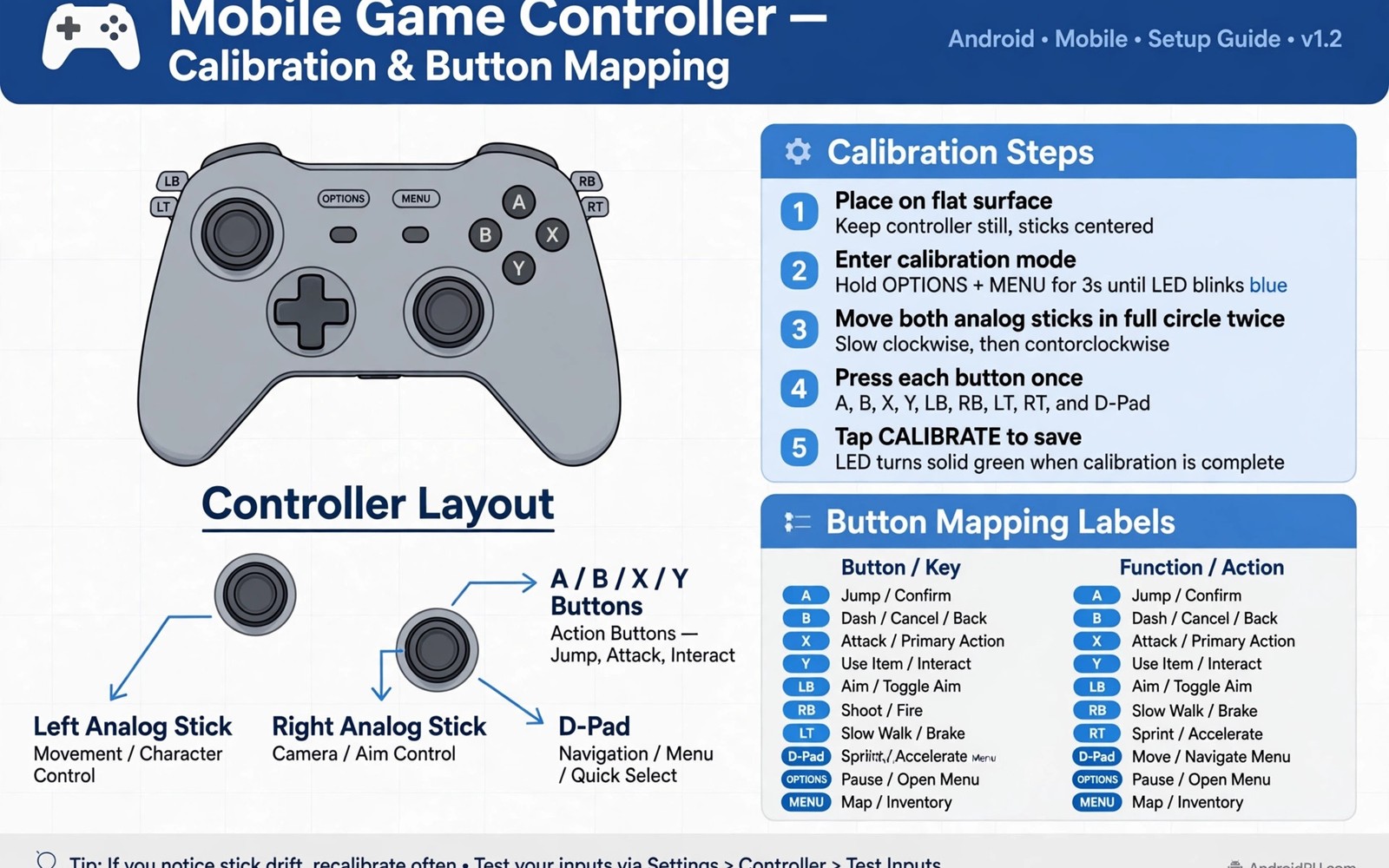
Controller drift is one of the most annoying faults in mobile gaming. Your character moves when you touch nothing. Your aim creeps to one side during a quiet moment. Button mapping errors are just as frustrating. You press jump and the game crouches instead. Both problems have causes that you can test in minutes. This guide separates hardware faults from mapping faults so you fix the right problem first.
Start with a drift test outside any game. Open a controller test app or a game with a visible stick indicator. Leave the stick untouched for thirty seconds. Watch the indicator. A healthy stick stays centred. A drifting stick creeps in one direction. Note the direction and the distance of the creep. A small creep may be fixed with calibration. A large creep that jumps across the screen may need cleaning or repair. A test outside a game removes game settings from the diagnosis.
Check the physical stick before you change software. Dust and debris under a stick can cause drift. Blow gently around the stick base with dry air. Do not use liquid cleaners near the stick. Liquid can damage the sensor. Move the stick in slow circles after cleaning. A clean stick should return to centre smoothly. If it sticks at an edge then debris may still be present. Repeat cleaning gently and test again. Mapping physical controllers to touchscreen games covers mapping basics that pair with drift testing.
Calibrate A Drifting Stick Correctly
Open controller settings on your phone or in the game. Look for a calibration or dead zone option. Calibration teaches the system where centre truly is. Follow the on screen steps slowly. Move the stick to each edge when asked. Return it to centre and hold it still. A rushed calibration can bake in a wrong centre. A slow careful calibration gives a true centre. Test the stick again after calibration. A small drift should vanish.
Adjust dead zone if a tiny drift remains. Dead zone is a small area around centre where stick movement is ignored. A larger dead zone hides small drift but it can also hide fine aim adjustments. Set dead zone to the smallest value that hides the drift. Test fine aim after the change. If fine aim feels dead then the dead zone is too large. Lower it one step and test again. The right dead zone hides drift without killing precision.
Test the stick in a game that needs fine movement. A shooter with slow aim is a good test. Move the aim slowly in all directions. A calibrated stick should move smoothly without jumps. A stick that jumps from centre to full speed may have a worn sensor. A worn sensor cannot be fixed fully by calibration. It can be managed with a larger dead zone for a while. Plan a replacement if drift returns quickly after calibration.
Fix Button Mapping Errors Step By Step
Open the mapping screen for your game or mapping app. Press each button one at a time. Watch the on screen indicator for that button. A correct map shows the expected action for each press. A wrong map shows a different action or no action. Note every wrong button before you change anything. Changing buttons one by one without a list can create new errors. A list keeps the fix organised.
Remap one button at a time and test it immediately. Press the button in a practice mode after remapping. Confirm the action matches the label. Move to the next button only after the first one passes. A batch remap of ten buttons can hide a single mistake. A single mistake in a batch can take an hour to find later. Slow single changes save time overall. Save the profile after each correct button if the app allows it.
Check for duplicate mappings that can cause strange behaviour. Two physical buttons mapped to the same game action can conflict. One button may override the other in a fight. Remove duplicates unless the game design needs them. Check shoulder buttons and trigger buttons carefully. These buttons often share a default map with face buttons in a new profile. A clean map has one physical button per game action for the core actions.
Test Wireless And Wired Connections
controller = bluetooth
dead_zone = 0.12
calibration = done
button_map = custom
connection = stable
The snippet above is an original example written for this guide. It shows generic settings that you can adapt to your own device. It does not copy code from any outside source.
Use the profile above as a starting point for a drifting controller. It uses a modest dead zone and a custom map after calibration. Test the profile in a practice match. If drift stays hidden and buttons match then save the profile. If drift returns then increase dead zone slightly or clean the stick again. A profile is a snapshot of a working setup. It lets you return to a known good state after an update resets mappings.
When Drift Means Repair Or Replacement
A stick that drifts badly after cleaning and calibration likely has a worn sensor. A worn sensor can be replaced in some controllers by a skilled repair shop. Check repair cost against replacement cost. A cheap controller may cost less to replace than to repair. A premium controller may be worth repairing. Do not open a controller under warranty unless you accept losing warranty cover. A warranty claim is often the best path for a new controller with drift.
Test a second controller on the same phone if you can borrow one. A second controller that works cleanly proves the phone and game are fine. A second controller that drifts the same way points to a phone or game setting. That comparison saves money on a replacement that would not fix the problem. Borrow before you buy when possible. A quick borrow test can prevent a wasted purchase.
Keep controllers clean and stored safely between sessions. Dust is a common drift cause. Store a controller in a case or a drawer rather than on a dusty shelf. Avoid dropping a controller. A drop can damage a stick sensor instantly. A cared for controller lasts longer and drifts less. Small care habits protect an investment in good gear. Fixing input lag on wireless controllers covers wireless problems that can look like drift when input arrives late.
Prevent Mapping Errors In Future Profiles
Name each profile clearly with the game title and the controller model. A vague profile name leads to loading the wrong map. A wrong map can feel like a hardware fault. Export profiles when the app allows it. An export restores a working map after an app update erases it. Store exports in a folder named for the game. That folder becomes your mapping library.
Test a profile after every game update. Updates can change default controls and break a custom map. A quick practice test after an update catches a broken map before a ranked match. If a map breaks then remap only the broken buttons. Do not delete a whole profile for one broken button. A targeted fix preserves the rest of a working layout.
Teach a friend the test routine if you share a controller. A shared controller can drift faster with heavy use. A friend who knows the drift test can report a problem early. Early reporting allows a quick calibration before drift ruins a session. Shared gear needs shared care. A simple test routine keeps shared gear fair for everyone.
Store And Transport Controllers Safely
A controller that travels in a bag without protection can suffer stick damage. A stick that presses against a hard object can bend or wear. Use a case that holds the stick clear of pressure. A case with a moulded interior protects sticks best. A soft pouch is better than no protection but it still allows pressure. A hard case is the safest choice for travel. A protected controller will drift less over time.
Keep controllers away from heat and moisture. A hot car can warp plastic and damage sensors. A damp bag can corrode contacts. Store controllers in a cool dry place at home. Dry a controller that gets wet before you use it again. Moisture inside a stick can cause erratic movement. A dry controller is a reliable controller. Small storage habits extend the life of good gear.
Charge wireless controllers fully before a long session. A low battery can cause lag and missed inputs. Lag can look like drift or mapping errors. A full battery removes that variable from diagnosis. Keep a charging cable in your gaming bag. A cable can rescue a session when a controller dies mid match. A wired connection can also serve as a backup when wireless fails.
Label controllers when you own more than one. A label with the owner name or a colour mark prevents mix ups. A mixed up controller can load the wrong profile and feel broken. A label ensures the right controller pairs with the right profile. A simple coloured tape mark is enough. A labelled collection is easier to manage and less prone to mapping confusion.
Common Mistakes
One mistake is to replace a controller before calibration. Calibration fixes many small drifts for free. Another mistake is to remap many buttons at once. Single changes are easier to verify. A third mistake is to ignore cleaning. Dust is a cheap fix that many players skip. A fourth mistake is to use a huge dead zone that kills fine aim. A modest dead zone is usually enough.
Do not blame the game for a hardware drift without a test outside the game. A test outside the game separates hardware from software. Controller mount accessories that upgrade mobile controls can help when a mount changes stick angle and creates a false drift feeling. Check the mount before you blame the stick.
Frequently Asked Questions
Can controller drift be fixed without buying a new controller?
Many small drifts can be fixed with cleaning and calibration. Clean dust from the stick base gently. Calibrate slowly and set a modest dead zone. A large drift from a worn sensor may need repair or replacement. Test a second controller to confirm the fault.
Why do my buttons do the wrong action in a game?
A mapping profile may assign the wrong game action to a physical button. Open the mapping screen and press each button one at a time. Remap wrong buttons one by one and test each in practice. Check for duplicate mappings that can conflict.
Does Bluetooth cause controller drift?
Bluetooth lag can feel like drift when input arrives late. True drift happens even with no input. Test the stick outside a game with no movement. If it creeps alone then it is drift. If it only lags during play then check wireless interference and distance.
Conclusion
Run the drift test outside a game today and calibrate slowly if the stick creeps. Then press each button in the mapping screen and fix wrong buttons one by one. Save the working profile under the game name. That saved profile is your concrete fix for future sessions.

