

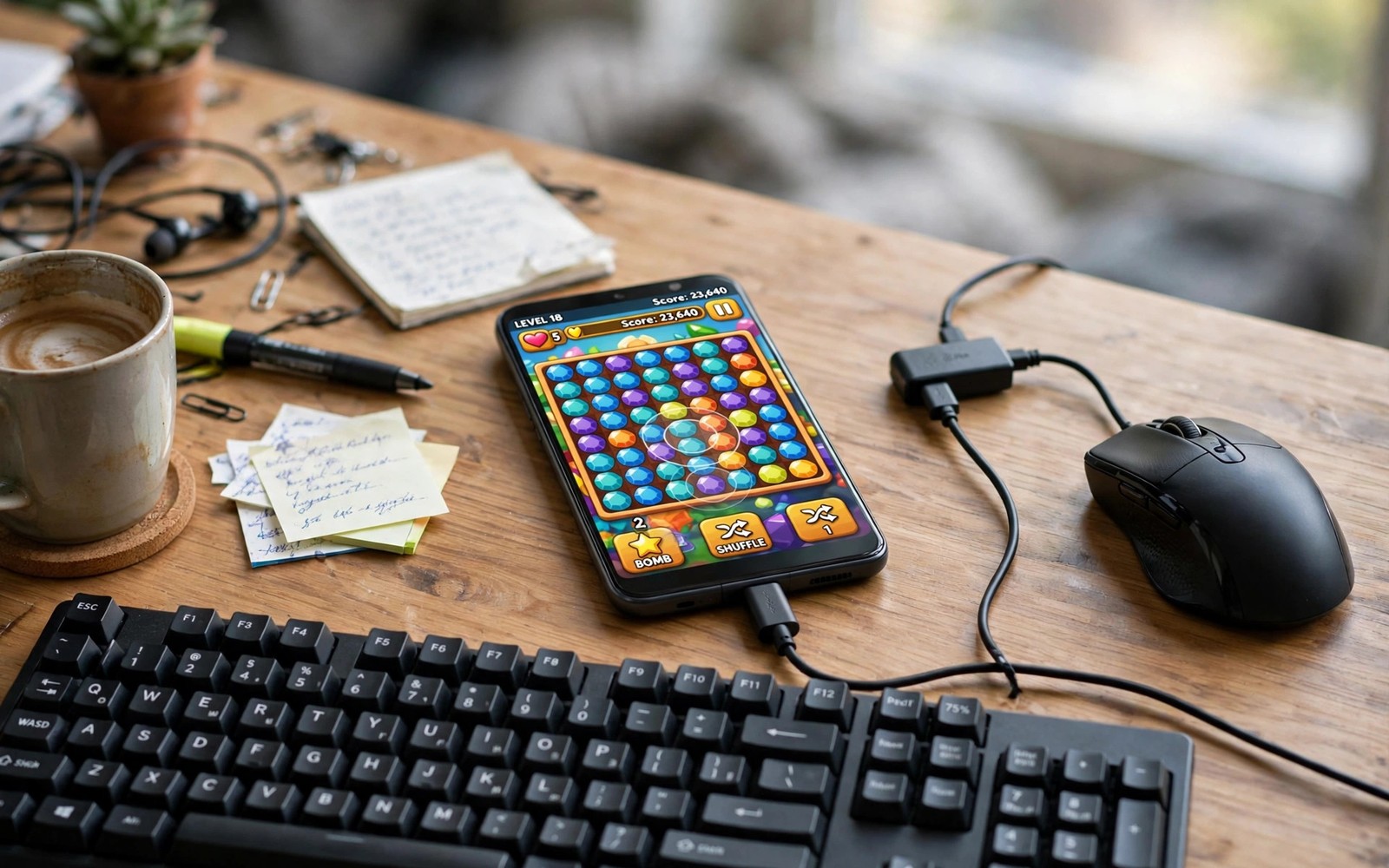
Touch games were built for thumbs but a mouse and keyboard can give you finer aim and faster keys in many titles. The trick is not to force a desktop setup onto every game. The trick is to map the right controls to the right game type. A shooter gains from precise mouse aim. A strategy game gains from hotkeys. A platform game may still feel better with touch. This guide shows you a setup that keeps touch as a fallback while mouse and keyboard do the heavy work.
Start with the connection method that your phone supports. Most Android phones accept a Bluetooth mouse and keyboard without any extra app. Open Bluetooth settings and pair the mouse first and then pair the keyboard. Test the pointer on the home screen before you open a game. A pointer that lags on the home screen will lag worse inside a game. If Bluetooth feels laggy then try a wired USB adapter with an OTG cable. A wired link removes wireless delay and it removes battery worries during a long session.
Next you need a key mapping tool that your game allows. Some games support mouse and keyboard natively when a device is connected. Other games need a mapping app that turns a key press into a touch at a screen position. Check the game rules before you use a mapping tool. A competitive game may treat external mapping as unfair play. A single player game or a casual game usually has no such rule. When in doubt use native support only. A smooth legal setup beats a risky setup that can cost your account. Mapping physical controllers to touchscreen games covers the same mapping idea for gamepads and it helps you think in terms of screen positions.
Pair Mouse And Keyboard The Stable Way
Charge both devices fully before a test. A low mouse battery can cause pointer jumps that look like game lag. Keep the phone close to the mouse and keyboard. A long distance or a metal desk between devices can weaken a Bluetooth link. Turn off other Bluetooth devices that you do not need during the test. A smartwatch or earbuds can share the same radio and add small delays. Test pointer speed on the home screen. Set pointer speed to a middle value first. A very fast pointer feels twitchy in a shooter. A very slow pointer feels heavy in a strategy game.
If you use a USB adapter then check the power draw. A keyboard with bright lights can draw more power than a phone port can spare. Use a powered hub if the keyboard flickers or disconnects. A stable link matters more than fancy lights. Test the full setup for ten minutes in a practice mode. Watch for missed clicks or stuck keys. A stuck key in a shooter can move your character into danger. Fix the link before you enter a ranked match.
Map Keys To Screen Positions With Care
Open the mapping tool and place a movement stick over the on screen joystick. Place aim control over the right side of the screen. Map fire to a mouse click and map reload to a simple key like R. Map jump to Space and map crouch to C. Keep the layout close to desktop habits so your muscle memory transfers. Do not map twenty keys on your first day. Start with movement and aim and fire and reload. Add one extra key after each stable session. A small layout that you know well beats a large layout that you forget under pressure.
Test aim sensitivity in a practice range. Move the mouse in a straight line and watch the camera. If the camera jumps then lower sensitivity one step. If the camera drags then raise sensitivity one step. The right value lets you turn 180 degrees with one comfortable wrist movement. Save the layout as a named profile for that game. A profile for a shooter will not suit a strategy game. A strategy game needs hotkeys for build menus and unit groups. A shooter needs fast aim and quick weapon keys. Keep profiles separate and name them clearly.
Keep touch available as a backup. Some menus and dialogs work better with a direct tap. A hybrid setup lets you tap a menu and then return to mouse aim for combat. Do not disable touch completely unless a game forces a choice. A hybrid player can react to a pop up faster than a player who must find a key for every menu action. Practice switching between touch and mouse in a casual match before you rely on the setup in a competitive match.
Tune Sensitivity And Latency
mouse_sensitivity = 1.0
pointer_speed = medium
key_fire = mouse_left
key_reload = R
key_jump = Space
key_crouch = C
The snippet above is an original example written for this guide. It shows generic settings that you can adapt to your own device. It does not copy code from any outside source.
Use the mapping above as a starting layout for a shooter. Change one key at a time when a layout feels wrong. A layout that feels natural after ten minutes is better than a layout that looks perfect on paper. Save a copy of the working layout before you experiment. A saved copy lets you return to a known good setup in seconds. Many players lose a good layout by changing five keys at once and then forgetting the original values.
Build A Layout For Each Game Type
A shooter layout and a strategy layout should not share the same keys. A shooter needs aim and fire and reload within easy reach. A strategy game needs build keys and selection keys spread across the keyboard. Build each layout from scratch for its game type. Start with the five actions you use most in that game. Map those actions first. Add less common actions only after the core layout feels natural.
Test a strategy layout in a slow custom match. Practice selecting units and building structures with hotkeys. A hotkey that saves two seconds per action adds up over a long match. A hotkey that you forget under pressure wastes more time than a tap. Remove keys that you never press. A clean layout with ten known keys beats a crowded layout with thirty forgotten keys. Save the layout with a clear name that includes the game title.
Test a platform layout separately because platform games need precise jumps. Map jump to a key that your thumb or finger reaches without looking. Map dash to a nearby key. Practice a hard jump sequence ten times in a row. If you miss the same jump repeatedly then the key position is wrong. Move the key closer to the jump key and test again. Small moves can fix a layout that feels awkward. Best Bluetooth gamepads tested can help when a game still feels better with a controller than with keys. The best input is the one that fits the game.
Keep a backup of every layout outside the mapping app if the app allows export. An app update can erase profiles. An exported file restores a layout in seconds. Store exports in a folder named for the game. That folder becomes your control library for future phones. A new phone can import the library instead of forcing you to rebuild every layout from memory.
Practice Muscle Memory Before Ranked Play
A new control layout feels slow for the first hour. That slow feeling is normal and it does not mean the layout is wrong. Practice in a casual mode for several short sessions. Focus on one skill per session such as aiming or reloading or switching weapons. A focused session builds memory faster than a chaotic ranked match. After three focused sessions the layout should feel automatic. If it still feels awkward after that time then change one key and practice again.
Warm up before a ranked match with a short practice routine. Spend five minutes on aim drills and five minutes on movement drills. A warm up reveals a loose cable or a low battery before the match starts. It also settles your hands into the layout. A player who warms up will react faster in the first minutes of a match. A player who jumps straight into ranked play often wastes the opening minutes adjusting to the controls.
Keep a small notebook of layout changes if the mapping app has no version history. Write the date and the key that changed and the reason for the change. A notebook can reveal that a layout worked better before a recent change. A player who changes keys without notes often cycles through the same bad layouts. A short note stops that cycle. Review the notebook once a month and remove keys that you never use. A lean layout is easier to remember and faster to execute in a tense match.
Common Mistakes
One mistake is to map a key to a screen position that shifts during play. A button that moves with the camera will miss when the view changes. Map to fixed controls only. Another mistake is to use maximum mouse sensitivity from the start. High sensitivity looks fast but it ruins fine aim. A third mistake is to test only on the home screen. A mapping that feels fine in menus can fail under combat load. Test in a real match with enemies and effects on screen.
Do not ignore game rules about external input. Some competitive titles ban mapping tools even in casual modes. Read the rules for your game before you install a tool. A short ban can erase months of progress. Fixing controller drift and button mapping errors also shows how a bad mapping can look like a hardware fault. Fix the layout before you blame the mouse or the keyboard.
Frequently Asked Questions
Can I use any Bluetooth mouse and keyboard with Android games?
Most standard Bluetooth mice and keyboards pair with Android phones. Games differ in how they use that input. Some games accept mouse aim natively. Other games need a mapping tool. Test your exact game in practice mode before you buy expensive gear for it.
Is mouse and keyboard better than touch for all games?
No it depends on the game type. Shooters and strategy games often gain from mouse aim and hotkeys. Platform games and rhythm games often feel better with touch. Use the input that gives you the best control for each game. Keep touch as a backup for menus.
Why does my mouse feel laggy inside a game?
Wireless distance and low battery can add lag. Background Bluetooth devices can also add delay. Move closer to the phone and charge the mouse. Close unused Bluetooth links. If lag stays then try a wired USB adapter for a cleaner test.
Conclusion
Pair your mouse and keyboard today and test them in one practice match. Map movement and aim and fire first and leave the rest for later. Save the working layout under the game name. That saved layout is your concrete next step toward faster and more precise play.

