

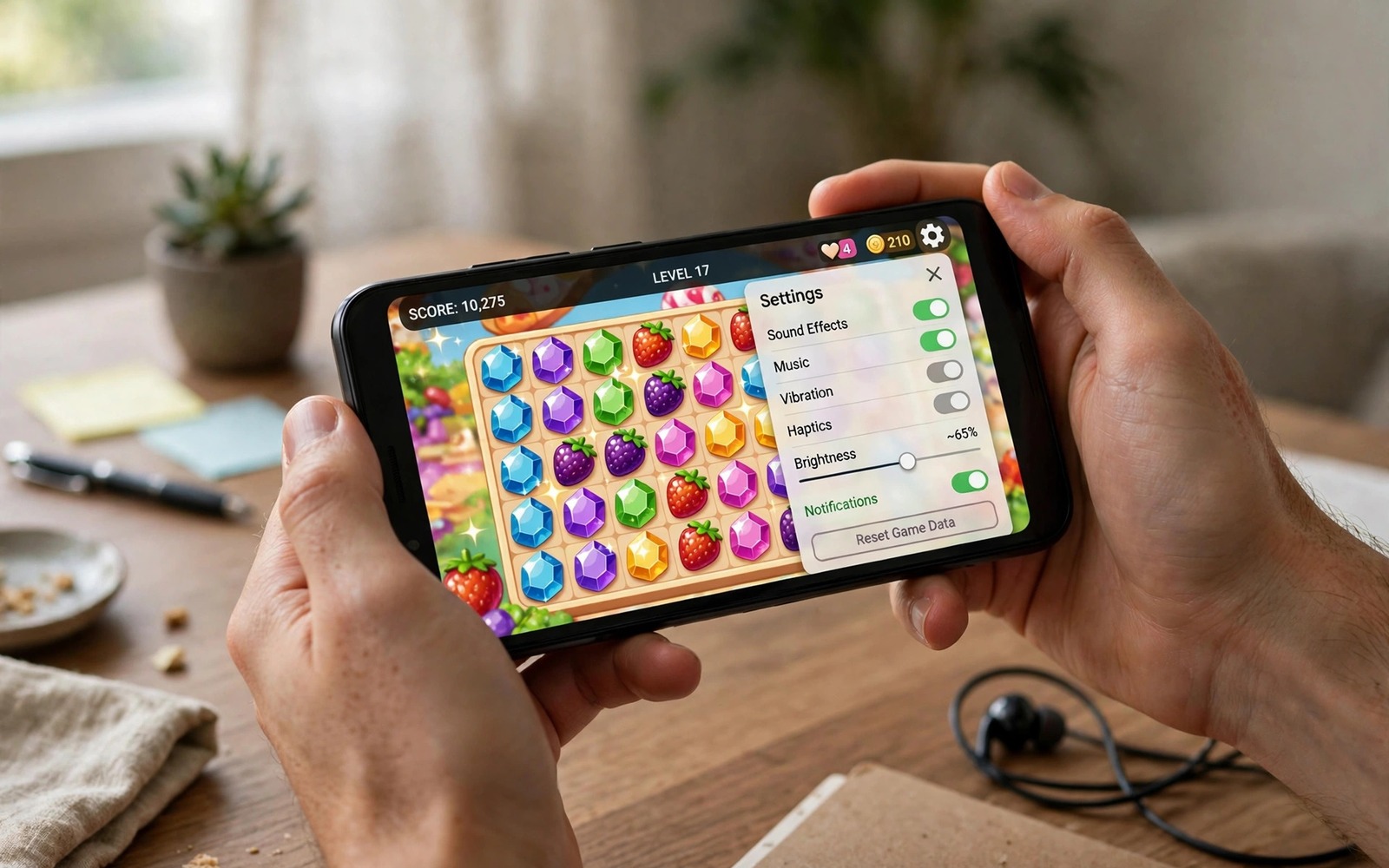
Every Android phone hides a game toolkit somewhere. Makers bury it under different names and different menus. One phone calls it Game Space and another calls it Game Launcher and a third hides it inside Digital Wellbeing. The setting exists but finding it feels like a treasure hunt.
The hidden toolkit is not magic. It is a set of system privileges that prioritise the game and silence distractions. It can block notifications and lock brightness and free memory before launch. It can also route calls to a small floating window instead of yanking you out of a match. Those small powers add up to a calmer faster session.
This guide maps where these settings live across Android versions. You will learn the game mode basics and the performance profiles that matter. You will learn the developer options that help and the ones that hurt. By the end you will know exactly which switches deserve your attention.
Find your phone game mode first
Open Settings and search for the word Game. Most phones show a game entry near the top of results. Samsung devices show Game Launcher while OnePlus devices show Games and Xiaomi devices show Game Turbo. The name differs but the search trick finds it on almost every phone.
Open the game tool and add your games to its library if they are missing. Some tools auto detect games while others need manual adding. An unlisted game receives none of the benefits. Spend two minutes confirming every game you play appears in the list.
Explore the per game settings panel inside the tool. It usually offers performance modes named Balanced and Performance and Battery Saver. Performance mode raises clocks and prioritises the game process. Balanced suits long casual sessions while Performance suits ranked matches.
Turn on notification blocking for games in the same panel. Calls and messages appear as small banners instead of full screen interruptions. A banner lets you ignore a message without leaving the game. That single change prevents more lost matches than any frame tweak.
Use performance profiles wisely
Performance mode trades battery and heat for speed. It holds higher clock speeds longer before throttling. Use it for competitive sessions where frames decide outcomes. Switch back to Balanced for story games where battery life matters more than peak frames.
Battery saver game mode caps frame rate and lowers resolution scaling. It extends a long trip session dramatically. A capped thirty frames with lower resolution still plays well for turn based games. Reserve it for travel and not for ranked play.
Some phones offer a high performance mode in battery settings that affects the whole system. That mode helps games but it also heats the phone faster. Use it sparingly and watch temperature during the first session. A system wide boost without cooling can throttle sooner than game mode alone.
Test each profile with the same game scene and a frame counter. Numbers beat feelings when profiles claim big gains. A profile that adds five frames but doubles heat may not be worth it. Choose the profile that holds steady frames at acceptable temperature.
Developer options that genuinely help games
Enable developer options by tapping the build number seven times in About phone. The menu that appears holds settings that can help games when used carefully. It also holds settings that can break games when misused. Change only the options this guide names.
Force GPU rendering for 2D games is one option worth testing on older titles. It moves interface drawing to the graphics chip. Some 2D games gain smoothness from it. Modern 3D games already use the GPU so the option changes little there. Test per game and revert if nothing improves.
Disable HW overlays is another option that sometimes helps specific games. It forces the system to compose every layer with the GPU. That can fix flicker in a few titles but it costs battery elsewhere. Enable it only for a game that flickers and disable it after testing.
Background process limit is a tempting but dangerous option. Limiting background processes frees memory for the game. It also kills music and messaging apps you may want during play. Use the game mode memory boost instead of a global limit. Global limits create more problems than they solve.
Never enable options you do not understand from random videos. A wrong developer setting can cause boot loops or broken touch input. Change one option at a time and note the original value. Revert immediately when a game behaves worse.
Hidden settings that hurt more than they help
Force 4x MSAA sounds like a graphics upgrade and it is a trap on most phones. It multiplies anti aliasing work and crushes frame rate. The visual gain is tiny on a small screen while the cost is huge. Leave it off unless a specific game guide proves otherwise.
Smallest width changes alter interface density across the whole phone. Some guides claim it improves game view. It actually breaks layouts and touch targets in many games. Keep the default width and tune games inside their own settings instead.
Animator duration scale set to off makes menus feel faster but it can break game animations. Games that sync logic to animation timing may glitch. Keep animation scales at default for gaming phones. Menu speed is not worth broken gameplay.
USB debugging left on after troubleshooting is a security risk rather than a performance issue. Turn it off when you finish diagnostics. An open debug bridge on a lost phone invites trouble. Close doors you no longer need.
Build a game launch routine around the settings
Create a pre game checklist that takes thirty seconds. Close heavy background apps and plug in a cooler if needed and switch to Performance mode. Launch from the game tool rather than the home screen icon. A routine ensures every session gets the same benefits.
Use Do Not Disturb with game exceptions for ranked play. The game tool banner handles most interruptions but Do Not Disturb adds a second layer. Allow calls from favourites only so emergencies still reach you. A match without a full screen call popup feels professional.
Monitor temperature during the first week of using a new profile. A phone that stays cool holds frames longer. A phone that overheats needs a lower profile or a cooler. Data from a simple temperature app guides the choice better than guesswork.
Connect the routine to broader performance knowledge. A guide to stop lagging in mobile games with 5 performance fixes covers heat and network and memory in depth. Hidden settings work best inside a system that already handles the basics well.
adb shell settings get global game_driver_all_apps
adb shell dumpsys game_service | head -40
The code block above is an original example written for this article. It shows diagnostic commands that inspect game driver settings from a computer with developer tools. The output reveals whether game optimisations are active. It is a learning aid for advanced users who want to confirm a hidden setting actually applied.
Game dashboards on some phones add floating widgets during play. A frame counter widget helps tuning but distracts during ranked matches. Enable widgets only during practice sessions and hide them for real games. A clean screen helps focus more than a live number helps decisions. Use data when tuning and hide it when competing.
Voice chat settings interact with game mode in ways players often miss. Game mode may lower chat volume or block chat notifications entirely. Check chat behaviour in a casual match before a team tournament. A teammate callout lost to a blocked notification can cost a round. Configure chat exceptions deliberately rather than discovering them mid game.
Game tool overlays on some phones show live frame rate and temperature during play. That data helps tuning but the overlay itself costs a little performance. Enable it during practice and disable it during ranked matches. Data serves tuning sessions while clean screens serve competition. Know when to watch numbers and when to watch the game.
Common mistakes
The first mistake is enabling every developer option a video recommends. Most recommended options hurt performance or stability. Change only options you understand and test one at a time. Restraint beats a checklist of toggles.
The second mistake is leaving Performance mode on all day. Constant high clocks drain battery and heat the phone for non game tasks. Switch profiles per session. Performance mode is a match tool and not a daily default.
The third mistake is forgetting to add a new game to the game tool library. An unlisted game gets no notification blocking or performance boost. Add every new game on install day. Two minutes of setup protects every future session.
The fourth mistake is chasing a secret setting while ignoring heat. No hidden toggle beats physics when a chip throttles. Cool the phone first and then tune settings. Order matters for sustained performance.
Frequently asked questions
Where is game mode on my Android phone?
Search Settings for the word Game to find your maker tool. Names vary by brand but the search trick works widely. Add your games to the tool library and explore per game performance options. If no tool appears then your phone may use a simpler game dashboard.
Does Performance mode damage my phone?
Performance mode raises heat and battery wear with heavy use. Occasional ranked sessions cause no meaningful harm. Daily all day use accelerates wear noticeably. Use it for matches and Balanced mode for casual play.
Are third party booster apps better than built in tools?
Built in tools beat third party boosters because they use system privileges. Third party boosters mostly kill background apps and show animations. They cannot prioritise the game process like the system can. Delete boosters and use the native game tool.
Conclusion
The secret game booster is not one switch. It is a game tool library plus per game profiles plus careful developer options plus a launch routine. Find your maker tool and add every game and choose profiles by session type. Leave dangerous developer options alone and let cooling do the heavy lifting.
Your concrete next step is to search Settings for Game today and add your main game to the tool library. Enable notification blocking and Performance mode for one ranked session. Compare frames and heat against your last session. For more wins continue with how to turn your Android phone into a handheld gaming console and stop gaming on hot phones with 3 cheap thermal cooling hacks as companion guides.

