

How to Bypass Screen Time Limits on Any Android Smartphone
A screen time limit set months ago can turn into a daily obstacle. A timer you set for yourself during a busy exam period now blocks the app you need for work. A family phone needs new rules after a school schedule changes. A work profile pauses an app during hours when you are actually off duty. In each of these cases, the fix is not a trick: it is the legitimate control that belongs to the person who set the limit, used through the proper menu.
The first step is always the same, and it decides everything that follows: work out who controls the limit on your phone. A timer in Digital Wellbeing belongs to the device user. A limit on a child’s phone belongs to the parent or guardian account in Family Link. A limit inside a work profile belongs to the employer’s admin. Each control has its own proper path, and using the right one keeps the device secure and the change permanent. Trying to dodge a control you do not own is the fastest way to lock yourself out of the device entirely.
This guide covers the owner and admin paths only. It helps an adult change a limit they set themselves, a parent adjust a child’s limit from the admin account, and an employee get a work profile limit changed through IT. It does not help anyone evade a limit set by someone else, and it does not cover hacks, modified apps or anything that hides usage from the person responsible for the device. If you own the phone and set the limit yourself, the steps below apply directly.
Who Actually Controls the Limit on Your Phone
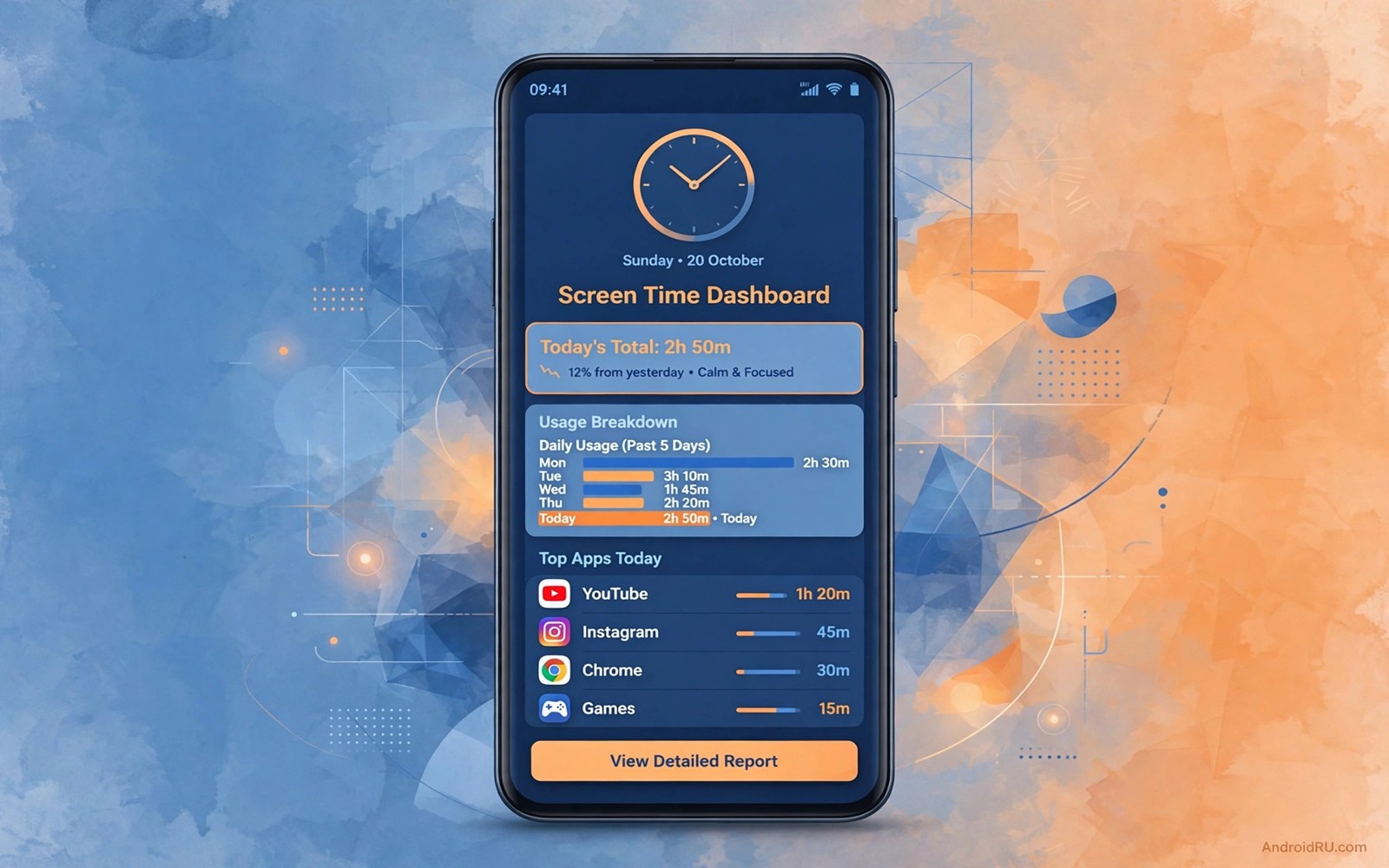
Before changing anything, open Settings, then Digital Wellbeing, then Dashboard, and look at what is listed. App timers you set yourself appear here with a small clock icon next to the app name, and you can change or remove them on the spot. Bedtime mode and Focus mode appear on the same screen, and they block apps on a schedule rather than by total minutes. If the Dashboard shows no timer for the blocked app, the limit is coming from somewhere else, and guessing will waste your time.
Family Link limits look different. On a supervised device, the Digital Wellbeing screen often shows that limits are managed by a parent, and the settings themselves are greyed out. That is your signal to stop tapping and open the Family Link app on the parent’s phone instead, because the child device cannot change its own rules. Work profiles announce themselves too: managed apps sit in a separate work tab in the app drawer, often marked with a small briefcase badge, and their limits are set by an admin policy rather than by anything on the phone.
How to Tell a Timer, a Schedule and a Managed Limit Apart
A timer blocks an app after a set number of minutes per day and resets at midnight. A schedule, like Bedtime mode or Focus mode, blocks apps during set hours and lifts automatically when the window ends. A managed limit, from Family Link or a work profile, is enforced by an account or an admin policy and can only be changed from that account or by that admin. The symptom tells you which one you face: an app that stops working after an hour of use is a timer, an app that stops every evening at ten is a schedule, and an app you cannot change at all is a managed limit.
Change a Digital Wellbeing App Timer You Set Yourself
This is the most common case, and it takes less than a minute. Open Settings, then Digital Wellbeing, then Dashboard. Find the app in the list, tap the small timer icon beside it, and choose a new daily limit or tap the option to remove the timer entirely. The change applies at once, and the app opens normally again the next time you tap it. Some phones ask for your lock screen code first, which is simply the phone confirming that the person changing the limit is the owner.
That said, removing a timer completely is rarely the best move. A timer that blocks legitimate work is usually set to the wrong length, not set by mistake. Try doubling it first, or shifting the apps that matter: give a work app a longer evening window and keep a short limit on the social app that actually distracts you. A small adjustment preserves the habit the timer was protecting, and you can revisit the number again next week once you see how the new limit feels in practice.
Remove or Raise One Timer Without Touching the Rest
Change one app at a time and leave the other timers alone. Open the Dashboard, change the single timer that blocks your work, and use the phone normally for a day before deciding whether anything else needs changing. This matters because timers interact: removing a social app timer often pushes that usage into another app, and changing five timers at once makes it impossible to tell which change helped. One change, one day of observation, then the next change if you still need it.
What to Do When the Timer Option Is Greyed Out
A greyed-out timer means the limit is not yours to change on this device, and it is usually a Family Link or work profile limit in disguise. Go back to the Dashboard and check for a note that the device is supervised or managed. If you see one, follow the Family Link or work profile path below instead of looking for a workaround on the phone, because the phone will not let you edit a rule that belongs to another account. A factory reset is not a shortcut here either: it wipes photos, accounts and apps to solve a problem that has a proper admin path.
Adjust Bedtime Mode and Focus Mode Without Removing Them
Bedtime mode and Focus mode cause more confusion than app timers, because they block apps on a schedule and people forget the schedule exists. Bedtime mode silences the phone and pauses chosen apps during the hours you set for sleep, typically late evening to early morning. Focus mode pauses distracting apps while it is on, either on a schedule or when you turn it on by hand. If an app stops working every evening at the same time, a schedule is the likely cause, not a timer.
Open Settings, then Digital Wellbeing, then Bedtime mode, and look at the schedule and the list of apps it pauses. The screen shows the start and end times and every app the mode pauses, so you can see at a glance whether the block matches the hours you are actually asleep.
Bedtime Mode Schedules That Block Apps Every Evening
An app that works all day and stops at the same hour each night is almost always Bedtime mode. Open the Bedtime mode screen, confirm the start and end times, and move the start time later or remove that one app from the paused list. Test the app at the time it used to block, rather than assuming the change worked, because a second schedule in Do Not Disturb can produce the same symptom for notifications.
Move the Start Time Later Instead of Deleting the Schedule
Shorten the window by an hour or two rather than deleting it: a bedtime that starts at 22:00 instead of 21:00 keeps most of the sleep protection and frees the evening hour you actually need. Do the same in Focus mode, under Settings, then Digital Wellbeing, then Focus mode: check whether a schedule is turning it on automatically, and remove the apps that genuinely belong to your work from the paused list instead of switching the whole mode off.
Do Not Disturb Schedules That Silence Notifications
A timer ending does not always restore notifications. Open Settings, then Sound and vibration, then Do Not Disturb, then Schedules, and look for a rule that silences notifications during your work hours. An old DND rule from a previous routine can make a phone feel blocked long after the screen time limit is gone.
Delete the Stale Rule and Send a Test Message
Delete or shorten the stale rule, then ask someone to send you a test message to confirm notifications arrive normally. This quick check separates a real screen time block from a notification problem, and it takes less than a minute to confirm.
Change a Family Link Limit From the Parent Admin Account
Family Link limits belong to the parent or guardian account, and they can only be changed from that account. Open the Family Link app on the parent’s phone, or open the Family Link page on the web, and sign in with the parent account. Choose the child’s profile, then Screen time, then Daily limit, and set the new daily total or the new bedtime hours. The child device picks up the new rules within a few minutes when it has an internet connection, and the change stays in place until the parent changes it again.
Bonus time is the smarter tool for most short-term needs. Instead of raising the daily limit permanently for a one-off homework session or a family video call, grant thirty or sixty minutes of bonus time for that specific purpose. Bonus time keeps the overall structure intact, it ends on its own, and it teaches time management far better than an open-ended device. Review the child’s usage after a bonus session to see whether the extra time actually went to the task it was granted for.
Grant Bonus Time for Homework Instead of Raising the Daily Limit
In the Family Link app, open the child’s profile, then Screen time, then Bonus time, and choose the app or the amount of extra time. Grant it for the specific app the homework needs, not for the whole device, so the rest of the limits keep working. This is the approach Google itself built for exactly this situation: a targeted exception that does not require rebuilding the whole rule set for a single evening.
Keep admin credentials private while you do this. Sharing the parent password with a child so they can change their own limits defeats the purpose of supervision, and it opens the door to account changes far beyond screen time. A clear rule plus a fair, visible exception works better than a secret password, and it keeps the trust that makes limits work in the first place. Families who think about the wider safety picture often pair this with the setting you must enable before your phone gets lost, since location and lock tools matter just as much on a shared family phone as screen rules do.
Fix Limits Caused by Work Profiles and Managed Apps
Work profiles split a phone into a personal side and a managed side, and the managed side follows rules set by an employer admin. Managed apps appear in a separate work tab in the app drawer, and their availability can depend on work hours, location or a policy the admin controls. If a work limit blocks a personal task, the proper path is a message to your IT admin asking for the app or the hours to be adjusted, not a change on the phone, because the phone has no setting that overrides a managed policy.
Do not remove a work profile without admin approval. Removing it deletes work email, work apps and work data from the phone, and it can break your access to company systems until IT re-enrols the device. That is a heavy price for a limit that an admin can often relax in minutes. The same logic applies to third-party parental apps: they use their own admin controls, so open the parent app on the admin device to change the rules, and use the provider’s account recovery flow if you have lost the admin password, since proof of account ownership is usually required for a reset.
Ask IT for a Work Hours Change With the Details They Need
When you contact IT, include the app name, the hours it is blocked, and what you need it for. An admin can adjust a work hours window or move an app between the personal and work sides far faster when they have the specifics, and most IT teams would rather change a policy than have an employee work around one. Keep a note of the request and the date, so you can follow up if the change has not arrived within a couple of days.
What to Do When You Forgot a PIN or the Timer Will Not Change
A forgotten Digital Wellbeing PIN is rare on stock Android, because most stock setups use the lock screen code instead of a separate PIN. Try your current lock screen code first when a prompt appears. If a third-party app asks for a PIN, use that app’s own recovery flow on the admin account: most parental apps offer a password reset by email after verifying ownership of the account. Do not factory reset a phone to clear one timer, since a reset deletes photos, accounts and apps to solve a small settings problem.
If a timer you changed keeps coming back, look for a second control enforcing it. A Family Link daily limit can sit on top of a Digital Wellbeing timer, and a Focus mode schedule can re-block an app hours after you removed its timer. Open the Dashboard, check Bedtime mode and Focus mode, and check whether the device is supervised. Two overlapping rules produce exactly this symptom, and removing only one of them looks like the phone is ignoring you. Clearing the app’s own cache can also help when a limit display is stale: open Settings, then Apps, then the app, then Storage and cache, and tap Clear cache, which removes temporary data without signing you out.
Check for a Second Rule When a Limit Keeps Coming Back
List every control that can block the app: the app timer, Bedtime mode, Focus mode, a Family Link daily limit, a work profile policy, and a Do Not Disturb schedule. Change them one at a time and test the app after each change. The rule that makes the block disappear is the one that was actually responsible, and you will often find it is not the one you suspected first.
Reviewing the wider settings on the phone after a limit change is a good habit, since screen rules and privacy controls shape daily use together. Many owners use the moment to read about settings you must turn off for maximum privacy, which covers the controls that most often sit beside screen time rules in the settings menu.
Build Better Limits After You Change Them
Removing a limit without a new plan usually brings the old habit back within a week. Set a replacement that fits your current schedule instead: a work app gets a longer evening window, a social app gets a shorter lunch window, and bedtime mode keeps protecting sleep. Review usage weekly in Digital Wellbeing, under Settings, then Digital Wellbeing, then Dashboard, and adjust by small steps rather than large jumps. A fifteen-minute change is easier to judge than a two-hour one, and a series of small changes lands on a limit that actually fits your life.
Use the tools as a set rather than relying on one of them. App timers cap total minutes, Focus mode creates quiet blocks for deep work, and Bedtime mode protects sleep hours. One tool alone rarely fixes a full routine, and the combination is what makes the system work: timers stop endless scrolling, Focus mode stops interruptions during a work block, and Bedtime mode makes the phone boring after the hour you chose. Talk openly with family members about any change, since a rule everyone understands lasts longer than one changed silently, and write the new schedule down for a week so you can review it together at the end of that week.
Use Focus Mode for Work Blocks Instead of Permanent Limits
Focus mode is the right tool when the problem is a time of day rather than a total amount. Turn it on for a two-hour deep work block, and it pauses the distracting apps you choose, then restores them automatically when the block ends. That beats a permanent timer for work, because the apps return on their own and you never have to remember to unblock them. Set the schedule under Settings, then Digital Wellbeing, then Focus mode, then Set a schedule, and pick the days and hours that match your real work pattern.
Frequently Asked Questions About Screen Time Limits on Android
Can an adult owner remove a timer they set themselves?
Yes. Open Settings, then Digital Wellbeing, then Dashboard, tap the timer icon beside the app, and choose a new limit or remove the timer entirely. The phone may ask for your lock screen code first to confirm you are the owner. The change applies at once, and the app opens normally again straight away.
How does a parent change a Family Link limit?
A parent changes limits from the parent account in the Family Link app or on the Family Link web page. Choose the child’s profile, then Screen time, then Daily limit or Bedtime, and set the new values. The child device syncs the new rules within a few minutes when it is online. For a one-off need, bonus time is the better choice, since it grants extra minutes for a specific task without changing the daily rule.
What if a work profile blocks a personal app?
Contact your IT admin and ask for the work hours or the managed app list to be adjusted, giving the app name and the hours it is blocked. Admins control work profiles through a policy the phone cannot override. Do not remove the work profile without approval, since removal deletes work data and can break company access until IT re-enrols the device.
Why does the limit return after I remove it?
Two rules are usually overlapping: a Family Link daily limit on top of a Digital Wellbeing timer, or a Bedtime mode or Focus mode schedule re-blocking the app at set hours. Check every control that can block the app, change them one at a time, and test the app after each change. The rule that makes the block disappear is the one that was actually responsible.
A Weekly Review That Keeps Your Limits Honest
Set aside five minutes each Sunday for a limits review. Open Settings, then Digital Wellbeing, then Dashboard, and look at the week’s usage and the timers still active. Ask whether each timer still matches your current schedule: shorten the one that blocks legitimate work, keep the one that protects sleep, and drop the one that no longer serves any purpose. Write the new schedule down and review it again the following Sunday, so adjustments stay small and deliberate instead of reactive.
Locking the settings app itself adds a useful layer on a shared family phone, because it stops casual rule changes between reviews. Learning how to lock any app without third party apps shows how to protect Settings and Family Link with the tools already on the phone, so the rules you agreed on survive the week. Combine that lock with an open family discussion, and the limits stop feeling imposed and start feeling like a schedule everyone chose.

