

Google Play Refund Policies: How to Get Refunds for Purchased Apps
Buying the wrong app happens to everyone. An app disappoints on first use, a child taps Buy on a shared tablet, or a subscription renews the day after you meant to cancel it. Google’s refund system covers many of those cases, but the rules change with what you bought and how fast you act.
This guide walks through the policy as it works in practice: the short automatic window, the longer request window, the separate rules for subscriptions and in-app items, and the point where Google hands the decision to the developer. You will also find the exact menu paths in the app and on the web, so you can file a claim in a few minutes instead of hunting through help pages.
The 48-Hour Refund Window for Paid Apps and Games
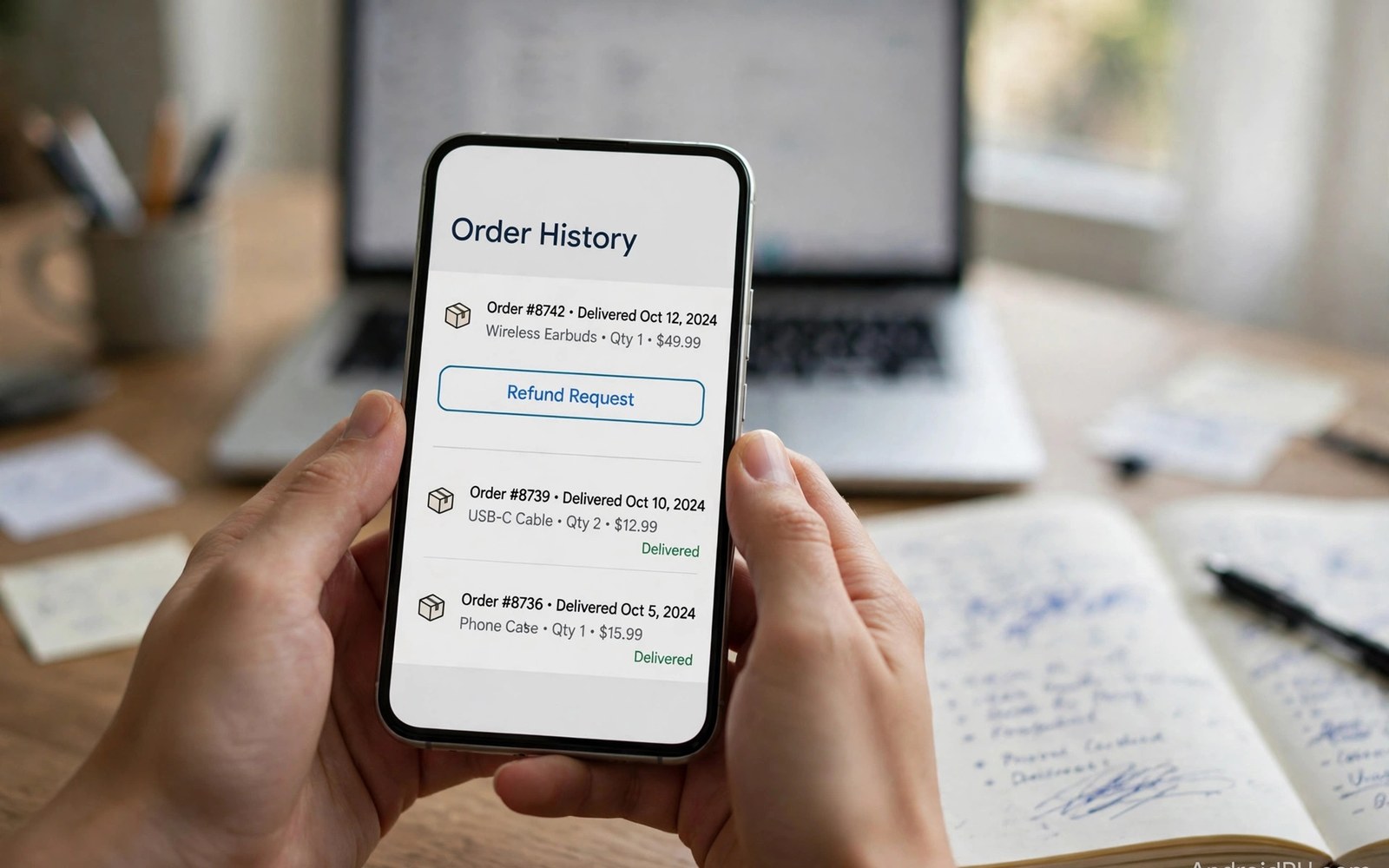
For most paid apps and games, you can ask for your money back within 48 hours of the purchase. Inside the first two hours the process is usually automatic: open your order history in the Play Store app, tap the purchase, and choose the refund option. The money goes back to the original payment method, and the app is removed from your library.
That two-hour stretch is your real testing period. Install the app right away, open its core features, and check that it does what the listing promised. Waiting until the weekend wastes the easiest window you will ever get. Between two hours and 48 hours you can still ask, but a reviewer at Google reads your reason first, so the wording of your claim starts to matter. The 48-hour refund window is the deadline to keep in mind for every paid app you buy.
What the clock starts from and when it stops
The clock starts at the moment of purchase, not at first launch. A pre-order is different: the window usually starts when the app or game is released and the charge is taken, not when you placed the order months earlier. Early access titles follow the same idea, with the purchase date as the starting point once you pay. If you are unsure, your order history shows the exact purchase time next to each item, and that timestamp is what support will check.
What happens to the app once the money comes back
A refunded app leaves your library. You lose access to it, and any in-app items tied to that purchase go with it. If you buy the same app again later, you pay the current price, which may have changed. That trade is worth it when the app genuinely fails, but it is also why refunds work badly as a free trial: the system is built to undo a bad purchase, not to let you borrow apps for a weekend.
How to Request a Refund Inside the Play Store App
The fastest route lives inside the app you bought from. It takes about two minutes when you are still inside the automatic window, and the same screens work for older purchases too, though the decision may take longer.
Step-by-step: order history to confirmation
- Open the Play Store app and tap your profile icon in the top right.
- Tap Payments and subscriptions, then Budget and history.
- Find the purchase in the list and tap it.
- Tap Refund or Report a problem, then pick the reason that fits best.
- Add a short explanation when the form offers a text box, then submit and watch your email for the decision.
Pick the reason honestly. “It does not work as described” fits a crashing app or a missing advertised feature. “Purchased by accident” fits a tap by a child or a mistaken purchase. A vague reason such as “bad app” gives the reviewer nothing to check, and those claims fail more often than specific ones.
What to write in the reason field
Write two or three sentences: what you expected, what actually happened, and when. “The photo editor crashed every time I tapped Export on my Pixel 8, on 4 November, three times in a row” beats a paragraph of frustration. Mention the device and the app version if you know them. Screenshots of an error screen help even more, so take them before you uninstall anything.
How long the decision takes
Inside the two-hour window the answer is usually instant. Between two and 48 hours, most decisions arrive by email within one business day, though some take up to four. Check the inbox of the Google account that made the purchase, including the spam folder, because the decision email goes there and not to any other address.
How to Request a Refund on the Web
When the app route is gone, or the purchase is older than two days, the web form is the way in. It asks for the same details, and it works from any browser on a phone or a computer.
The web form, step by step
- Sign in at play.google.com with the same Google account that bought the item.
- Open Order history from the account menu.
- Find the purchase and open Report a problem.
- Choose the reason, add your short explanation, and submit.
- Keep the confirmation email; it carries a case reference you can quote if you follow up.
Use the web form for anything older than 48 hours too. Google still reads those claims, and a broken app or a billing error can succeed well past the window. A simple change of mind rarely does, so lead with the concrete fault and the date it happened. Refunds return to the original payment method in most cases. Card refunds usually appear within three to five business days, Play balance refunds return to your Play balance at once, and carrier billing refunds may arrive as account credit instead of cash.
Finding your order number
Every Play purchase carries an order number starting with GPA. You will find it in the purchase confirmation email and in order history on the web. Support asks for it whenever a claim needs a human look, so copy it into your notes before you submit. Without it, a follow-up can take days longer while support hunts for the charge.
Google Refund vs Developer Refund: Which Route to Take
Two parties can return your money, and picking the wrong one wastes days. Google decides most claims inside the 48-hour window and for billing errors. Developers decide claims about their own product once Google’s window has passed, and some developers refund directly even inside the window if you ask nicely.
| Route | Time window | Best for | How to start | Typical outcome |
|---|---|---|---|---|
| Google Play in-app | First 2 hours | Paid apps and games that disappoint fast | Play Store app, profile icon, Payments and subscriptions, Budget and history | Usually automatic, money back in 3 to 5 business days |
| Google Play web form | Up to 48 hours, and beyond for faults | Older purchases, billing errors, unauthorized charges | play.google.com, Order history, Report a problem | Reviewed by Google, decision by email |
| Developer direct | Any time, at the developer’s discretion | Broken updates, missing features, goodwill cases | Developer contact email on the app listing | Varies, many reply within a few days |
When Google handles it
Google handles the claim when the purchase is recent, when the charge itself is wrong, or when the purchase was unauthorized. Duplicate charges, a subscription that renewed after you cancelled in time, and a purchase made by someone else on your device all belong with Google first. File there, keep the case reference, and only move on if the answer is no.
When the developer handles it
The developer handles it when the app itself is the problem and Google’s window has closed. A broken update that removes a core feature, an unlock that never activates, or a game that will not launch on your device are all developer conversations. Write a polite message with your GPA order number, the device model, and a short description of the fault. Many developers refund quickly because a public one-star review costs them far more than one sale.
Refunds for In-App Purchases, Coins and Consumables
In-app purchases follow stricter rules than the app itself. The split that matters is consumable versus non-consumable, and whether you already used what you bought.
Consumables you already spent
Coins, gems, extra lives and other consumables you already spent are almost never refunded. The item is gone, the benefit was used, and there is nothing left to return. The exception is an accidental purchase reported within minutes, before the items were spent. If your child bought 500 gems and spent them an hour later, say so plainly and ask fast; a claim filed the same day stands a far better chance than one filed a week later.
Non-consumable unlocks that never worked
A one-time unlock, a pro upgrade, or an ad-free purchase that never activates is a much stronger case. These items should persist across reinstalls, and when they do not, the fault is clear. Take a screenshot of the locked feature and of your order history showing the purchase, then file through the web form with both attached. Mention that the unlock was never delivered, not that you changed your mind about it.
Subscription Refunds: Cancellations, Renewals and Partial Periods
Subscriptions are where most refund confusion lives, because cancelling and refunding are two different actions. Cancelling stops the next charge. A refund returns money for a period you already paid for, and that needs a separate claim with a strong reason.
Cancelling stops the next charge, not the current one
When you cancel, you usually keep access until the paid period ends, and no money comes back. That is the normal outcome, and asking for a refund of the current period on top of a cancellation will usually fail unless something went wrong. Before you file anything, read our guide on how to manage subscriptions so the renewal stops first; a cancelled subscription cannot surprise you again next month.
Renewals you tried to cancel in time
The cases that do succeed are renewals you tried to stop. A renewal that charged you after you cancelled, a duplicate charge for the same period, or a billing error where the wrong amount was taken are all strong claims. File them through the web form, quote the cancellation date, and attach the confirmation email if you kept it. A forgotten subscription on its own rarely earns a refund, which is why spotting auto-renewal traps early matters more than arguing after the money has gone.
Family Library Purchases and Refunds for Shared Apps
Family purchases add a second person to every decision: the buyer and the people who share the app. A purchase made with approval follows the normal rules, and the family manager usually files the claim. A purchase made without approval, such as a child buying something on a shared tablet, may qualify as unauthorized instead, and that reason changes how Google reads the claim.
Refunding a shared app removes it from every member’s library, not just the buyer’s. Talk to the family first when others still use the app, because the refund takes the app away from everyone at once. The details of who owns what in a shared household are covered in our guide to Family Library sharing, which explains how purchases, subscriptions and approval requests move between family members.
Who can ask for the money back
The account that paid is the account that files. A family member who did not pay cannot usually claim the refund alone, though the family manager can file on behalf of a child account. Keep the GPA order number and the purchase date ready, and file from the paying account so the claim matches the charge.
When a Refund Request Gets Denied
A denial is not always the end of the story. Read the reason Google gives, then decide whether a second attempt with better evidence is worth it. Many denials come from vague wording, not from a hard rule, and a clearer second claim sometimes succeeds where the first one failed. Refund rules also vary by country, and local consumer law sometimes grants a longer window than the Play policy. If a denial feels wrong, check your local consumer protection rules for digital purchases before you give up.
Fixing a weak reason and asking again
Rewrite the reason with specifics: the exact fault, the date, the device, and what you expected the app to do. Attach screenshots of crashes, error messages, or a missing advertised feature. If the first claim said “bad app”, the second one should read like a short bug report. One careful second attempt beats five identical ones, because repeated identical claims can flag the account for extra review.
Unauthorized and accidental purchases by children
Unauthorized purchases need speed. Change the account password at once if you suspect misuse, remove payment methods from shared devices, and report the charges as unauthorized through the web form. Then switch on purchase authentication in the Play Store settings, so every future purchase asks for a fingerprint or password first. That one setting prevents more refund cases than any claim form ever will.
Frequently Asked Questions About Play Refunds
Can I get a refund after 48 hours?
Yes, sometimes. The 48-hour window covers the automatic route, but Google still reviews claims for broken apps, billing errors and unauthorized purchases after it closes. Lead with the concrete fault and the date, attach screenshots, and expect a human review instead of an instant answer. A change of mind after a month will almost always fail.
Do I keep the app after a refund?
No. A refunded app is removed from your library, and any in-app items tied to it go with it. You can buy it again later at the current price, but the refund itself ends your access. That is why it pays to test inside the first two hours, while the decision is still reversible in practice.
How long does the money take to reach my card?
Card refunds usually appear within three to five business days after approval, though some banks take up to ten. Play balance refunds return to your Play balance at once. Carrier billing refunds may arrive as account credit instead of cash. If a week passes with no sign of the money, contact Play support with your GPA order number and the approval email.
Can I get a refund for a gift or a pre-order?
For gifts, the buyer usually has to file, because the purchase record belongs to the paying account. Coordinate with the person who bought it for you. For pre-orders, the window normally starts at release, when the charge is taken, and you can usually cancel a pre-order before release without a claim at all.
A Short Checklist Before Your Next Purchase
Test every paid app inside two hours, read recent reviews for warnings about bugs, and check how often the developer updates. Use a wishlist for apps you are unsure about; waiting a week often shows whether you truly want it. Keep a short note of each purchase with its date and GPA number, so a claim takes minutes instead of an afternoon. Refunds exist to fix real problems, and used honestly they stay available for the day you truly need one.
Open your order history today and check the last three purchases. If one of them still sits inside its window and the app disappoints you, file now while the automatic route is open. If a subscription you forgot is still renewing, cancel it first, then decide whether the last charge deserves a claim.

