

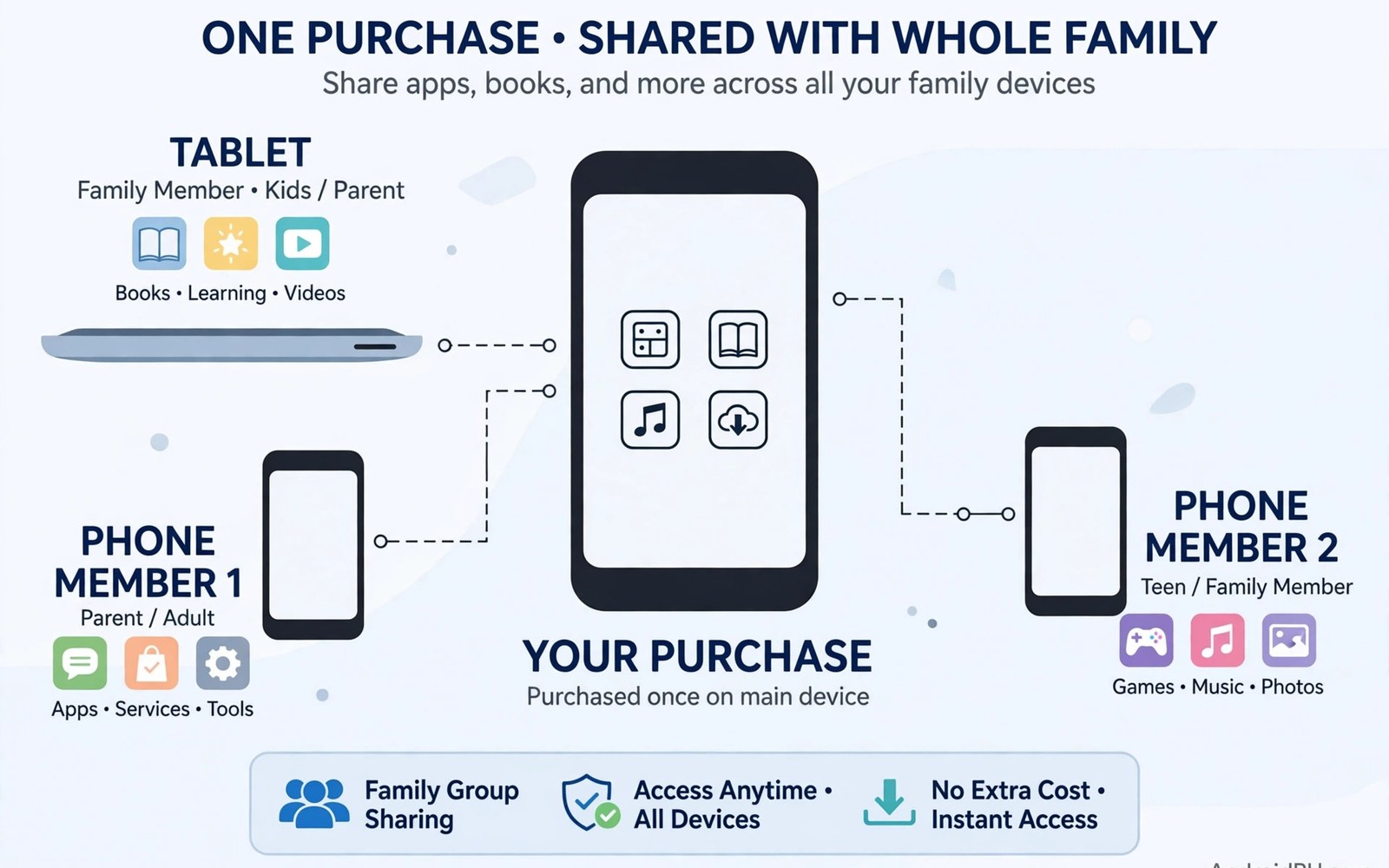
Family Library lets one purchase serve a whole household. Buy an app once and family members install it on their own devices. The same idea extends to many subscriptions and games and books. For families with several Android devices the savings add up fast.
This guide explains how Family Library works from setup to daily use. It covers what can be shared and what cannot. It also covers payment controls that keep children from buying freely. A well configured family group saves money without creating chaos.
What Family Library Actually Shares
Family Library shares eligible apps and games bought on Google Play. It also shares many movies and books depending on region. Each family member accesses shared items from their own account. They install shared apps without paying again.
Sharing does not merge accounts. Each person keeps their own progress and settings and achievements. A game shared with your child does not share your save data. That separation protects privacy while still saving money on purchases.
Setting Up a Family Group
One adult creates the family group and becomes the family manager. Open Google Play settings and choose the family section. Invite up to five other members by email. Each member accepts the invitation on their own device.
The family manager controls payment settings for the group. Members can use the family payment method or their own method depending on settings. Review these settings before inviting children. A careless payment setup can lead to unexpected charges.
Which Purchases Are Eligible
Most paid apps and games are eligible for sharing. Developers can opt out of sharing for specific titles. In-app purchases usually are not shared. Subscriptions vary by app and many do not share at all. Check the store listing for sharing eligibility before buying with family use in mind.
Free apps need no sharing because anyone can install them. Previously purchased apps become shareable when the buyer enables Family Library. The buyer can also hide individual purchases from the family. That control suits gifts and personal tools you prefer to keep private.
How Family Members Access Shared Apps
Family members open the Play Store and visit the family library section. Shared purchases appear there ready to install. They tap install and the app downloads without a new charge. Updates arrive normally like any other installed app.
If a shared app disappears from the library then the buyer may have hidden it or left the family group. A refunded purchase also leaves every member library at once. Check with the buyer before assuming a technical problem. Most disappearances have a simple account explanation.
Sharing Subscriptions Within a Family
Some subscriptions offer family plans that cover the whole group. Others remain tied to a single account even inside a family group. Play Pass is a notable example of a subscription with family coverage. Always verify subscription sharing on the specific app page before counting on it.
When a subscription does share it usually covers members on their own devices. Each member signs in with their own account and receives the benefit. Billing stays with the subscriber account. That arrangement keeps costs clear while spreading the value. Gamers in the household may also weigh Play Pass value for gamers when deciding on a shared bundle.
Payment Controls for Children
Children in a family group need purchase approval settings. The family manager can require approval for every purchase. Approval requests arrive on the manager device for a quick decision. That single setting prevents nearly all accidental child purchases.
Older teens may earn more freedom gradually. Managers can allow purchases up to a set approval threshold. Review spending monthly with teen members. Those conversations teach budgeting better than any lecture. They also catch subscriptions before they become problems.
Leaving or Removing a Family Group
Members can leave a family group at any time from their account settings. Leaving removes access to shared purchases immediately. Apps installed from the family library may stop working or revert to free versions. Buy your own copy of any app you cannot live without before leaving.
Family managers can also remove members when needed. Removed members lose shared access the same way. A member who joins a new family group gains access to that group library instead. Google Play limits how often you can switch groups to prevent abuse.
Common Problems and Fixes
The most common problem is a missing shared app. First confirm the buyer enabled sharing for that purchase. Then confirm the member joined the correct family group. Then check whether the developer allows sharing for that title. Those three checks solve most cases.
Payment confusion is the second common problem. A member may accidentally charge the family payment method. Review the family payment settings and set approval requirements. Clear rules plus approval settings prevent most billing surprises. Households that share devices should also review how to manage subscriptions so no member renews a forgotten app.
Privacy Inside a Family Group
Family Library does not expose personal data between members. Purchase history stays private to the buyer. Browsing and search history stay private too. Only the shared items themselves become visible to the group.
The family manager sees approval requests and some payment activity. That visibility is part of managing a household account. Adult members should understand this before joining. Children benefit from knowing that purchases are visible to parents.
Maximizing Value for Your Household
Coordinate purchases across the family to avoid duplicates. Check the family library before buying any paid app. One member purchase often serves everyone. That single habit can cut household app spending dramatically over a year.
Also coordinate subscriptions with family plans where available. A single family subscription beats several individual ones. Compare the family price against the sum of individual prices. The savings often fund another shared purchase entirely. Refund questions for shared buys are covered in Google Play refund policies when a shared purchase disappoints.
Family Library Versus Separate Accounts
Separate accounts give full independence but duplicate every purchase. Family Library trades a little independence for large savings. Most households find the trade worthwhile. Heavy gamers with separate libraries may prefer independence for specific titles.
A hybrid approach works well for many families. Share mainstream apps through the family library. Keep niche or personal apps on individual accounts. That balance respects privacy while capturing most of the savings. Review the balance yearly as household needs change.
Getting Started Today
Create the family group and invite members this week. Enable sharing for your existing eligible purchases. Set purchase approvals before adding children. Then check the library together and install the shared apps everyone wanted. The setup takes under an hour and the savings last for years.
Family Library is one of the most underused money saving features on Android. Many families pay for the same app three times without knowing better. A single setup session ends that waste permanently. Your household budget will notice the difference quickly.
Sharing Books and Movies Too
Family Library extends beyond apps in many regions. Purchased books and movies can join the shared library as well. Each member reads or watches on their own device. That breadth makes one purchase serve the whole household across media types.
Availability varies by title and region. Some publishers opt out of sharing for specific books or films. Check the sharing badge on each listing before buying for the family. The badge removes guesswork from shared media purchases.
Supervising Teen Accounts
Teen accounts balance independence with oversight. Family managers can set approval rules that fit each teen maturity level. Start strict and relax rules as teens show responsibility. Monthly spending reviews keep the conversation open and honest.
Teens should also understand shared purchase visibility. Family members can see which apps are shared. Personal purchases can stay hidden when the buyer chooses. That privacy option respects growing independence while keeping household spending transparent.
Family Library on Chromebooks
Chromebooks that run Android apps join the family sharing system. A child Chromebook can install shared apps from the family library. That consistency helps families with mixed devices. One purchase covers phones and tablets and Chromebooks alike.
School managed Chromebooks may restrict family library access. School policies override family settings on managed devices. Check with the school administrator when a shared app refuses to install on a school device. Home devices remain the reliable path for family sharing.
When a Family Member Leaves
Leaving a group has practical consequences worth planning. Shared apps may stop working on the departing member devices. Subscriptions tied to the family plan may end for that member. Back up data from shared apps before leaving.
Plan departures around billing cycles when possible. Leave after a renewal rather than before one to avoid paying for unused time. Buy personal copies of essential shared apps in advance. That preparation makes the transition smooth for everyone involved.
Coordinating Purchases Before Holidays
Holidays and birthdays create duplicate purchase risks. Relatives may buy the same app for a child independently. Check the family library before gifting any paid app. A quick check prevents duplicate spending across the extended family.
Gifted apps join the family library when the buyer enables sharing. That means one gift can serve several children at once. Coordinate gift lists within the family to maximize this effect. Shared gifts stretch holiday budgets further than individual ones.
Family Library and Device Limits
Family groups cap membership at a small number of people. Large extended families may exceed the cap. Prioritize household members who share devices daily. Extended relatives can form their own family groups for their households.
Device limits also apply per account for some content types. A single account cannot authorize unlimited devices. Review authorized devices yearly and remove old phones and tablets. That cleanup keeps the family library working smoothly on current devices.
Shared Storage and Family Plans
Some family plans bundle cloud storage for all members. Each member receives a share of the total storage pool. That shared pool often costs less than individual storage plans. Check whether storage sharing suits your household usage patterns before subscribing.
Storage sharing needs clear rules about who uses how much. One member with huge photo libraries can consume the shared pool. Review storage usage quarterly as a family. Upgrade the pool only when collective usage justifies the higher price.
Family Sharing Checklist Script
The snippet below shows a simple checklist for family setup. It lists each step so nothing is forgotten during configuration. Adapt it as a shared note that every adult in the household can review.
steps = [
    "Create family group",
    "Invite members",
    "Set purchase approvals",
    "Enable sharing for purchases",
    "Review payment method",
]
for number, step in enumerate(steps, start=1):
    print(number, step)
The snippet above is a simple organizational example. It does not change any account settings. Use it only as a checklist alongside the official family settings on your devices.

