

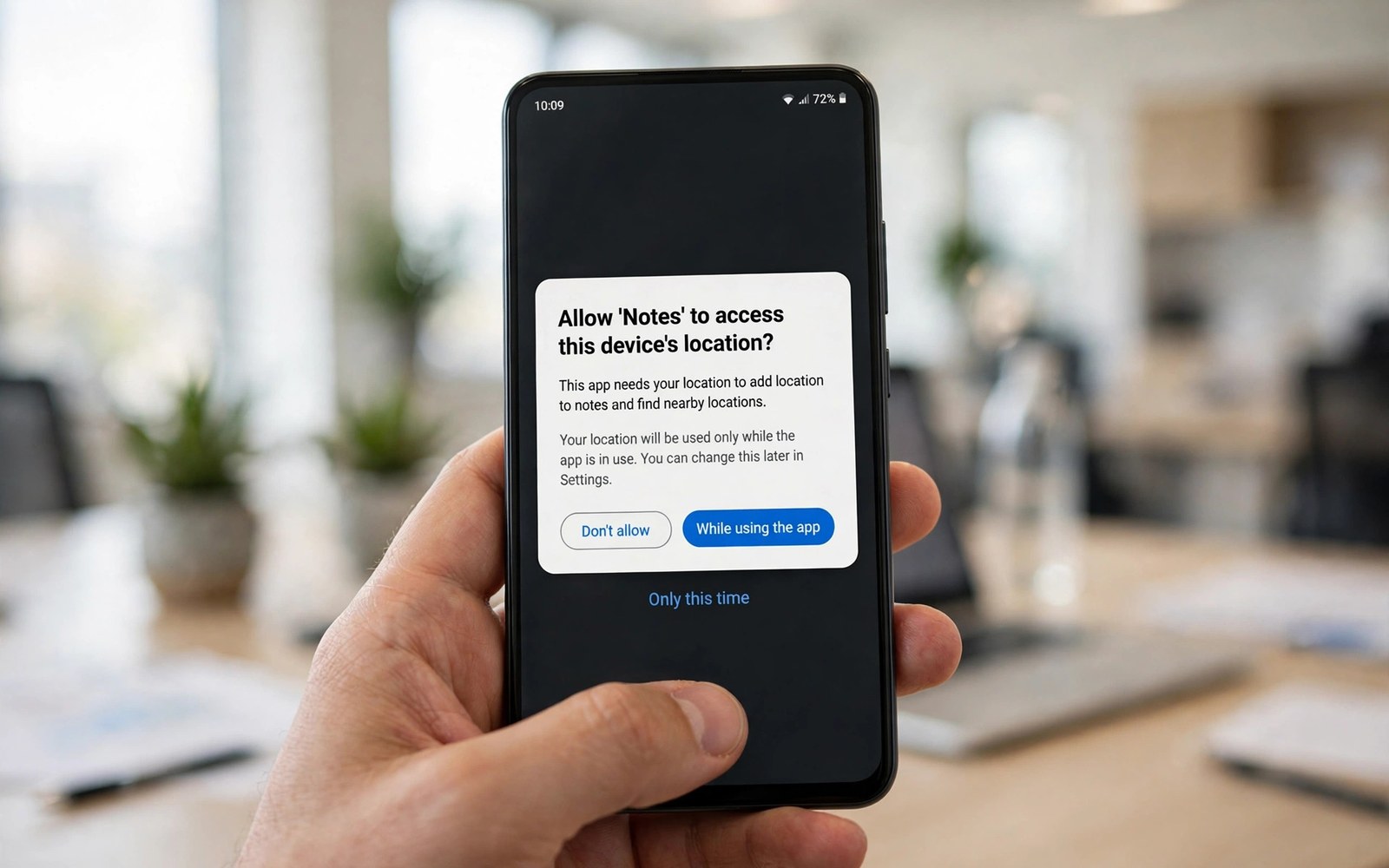
Modern Android apps must request sensitive permissions at runtime rather than relying only on a manifest declaration that users may never read during installation. Runtime permissions give users control because they can grant a permission when a feature needs it and deny it when they do not trust the request in that moment. Developers must therefore handle granted and denied and permanently denied states gracefully instead of assuming that a declared permission will always be available. This guide explains how to request permissions dynamically and how to explain why a permission is needed and how to degrade features when permission is refused. Good permission handling builds trust and it keeps core features working even when a user chooses privacy over a secondary feature.
Permissions fall into groups based on sensitivity and normal permissions are granted automatically while dangerous permissions require explicit user approval at runtime. Dangerous permissions cover sensitive areas such as location and camera and microphone and contacts and storage access that can reveal personal information if misused by an app. Some permissions have special handling such as background location or all files access that require extra steps and clear justification in the app and in store listings. One time permissions let users grant access for a single session and the system revokes that access automatically when the user leaves the app for a period of time. Understanding these categories helps you request only what you need and explain each request in terms of a concrete user benefit.
Request Only What You Need When You Need It
Request a permission at the moment a user tries to use the feature that needs it because context makes the request understandable and far more likely to be granted. A camera permission requested during app startup feels suspicious while the same permission requested when a user taps a photo button feels natural and expected. Request permissions one feature at a time rather than asking for many unrelated permissions together in a single overwhelming sequence that users tend to reject. Keep a clear mapping from each feature to its required permissions so code and documentation agree on why each permission exists in the app. Minimising permissions also reduces review risk and it shows users that your app respects privacy by design rather than by marketing claims alone.
Before requesting you should check current permission status because a granted permission needs no dialog and a previously denied permission may need a rationale explanation first. The system provides a way to know whether you should show rationale and that signal tells you whether the user has denied the request before without permanently blocking it. Use that signal to show a short in app explanation that describes the benefit in plain language before you show the system dialog again. If the user has permanently denied a permission then the system dialog will not appear again and you must guide the user to settings with a clear explanation and a button that opens the settings screen. Respecting these states prevents annoying loops where an app keeps asking for a permission that the system will never show again.
- Ask for a permission only when the user starts the feature that needs it.
- Check current status first so you never show a dialog for a granted permission.
- Show a short rationale when the user denied the request once before.
- Guide permanently denied users to settings instead of repeating a blocked dialog.
- Request one feature at a time rather than many unrelated permissions together.
Showing Rationale and Handling Denials
A rationale should explain the benefit in user terms such as taking a photo or finding nearby places rather than naming a technical permission group that users may not understand. Keep the rationale short and place it close to the feature so users connect the explanation with the action they just attempted in the interface. Offer a clear choice to continue or to skip the feature because forcing a permission request without an exit feels coercive and damages trust in the app. When a user denies a permission you should disable only the affected feature and keep the rest of the app fully usable with a graceful message that explains the limitation. A denied camera permission should not block reading articles or browsing settings that have nothing to do with taking photos.
Permanent denial needs a different approach because the app cannot trigger the system dialog again and repeated requests will only frustrate the user without any chance of success. Show a settings guide that explains the steps in plain language and provides a direct button to open app settings where the permission can be changed manually. After returning from settings check the permission status again because the user may have changed it or may have chosen to leave it denied after seeing the settings screen. Record permission decisions in a way that respects privacy and do not use denial as a reason to nag users on every launch with repeated prompts. A respectful fallback keeps users in the app and it often leads to a later grant when the user understands the feature better.
Multiple Permissions and Groups
Some features need several permissions together such as a video feature that needs camera and microphone access at the same time to record a clip with sound. Request related permissions together for one feature because grouping by feature makes sense to users while grouping unrelated permissions does not. Handle partial grants carefully because a user may grant camera access but deny microphone access and your feature must then decide whether to record silent video or to explain that audio needs the missing permission. Show the current state clearly so users understand which part works and which part needs an additional grant before full functionality returns. Test partial grants during development because they are easy to miss when you only test full grant and full denial scenarios in a hurry.
Permission groups in older Android versions meant granting one permission could grant related permissions automatically but modern versions treat many permissions individually so you cannot rely on group behaviour for new apps. Always check each permission you need individually even when they seem related in a feature description or in documentation from older versions. Store no assumptions about group grants in code comments that future developers might follow without checking current platform behaviour. When a feature needs a new permission in an update explain the change in release notes and in the feature interface so existing users are not surprised by a new request. Transparent evolution of permission needs builds long term trust with users who have already granted earlier permissions willingly.
Background Permissions and Special Cases
Background location and other special permissions require extra care because they let an app access sensitive data even when the user is not actively using the app on screen. Request foreground access first and explain background need separately only after the user understands the foreground feature and trusts its value in daily use. The system may show its own additional dialog for background access and it may remind users later that an app accessed location in the background so your justification must remain honest over time. Avoid background permissions unless a core feature genuinely needs them because many apps can achieve their goals with foreground access and periodic updates while the app is visible. Over requesting background access is a common reason for store review problems and user complaints about battery and privacy.
Special access types such as overlay permission or notification access or all files access follow different flows and they often require guiding users to a specific settings screen rather than a standard runtime dialog. Document each special flow in your code and test it on a real device because emulator behaviour can differ from a physical device with manufacturer customisations. You can learn broader privacy design from related material on permission management in the wider Android ecosystem when you plan a new feature. You can also connect permission logic to lifecycle handling in Android app lifecycle and fragment states because permission results arrive while a screen is in a specific lifecycle state. Careful special case handling prevents crashes when a settings flow returns an unexpected result to your activity.
Testing Permissions Thoroughly
Test every permission state including first request and grant and denial and permanent denial and grant after settings change because each state exercises a different code path in your handling logic. Use emulator controls and device settings to reset permissions between tests so a previous grant does not hide a bug in your first request flow. Test rotation during a permission dialog because configuration changes can interrupt the request flow if your code assumes a single activity instance throughout the process. Test permission revocation while the app runs in the background because the system can revoke a one time permission and your app must handle losing access gracefully on return. Automated tests can cover logic for permission states but manual tests on a real device reveal dialog timing and wording problems that automated tests miss.
Keep permission code centralised in a helper or a manager class so every feature uses the same rationale and fallback behaviour instead of inventing its own dialog style. Centralisation also makes auditing easier because a reviewer can see every permission the app requests in one place without searching through many activities. You can improve overall quality with testing Android apps with unit and Espresso tests for permission logic that automated tests can verify. You can also review secure coding ideas in dependency injection with Hilt and Dagger because a permission manager is a natural injected dependency in a clean architecture. With respectful requests and graceful fallbacks permission handling becomes a trust building feature rather than a source of user frustration.
A final habit builds permission trust because you should audit every permission request in your app once a quarter and remove any permission that a feature no longer needs in practice. That audit shows users that privacy is an ongoing commitment rather than a one time checklist completed before launch. Test each remaining permission in granted and denied and permanently denied states after the audit so fallback behaviour stays correct for every feature. With that discipline permission handling remains respectful and users feel comfortable granting access when a feature genuinely needs it.
private fun requestCameraPermission() {
    if (ContextCompat.checkSelfPermission(this, CAMERA) == GRANTED) {
        openCamera()
    } else {
        cameraLauncher.launch(CAMERA)
    }
}
The steps above follow the approach described in the official developer documentation for this platform and reflect common practice used by experienced developers when they build and test Android apps in a careful and organised way.

